
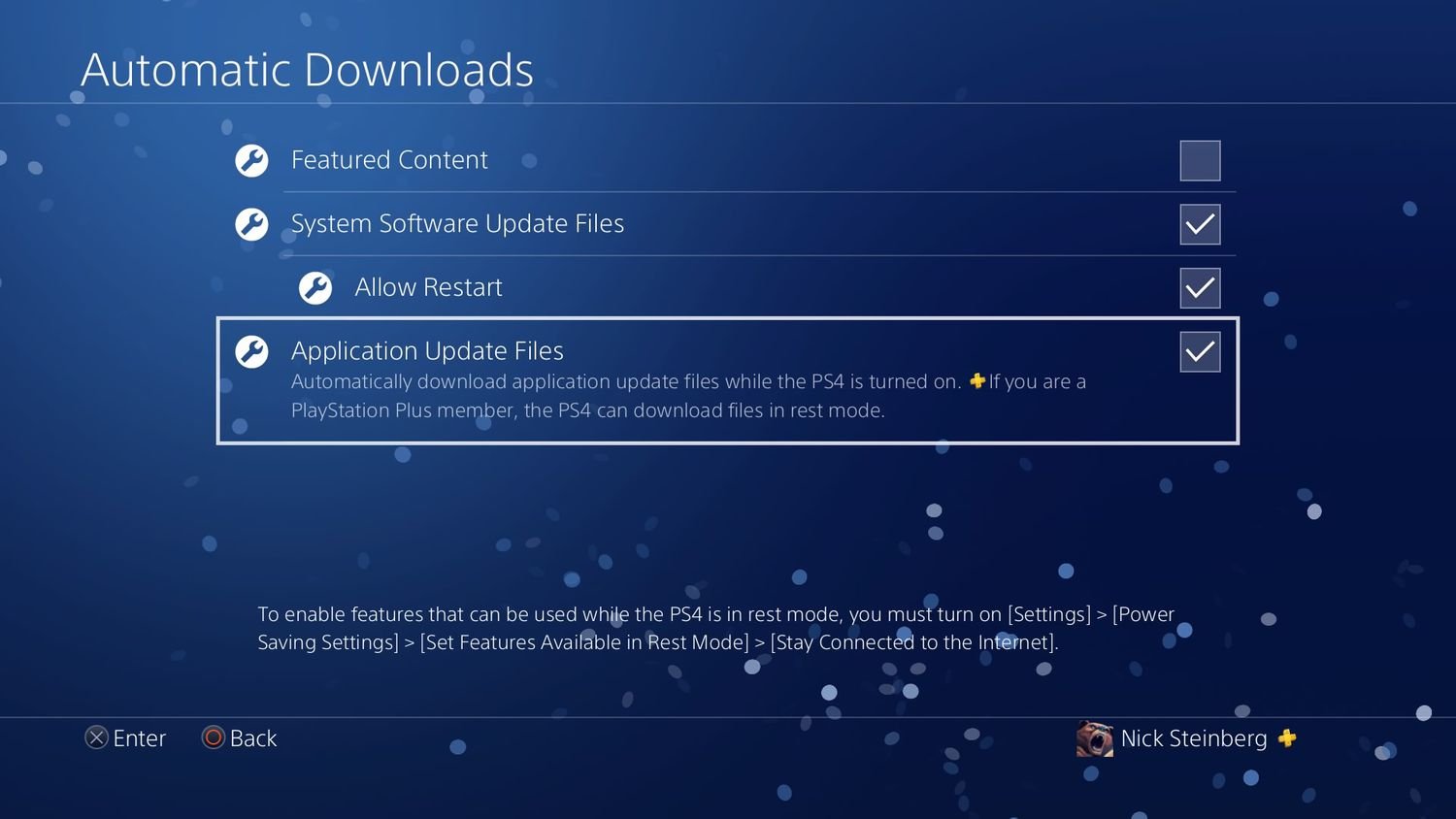
To auto update games on PS4, navigate to Settings > System > Automatic Downloads and enable ‘Application Update Files’.
Tired of waiting for game updates before you can jump into your favorite PlayStation 4 titles? It’s a common frustration, but did you know there’s an easy way to avoid those delays? This feature is a simple setting that allows your console to do the work.
We will show you exactly how to auto update games on PS4, ensuring you always have the latest versions. This simple tweak means less downtime and more gaming. It only requires a few clicks within the PS4 system settings.

How to Auto Update Games on PS4: A Complete Guide
Keeping your PlayStation 4 games updated is super important. Why? Because updates fix bugs, add cool new stuff, and keep everything running smoothly. Nobody wants to start a game and find it glitching out or missing features! The good news is that your PS4 is pretty smart and can handle most of this updating stuff all by itself. This guide will show you exactly how to make sure those updates happen automatically so you can spend more time playing and less time waiting. Let’s dive in!
Understanding Automatic Updates on PS4
Before we get into the “how,” let’s talk about what auto-updates mean. When we say “automatic updates,” we mean that your PS4 will download and install game updates without you having to click a bunch of buttons each time. This is great because it means the next time you want to play your favorite game, it will most likely be up to date and ready to go. But for this to work, your PS4 needs to be set up the right way.
Your PlayStation 4 has two main ways it handles updates. It can download updates in the background while the console is in rest mode, or it can wait for you to start a game and then prompt you to download an update. Automatic updates, specifically, are about that first method: background downloading and installation. This allows updates to happen while you’re not even playing, so you’re less likely to run into annoying waiting times.
Why Auto Updates Matter
You might wonder why automatic updates are a big deal. Well, think about this: imagine you just finished a long day at school or work and all you want to do is play your game. You start it up, and boom! There’s an update. Now you have to wait for the download and install before you can play. That’s not fun, right? With automatic updates turned on, your PS4 tries to handle all of this before you even think about playing, meaning less waiting and more gaming!
Also, game updates aren’t just about new features; they often include bug fixes. Bugs are like little problems in the game that can stop things from working right. These updates are really important to make sure that everything is working properly for the best gameplay. Automatic updates ensure you have the most stable and best version of your games all the time.
Setting Up Automatic Downloads and Installations
Okay, now let’s get into the nitty-gritty of setting up your PS4 for automatic updates. The process is not difficult, but it’s important to go through each step to make sure everything is set correctly. We will walk through how to access settings and then adjust the options for automatic downloads and installations.
Accessing the System Settings
The very first thing you need to do is get into your PlayStation 4’s settings menu. It is very simple. Follow the below mentioned steps:
- Turn on your PS4 console and make sure it’s logged into your main user account.
- Go to the main home screen on the PS4.
- Look at the top of the screen to find the toolbox icon that is labeled “Settings”. It’s usually located at the far right of the top menu bar.
- Use the left stick or d-pad on your controller to go to the icon and press the “X” button. This will open the PS4 Settings menu.
Navigating to the ‘System’ Settings
Now that you’re in the main settings menu, you need to find the “System” settings to access all the options for auto-downloads. Follow the below steps to access the system settings:
- In the Settings menu, you will see a long list of options. These will be like “Parental Control”, “Network”, “Date and Time”.
- Look for the option named “System” by scrolling down with your controller.
- Press the “X” button on the “System” option to enter the System settings.
Finding the ‘Automatic Downloads’ Section
Once you’re in the System settings, you’re close! Follow these steps to access the automatic download settings:
- Inside the System settings, you will see a new list of options. These are like “Console Information”, “Language”, “Voice Operation Settings”.
- Look for the option that is called “Automatic Downloads” and select it.
- Press the “X” button to enter the automatic download settings.
Enabling Automatic Downloads for Game Updates
Now that you’re in the “Automatic Downloads” settings, here is where the magic happens. This part is all about turning the correct settings to make sure your games auto-update. Here is how you should go forward:
You should see a few options within the Automatic Downloads settings. The settings you are primarily looking for are:
- Application Update Files: This option controls whether your PS4 downloads game updates automatically.
- System Software Update Files: This setting is for updating the PS4’s main software, and is also important for a good gaming experience.
To enable automatic updates for your games, make sure the box next to “Application Update Files” is checked. Usually, you’ll see a checkmark or a different symbol to show that it is turned on. To toggle this on, press X on the box. Do the same for the “System Software Update Files” if you also wish for your PS4 console itself to get auto updated. Once they are checked, this is good, and your games should update automatically from now on.
Important Note about Rest Mode
For automatic updates to work correctly, your PlayStation 4 needs to be in rest mode. Rest mode is not the same as turning off your PS4. When it’s in rest mode, it still uses a tiny bit of power so it can download game updates, even when you’re not actively playing. You will have to make sure that your PS4 can enter rest mode in order for automatic downloads to work efficiently. Here is how to do that:
- Go back to the main “Settings” menu of the console.
- Find the “Power Save Settings” option and go into it.
- You will see options for “Set Time Until PS4 Enters Rest Mode” and “Set Functions Available in Rest Mode”.
- Go to “Set Functions Available in Rest Mode”.
- Make sure the box next to “Stay Connected to the Internet” is checked. This is important for downloading updates. If you don’t have this checked, your PS4 won’t be able to download anything when it’s in rest mode.
- Also, make sure the option “Enable Turning On PS4 from Network” is checked, especially if you want to trigger downloads remotely using your phone via the PlayStation app.
- Now, under “Set Time Until PS4 Enters Rest Mode,” choose time that is right for you. You can set the console to go into rest mode after a certain amount of time of inactivity. Choose accordingly.
Troubleshooting Common Auto-Update Issues
Even when all the settings are set correctly, sometimes auto-updates might not work as expected. Here are some common issues and how to fix them, just in case you run into trouble.
PS4 Not Connecting to the Internet
A very important thing for auto-updates is that your PlayStation 4 has an active internet connection. If your console is not connected to the internet, it will not be able to download anything. Here are a few quick things to check:
- Make sure your Wi-Fi is working correctly, and the password is correct. Try restarting your router too, in case there is an issue there.
- Double check that your PS4 is connected to your Wi-Fi network by going to “Network” in the settings, and then “View Connection Status”.
- Try testing your internet connection. Go to “Set Up Internet Connection” under “Network” in settings and see if it works.
- If you are using a wired connection, make sure the ethernet cable is properly connected to the console and the router.
Not Enough Storage Space
Games take up space, and so do game updates. If your PS4’s storage is full, the auto-updates might not be able to download correctly. Here are some tips to fix this:
- Go to “Storage” in the main settings menu. It will show how much space is being used and what is taking up the most space.
- Delete any old games or game files that you don’t play anymore. You can always redownload them at a later time, if you need.
- Consider getting an external hard drive to expand the storage space of your PS4.
- Make sure that you have enough space for the update you are trying to download. You can do this by looking for the game in the downloads sections under notifications, and it will generally tell you the size of the update.
PS4 not entering Rest Mode
If your console is not going into rest mode after the specified time, or if it’s turning itself off completely, then that can cause updates to not download properly. Double check the settings for “Power Save Settings” mentioned above. Make sure that you have checked the “Stay Connected to the Internet” option and that the time before the console enters rest mode is set to an appropriate amount of time.
Problematic Software Updates
Sometimes there might be problems with the update itself. If you’re having a lot of trouble, there are ways to troubleshoot that as well. These include:
- Rebooting the console.
- Rebuilding the database of the console using the Safe Mode option.
- Reinstalling the console software after performing a factory reset.
If all these methods fail, you might have to contact Sony support to get further help. But try all of the above mentioned steps first, before you get to contacting them.
Benefits of Keeping Games Updated
We have talked a lot about how to get your game updates working automatically, but let’s take a moment to think about all the good things they do for you. Making sure your games stay up to date is a big deal, and here are some important reasons why:
Bug Fixes and Stability
One of the biggest benefits of game updates are the fixes to bugs and other issues that could potentially hamper gameplay. These bug fixes will mean that the game will work as it is supposed to, and any crashes or glitches will be fixed. Nobody wants to start a game and find it not working correctly.
New Features and Content
Game updates often bring new things like new levels, new characters, new game modes, or even just fun new items. Developers are always trying to make their games better, and updates are how they bring these changes. This keeps the game fresh and exciting for a long time, and means you will get a lot more playtime out of the games.
Improved Performance
Game updates can make the games run better on your PS4. This means the game will run more smoothly, and any issues that might have existed, like slow loading or low frame rates, might get fixed by updates. Game developers always want to provide the best gaming experience possible. Keeping your game up to date can result in much better gaming experience.
Multiplayer Compatibility
If you play games online with other people, you and your friends all need to be on the same version of the game to play together. If someone’s game is not updated, they might not be able to join or play with the people who have updated games. Keeping up to date ensures that your multiplayer experience is smooth and seamless.
Tips for Managing Game Updates
Here are a few more tricks and suggestions to keep game updates manageable on your PS4. These include:
Prioritizing Updates
If you have a lot of games that need updates, you might want to prioritize the ones you play the most. This means focusing on the updates for your favorite game first, so that you can keep playing as soon as possible. Your PS4 will automatically start updating the game you recently played, first.
Managing Multiple User Accounts
If you have multiple users on your PS4, make sure that all accounts have automatic downloads turned on. This will mean that all users will benefit from the automatic updates, and nobody will have to face the issues of outdated game files. Each account has separate settings, so you have to go through the setup process for all of them.
Using the PlayStation Mobile App
The PlayStation mobile app can also be used to manage your downloads and updates. You can use the app to check when the game updates are complete, and start a download remotely if you would like. This can be super convenient if you’re not home and you want to make sure your games are ready to go by the time you get back.
By setting up automatic updates, you ensure that you are always playing the best and most current versions of your games, without wasting any time. Remember to check that your console can go into rest mode and that you have enough space for all the game updates. Now go out there and keep those games updated and have fun!
How to TURN ON PS4 Auto Download and Auto Updates for Games! (Best Method)
Final Thoughts
To auto update games on PS4, simply enable automatic downloads in your system settings. Navigate to “System” then “Automatic Downloads”, ensure “Application Update Files” is checked. This setting allows your PS4 to download game updates automatically when available.
For this to work correctly, the console must be in rest mode and connected to the internet. This ensures your games are always up to date without manual intervention. Therefore, you have successfully learnt how to auto update games on ps4.

