
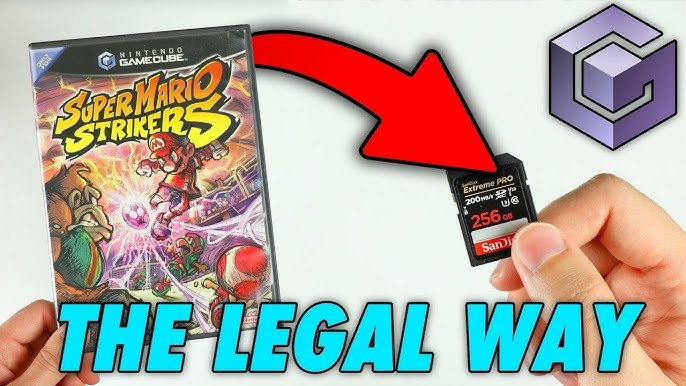
Backing up GameCube games requires a Wii console with Homebrew installed, a compatible SD card or USB drive, and a program like CleanRip.
Have you ever worried about your cherished GameCube discs getting scratched or damaged? Many gamers share this concern, and luckily, there is a solution. We will show you a process on how to back up GameCube games using specific tools and methods. This method helps preserve your precious gaming collection.
This process involves using your Wii and a special program. We will guide you through all steps required to do this safely and effectively. This ensures that you can continue enjoying your favorite games for a long time.

How to Back Up Gamecube Games
Want to keep your favorite Gamecube games safe? Backing them up is a great idea! Imagine your precious disc getting scratched or damaged – that would be a real bummer. Luckily, there are ways to make digital copies of your games, so you can still play them even if something happens to the original disc. This process involves a bit of tech know-how and some special tools, but it’s totally doable. Let’s explore the different ways you can back up your Gamecube games and keep your gaming library safe and sound. This way, you can enjoy them for years to come!
Understanding the Basics of Gamecube Backups
Before diving into the “how,” let’s understand what we’re doing. Gamecube games come on mini-DVD discs. To back them up, we need to create a digital copy, often called an “ISO” file. Think of an ISO like a complete digital snapshot of the entire disc. This copy can then be stored on your computer, and used with different gaming tools. The goal is to have an exact replica, so the game plays just like the original. Backing up games has several advantages; it protects your original discs from wear and tear, keeps games playable for a long time, and also gives access to play games on different devices. It also helps in sharing game experience with others.
Why Backup Your Gamecube Games?
There are lots of good reasons to back up your Gamecube games:
- Protect your discs: Physical discs can get scratched, cracked, or even lost! Backups keep your games playable even if something bad happens to the original disc.
- Preserve your collection: Gamecube games are getting harder to find and some are very valuable. Backups can safeguard your collection, ensuring you can keep enjoying these games for years to come.
- Convenience: Playing games from a hard drive or a network can be faster and easier than swapping discs.
- Modding and customization: Backups allow you to experiment with fan-made patches, translations, and other game modifications without messing with your original discs.
What You’ll Need
To start backing up Gamecube games, you’ll need a few key items:
- A computer: This is where you’ll be storing your ISO files, and also the tool to start the backup process. Make sure your computer has enough hard drive space, as ISO files can be quite large.
- A way to read Gamecube discs on your computer: Gamecube uses mini-DVDs, and most standard PC disc drives won’t read them, so we need to get a separate DVD Drive which will be able to read mini DVDs.
- Backup software: This software extracts the data from your Gamecube game disc and creates the ISO file. We will mention them later in this article.
- An SD card (optional): You might need an SD card to use different homebrew tools on your Wii console.
Methods for Backing Up Gamecube Games
There are different ways to back up your Gamecube games, and each method comes with its pros and cons. Let’s look at the most common ones:
Method 1: Using a PC and a Special DVD Drive
This is a straightforward and very common method. You need to have a computer with a special kind of DVD drive that can read mini-DVDs. Most standard computer drives can’t handle the smaller discs of Gamecube, so it is very important to get the right drive. Once you have this special drive, you can use software to read the game disc and make a copy.
Steps Involved:
- Get a suitable DVD drive: Look for a DVD drive that explicitly states that it supports mini-DVDs, or 8cm discs.
- Install the DVD drive: Connect the drive to your computer according to the manufacturer’s instructions. Usually, it is through a USB.
- Install backup software: There are different programs for this, some common ones are mentioned below. Install one of them on your computer.
- Start the backup process: Put your Gamecube game into the DVD drive. Launch the backup software. Select the drive containing your game disc, and then start the copying process.
- Wait patiently: The software will now read the entire disc, which may take a while. Depending on the speed of your drive and the size of the game, it could take quite some time.
- Store the ISO: Once the process is complete, the software will save your game as an ISO file. You should store this in a safe place on your computer.
Recommended Software for PC Backups
- ImgBurn: A popular free program for burning and creating disc images. It’s a great option for making ISO files from your Gamecube games.
- Rawdump: This software is specifically made to copy game discs on your computer.
- Alcohol 120%: It is a commercial program that has the function of making ISOs from discs.
Method 2: Using a Nintendo Wii
This method might seem a bit surprising, but it’s very possible. The Nintendo Wii, despite being the successor to the Gamecube, can actually play Gamecube games. With some modifications, you can turn your Wii into a tool to back up Gamecube games.
What you’ll need:
- A Nintendo Wii: This console needs to be modded or have homebrew software enabled.
- An SD card: You need this to store the necessary files that help in backing up the games.
- Homebrew software: A special program that runs on the Wii which will help with backing up.
- A Gamecube controller: Some software needs a Gamecube controller to operate.
Steps Involved:
- Prepare your Wii: Mod your Wii console or install homebrew software. This usually involves following a guide specific to your Wii’s firmware. You may need to load an app, through Homebrew Channel called “Swiss”.
- Install the backup software: Copy the homebrew software for Gamecube backups to your SD card and run it on your modded Wii.
- Insert the game disc: Put the Gamecube game you want to back up into the Wii’s disc drive.
- Start the backup: Launch the homebrew app, and select the option to start backing up.
- Save the ISO: The software will read the game and then save the ISO file to your SD card or another storage device connected to your Wii.
- Transfer the ISO: After the backup process, copy the ISO file from your SD card to your computer for storage.
Recommended Homebrew Software
- CleanRip: A popular tool that is designed for creating ISOs of Gamecube and Wii discs.
- Swiss: Not a direct backup software but very helpful and essential for doing backups through the Wii method.
Method 3: Using a Gamecube with a Gamecube Homebrew Loader
This is the more complex method, which involves installing a homebrew loader onto your Gamecube. This is not a very common method because of its complexity, and many people do not prefer this method. With a homebrew loader, it is possible to run custom software and backup games.
What you’ll need:
- Gamecube: With a homebrew loader installed.
- A method of running homebrew: Depending on the Gamecube model, various methods are available, including using an SD card adapter, memory card, or disc exploit.
- Backup software for Gamecube: A program to do the copying.
Steps Involved:
- Set up Homebrew: Install your homebrew loader method, which can be a bit complicated and may require following a specific guide.
- Run Homebrew: Boot your Gamecube with the method to run the homebrew software.
- Insert the game: Put the game disc in your Gamecube.
- Start the backup: Select the option to backup the game using your backup software.
- Save the ISO: After the backup process, copy the ISO file from the device which is connected to the Gamecube, such as memory card.
- Transfer the ISO: Transfer the ISO file to your computer for storage.
Important Considerations Before Backing Up
Before you get started, there are a few more things you need to keep in mind:
Legal Aspects
It’s very important to be aware of copyright laws. Making backups of games that you own is generally considered legal in many places, provided that you keep the backup for personal use. Sharing the backup with other people is not legal. It is important to respect the ownership of the games, and avoid any illegal action. Always use backups only if you own a copy of the game.
Storage Space
ISO files for Gamecube games can be large, usually around 1.3GB each. Make sure you have enough hard drive space on your computer to store all your backups. It is a good idea to use an external hard drive or a network storage drive, if you have a large collection of games.
Backup Software Choice
Different programs and software will vary in terms of features and ease of use. It’s a good idea to try out some different options and choose what is right for you.
Keep Your Original Discs Safe
Even though you are making backups, it’s still very important to store your original game discs in a safe and secure place. This will help keep them safe. If anything goes wrong in backup, you will have the originals, so you won’t lose your games.
Playing Your Backed-Up Games
Once you’ve made ISO files of your Gamecube games, you can then use them in various ways:
- Emulators: You can use your ISO files with Gamecube emulators on your computer. These programs make your computer play Gamecube games.
- Homebrew on Wii or Gamecube: If you own a homebrew-enabled Wii or Gamecube, you can play games from a USB or SD card using homebrew apps. This allows for a convenient experience as there is no need to use discs.
Troubleshooting Common Issues
Sometimes things don’t go exactly as planned, here are some common issues that can happen when backing up games, and ways to troubleshoot them:
Error Messages During Backup
If you get error messages when backing up, it could mean there is a problem with the drive, the software, or the disc. Try these steps:
- Make sure you have a mini-DVD supported drive and it is correctly connected to your computer.
- Try using a different disc or a different program to do the backup.
- Update the backup software you are using.
- Restart your computer.
- Try cleaning the game disc, if the disc is dirty.
Slow Backup Speeds
If the process takes too long, it can indicate that your DVD drive is running slowly. Check for these possible reasons:
- Try closing other programs on your computer, while the backup process is going on. This may help improve the speed.
- Make sure the DVD drive is not old, because older drives might operate slower.
- Try updating your computer’s drivers.
ISO Files Not Working
If the ISO files you create are not working, it is probably because of the following reasons:
- Try checking if the backup process was complete, and if it has any errors.
- Make sure you are using the right software to play these ISO files, if not, then try a different software.
- The ISO files may be corrupted, try making backup again.
Backing up your Gamecube games might seem a bit complicated at first, but with some patience and the right tools, you can protect your game collection. This way, you can continue to enjoy your favorite games for many years to come. Remember to be responsible with your backups and respect the copyright laws. Have fun preserving your gaming history!
How to LEGALLY Backup Your GameCube Games!
Final Thoughts
To back up your GameCube games, you need a compatible Wii console and specific software. Install the homebrew channel, then use a game ripping application. This method lets you create digital copies of your games, preserving your original discs.
You can copy the files to a USB drive or SD card for storage. Then, use the backups with your preferred emulator or loader. Always remember to respect copyright law and only backup games you own. This process shows you how to back up gamecube games.

