
You can block ads on mobile games using methods like in-app purchase options for ad-free versions, utilizing ad-blocking apps, or adjusting your device’s DNS settings.
Tired of those pesky interruptions during your favorite mobile game sessions? It’s a common frustration, and thankfully, it doesn’t have to be your reality anymore. We understand the annoyance that comes with constant ads, disrupting your focus and enjoyment. So, let’s explore how to block ads on mobile games.
These interruptions can really take the fun out of gaming. This article will guide you through several methods you can use. From simple fixes to slightly more technical approaches, we’ll cover what you need to know to achieve an ad-free gaming experience.

How to Block Ads on Mobile Games
Okay, let’s talk about something that probably bugs almost every mobile gamer out there: ads. You’re in the middle of an epic battle, finally about to beat that tricky level, and BAM! A loud, flashy ad pops up, ruining your flow. It’s frustrating, right? The good news is, you don’t have to live with this. There are several ways you can learn how to block ads on mobile games and get back to enjoying your gaming time. We’re going to explore a bunch of methods, from simple settings tweaks to using special apps, so you can find what works best for you.
Understanding Why Ads Appear in Mobile Games
Before we dive into solutions, let’s quickly understand why those ads are there in the first place. Most mobile games are free to download, and that’s awesome! But game developers need to make money to keep creating these fun games. They do this through in-app purchases (like buying extra lives or characters) and, you guessed it, by showing ads. These ads can come in different formats: they could be static banner ads at the bottom or top of your screen, short video clips that you have to watch, or full-screen ads that appear between levels. Understanding their purpose makes it easier to approach the issue.
Types of Mobile Game Ads
Mobile game ads aren’t all created equal. They come in different styles, each with its own level of annoyance:
- Banner Ads: These are typically small ads that appear at the top or bottom of the screen. They don’t usually interrupt the gameplay too much, but they can be distracting.
- Interstitial Ads: These are the full-screen ads that appear between levels or when you pause a game. These can be very disruptive because they take over the entire screen and force you to watch them or click them off.
- Video Ads: These are short video clips, often advertising other games. Sometimes they are skippable after a few seconds, but not always.
- Rewarded Video Ads: These ads give you a bonus (like extra coins or a continue) for watching the whole thing. While they are still ads, they can feel less intrusive since you get something out of it.
Basic Methods to Reduce Game Ads
You can try some easy and quick methods to reduce the number of ads you see. These methods may not completely eliminate ads, but they can certainly help.
Airplane Mode
This is one of the simplest tricks. When you turn on airplane mode, your device disconnects from Wi-Fi and cellular networks, and many ads can’t load without an internet connection. Here’s how to do it:
- For Android: Swipe down from the top of the screen to access the Quick Settings menu and tap the Airplane Mode icon.
- For iOS (iPhone/iPad): Open Control Center by swiping down from the top right corner of your screen (or swiping up from the bottom on older devices) and tap the Airplane Mode icon.
Important note: This method will prevent you from playing games that require an internet connection. Games that you can play offline work perfectly well.
Turning Off Wi-Fi and Mobile Data
Similar to airplane mode, you can turn off your Wi-Fi and mobile data separately. This gives you a little more flexibility if you need to keep Bluetooth active for other devices, for example.
- For Android: Go to Settings > Network & Internet and turn off Wi-Fi and Mobile Data.
- For iOS: Go to Settings and turn off Wi-Fi and Cellular Data.
This method also prevents you from playing online multiplayer games.
Advanced Methods for Blocking Mobile Game Ads
If the basic methods aren’t cutting it, don’t worry! We have some more advanced techniques that can significantly reduce or even eliminate ads in many mobile games.
Using Ad-Blocking Apps
Ad-blocking apps are designed to block ads across your entire device, not just in your web browser. These apps work by filtering the traffic on your device and blocking connections to ad servers. There are several good options available for both Android and iOS, but they work a bit differently on each platform.
Ad Blockers for Android
Android allows you to install ad-blocking apps that work system-wide, which means they can block ads not just in games, but also in browsers and other applications. Here are some popular options:
- AdGuard: This app is a popular choice because it offers a lot of customization options and can filter ads using multiple rules. You can usually find it directly through their official website or from app stores outside Google Play.
- Blockada: Blockada is another excellent option that offers free ad-blocking. It works using VPN technology and is open source, which means it’s transparent and maintained by a community. It’s available directly from their website.
- DNS66: This open-source tool acts as a DNS server that blocks ad servers and can be configured to block other trackers as well. It works without needing root access and is available on F-Droid.
How to Use an Ad-Blocking App on Android:
- Download and install your chosen ad-blocking app from its official source.
- Open the app and follow the setup instructions. Usually, you need to grant it certain permissions.
- Activate the ad-blocking feature within the app.
- Test your games to see if the ads have been blocked.
Ad Blockers for iOS
Apple has restrictions on ad-blocking apps, so you won’t find system-wide blockers like you do on Android. However, some apps work by using DNS servers or as content blockers inside Safari. Here are some options:
- AdGuard for iOS: While you cannot get the full system wide functionality as on android, the iOS version of AdGuard provides great content blocking within Safari.
- 1Blocker: This app works very well within Safari. You can also customize your block lists, which gives you greater control.
- Brave Browser: If you’re willing to switch browsers, Brave has an ad blocker built-in. Brave Browser blocks ads and trackers as you browse the web and is also available for other platforms too.
How to Use an Ad-Blocking App on iOS:
- Download and install your chosen ad-blocking app from the App Store.
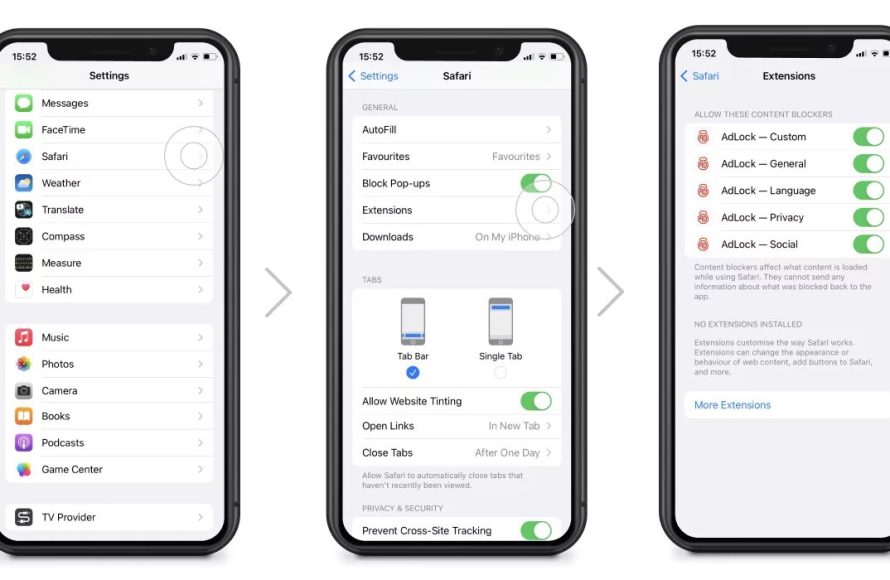
- Open the app and follow its setup instructions. Usually, you’ll need to enable the app’s content blocker in your Safari settings. Go to Settings > Safari > Content Blockers, and enable the app you just installed.
- Some apps might ask you to change your DNS settings (which you can configure in Settings > Wi-Fi > (Tap the “i” next to your network) > Configure DNS)
- Test your games to see if the ads are blocked or reduced.
Using a Private DNS Server
Another effective way to block ads on your mobile device is to use a private DNS (Domain Name System) server. This method works by changing your device’s DNS settings to connect to a server that blocks ads. When your phone tries to load an ad, the DNS server won’t recognize the address, so the ad won’t load.
Setting Up a Private DNS on Android
Android makes it easy to use a private DNS server. Here’s how:
- Go to Settings > Network & Internet > Private DNS.
- Select “Private DNS provider hostname.”
- Enter the hostname of a private DNS server that blocks ads, for example:
dns.adguard.comordns.nextdns.io. - Tap “Save.”
Setting Up a Private DNS on iOS
Setting up a private DNS on iOS is a little more involved than it is on Android, but it’s still straightforward if you follow these steps:
- You’ll need an app like AdGuard or DNS Changer. Download your chosen app from the App Store.
- Open the app and follow the instructions. You’ll usually be prompted to configure a VPN profile, which is how the DNS settings are changed.
- Activate the VPN or DNS settings inside the app.
- Test your games to see if the ads have been blocked.
Modifying Game Files (Root/Jailbreak Required)
Warning: This method is for advanced users only, and it involves modifying the game files, which can be risky. It could also violate the game’s terms of service and may lead to your account being banned. Proceed with caution!
If you have rooted your Android phone or jailbroken your iPhone, you can use specific apps to modify games and block ads at the source. This often involves removing the code responsible for displaying ads. This method is very powerful, but it’s also technically advanced and could destabilize your games or even your phone. We strongly suggest you research carefully before attempting to modify game files.
Note: We do not endorse or recommend this method as it could lead to unwanted results. Do this on your own risk.
Other Tips to Minimize Ads
Here are a few more strategies you can try to reduce the number of ads you see:
- Purchase the Ad-Free Version (If Available): Many games offer a one-time purchase to remove ads. If you really enjoy a game, this might be a worthwhile investment.
- Play Games Offline Whenever Possible: As mentioned earlier, playing games in offline mode will prevent ads from loading, as long as the game doesn’t need internet access to function.
- Be Strategic About Rewarded Ads: Some games offer the option to watch ads for in-game rewards. While this doesn’t reduce ads completely, you can control when you see them and get a benefit from them.
- Look for Games With Minimal Ads: Some game developers focus on providing a cleaner experience. Read reviews and look for games that are known for fewer ads.
Staying Safe While Blocking Ads
While it’s understandable to want to get rid of ads, it’s also important to stay safe online. Here are some tips to keep in mind while using ad-blocking techniques:
- Only download ad-blocking apps from reputable sources: Be careful when downloading apps from third-party websites. Stick to official app stores (like Google Play or the Apple App Store) or the app developer’s website.
- Read reviews: Before installing any app, check out the reviews to make sure it’s legitimate and not malicious.
- Be careful with permission requests: Ad-blocking apps might ask for certain permissions, like access to your network settings. Only grant permissions that make sense for the functionality of the app.
- Use a strong password for your device: Having a strong password helps keep your device secure.
Blocking ads on mobile games can greatly enhance your gaming experience, making it more enjoyable and less frustrating. By using the various strategies we have explained here, you can significantly reduce interruptions and enjoy your games to the fullest. Start with the basic methods and then explore the more advanced options if needed. Remember to stay safe online and only use reputable ad-blocking methods. Have fun gaming!
Block Ads on ALL Games (FREE and FAST) #shorts
Final Thoughts
You can block ads on mobile games using various methods. Airplane mode works offline, but may not suit all games. Some apps and premium game versions offer ad-free experiences.
Utilizing a reliable ad-blocker app proves effective, filtering out unwanted advertisements. You can also modify your device’s DNS settings to block ad servers. Remember to choose a method that best fits your needs and desired gameplay.
Ultimately, learning how to block ads on mobile games enhances your gaming experience. Employing these simple techniques helps eliminate interruptions. Enjoy distraction-free gameplay on your mobile device.

