
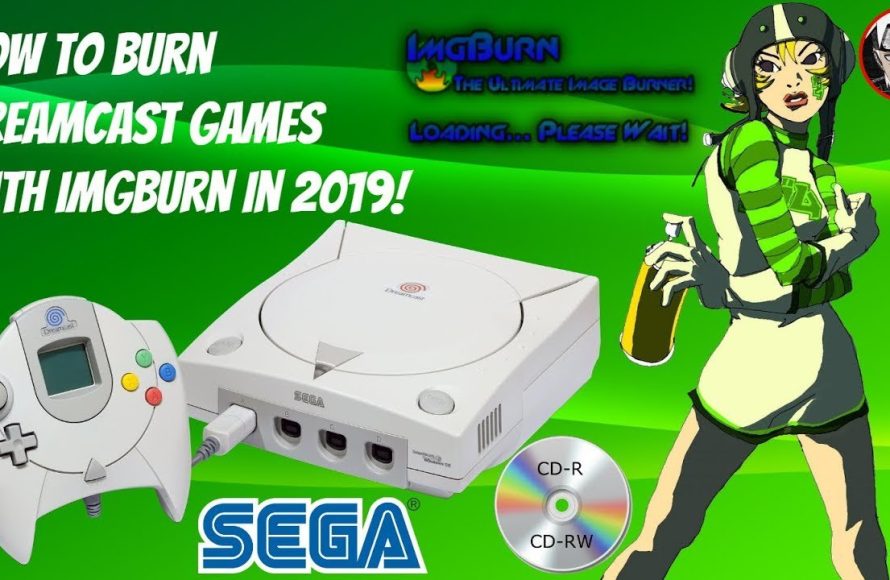
Burning Dreamcast games requires a CD burner, disc image files (like CDI or GDI), and burning software that supports those formats; typically, you burn the image to a CD-R.
Want to relive those classic Sega moments but your original discs are scratched? Many players find themselves wondering how to burn Dreamcast games to create working copies. It’s a surprisingly straightforward process, though it does involve specific tools. You’ll need the right software and disc format to make the games playable on your console.
This process allows many users to keep playing their favourite titles without worry. We’ll guide you through the steps, ensuring you can quickly jump back into the action.

How to Burn Dreamcast Games: A Complete Guide
Burning Dreamcast games might seem tricky, but it’s actually quite simple once you understand the process. This guide will walk you through everything you need to know, step-by-step, so you can enjoy your favorite classic games on your Sega Dreamcast. Think of this as your all-access pass to playing awesome games you might have thought were lost to time!
What You’ll Need
Before we get started, let’s gather all the necessary tools. Like a chef gathering ingredients, having everything ready makes the whole process easier and more fun. Here’s a checklist of the things you need:
A Computer: You’ll need a Windows computer. While Macs and Linux systems can work, this guide focuses on Windows, because it’s the most common. Make sure your computer can read and write data to CD-R discs (most computers can).
A CD Burner (CD-R Drive): This is usually built into most computers. You’ll use this to put the game files onto a blank disc. Make sure it can actually write CD-Rs and isn’t just a CD-ROM (which only reads CDs).
Blank CD-R Discs: These are the blank discs you’ll be writing the game onto. Dreamcast games require CD-R discs, not DVD-Rs. You can buy these at most electronics stores or online. Try buying good quality, because some cheap ones have a greater chance of failure.
A Dreamcast Game Image (.CDI or .ISO file): This is the digital copy of the game. You can find these files online on various websites that support game preservation. Make sure you only use files from trusted sources and understand the copyright laws in your region. Be aware that downloading games you don’t own is usually illegal, so consider this a way to play a game you do own but may have lost the disc for.
Burning Software: You’ll need a special program to write the game data to the CD-R. We will use ImgBurn which is a free and reliable option for burning disc images.
Finding the Right Game Image
Let’s talk about game images. These are like digital copies of your Dreamcast game. The files you’re looking for will usually be in either .CDI or .ISO format. Here’s a little more about these file types:
.CDI Files: These are special types of files designed for Dreamcast games. They often work well with older burning software and are a popular choice.
.ISO Files: These are a standard disc image file format. Some newer burning software supports these directly, but older programs might not.
Where do you find these files? Well, there are many websites dedicated to preserving old games. However, be very careful and only download game files from places that you trust. When you get the game file, make sure it’s the right one. A game with a ‘USA’ tag will work on a US console, and a ‘PAL’ tag will work on a console in Europe, Australia, etc. Getting the wrong one will be a frustrating experience.
Getting Your Burning Software
Now that you have your game image, you need a burning software, this program acts like the translator to get the data on your computer and put it correctly on a CD-R. There are many burning software available, but we are using a free one called ImgBurn.
ImgBurn is a free program that’s popular and effective for burning CD images.
Here’s how to get ImgBurn:
1. Go to the official ImgBurn website. You can find this by searching for “ImgBurn download” in your favorite search engine.
2. Find the download link. On the website, locate the link to download the installer file.
3. Run the installer. Once downloaded, run the installer file and follow the on-screen instructions to install ImgBurn. During install be careful what you click, some install setups may try to sneak in other programs you don’t need, simply click decline or don’t install, always better to be safe!
Setting Up ImgBurn for Burning
Before you burn your first disc, let’s make sure ImgBurn is set up correctly, this step is quite important. If you don’t setup your burning software, then the game disc might not work or might not be burned correctly. These settings help ensure the Dreamcast recognizes the disc.
Here’s how to set up ImgBurn:
1. Launch ImgBurn: Open the ImgBurn program on your computer.
2. Go to the ‘Tools’ Menu: In the top menu, click on ‘Tools’.
3. Click ‘Settings’: A new window will open up, click ‘Settings’ inside the ‘Tools’ drop-down menu.
4. Go to the ‘Write’ Tab: in this ‘Settings’ window, go to ‘Write’ tab.
5. Set ‘Write Speed’: Here you should set your write speed. The ideal burning speed for Dreamcast games is usually 4x. This is important for the disc to be read by the console correctly. Some newer drives have a minimum write speed of 10x, in that case use the slowest option. Never use too high of a burning speed, as it might make the game disc unreadable, or the game disc may have freezes and skips.
6. Go to ‘I/O’ Tab: Next to the write tab there is a ‘I/O’ tab. Click on this tab.
7. Change Interface: Change the interface from ‘Win32’ to ‘SPIO’. This can also help resolve some issues.
8. Click ‘OK’: After you have setup all the setting, click ‘OK’ to save the changes.
The Burning Process: Step-by-Step
Now for the exciting part, let’s burn our game! With everything set up, it’s like getting ready for game time.
Here’s how to do it:
1. Insert a Blank CD-R: Carefully insert a blank CD-R disc into your computer’s CD burner.
2. Start ImgBurn: Open ImgBurn software again.
3. Select ‘Write image file to disc’: In the ImgBurn main menu you will see a few different options, click ‘Write image file to disc’.
4. Browse for your Image file: Click on the yellow folder icon to browse for your .CDI or .ISO file you downloaded earlier. Find the game you want to burn.
5. Verify the Source: Make sure the correct game image is selected before moving on, because once the game is burned on the CD-R, the CD-R is no more reusable.
6. Start the Burn: Click the ‘Burn’ button on ImgBurn (it usually looks like a disc with an arrow pointing to it) .
7. Wait for the Burn to Finish: This process will take a few minutes to complete, depending on your drive’s speed. Be patient, and don’t interrupt the process.
8. Verify the Burn: After the burn is completed, ImgBurn will check the disc. If there were no errors, your disc is now done!
Troubleshooting Common Issues
Sometimes things don’t go as planned. Let’s talk about some common issues you might face and how to fix them.
Disc Not Recognized:
Issue: Your Dreamcast doesn’t recognize the disc you burned.
Solution: Check to make sure you burned the game at the correct speed. A speed too fast can create issues. Also make sure you changed the ImgBurn setting from ‘Win32’ to ‘SPIO’. Try burning a new disc at 4x speed.
Game Freezes:
Issue: The game freezes or skips during gameplay.
Solution: Make sure you use good quality CD-R discs, cheap discs can sometimes cause problems. Try burning another disc at the slowest speed that your burner supports. Ensure there are no errors reported by ImgBurn during the burning process.
Burning Errors:
Issue: ImgBurn reports an error during the burning process.
Solution: Try closing other programs running on your computer before burning. Verify you have the correct burn speed set. Check to see if your CD-R drive is working properly, or try using another computer.
Wrong Region:
Issue: Your Dreamcast won’t play the game because it is the wrong region.
Solution: If you have a Dreamcast which has never been modified, it can only play games from the region that it was intended for. (For example, a USA Dreamcast will only play USA region games, and a EU Dreamcast will only play EU games). Make sure you download the correct region of the game to match your console, or that your console has been modified to play games from any region.
Bad Game Image:
Issue: The disc does not work, even after multiple attempts.
Solution: Your game image may be bad or corrupted. This is very common, try downloading your game from another website and burn the disc again.
Using a DVD-R:
Issue: If you try burning the Dreamcast game to a DVD-R.
Solution: Dreamcast requires CD-R to burn the games, not a DVD-R, so make sure you are using a CD-R disc.
Tips for Success
Here are some extra tips to make the burning process easier:
Always Use a Low Burn Speed: Low speeds help ensure the data is written correctly onto the disc, decreasing the chance of errors.
Use Good Quality CD-R Discs: Good-quality discs are more reliable and result in better performance.
Keep Your Computer Idle: Try not to use your computer for other tasks when you are burning a disc. The disc burning process is sensitive to interruptions and can lead to errors.
Double-Check Before Burning: Always double-check that you have the correct settings and file selected before you burn a disc.
Test Your Disc: After burning a disc, try it out in your Dreamcast right away to ensure it works as expected.
Consider Console Modification: If you have trouble with region locks, you may want to research Dreamcast modifications that allow you to play games from all regions. There are lots of different options available on the internet for this.
Burning Dreamcast games might seem a little complicated at first, but with a bit of patience and practice, you’ll get the hang of it. Just like learning to ride a bike, it becomes easier the more you do it. Remember to take your time, double-check all the steps, and soon you will be enjoying your favorite Dreamcast games. Happy gaming!
How To Burn Dreamcast Games!
Final Thoughts
In summary, burning Dreamcast games involves using a compatible CD burner and specific disc images. You’ll also need software to write the image to the CD-R. Verify your burner supports the required formats for a successful burn.
Finding the correct disc image is must. Be careful while downloading from untrusted sources, as some may contain viruses. Now you know the basics of how to burn dreamcast games.

