
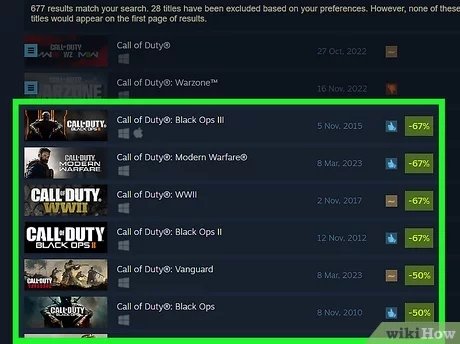
To buy a game from Steam, simply navigate to the game’s page on the Steam store, add it to your cart, and then complete the purchase using your preferred payment method.
Want a new game to play? Steam is a great platform to get your next gaming fix. Many people might wonder how to buy a game from steam, and it’s actually very easy. The process involves finding the game you like and using Steam’s purchase options.
Adding games to your Steam library is a quick and convenient process. You can browse the wide selection of titles, filter them by genre, and then buy directly from the platform. Just follow the simple steps, and you’ll be playing in no time!

How to Buy a Game from Steam
So, you’re ready to jump into the amazing world of PC gaming? That’s fantastic! Steam is like a giant online store for video games, and it’s super popular. It has a huge selection of games, from action-packed adventures to calming puzzles. Buying games on Steam is pretty easy, but let’s walk through it step-by-step to make sure you have a smooth experience. This guide will help you get set up and start playing your favorite games in no time!
Getting Started: Creating a Steam Account
Before you can buy anything, you’ll need a Steam account. Think of it like creating an email account, but for games! It’s completely free, and it’s how Steam knows who you are and keeps track of the games you own. Here’s how to do it:
Go to the Steam Website
Open your web browser (like Google Chrome, Firefox, or Safari) and type in “steampowered.com” in the address bar. Press Enter, and you’ll arrive at the Steam homepage.
Click on “Login”
In the top right corner of the website, you’ll see a green button that says “Login”. Click on it.
Select “Join Steam”
On the login page, you will see a link that says “Join Steam.” Click on it.
Fill in the Required Information
Now, you’ll be asked to provide some basic information:
- Your email address: This is how Steam will contact you, so make sure to use an email you check regularly.
- Choose your country: This helps Steam know your region for pricing and game availability.
- Prove you’re not a robot: Steam uses a little check to make sure you’re a real person. Just follow the instructions.
Once you’ve filled everything out, click “Continue”. Steam will send an email to the address you provided. Open your email and click the verification link to verify your email address.
Create a Username and Password
Now that your email is verified, you will be taken to the page where you can set up your Steam username and password. Your username is how other players will see you on Steam. Choose something you like, but remember that it can’t be the same as someone else’s. Pick a strong password and don’t forget it! After you’ve done that, click “Complete Sign Up”.
Congratulations! You’ve created your Steam account. Now, you can move on to getting the Steam application, which is needed to run your games.
Installing the Steam Application
The Steam application is a program that you install on your computer. It’s like a central hub where you keep all your games. Here’s how to get it:
Go to the Steam Website (Again)
If you closed the page, open your web browser and type in “steampowered.com” again.
Click “Install Steam”
This time, you’ll see a button at the top of the page that says “Install Steam.” Click on it.
Download the Installer
The website will detect your operating system (like Windows or Mac) and offer the correct installer. Click on the download button.
Run the Installer
Once the installer is downloaded, click on the file to run it. Follow the on-screen instructions, and the Steam application will be installed on your computer. It might ask you where you want to install the application; it’s usually best to leave this as the default location unless you know what you’re doing.
Login to Steam
Once installed, launch the Steam application. Enter your username and password you created in the previous steps, and press Login.
Great job! You now have the Steam application up and running. It’s time to go shopping for games.
Finding Your Game
With your account set up and the Steam application installed, it’s time for the fun part—finding a game to buy! Steam offers several ways to explore their huge collection.
Using the Search Bar
The most direct method is the search bar. It’s at the top of the Steam window, and it allows you to search for games by name. Type in the title of the game you want, and press Enter. Steam will show you the results, if your game is available in steam then it will definitely show in the results.
Browsing by Categories
If you are unsure about what you want, you can browse through categories. On the Steam store page, you’ll see sections for different genres like “Action,” “Adventure,” “RPG,” “Strategy,” and many more. Click on a category, and it will display a selection of games from that genre. Steam also has sections like “New and Trending,” “Top Sellers,” and “Specials.”
Exploring the Steam Homepage
The Steam homepage is like a huge billboard for games. It showcases featured games, new releases, and upcoming titles. It’s also the place where Steam shows special discounts and promotions. Spending some time exploring the Steam Homepage can help you discover games you didn’t know existed.
Using the Steam Curator
Steam Curators are groups of users who give reviews or thoughts on games. These groups can be popular YouTubers, specific websites, or just other Steam users. If you like a game reviewer, you can browse their recommendations on the Steam store.
Checking out Game Pages
Once you’ve found a game that looks interesting, click on its name or picture to go to the game’s page. This page shows all kinds of info about the game:
- Description: Read what the game is about. What’s the story? What kind of gameplay will you experience?
- Reviews: See what other players think. Are they enjoying it? Are there any issues to be aware of?
- System Requirements: Make sure your computer can actually run the game! The page will list the minimum and recommended computer specifications.
- Screenshots and Videos: Take a peek at what the game looks like before purchasing.
Spend some time on the game page to make sure you really want to buy the game. Once you’ve found the game you want and checked all the details, then comes the actual purchase process.
Purchasing Your Game
Now that you’ve found your dream game, it’s time to add it to your library. Here’s how you actually buy it.
Adding to Cart
On the game’s page, you will see a green button with the price of the game written on it. Click on this button, and the game will be added to your shopping cart.
Viewing your Shopping Cart
You can see your shopping cart by clicking the “Your Cart” button which appears at the top right corner of the screen. Here, you can see the game that you added in the previous step.
Selecting “Purchase for Myself”
There’s an option to purchase the game as a gift for a friend, but if you want to play the game yourself, you will want to click on “Purchase for Myself”.
Choosing a Payment Method
Steam accepts different types of payment methods. Depending on your region and availability, you will be able to choose from options such as:
- Credit Cards
- Debit Cards
- PayPal
- Steam Wallet
Entering Payment Information
Select your preferred method and carefully fill out the required information. This will include your card details, address and/or login information for your chosen payment processor. Make sure you have all of the information at your fingertips so that your purchase is smooth.
Reviewing Your Order
Before finalizing your purchase, Steam will show you a review page. Double-check the name of the game and the price. If everything looks good, accept the terms and conditions and click the button to finalize the purchase.
Downloading and Installing Your Game
After your purchase is successful, the game will be added to your Steam library. You will be presented with the option to install the game immediately, or you can install it at another time. If you have slow internet, you might want to wait until you aren’t using the internet as much.
To install the game, click on the “Install” button. Steam will then download the game files to your computer. The time it takes to download depends on your internet speed and the size of the game.
Once the download is done, Steam will automatically install the game. Now your game will appear in the “Library” section on Steam, and you are ready to play!
Understanding Game Bundles and DLCs
Sometimes, you’ll find games being offered as bundles. This means you can buy multiple games or content together for a lower price than if you bought them separately. Bundles can be a great way to get more games and save some money. There are also DLCs which means “Downloadable Content.” These are add-ons for games, like new levels, characters, or stories. You can buy these separately to expand your gaming experience. Keep an eye out for these offers when you are on Steam.
Using the Steam Library
Once you buy your games, they will be available in your Steam library. This is where you manage, launch and update all the games you have purchased.
Navigating the Library
The “Library” section of Steam is usually located near the top of the application window. When you click it, you’ll see a list of all the games you own. You can filter by installed games, recently played games, or your collection.
Launching Games
To start a game, click on its title in the library and then click the big “Play” button. Steam will launch the game and you will be able to start playing.
Managing Downloads and Updates
Steam keeps your games updated. If a game has a new update available, it will automatically download it. You can also manage your downloads in the “Downloads” tab. Here you can see your game downloads, pause them or resume them when you’re ready.
Uninstalling Games
If you need more space on your hard drive, you can uninstall a game. Right-click on the game in your library and select “Manage” and then “Uninstall.” The game files will be removed from your computer, but you will always be able to reinstall it again whenever you want.
Keeping Your Steam Account Secure
Keeping your Steam account safe is very important to prevent theft and unauthorized access. Here are some tips to help you stay safe:
Use a Strong Password
Make sure your password is long, has letters, numbers, and symbols, and is something only you would know. Don’t use common words or personal information for your password.
Enable Steam Guard
Steam Guard is an extra layer of security. It sends a code to your email or phone when you log in from a new computer. This makes it much harder for someone else to get into your account even if they know your password. Go to your account settings and enable Steam Guard.
Be Careful About Phishing
Phishing is when someone tries to trick you into giving them your password. Don’t click on suspicious links that ask for your Steam account details. Steam will not ask for this information via email or message. Always access Steam through the Steam application or the official website.
Don’t Share your Account Details
Never share your username or password with anyone. Even if they say they are your friend, they could steal your account. You should keep this information safe and private.
Troubleshooting Common Issues
Sometimes things might not go as smoothly as planned. Here are some common issues and how to address them:
Game Won’t Install
Check your internet connection. Also, make sure you have enough space on your hard drive. If all looks fine, try restarting Steam and your computer. You can also pause the download and try again.
Game Won’t Launch
Make sure your computer meets the system requirements for the game. Try restarting your computer, or check for updated graphics drivers. If all else fails, verify the integrity of game files by going to the game’s properties and then local files. This will scan the game files to make sure there is no problem.
Payment Issues
Make sure your payment information is correct. Double-check card details, billing address, etc. If the problem persists, contact your payment provider or Steam support.
Steam is Slow or Crashing
Make sure your internet is working and restart the Steam client. Check to make sure that your computer isn’t doing anything that could slow down the Steam client like a scan or downloading large files.
Getting Help
If you are still facing issues, you can check the Steam website. They have a helpful support section where they help you solve most of the problems.
Buying games on Steam is a great way to enjoy playing PC games. With a little bit of practice and these guides, you will be buying new games like a pro. So go ahead and get that new game you have been looking forward to!
How To Buy Games On Steam – Full Guide
Final Thoughts
In short, buying a game on Steam is quite simple. First, you locate the game you want using the store’s search or browse function. Next, add your chosen game to your cart, proceed to checkout. Then, you complete the purchase by providing payment details and confirming. You now know how to buy a game from Steam easily.

