
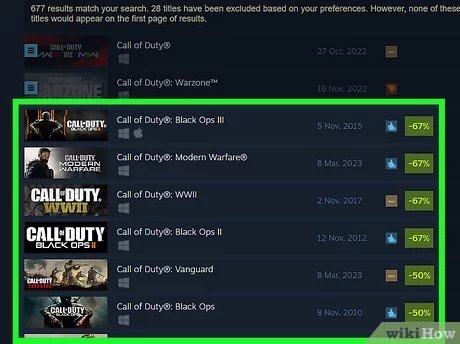
To buy games from Steam, you must first create an account, then browse the store, add desired games to your cart, and proceed to checkout using a valid payment method.
So, you’re ready to dive into the massive world of PC gaming, huh? Figuring out exactly how to buy games from Steam can feel a little daunting at first. But don’t worry, it’s actually a quite simple process once you get the hang of it. We’ll quickly guide you through the steps to get you started playing your desired games.
This guide will help navigate Steam, from making your account to completing the purchase. You’ll be setting up and playing your new games in no time.

How to Buy Games from Steam: A Step-by-Step Guide
Alright, let’s dive into the fun world of buying games on Steam! It’s like having a giant video game store right on your computer. But, if you’re new to it, it might seem a little confusing at first. Don’t worry; we’re going to walk through everything step-by-step, so you can start building your awesome game collection in no time.
Getting Started: Setting Up Your Steam Account
Before you can buy any games, you need to have a Steam account. It’s free to sign up, and it’s where all your purchased games will live. Think of it like your personal library for video games.
Creating a Steam Account: The Sign-Up Process
Here’s how you create a Steam account:
- First, go to the Steam website. You can do this by typing “steampowered.com” into your web browser.
- Look for the “Login” button, usually in the top right corner. Click it.
- Now, instead of logging in, you’ll see a “Join Steam” button. Click that.
- You will be asked to put in your email address, and confirm the email address again, Select the Country you live in, and then click on “I’m not a robot” (the Captcha verification), and then click on “continue”.
- Next, check your email and follow the instructions from the email from Steam, to verify your account.
- Once done with your email verification process, you will be asked to create a Username and Password, make sure to make strong password.
- Finally, you’ll have a Steam account, and you can now login! You can also install the Steam app on your computer, which makes it easier to buy and play games.
That’s it! You’ve got your own Steam account. Pretty easy, right?
Navigating the Steam Store
Now that you’re all signed up, it’s time to explore the Steam store. This is where you find all the games you can buy. It’s like walking into a giant arcade, but online!
Browsing for Games: Finding What You Like
There are several ways to find games on Steam:
- The Search Bar: If you already know the name of the game you want, just type it into the search bar at the top of the page.
- Categories: Steam organizes games into different categories like “Action,” “Adventure,” “Puzzle,” “Indie,” and many more. If you like a specific type of game, this can help you.
- Featured Games: Steam shows off new and popular games on its homepage. This is a great way to see what’s hot.
- The Discovery Queue: You can use the Discovery Queue to find games that Steam thinks you might like, based on your past activity.
- Wishlist: If you find a game that looks interesting, but you aren’t ready to buy it yet, you can add it to your Wishlist. This also allows Steam to notify you about deals on games that are in your Wishlist.
Don’t be shy, click around! Take a look at game pages that interest you. You might find a new favorite!
Reading Game Pages: What to Look For
When you click on a game, you’ll see its page. Here’s what important things to check:
- Game Description: This tells you what the game is about. Is it a mystery to solve, an adventure to embark on, or a race to win?
- Screenshots and Videos: Pictures and videos give you a peek at what the game looks like when you play.
- System Requirements: This section shows the minimum computer parts your computer needs to run the game. Make sure your computer is powerful enough to play the game smoothly.
- Reviews: See what other people think of the game. If a lot of players like a game, chances are, you might like it too!
- Price: Of course, check the price! Look for any sales or discounts.
Adding Games to Your Cart
Found a game you like? Great! It’s time to add it to your cart, just like shopping in a regular store.
The “Add to Cart” Button
On the game’s page, there is a big green button that says “Add to Cart.” Click this button to add the game into your shopping cart. If you’re not sure yet, click the “Add to Wishlist” button and come back later. You can add games to your cart and keep looking around, so don’t worry about buying right away.
Reviewing Your Cart
When you are done, you should click on your shopping cart, often in the top right corner. Now you can see everything you’re about to buy.
- Make sure everything is what you want.
- Check the price.
- If you want to remove an item, there is often a remove button.
- If everything looks good, click “Purchase for myself,” and the payment process begins.
Paying for Your Games: Payment Methods
Now for the important part: paying for your games. Steam has lots of different payment options so you can pick the one that works best for you.
Common Payment Options on Steam
Here are some of the most common ways you can pay for games on Steam:
- Credit or Debit Cards: Most major cards like Visa, Mastercard, and American Express are accepted.
- PayPal: If you have a PayPal account, you can use that.
- Steam Wallet: You can add money to your Steam Wallet and use that to make purchases. You can add funds via a Steam Gift Card, or directly using the payment options.
- Other Digital Payment Options: Steam offers a variety of other options, depending on where you live, including digital wallets, etc.
Secure Payment Process
Steam takes the security of your payment information very seriously. All your payment info is private and kept safe. Make sure to always use a secure internet connection when making a purchase. It is good practice to not make online purchases on public Wi-Fi.
Completing Your Purchase
After you select your payment option and enter all of the required information, click “Purchase”. Steam will send a confirmation email and add your games to your account.
Downloading and Installing Your Games
After buying your games, it is now time to download and install them. Let’s see how to do this.
Locating Your Games
Once you purchase a game, it goes into your Steam library. To get there click the “Library” button on the Steam App. You will see the list of games, and search them by their name.
Starting the Download Process
Click on the game you want to play. If it’s not installed, you’ll see a big “Install” button. Click this button to start downloading. You might have to accept an agreement. This agreement tells you about the rules of the game.
Playing Your Games
Once the game is done downloading, the install button changes into a “Play” button. Click this, and you will be able to start playing your new game. Have fun!
Steam Features: Beyond Just Buying Games
Steam isn’t just about buying games; it has lots of other great features that make gaming more fun.
Steam Community
Steam has a big community of gamers. You can connect with your friends, discuss games, and even find people to play with.
- Friends List: Add your friends to see what they’re playing and join their games.
- Groups: Join groups to find other players who like the same games as you.
- Forums: Chat about your favorite games with other players.
Steam Achievements and Trading Cards
Many games on Steam have achievements, which are like little awards you get for doing cool stuff in the game. Some games also have trading cards, which you can collect and trade with other players. These can sometimes be traded for Steam Wallet funds.
Steam Cloud Saves
With cloud saves, you can play a game on one computer and pick up right where you left off on another. It’s like having a magical save file that follows you everywhere.
Tips for Smart Steam Shopping
Let’s talk about making the most of your Steam purchases!
Wait for Sales
Steam has regular sales where games are sold at big discounts. Keep an eye out for the Steam Summer Sale, the Steam Winter Sale, and other seasonal sales. It’s the best time to buy games at low prices. If you have games in your Wishlist, Steam will notify you when they go on sale.
Bundles
Sometimes, Steam offers bundles where you can get several games together for a lower price than buying them separately. These can be great deals!
Check Game Requirements
Always make sure your computer can run the game before buying. Look at the minimum and recommended requirements. If your computer is too slow, the game might not play well.
Read Reviews
Don’t just buy the first game you see. Take some time to read reviews from other players. They can give you helpful info about whether the game is fun and if it’s worth the money.
Steam Refunds
If you buy a game and it doesn’t work on your computer, or if you don’t like the game you bought, Steam has a refund option. You can ask for a refund if you have played the game for less than two hours and if you bought it in the past two weeks. Make sure to read up on the refund policy on the Steam Website.
Buying games from Steam is easy and fun once you get the hang of it. With a little exploring, you can build a big collection of games. And always, remember to check the system requirements, read some reviews, and look out for the sales. Happy gaming!
How To Buy Games On Steam – Full Guide
Final Thoughts
To buy games from Steam, simply find desired titles via the store. Add them to your cart. Proceed to checkout and choose payment. Finally, download and enjoy your purchase.
Remember to always check system requirements. Consider sales for better deals. This sums up how to buy games from steam.

