
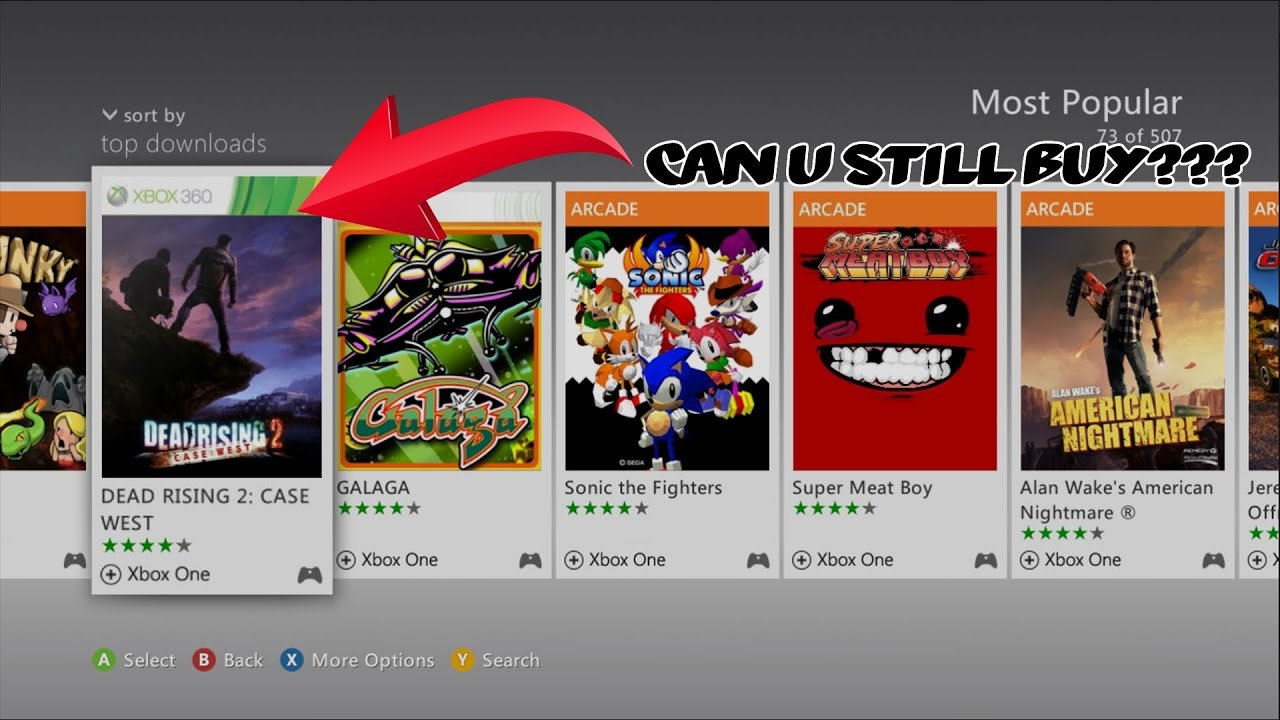
To buy games on Xbox 360, you can use the console’s built-in marketplace or purchase physical discs from retailers.
Dust off that old Xbox 360! You might be surprised to find a treasure trove of games still worth playing. Figuring out how to buy games on Xbox 360 can seem tricky now, but it’s still very much possible with a few different options.
Both digital and physical purchases are available to you. The process is a little different compared to modern consoles, however. This article will guide you through the steps to get playing.

How to Buy Games on Xbox 360
The Xbox 360, even though it’s an older console, still has tons of fun games that people love to play. If you’re looking to grow your game library for your Xbox 360, you’ve come to the right place! Buying games for the Xbox 360 is pretty easy once you know how. There are a few different ways you can do it, and we’re going to explore all of them. Let’s get started!
Understanding Your Options: Where Can You Buy Xbox 360 Games?
Before we dive into the how-to, it’s important to know where you can actually find Xbox 360 games. You have several options, each with its own advantages:
Physical Game Discs
This is the classic way to buy games. You go to a store, pick out a game box, and bring it home. The game is on a disc that you put into your Xbox 360. You might see these at:
- Used Game Stores: Places like GameStop (though stock might be limited) often have a selection of used Xbox 360 games. These can be a cheaper way to get the games you want.
- Online Marketplaces: Websites such as Amazon, eBay, and others frequently have sellers offering physical Xbox 360 game discs. Look closely at seller ratings and item descriptions before buying.
- Thrift Stores and Garage Sales: You might get lucky and find some hidden gems for cheap at local thrift stores or garage sales. It’s worth a look if you’re on a budget!
- Local Retailers: Some big box retailers that aren’t just dedicated to games still might carry older games, especially on clearance.
Digital Downloads
Instead of a disc, you can buy a game online and download it directly to your Xbox 360. This is super handy because you don’t have to keep track of physical discs. This is done through the Xbox 360 marketplace which you access directly from your console.
Buying Physical Games: A Step-by-Step Guide
Okay, let’s talk about buying those physical discs. Here’s how it usually works:
Finding the Right Game
First, decide what game you want! Look at game reviews online and see what others have to say about the game. You should consider these questions:
- What kind of games do you like? Action, adventure, sports, racing, role-playing games (RPGs)? Knowing this helps you find a game that you will really enjoy.
- Are there games that you know people love? Checking the top rated games for the Xbox 360 can help guide you to a good choice.
- What’s your budget? Used games can save you a lot of money. Brand new games will usually cost more money.
Checking the Condition
If you’re buying a used game, it’s very important to check the condition. Look for these things before you purchase:
- The Disc: Is it scratched? Small scratches are usually okay, but big deep scratches might mean the game won’t work.
- The Case: Is it cracked or broken? A damaged case isn’t a deal-breaker but could mean the game was not well cared for.
- Any Extras: Are any manuals or extra papers still in the case? Having these is a bonus!
Making the Purchase
Once you find a game you want to buy and it is in good condition, then you can go ahead and buy it! If you are in a store you’ll take it to the counter and pay for it, if you are on an online marketplace, follow the sites instructions.
Installing and Playing Your New Game
Now for the fun part! Here is what you need to do to play your brand new game:
- Turn on your Xbox 360.
- Open the disc tray. You do this by pushing the button on the front of the console.
- Place the game disc into the tray. Make sure the label is facing up.
- Close the tray. The Xbox 360 will recognize the disc and might start the game automatically.
- If it doesn’t start automatically, you might need to click the game icon from your dashboard.
- Follow the on-screen instructions. Most games will have an intro screen and tell you how to start playing!
Buying Digital Games: A Step-by-Step Guide
If you’re going the digital route, here’s how you can get your games:
Accessing the Xbox 360 Marketplace
The marketplace is where you go to buy digital games. You’ll need an internet connection for this. Here’s how to get there:
- Turn on your Xbox 360 and sign into your Xbox Live account. If you don’t have an account, you’ll need to create one. It’s free.
- Go to the “Games” section on the Xbox dashboard. You will likely see this when the console starts up.
- Select the “Browse Games” option. This will take you to the Xbox 360 Marketplace.
Browsing and Selecting Games
The Marketplace has a big collection of games. You can look through different categories or search for a specific game:
- Look through the main page. The Xbox marketplace will feature games on sale or trending games.
- Use the search box. Type the name of the game you want to buy.
- Browse by genre. See all action games, puzzle games, racing games, and more.
When you find a game you like, click on it to see more information. You will see things like:
- Game description
- Price
- Pictures and videos of the game.
- Ratings from other players.
Purchasing Your Game
When you’re ready to buy, you’ll need to make sure you have enough money on your account. Here are the steps:
- Select the “Buy” or “Purchase” button.
- Select a payment method. You can use a credit card, debit card, or a prepaid Xbox gift card. If you haven’t added a payment method yet, you will need to do so at this point.
- Confirm your purchase. Make sure everything is correct before you hit confirm.
- Download your game. Once you confirm the purchase, the game will begin to download to your Xbox 360.
Downloading and Installing Your Game
Once your purchase is confirmed, your game will download automatically. You can check the progress of the download by going to the downloads section. Here’s what to expect:
- Download Time: This depends on your internet speed and the size of the game. Larger games might take longer to download.
- Game Installation: After the game finishes downloading, the Xbox 360 will start installing it. You might not have to do anything here.
- Starting the Game: After installation is complete you can access it from your games library on the dashboard. Select your game from here to play!
Tips for Saving Money on Xbox 360 Games
Buying games can get pricey, but here are some tips to help you save some money:
Used Games
As we mentioned earlier, buying used games is a great way to save some money. Don’t be afraid to check out used game stores, thrift shops, or online marketplaces to find a deal.
Sales and Deals
Keep an eye out for sales and special deals. The Xbox Marketplace often has games on sale. The price drops can be pretty significant if you are patient.
Trade-Ins
If you have games you no longer want, you can trade them in at some stores to get money or credit towards new games. This can take some of the price off of new purchases.
Game Bundles
Sometimes game companies release bundles that include multiple games at a discounted price. These are a great option if you like multiple games included in the bundle.
Things to Consider Before Buying
Before you jump into buying a game, consider the following:
Game Compatibility
Double-check that the game you are buying is compatible with your console. Some games are only for certain versions of the Xbox 360 or might be backwards compatible with newer consoles, but not the older Xbox 360. Make sure to pay attention to the label.
Internet Requirements
If you plan on playing online, make sure you have an internet connection. Some games have multiplayer features that are only available when connected to the internet.
Game Ratings
Take a look at the game’s rating before you buy to make sure the game is appropriate for you or the person you are buying the game for.
Troubleshooting Common Issues
Sometimes things don’t go as smoothly as we would like. Here are some issues that you may experience and some steps to take to fix them:
Game Disc Won’t Read
If your Xbox 360 won’t read the game disc, here are some things you can try:
- Clean the disc. Use a soft, lint-free cloth to wipe the disc clean.
- Try a different game. If a different disc works fine, then the first disc might be the problem.
- Check the Xbox disc reader. Your disc reader might have a problem and might need to be repaired.
Download Problems
If you are having problems downloading a game, here are some things you can try:
- Check your internet connection. Is your internet working okay? Try resetting your router.
- Restart your Xbox 360. Restarting your console can sometimes fix issues.
- Try downloading the game again. Sometimes the game will download properly the second time around.
Game Won’t Start
If the game seems to install correctly but won’t start, these may be some things to try:
- Restart your Xbox 360.
- Check for game updates. The game might not start because it needs to be updated.
- Delete and reinstall the game. You may have to remove the game from your hard drive and then re-download it.
Buying games for the Xbox 360 is a fun way to add to your gaming library. Whether you prefer physical copies or digital downloads, knowing the steps will help you find and enjoy your favorite games. Remember to check game conditions, look for deals, and make sure everything is compatible before you make a purchase. Happy gaming!
How to go on the Xbox 360 Marketplace Again!
Final Thoughts
To buy Xbox 360 games, you can use physical discs from retailers or explore the Xbox Marketplace. The Marketplace lets you purchase and directly download games onto your console. Remember to check for game compatibility before buying.
Digital purchases require sufficient storage space on your hard drive. Always verify your payment information. Following these steps will guide you on how to buy games on xbox 360.

