
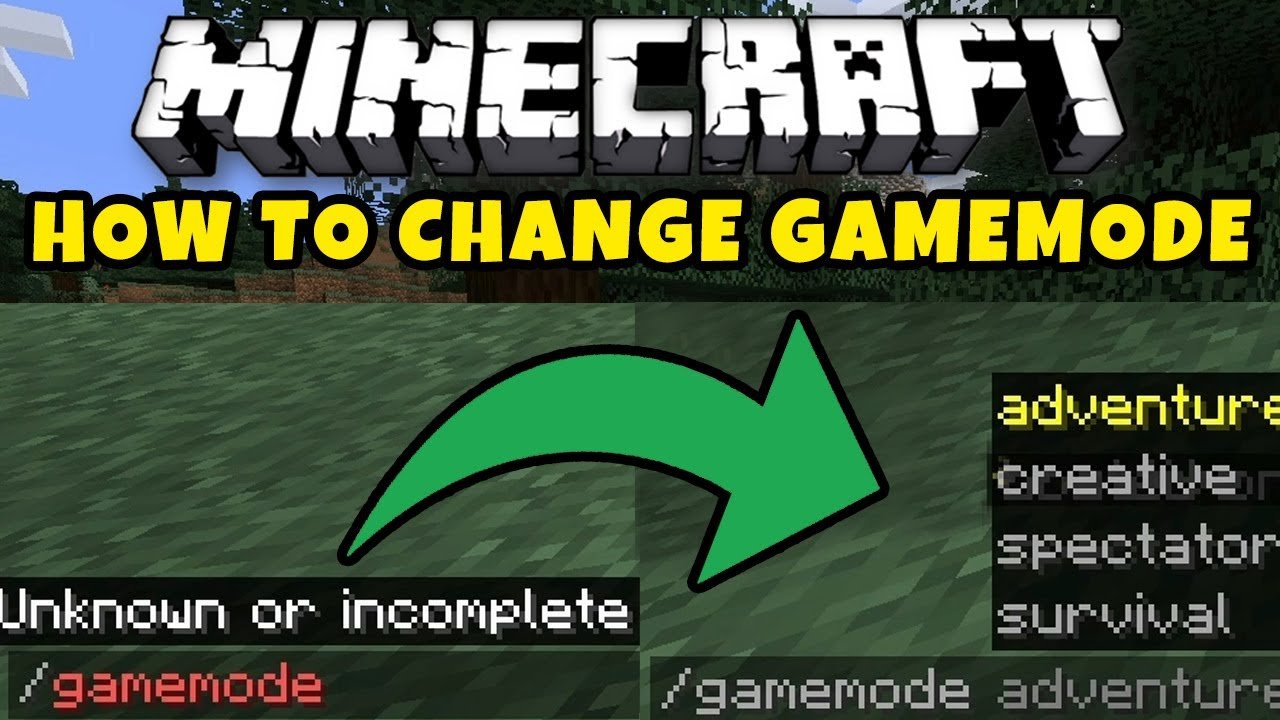
To change a survival game to creative in Minecraft, you need to open the in-game menu, select ‘Open to LAN’, enable ‘Allow Cheats’, and then use the command ‘/gamemode creative’.
Ever wished you could instantly build epic structures after a long survival grind? It’s frustrating to gather resources when you just want to build. Luckily, you can quickly change your game mode. This article guides you on how to change a survival game to creative in minecraft with a simple method, so that you can start building without limits. This can also help in learning the basics of building with blocks without the limitations of resource grinding.

How to Change a Survival Game to Creative in Minecraft
Have you ever been building in Minecraft survival mode, working really hard to gather all your resources, and then wished you could just zoom around and build whatever you want without having to worry about monsters or finding blocks? That’s when creative mode becomes super appealing! Creative mode lets you fly, gives you unlimited blocks, and makes you invincible. So, how do you make the switch? Let’s explore the different ways you can change your Minecraft survival world to a creative one. It’s easier than you might think, and we’ll walk through it step by step.
Understanding Game Modes in Minecraft
Before we get into the how-to, let’s quickly talk about the different game modes in Minecraft. There are a few, but we’re most interested in survival and creative.
- Survival Mode: This is the default mode where you have to gather your own resources, craft items, and fight off mobs. You also have health and hunger bars to manage. It’s a bit more challenging and strategic.
- Creative Mode: In this mode, you have unlimited access to all blocks and items. You can fly, you don’t take any damage, and you don’t have to worry about hunger. It’s perfect for building big structures quickly or experimenting with different designs.
- Adventure Mode: This mode is designed for custom maps where players can explore but not break blocks.
- Spectator Mode: This mode allows you to fly through blocks and watch what’s happening in the game without interacting with it.
- Hardcore Mode: This mode is like survival mode but with the added challenge of one life only, and the world is deleted when the player dies.
We’re focusing on switching from that strategic Survival mode to the free-building Creative mode. There are a couple of primary methods you can use, depending on what Minecraft version you are using, or what options you have available to you.
Changing Game Mode Using Commands (For Single Player Worlds)
The easiest way to change your world from survival to creative is by using game commands. This works for both Java Edition and Bedrock Edition (which is what consoles and most mobile devices use). However, you do need to have cheats enabled for this to work. Here’s how to do it:
Enabling Cheats in Your World
If you created your world without enabling cheats, you will need to adjust this setting. Luckily it’s not a big hassle, here’s how you enable cheats on existing worlds:
Java Edition
- Open your world: Launch your Minecraft world that you’re playing in survival.
- Press Esc: Tap the “Esc” key to access the game menu.
- Click “Open to LAN”: You’ll see an option that says “Open to LAN.” Click it.
- Turn Cheats ON: In the LAN options menu, you’ll see a “Allow Cheats” option. Set it to “ON.”
- Start LAN World: Click the “Start LAN World” button. This is necessary for enabling cheats on the existing world.
Bedrock Edition
- Go to World Settings: From the main menu, click on “Play,” choose the world you want to change, and click the edit button (it looks like a pencil).
- Find the “Game” settings: In the settings menu, scroll down to the section marked “Game.”
- Activate Cheats: Look for the “Activate Cheats” option and switch it to on. This will cause a warning. Acknowledge the warning that tells you the achievement system will no longer work.
- Back to the world: Now you can go back to playing the game!
Important Note: Enabling cheats will disable achievements for that specific world. If you want to get achievements on a world, you have to keep cheats off.
Using the /gamemode Command
Once cheats are enabled, you can use the /gamemode command to switch between modes.
- Open the Chat: Press the “T” key to open the chat window.
- Type the Command: Type /gamemode creative and then press enter. This command directly tells Minecraft to change your game mode to creative.
- Success: You’ll see a message saying that your game mode has been updated, and you should instantly switch into creative mode.
You can also use a shortcut like this: /gamemode c. This works the same way as /gamemode creative but uses a shorter command, it is very helpful if you don’t want to type the full word.
Similarly, if you want to switch back to survival mode, just type /gamemode survival (or /gamemode s).
Here’s a table of all the game modes and their corresponding commands for your quick guide:
| Game Mode | Command (Full) | Command (Shortcut) |
|---|---|---|
| Survival | /gamemode survival | /gamemode s |
| Creative | /gamemode creative | /gamemode c |
| Adventure | /gamemode adventure | /gamemode a |
| Spectator | /gamemode spectator | /gamemode sp |
Changing Game Mode Using NBT Editors (Advanced Option)
If you’re looking for a more advanced method, or if you want to change the game mode without enabling cheats and losing out on achievements, you can try using an NBT editor. This method is a bit more complicated, but it allows you to modify the game save files directly.
What is an NBT Editor?
NBT editors are external programs that you can use to change the data stored in your Minecraft world saves. NBT stands for “Named Binary Tag,” which is how Minecraft saves information like your game mode, inventory, and other world settings. This is more complicated, so it’s usually for advanced users.
Several NBT editors exist, but one popular one is NBTExplorer. This is a free tool that makes it easier to explore the data and edit the necessary game settings for both Java and Bedrock editions.
Disclaimer: Make a copy of your world folder before making any changes with an NBT editor. This is in case anything goes wrong. This is an important practice so that you have a way to restore your world if something unexpected occurs during editing.
Using NBTExplorer to change Game Mode
Here’s a step-by-step guide for how to use NBTExplorer to change your game mode, for both Java and Bedrock.
Java Edition Steps
- Download and install NBTExplorer: You can get NBTExplorer for free from its official github page. Follow the instructions to install the program on your computer.
- Locate your world save: The save files for Java are usually in your .minecraft/saves directory. This directory is located in different locations on various operating systems, and can be found by typing “%appdata%/.minecraft/saves” into the search bar on your PC.
- Open your world folder: Launch NBTExplorer and open the folder of the world you want to edit.
- Locate level.dat: Inside your world folder you will find a file called level.dat. You will want to select this file in NBTExplorer.
- Navigate to GameType: In the NBTExplorer window, locate the NBT tag named “GameType.” It will be within the Data tag section. Double click on “GameType” to modify this.
- Change the Value: The GameType value will be set to a number, here’s what the number means:
- 0 = Survival
- 1 = Creative
- 2 = Adventure
- 3 = Spectator
- Save Changes: Click “Save” or press Ctrl+S to apply changes.
- Load Minecraft: Open your world in Minecraft. Your game should now be in Creative mode.
To switch to Creative mode, change the value to “1.”
Bedrock Edition Steps
- Locate your world save: Bedrock world save files vary based on your device. For Windows 10/11, worlds are usually stored in C:\Users\[Your User Name]\AppData\Local\Packages\Microsoft.MinecraftUWP_8wekyb3d8bbwe\LocalState\games\com.mojang\minecraftWorlds.
- Make a Copy: Important! Copy the world folder to a safe place before changing the original.
- Open the world Folder: In the folder you copied, you will find multiple files and folders.
- Locate level.dat and level.dat_old: In this folder you will find the files with the name of level.dat and level.dat_old, you need to modify both of these files.
- Use NBTExplorer: Open NBTExplorer, and open both the level.dat and level.dat_old files.
- Navigate to GameType: Similar to Java Edition, locate “GameType” inside the “Data” section in both of the NBTExplorer windows.
- Change the Value: Set the value to “1” for creative mode in both of these NBTExplorer windows.
- Save Changes: Click “Save” or press Ctrl+S in both NBTExplorer windows to save the changes.
- Copy modified folder to original location: Copy the world folder you have modified over the folder in the location listed in step one.
- Load Minecraft: Open your world in Minecraft. Your game should now be in Creative mode.
These steps are generally similar for different platforms, but keep in mind that some of the specific folder locations may differ on different operating systems.
Changing the Default Game Mode of New Worlds
If you always want new worlds to start in creative mode, you can change this in your world settings. This is different from switching an existing survival world and only affects worlds you create in the future.
How to Set Default Creative Mode
Java Edition
- Create New World: Go to the main menu and click on single player, then click “Create New World.”
- World Options: Click “More World Options.”
- Change Game Mode: You will see “Game Mode: Survival”. Click this until it changes to “Creative”.
- Create New World: Click “Create New World” to begin your adventure in Creative mode.
Bedrock Edition
- Create New World: Go to the main menu, click on “Play,” then click “Create New” and then “Create New World.”
- Default Game Mode: In the “Game” section of the settings page, you’ll see a setting for “Default Game Mode.”
- Set to Creative: Change the dropdown from “Survival” to “Creative”.
- Create New World: Now click on “Create” to start a new world with creative mode as default.
Important Considerations When Switching Modes
Before you make the switch from survival to creative, here are a few things you should consider:
- Achievements: Remember that enabling cheats in your survival world will disable the ability to earn any more achievements in that world. If you are wanting to get all of the achievements for that particular world, it is best not to use cheats.
- World Backup: If you are going to be messing around with your world settings with tools like NBTExplorer, it’s always smart to back up your world save files. This ensures you don’t accidentally lose progress.
- Purpose: Think about why you want to switch. If you’re just wanting a break from survival, it’s very easy to switch using commands. If you want to keep a world that will be primarily in survival, it is recommended that you only switch for a limited amount of time. If you want to create something on a bigger scale, then creative is usually better.
- Community Impact: If you’re playing on a server, changing your mode might have an impact on the community, check in with the server’s rules first.
Changing a Minecraft world from survival to creative opens a whole new world of possibilities. It’s important to choose the method that best suits your needs, and always remember to back up your world before making significant changes. By following the steps we’ve outlined, you’ll be able to play in your preferred game mode in no time!
Minecraft's Secret Gamemode!
Final Thoughts
To quickly change your Minecraft world from survival to creative mode, you need to use the game command. First, open the chat window by pressing ‘T’. Then, type /gamemode creative and press enter. This immediately switches your game mode, granting you all items and the ability to fly. Remember, the specific command is how to change a survival game to creative in minecraft.
Using this simple command directly changes the game mode. You can now build and explore without limitations. Make sure you have cheats enabled for this command to work in your world. Enjoy your creative building experience.

