
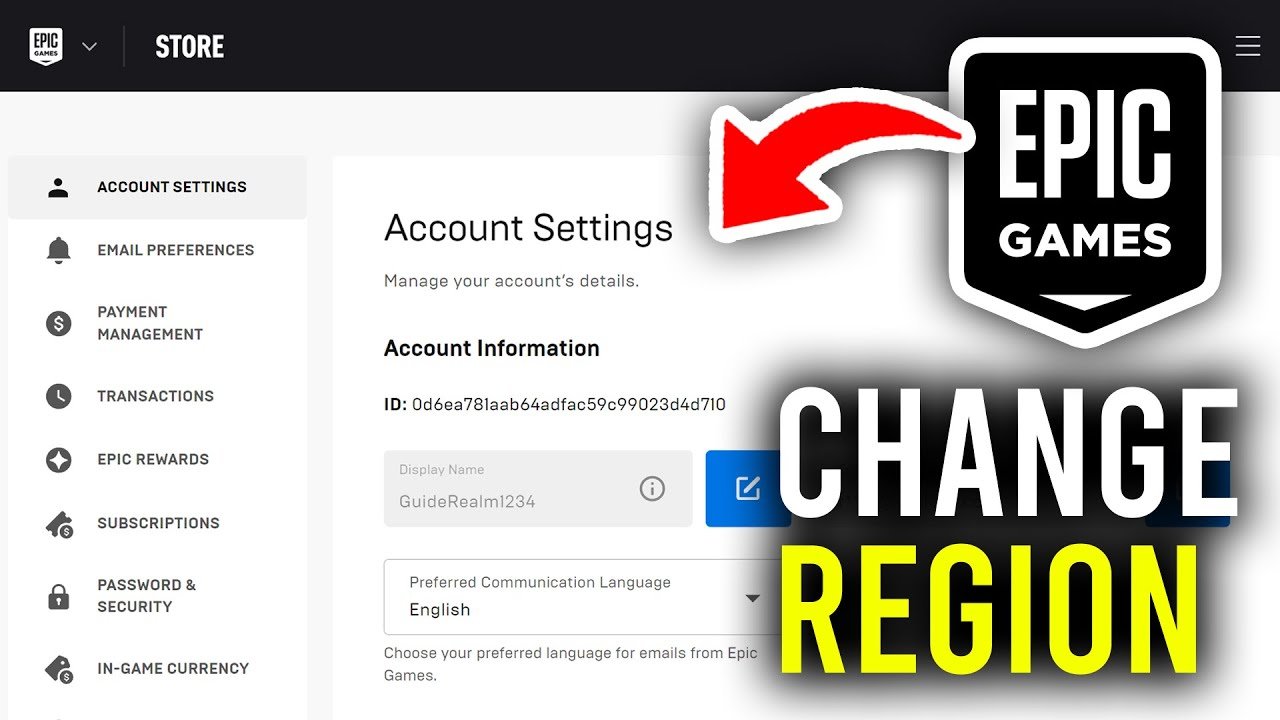
To change your Epic Games region, you must contact Epic Games Support directly, as there is no option within the client to change this yourself.
Have you ever moved to a new country or simply want to play with friends from a different area? This often brings up the question of how to change your Epic Games region. Unfortunately, it’s not a setting you can tweak easily in your account preferences. This situation can be frustrating, but it’s not impossible to navigate. You will need to reach out to them directly.

How to Change Epic Games Region
Changing your Epic Games region can feel like a big task, but it’s actually quite straightforward once you know the steps. Why might you want to do this? Well, maybe you’re moving to a new country, or perhaps you want to play with friends in a different part of the world. Whatever the reason, this guide will walk you through exactly how to get it done. Let’s jump right in and see how you can manage your Epic Games region settings.
Understanding Epic Games Regions
Before we dive into the ‘how-to’ part, it’s good to understand what Epic Games regions are and why they matter. Think of them like different neighborhoods on the internet. Each region has its own set of servers, and these servers are where games are hosted. When you play online games, you connect to the servers closest to your location for the best connection. This means you’ll have less lag, which makes for a much smoother gaming experience.
Epic Games uses regions to help gamers connect to the closest servers. This process reduces latency and makes sure you have a good online experience. Here are the main reasons why regions are important:
- Reduced Lag: Playing on servers near your location leads to faster game response times and less lag. This is really important for fast-paced action games.
- Matchmaking: Regions help group players in similar areas for better matchmaking. This means you’ll be playing against people with similar connection speeds, leading to fairer and more fun games.
- Content Availability: Some game content or promotional offers might be region-specific. Changing your region can give access to content that’s not available in your current location.
- Playing with Friends: If you move to another country or want to play with friends in different regions, you’ll need to adjust your settings to connect properly.
When and Why You Might Need to Change Your Region
There are several reasons why someone would want to change their Epic Games region. Here are some common situations:
- Moving to a New Country: If you’ve moved to a new place, your current region might not be the best for game play. Changing it means you will connect to servers in the correct region.
- Playing with Friends Overseas: If your friends live in a different part of the world, you might have to change your region to play together.
- Accessing Different Content: Sometimes, games have content that is specific to a particular region. If you know about content you can’t access, changing your region can help you get it.
- Improving Connection Quality: If your game play experience is poor, it might be because you are using the wrong region. Changing it might fix this.
The Direct Method: Changing Region in Epic Games Launcher
Unfortunately, Epic Games doesn’t offer a direct way to change your region within the launcher. This can be frustrating, but there are still ways to change your region. The methods mostly revolve around changing your account’s location through the Epic Games website. There is no direct option to select the region within the Epic Games launcher itself.
Because you can’t directly change the region within the launcher, you’ll need to change the country associated with your Epic Games account. Epic Games will automatically use the region that is associated with your account’s country. Here’s how to change the country settings:
Steps to Change Country on Epic Games Account
- Go to the Epic Games Website: Open your web browser and go to the official Epic Games website.
- Sign In: Sign into your Epic Games account using your username and password.
- Navigate to Account Settings: Look for your name or profile in the top right corner of the page and click on it. A drop-down menu should appear, then select “Account.”
- Access Account Information: On your account page, you’ll find different categories on the left side. Look for “Account Settings” or something similar and click it.
- Find Country/Region Setting: Scroll through the account settings until you find the option that shows your current country or region. It may be labeled as “Country/Region” or “Location.”
- Change your Country: Click on the option to change your country or region. A dropdown list or a search bar with countries should appear. Select the country you want to change your account to.
- Save Changes: Once you have selected your desired country, make sure to click the “Save Changes” button to confirm and save your new region.
- Restart Epic Games Launcher: Close and then reopen your Epic Games Launcher. This will make sure the changes take effect.
Important Considerations When Changing Country
- Impact on Billing Information: Changing your region might affect your payment methods. You might need to update your billing information to reflect your new country.
- Regional Content Differences: When you change your country, the content you see or can access might also change. This includes game offers, news, and other promotional materials.
- Account Verification: Epic Games might ask you to verify your new location for security reasons. Be ready to follow any verification steps they require.
Using a VPN (Virtual Private Network) as an Alternative Method
While changing the country associated with your Epic Games account is the most direct approach, using a VPN is another route some players take to play games in a different region. It’s important to understand that a VPN doesn’t change your account region, but it routes your internet traffic through a server in a different location. This can trick some games into thinking you’re in that location. Let’s see how this works.
What is a VPN and How Does It Work?
A VPN, or Virtual Private Network, creates a secure connection between your computer and the internet. When you use a VPN, your internet traffic gets routed through a server in a location you select. This makes your internet connection seem as though it’s coming from that location. For example, if you live in America but connect to a VPN server in Japan, it will appear as though you are accessing the internet from Japan.
Using a VPN for Gaming
When it comes to gaming, using a VPN can have several implications:
- Bypassing Geographical Restrictions: Some games have servers that are specifically for certain countries or areas. By using a VPN server in that area, you can sometimes bypass these restrictions and connect to the game’s servers in the region.
- Potential Improvement in Connection: If your route to the game server is poor, using a VPN could provide you with a more stable and smoother connection. This is because a VPN can sometimes help choose a better path to connect to the game server.
- Playing With Friends in Different Regions: A VPN can help you connect to the same servers as your friends, even if you are not in the same region, allowing you to play together more effectively.
Steps for Using a VPN With Epic Games
- Choose a Reputable VPN Service: Not all VPNs are the same. Some VPNs can be slow, unstable, or even unsafe to use. Make sure you choose a good VPN provider with positive reviews.
- Download and Install the VPN Software: After choosing a VPN, download and install their software on your computer.
- Create an Account (if needed): Most VPNs require you to create an account and sign in using a username and password.
- Select a Server: Open the VPN app and choose a server location that matches the region you want to play in.
- Connect to the VPN Server: Connect to the selected server. Wait for the VPN app to show that you are connected.
- Open the Epic Games Launcher: Once your VPN connection is active, open your Epic Games Launcher and try to play a game.
Important Considerations When Using a VPN
- VPN Performance: Your VPN speed is important. Some VPNs can slow down your internet speeds, which can affect game play. Choose a VPN with a focus on fast and reliable servers.
- Potential for Game Bans: Some games and game platforms have policies against the use of VPNs. It is important to be aware of these rules. Using a VPN might cause you to get a ban from the game, if you break the rules.
- Cost of the VPN: Most good VPN services are not free. You will need to subscribe and pay for a plan to use them effectively. Free VPNs might be slow or not secure.
- Ethical Use: Make sure you are not using VPNs to get an unfair advantage in the game, and use them according to the rules set by the game.
Potential Challenges and Troubleshooting
Changing your Epic Games region, either directly or through a VPN, isn’t always smooth sailing. Sometimes, you might encounter issues. Here are some common challenges and how to troubleshoot them:
Common Problems
- Game is Still in the Wrong Region: If you change your country in your account settings but the game still connects to the wrong servers, try restarting your computer and launcher. Make sure you have properly changed the country in your account settings.
- VPN Connection Issues: If you are using a VPN and experiencing frequent disconnections, try to connect to another server or contact your VPN provider. Also, check your internet connection to make sure that it’s working well.
- Account Verification Problems: If you are having problems verifying your new account country, try going to the account settings and verifying your information again. If the issue persists, contact Epic Games support for help.
- Slow Game Play: If your game is slow even with the change of region, make sure that your internet speed is good enough. You can also try connecting to a server that is closer to your real location.
Troubleshooting Steps
- Restart Everything: This is basic, but restarting your computer, launcher, and VPN software can solve most problems.
- Check Your Internet Connection: Make sure that your internet connection is stable. Also, check that your internet speed is not too slow.
- Update Software: Ensure that your Epic Games Launcher and VPN software (if you are using one) are fully updated. Updates usually include bug fixes and stability improvements.
- Contact Support: If all else fails, don’t be afraid to contact Epic Games support or your VPN provider for help. They may have solutions that are specific to your situation.
The Impact of Region Change on Your Game Library
It’s important to understand that changing your region does not delete any of the games you already have. Your game library remains linked to your account. However, changing your region might affect the kind of content available. Here is a simple explanation of what might happen:
Content Availability
- Some games may be unavailable: Some games are only available in certain regions. You might find some games are not available in your new region, even if you bought them in the past.
- Different DLC Availability: Downloadable content (DLC) can sometimes be region locked. You might need to download and install different DLC to match your new region.
- Language Changes: Some games are language-locked. Changing the region could result in language changes to the game or that some language packs might not be available in your new region.
Impact on In-game Purchases
- Currency Differences: Changing your region also affects the currency you see in the game store. Your prices will reflect the new region’s currency.
- New Payment Options: You will need to have payment methods that are suitable for your new region. Old payment options might not work, so you will have to update your payment settings.
Changing your Epic Games region is a process that requires a few steps, but is definitely achievable. By understanding how Epic Games regions function and following the correct steps, you can successfully play with friends from other parts of the world, connect to the best servers, and access content that is available in different regions. Whether you choose to update your account’s region or use a VPN, it is important to be aware of the implications for your gaming experience. Always remember to play fairly, adhere to gaming guidelines, and enjoy your time playing.
How To Change Region On Epic Games – Full Guide
Final Thoughts
Changing your Epic Games region involves going into your account settings on their website. Locate the ‘Country/Region’ option and select your preferred new region. Remember that certain purchases may be region-locked.
You cannot directly alter your region through the Epic Games launcher. It is necessary to perform this action from a browser. This ensures your account reflects the appropriate regional settings.
Essentially, following those simple steps is how to change epic games region. Be sure the chosen region aligns with your current location for best experience.

