
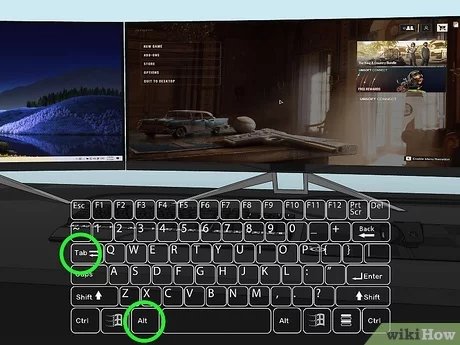
To change game to other monitor, use Windows display settings, selecting the monitor you want the game to display on in your display settings.
Ever been in the middle of an intense game, only to realize it’s on the wrong screen? It can be frustrating, but don’t worry, it’s a common issue! We are going to quickly address the question of how to change game to other monitor.
Many of us juggle multiple displays, whether for work or extra screen space. It is helpful when using multiple programs at once. Games sometimes launch on the wrong screen, interrupting your flow.
Changing it up is easier than you think. Follow the simple steps and you’ll be back to gaming on your preferred display in no time.

How to Change Game to Other Monitor
Playing games on your computer is super fun, but sometimes you might want to see your game on a different screen. Maybe you have a big TV or another monitor you’d like to use. It’s totally possible, and we’re going to show you how! It can seem a little tricky at first, but don’t worry, it’s easier than you think. We’ll go through all the steps to help you move your game from one screen to another. Let’s get started!
Understanding Display Settings
Before you can move your game, it’s important to understand how your computer knows about your different screens. Your computer uses something called display settings to figure out what monitors you have connected. These settings tell your computer which monitor is your main one, and how the others should be used. Think of it like a map for your screens!
What is a Main Display?
Your main display is the screen that usually shows your Start Menu, icons, and everything else when you first turn on your computer. This is the screen where your games will usually start playing. If you have two screens, you need to know which one is the main one so you can switch your game to the other.
How to Find Your Display Settings
Finding these settings is simple! Here’s how you can do it on Windows:
- Right-click on your desktop (any empty space).
- A menu will pop up. Click on “Display settings.”
- A new window will open, showing you how your screens are set up.
On a Mac, the steps are a little different:
- Click on the Apple logo in the top-left corner of your screen.
- Select “System Settings” (or “System Preferences” on older versions).
- Click on “Displays.”
- You will see how your screens are set up.
You’ll see squares or rectangles representing your screens. They might have numbers on them (1, 2, etc.) or have names like “Display 1” and “Display 2”. These squares show you how your screens are arranged on your desk. You might see that they’re side-by-side, or one is above the other. This is important when moving your game from one screen to another.
Methods to Move Your Game
Now that you understand display settings, let’s look at different ways you can get your game to play on a different monitor. There are a few different tricks you can use, and some games might have their own special way.
Using the Windows Key and Arrow Keys
This method is a simple shortcut and works for many games that run in a window (not full screen). Here’s how:
- Start your game and make sure it’s not in full-screen mode. If it’s full screen, go to the game’s settings and switch to “windowed” or “borderless windowed” mode.
- Press the Windows key (it has the Windows logo on it) and the Shift key at the same time.
- Keep holding those keys and press the left or right arrow key. Your game window should jump to the next monitor.
- Keep pressing the arrow keys until it moves to your desired display.
This method works because Windows sees your multiple displays as if they’re all connected on one big screen. The arrow keys are making the game window shift to the next screen. It’s a quick and easy way to move the game.
Changing the Display Settings
Sometimes, the game doesn’t move with the shortcut keys. In this case, you might need to change your display settings to make your second screen your main screen. You can move your game to the second screen and then switch back if you want. Here’s what to do:
- Go to the Display Settings (the same place where you looked at your screens before).
- Click on the rectangle or square that represents the monitor you want your game on.
- Scroll down until you see a checkbox that says “Make this my main display.”
- Click the checkbox. Your screens will flash for a second and the main screen will change.
- Now your new screen is the main one. Start your game. It should start on this screen.
- After playing your game, if you want to switch back, repeat steps 1-4 using your original main display.
Changing your main display is a quick way to force your game to play on a certain screen. It might be a little annoying to change your main screen back and forth, but it’s a good option if other methods don’t work.
Game-Specific Settings
Some games are very helpful and have their own settings that let you choose which screen you want to play on. This is the best way, because it’s designed for that specific game. Here’s what to look for:
- Start your game and go to the settings or options menu. Usually, this is a gear symbol or a word like “settings”.
- Look for “graphics”, “display”, or “video” settings.
- In these settings, you might see a dropdown menu with a list of monitors. Select the monitor you want the game to display on.
- Save your settings and the game should now play on your chosen screen.
These game-specific settings can be found in the game’s menu options. You should explore these options before trying other methods because they provide the easiest and most reliable way to move your game between displays.
Using the “Move” Option in the Title Bar
For some older games or windows, you can use the “Move” option that appears when you click on the game’s title bar. Here’s how to use this method:
- Make sure your game is running in windowed mode, not full screen.
- Click on the title bar of the game window. (This is the bar at the top of the window where the game’s name is written.)
- Hold down the mouse click while on the title bar.
- Drag the game window to your desired display, and release your mouse click to place the window in your display.
This method is simple, but it does have limitations, such as only working on windowed games and not working on modern games or those running in full screen modes.
Troubleshooting Common Problems
Sometimes moving your game to another monitor doesn’t go as planned. Don’t worry, here are some common problems and how to fix them:
The Game Stays on the Same Screen
If your game is not moving when you use the Windows key and arrow keys, try this:
- Make sure your game is in windowed or borderless windowed mode. This shortcut doesn’t usually work for full screen games.
- Check your display settings to make sure your screens are arranged correctly. If they’re not aligned properly, your game might jump somewhere you can’t see.
- Try restarting your computer and the game. Sometimes, a fresh start can solve the problem.
The Game Window is Too Big or Small
If your game looks weird on the new screen, try these:
- Go back to the game’s settings menu and look for display or graphics options. Change the resolution and try different sizes.
- Make sure the scaling setting for your display is correct. In Windows, right-click on the desktop, go to display settings and check “Scale and layout”. For Macs, click on Apple logo and go to display settings and check “Resolution”. Try setting scale to 100% and resolution to the recommended option and see if that helps.
The Game Doesn’t Show on Any Screen
If you can hear the game but don’t see it, try these steps:
- Press the Windows key and the arrow keys a few times. The game might be on the far end of your displays.
- Make sure your monitor cables are properly connected. Try unplugging them and plugging them back in.
- Update your graphics card drivers. Outdated drivers can cause display issues. You can find the latest drivers on your graphic card manufacturers website.
The Game Window is Off-Screen
Sometimes a game window can open partially or completely off-screen. Here’s what you can try:
- Use the Windows key + Shift + Left/Right arrows trick to try to move it back onto a visible screen.
- If this doesn’t work, try using the Alt + Space shortcut, then press the M key. Use the arrow keys to move the window back into view.
Advanced Tips for Multi-Monitor Gaming
Once you get comfortable with the basics, you might want to experiment with some advanced gaming setups. Here are a few advanced ideas:
Extended Display Mode
In extended mode, your two screens act like one big screen. You can drag your game across both displays. You can set the display mode from the display settings in your OS.
Cloning Display Mode
In this mode, both displays show the same content. It’s great for streaming or when you want to share what you’re playing.
Using DisplayFusion or Similar Apps
There are programs like DisplayFusion, which give you more control over your monitors. They can help manage window placement, wallpaper, and more.
Adjusting Game Settings for Multiple Monitors
If you plan to play a game frequently on a secondary monitor, adjust the game settings to best suit your desired resolution and refresh rate of that monitor. Some games will automatically detect optimal settings. But it is good to review if everything is correct.
Experimenting with these options can give you a more comfortable and engaging gaming experience. Remember to try different settings until you find what works best for you.
Moving your game to another screen is a fantastic way to make your gaming sessions even better. Whether you’re using a big TV or another monitor, you can easily set it up. By understanding your display settings, using shortcuts, or changing the game’s settings, you can have your game playing on any screen you want. If you run into trouble, don’t give up! The solutions we talked about can help you with common issues. Just try these techniques, and you’ll be gaming on your preferred screen in no time. Have fun playing!
How To Move Full Screen Game To Other Monitor – Full Guide
Final Thoughts
Changing a game display to another monitor is often simple. The game’s settings menu usually contains a display option. Select the desired monitor there.
Alternatively, try using Windows display settings. Right click on your desktop, choose ‘Display settings’ and select the monitor to make primary. This should shift the game.
Ultimately, understanding these game and OS settings makes ‘how to change game to other monitor’ straightforward. Use either the in-game options or the OS display settings as needed.

