
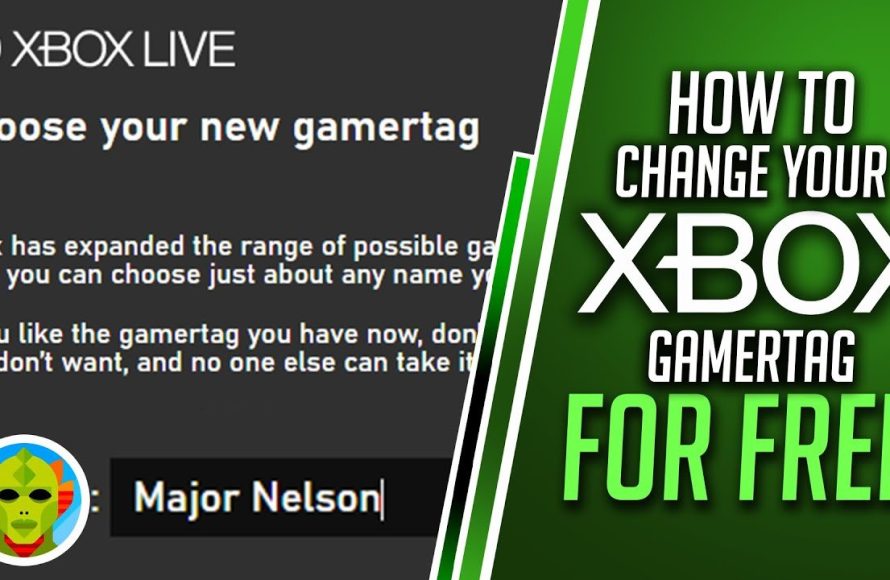
To change your gamer tag, navigate to your account settings on your gaming platform, usually under profile or personal information, and you’ll find an option to edit it, often with platform-specific limitations or costs.
Have you ever felt a pang of regret about your chosen online identity? Maybe that quirky name you thought was cool back in the day now feels a little embarrassing? It happens! Thankfully, many platforms allow you to edit your handle.
If you are wondering how to change gamer tag, you’ve landed in the right spot. This quick guide will clarify exactly how to make that name change, so you can finally represent your current self online.

How to Change Gamer Tag: A Complete Guide
Ever feel like your gamer tag just doesn’t fit you anymore? Maybe it was a silly name you picked years ago, or perhaps your interests have changed. The good news is, you can usually change your gamer tag! This article will guide you through the process on different gaming platforms, ensuring you pick a name you’ll love for years to come. Let’s jump in!
Why Change Your Gamer Tag?
There are lots of reasons why someone might want a new gamer tag. Here are a few common ones:
- It’s outdated: Maybe your old gamer tag referenced a game or character you’re not into anymore.
- It’s embarrassing: Let’s be honest, we’ve all had those questionable gamer tag choices!
- You want to match your current personality: As we grow, our tastes and interests change, and our gamer tag might need to reflect that.
- You want a fresh start: Sometimes, a new name can feel like a clean slate.
- You want a more professional name: If you plan to stream or create content, you might want a gamer tag that sounds more polished.
- You are getting bullied online: If your gamer tag is offensive or causes you problems, you need a change.
Changing Your Gamer Tag on PlayStation
Changing your PlayStation Network (PSN) ID is a straightforward process, but it’s good to know the details before you do it. Here’s how:
How to Change Your PSN ID on Your PlayStation Console
- Turn on your PlayStation: Make sure your console is on and you’re signed in.
- Go to Settings: On the main menu, scroll to the “Settings” option and select it.
- Go to Account Management: In Settings, find “Account Management” and then select “Account Information”.
- Find Profile: In the Account Information page, look for and select “Profile”.
- Edit your Online ID: Now, you should see “Online ID (User Name)”. Select this, and then select the “Edit” option.
- Review the warning: Sony will give you a warning about potential compatibility issues. Read this carefully, and then select “Continue”.
- Enter your new ID: You’ll now see a place to enter your new ID. Type it in, and select “Check Availability” to see if your new gamer tag is free to use.
- Confirm the change: If the new ID is available, select “Confirm” to change your tag.
- First Change is Free: Your first change is free, but subsequent changes will cost a small fee.
How to Change your PSN ID on a web browser
- Go to Sony’s website: Go to the PlayStation website on your computer or phone web browser.
- Sign in to your account: Click the sign-in button and use your PlayStation Network username and password.
- Go to Account Management: After you log in, go to account settings.
- Go to Profile: Click the profile option.
- Edit Online ID: Click the “Edit” button next to your username.
- Review warning: A warning box will appear. Read it and click “continue.”
- Enter your new ID: Enter your new username and click “Check Availability.”
- Confirm the change: If available click “Confirm” to change your tag.
Important things to Consider
- Potential Issues: Sony has warned that some older games might not correctly display your changed ID. This could mean you see your old name or experience some minor issues. Most newer games don’t have this problem.
- Cost: As mentioned, the first name change is free. Subsequent changes cost a small amount. Be absolutely sure about your choice.
- Think Carefully: You can’t change back to your old ID for free after a change. Think carefully and select a name that you want.
Changing Your Gamer Tag on Xbox
Microsoft makes it simple to change your Xbox gamer tag. It is more user friendly than Sony’s process. Here’s how to get it done:
How to Change Your Xbox Gamertag on Your Console
- Turn on your Xbox: Make sure your Xbox console is on and you’re signed in.
- Press the Xbox button: Press the Xbox button on your controller to open the guide.
- Go to Profile & system: Navigate to the “Profile & system” tab.
- Select your Profile: Find your profile name at the top and select it.
- Customize Profile: Select “My Profile”, and then, select “Customize Profile”.
- Change gamer tag: Find your current gamer tag and click it.
- Enter your new tag: Type your new gamer tag and click “Check Availability” to see if your tag is available.
- Confirm the Change: If the name is available, click “Change” to confirm your new tag.
- First Change is Free: Just like PlayStation, the first change is free. After that, there’s a small cost involved.
How to Change Your Xbox Gamertag on a web browser
- Go to Xbox Website: Go to the official Xbox website on your browser.
- Sign in to your account: Click the sign-in button and log in with your Microsoft account credentials.
- Go to profile: Click on your profile picture in the top right corner. Then, click on the “Profile” option.
- Change your gamer tag: Locate your gamer tag and click the “Change gamer tag” button.
- Enter your new tag: Type your new gamer tag and click “Check Availability” to see if your tag is available.
- Confirm the change: Click “Change” to confirm your new tag, if available.
Important Things to Keep in Mind
- Easy and Fast: The Xbox process is generally quick and easy to use.
- Cost: The first name change is free. Make sure that you choose the name you want because other changes will cost a small fee.
- Availability: If the tag you want is already being used by another player, the service will ask you to select an alternative.
Changing Your Gamer Tag on Nintendo Switch
Nintendo takes a slightly different approach compared to PlayStation and Xbox. Here’s how to change your nickname on the Switch:
How to Change Your Nintendo Switch Nickname
- Turn on your Nintendo Switch: Make sure your console is on and signed into your user profile.
- Go to System Settings: From the home menu, go to “System Settings”.
- Go to Users: Scroll down and select “Users”.
- Select Your Profile: Choose the profile you want to change the nickname for.
- Edit Nickname: Select the “Edit” button next to your nickname.
- Enter the new nickname: Use the on-screen keyboard to enter your new nickname, then select “OK”.
- Confirm the Change: Your new nickname will be updated.
Important Things to Keep in Mind
- Nickname, Not Gamertag: Nintendo uses the term “nickname.” This is different from a “gamer tag” on other platforms.
- No Cost: You can change your nickname anytime you like, and there is no cost.
- No Unique Names: Unlike PSN or Xbox, your Nintendo Switch nickname doesn’t have to be unique. Multiple users can use the same nickname.
- Limited to the Switch: Your nickname only shows up within the Switch ecosystem and in games that use Nintendo’s online services.
Choosing the Right Gamer Tag
Picking the perfect gamer tag is fun, but also needs a little bit of thought. Here are some tips to help you choose a great one:
Brainstorming Ideas
- Think about your interests: What are you into? Games, hobbies, favorite characters, etc.? Your interests can be great starting points.
- Try different combinations: Mix words, numbers, and symbols to create a unique and memorable name.
- Keep it short and sweet: A shorter name is easier for people to remember.
- Check for availability: Before you get too attached to a name, make sure it is not already taken.
- Make it easy to spell and pronounce: It’s better to have a name people can easily remember, not a complex name.
Things to Avoid
- Offensive Language: Avoid any names that might be offensive or harmful to others. This can cause you to get banned.
- Too Generic Names: Names like “Gamer123” won’t make you stand out. Avoid very basic and common names.
- Names That are hard to remember or type: Avoid names that include complex symbols, or complicated spelling.
- Personal Information: Don’t use real names, addresses, or other personal details in your gamer tag. This helps to keep your online privacy.
Additional Tips for Changing Your Gamer Tag
Check for Updates
Gaming platforms occasionally update their policies or interfaces. So, if the process has changed you need to double check it.
Be Patient
Sometimes, changes can take a little while to show up everywhere. If you don’t see your new name immediately, don’t worry. Check your account in a little bit.
Tell Your Friends
Once you’ve changed your gamer tag, let your friends know! This will help them find you easily.
Consider Your Brand
If you are planning to stream or create online content, think about a tag that fits your style. Having an easy to recognize tag can help you to create a good personal brand.
Try Name Generators
Many online tools can help you create usernames and gamer tags. If you can’t think of something by yourself, use one of these online tools.
Changing your gamer tag is an easy process. Whether you’re on PlayStation, Xbox, or Nintendo Switch, you can find the steps to update your name to something that you like. So go ahead, pick that perfect name, and have fun gaming!
Xbox (Series X, S, One) How to Change Your Name (Gamertag)
Final Thoughts
Changing your gamer tag is usually a simple process. You can typically do this through your console or platform settings. Navigate to your profile or account details and find the option to edit your username.
The exact steps might vary based on the gaming system you use. Always check for guidelines on acceptable names before confirming your change. Remember that some platforms may have limitations or charges for changing.
Therefore, know how to change gamer tag on your specific system. You should find the settings to do so with ease. Following platform guides is must for a smooth process.

