
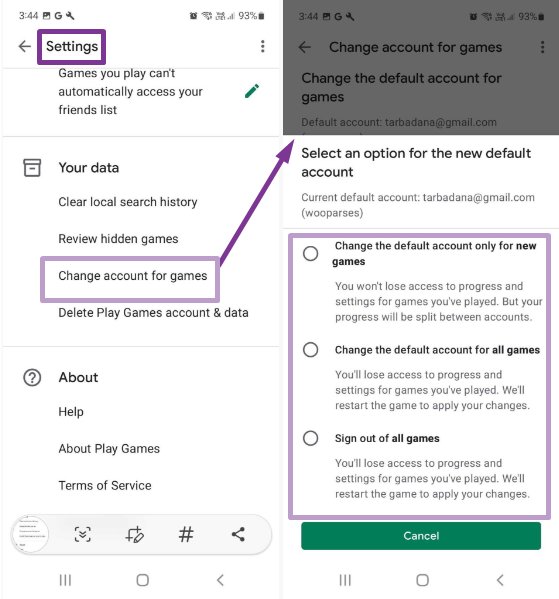
To change your Google Play account in a game, you typically need to log out of the current account within the game’s settings or through your device’s settings, then log back in with the desired Google account.
Ever found yourself wanting to switch the Google Play account linked to your favorite game? It’s more common than you might think. Many gamers need to know how to change google play account in game for various reasons, like starting over or accessing a different profile.
It can be a little tricky to figure out the exact steps sometimes, as each game manages account linking differently. Luckily, the process is usually straightforward once you know where to find the option. This article gives you a concise look on how to switch.

How to Change Google Play Account in Game
Ever found yourself in a situation where you’re playing your favorite game, but it’s connected to the wrong Google Play account? Maybe you have multiple accounts, or you accidentally linked to the wrong one. It happens! The good news is, you can often change the linked Google Play account within a game. It might sound a little tricky, but we’ll break it down step-by-step, making it super easy for you to follow along. Think of it like switching channels on your TV – just a different source for your gaming goodness. Let’s get started!
Understanding Google Play Account Linking
Before we dive into changing accounts, it’s good to understand how games connect with your Google Play account in the first place. Usually, when you start a game for the first time, it asks if you want to log in using Google Play. This is how the game saves your progress, achievements, and sometimes even your in-game purchases. This way, you can pick up where you left off even if you switch devices. It’s like having a bookmark in a really cool book, but this bookmark follows you around to different devices.
Why Games Use Google Play
Games use your Google Play account for several important reasons:
- Saving Progress: Google Play saves your game progress, so you don’t lose all your hard work. This includes levels completed, items collected, and any other achievements you’ve earned.
- Cloud Saves: Your progress is stored “in the cloud,” which means it’s online. So, you can play on your phone, then switch to your tablet, and your progress will still be there. Cool, right?
- Achievements and Leaderboards: Many games track achievements and rank players on leaderboards using Google Play. It lets you compete with friends and see how you’re doing against other players.
- In-App Purchases: If you buy anything within a game (like extra lives or special items), it’s often tied to your Google Play account. This keeps track of your purchases and makes sure you can access them.
The Need to Switch Accounts
There are several reasons why you might want to switch the Google Play account linked to a game:
- Multiple Accounts: Some people have more than one Google account for different purposes. Maybe one for family, one for work, or even one specifically for games.
- Accidental Linking: You might have accidentally logged into a game with the wrong Google account. Oops!
- Sharing Devices: If multiple people use the same device, each might want to use their own Google Play account to keep their game progress separate.
- Account Issues: Sometimes, there might be issues with your current Google account, and using another one is an easy fix.
General Steps to Change Google Play Account in Game
While every game might have a slightly different layout, the basic steps to change your linked Google Play account are often similar. Here’s a general guide you can follow:
Step 1: Look for the Game Settings
First, open the game you want to change the account on. Inside the game, look for a settings icon. It usually looks like a gear or a cog. Sometimes, it might be a menu button that you click to show more options. This settings button is your first stop for making changes.
Here’s what to watch out for:
- Gear Icon: This is the most common icon for settings. It looks like a circle with little teeth.
- Menu Button: It could be three lines stacked on top of each other, or sometimes three dots.
- Profile Section: Some games keep their settings under your player profile or name.
Step 2: Find the Account Options
Once you’re in the settings menu, you need to look for any mention of Google Play, Google Account, or just Account. Some games will display your current Google account name or profile picture. This is where you can see which account is currently linked.
Common terms you might see:
- Google Play: This could be a button, link, or section heading.
- Connected Account: A clear indication of your current linked account.
- Account: Sometimes games just use this general term.
- Sign In/Sign Out: Buttons to manage account connections.
Step 3: Disconnect or Sign Out from the Current Account
Once you’ve found the account section, you’ll usually see an option to disconnect or sign out. Tap on this button. The game might ask you to confirm your decision, which is normal. Make sure you understand that by disconnecting you could be moving away from your saved progress linked to that account.
Key things to remember here:
- Confirmation: Read any prompts carefully before confirming.
- Game Warnings: Some games might warn you about losing progress. This isn’t usually a problem, because you are simply changing the linked Google account not deleting your progress, however, make sure you are signed in to the right account which the progress is linked to.
Step 4: Connect to a New Google Play Account
After signing out, the game will probably take you back to the main menu, or give you the option to sign in again. Choose to sign in with Google Play. Then, a pop-up window will show you a list of Google Accounts that are on your device. Select the new account you want to link the game to.
Remember these points:
- Pop-Up Window: You will see a list of google accounts to choose from.
- Correct Account: Make sure you choose the correct google account that you want to use for this game.
- Permissions: The game might ask for some permissions, such as access to your account details.
Step 5: Verify Account Change
Once you’ve chosen the new account, the game should confirm your change. This could be a message on the screen, an updated profile picture, or simply loading up your saved game progress linked to the new account. Make sure to check if the game data is your current progress or it is a progress linked with the newly linked google account.
Important verification steps:
- Confirmation Message: Look for a notification confirming the new account.
- Profile Update: Your profile picture and name should match the new Google Account.
- Loading of Data: If you are using the right account that you have previously used, then your past progress should load up.
Game-Specific Instructions for Changing Google Play Account
While those general steps work for many games, some games have their own ways of changing accounts. We’ll go through examples of how some popular games handle this.
Example 1: Candy Crush Saga
Candy Crush Saga is a super popular game. Here’s how you can often change accounts there:
- Open the Game: Launch Candy Crush Saga.
- Tap the Settings Icon: Find the gear icon and tap it.
- Account Section: Look for the “My Account” or similar option.
- Sign Out: There’s usually a “Sign Out” button. Tap it.
- Sign In with Another Account: After signing out, the game will prompt you to sign in again. Tap on “Sign In with Google Play” and choose the account you want.
Example 2: Clash of Clans
Clash of Clans is another well-known game that has its unique ways for account management:
- Open the Game: Start Clash of Clans.
- Tap the Settings Icon: Look for the gear icon and tap it.
- Google Play Sign In: Find the Google Play sign-in button.
- Disconnect: Tap the “Connected” button if you want to remove the old account.
- Sign In with New Account: Choose the new Google account you want to use.
Example 3: Pokémon GO
Pokémon GO handles account changes in a slightly different manner:
- Open the Game: Launch Pokémon GO.
- Tap the Poké Ball Icon: Find the main menu button.
- Go to Settings: Tap the gear icon on the top right corner.
- Scroll Down and Select Sign Out : Scroll down to the bottom, then tap “Sign Out”
- Sign in with Google: At the login page select “Google” and select the account you want to use.
Note: Game Developer Instructions
If you have trouble changing accounts with your specific game, it’s always good to check the game developer’s website or help section. They often have step-by-step instructions for their games. Usually, you can search their help pages using keywords like “google account” or “change account.”
Troubleshooting Common Issues
Sometimes, things might not go as smoothly as planned. Here are a few common problems you might run into, and how to fix them.
Problem: No Option to Sign Out
What to do: Some games don’t have a clear sign-out button. If this happens:
- Check All Settings: Look through all the settings sections, including the profile or help menus.
- Clear Cache: Go to your device’s settings, find the app settings, and try clearing the game’s cache. This might help it forget your old account. Remember this method might not work for many cases.
- Reinstall the Game: As a last resort, you can try deleting and reinstalling the game. You may lose some data locally if it’s not connected to Google Play or another cloud save service.
Problem: Game Keeps Using the Wrong Account
What to do: If the game keeps signing you into the wrong account:
- Check Your Device Accounts: Make sure you’ve removed the account you don’t want to use from your device’s Google account settings.
- Restart Your Device: Sometimes, a simple restart can fix glitches.
- Google Play Settings: Double-check in your device’s Google Play settings which account is set as the primary account. This could also be affecting the game.
Problem: Losing Progress
What to do: If you feel like you’ve lost progress after changing accounts:
- Double-Check Accounts: Make sure you are using the correct account linked with your progress.
- Contact Game Support: If you can’t restore your progress, contact the game developer’s support team. They may be able to help.
- Check Game Cloud Storage: Some games use their own cloud storage which is different from your google play. If that is the case, check the cloud service for more details on progress saving.
Problem: Pop-up for Multiple Accounts is not Appearing
What to do: If the pop up to select an account is not appearing, when you try to log in to google:
- Check Google Play Store App: Make sure you are logged in with the right account in google play store app.
- Check if the app is updated: Check if the game is updated to the latest version. Some apps may not properly function if they are not on the latest updates.
- Permissions Check: Check your device’s permissions for google play services, and make sure that app permissions are also enabled for the game and google play services.
Tips for Smooth Account Switching
To make changing Google Play accounts in your games as smooth as possible, here are a few tips to keep in mind:
- Keep Track of Accounts: Keep a record of which games are connected to which Google accounts. This helps avoid confusion in the long run.
- Check Regularly: Periodically check which account each of your games are connected to. It’s good practice to ensure you’re always on the right one.
- Use Cloud Saves: Always double-check your games are properly saving your progress to the cloud.
- Read Game Prompts: Pay close attention to messages when signing out and into Google accounts, to make sure that you are not losing your game progress.
Changing your Google Play account in a game doesn’t have to be a confusing experience. By following these steps and keeping these tips in mind, you can easily manage your gaming accounts. Now you can enjoy playing all your favorite games without worrying about being connected to the wrong account. Remember to always double-check your progress and cloud saves before disconnecting from any accounts. Happy gaming!
How To Change Google Play Game Account (EASY!)
Final Thoughts
To change your game progress linked to a different Google Play account, you usually need to sign out from the current account within the game’s settings or via your device settings. The exact steps may vary, but generally, look for account options.
After signing out, you can then sign in with the new Google Play account you want to use. This will often prompt you to either start a new game or load existing progress if there is any linked to that account. Understanding how to change google play account in game allows you to manage different profiles across your devices easily.

