
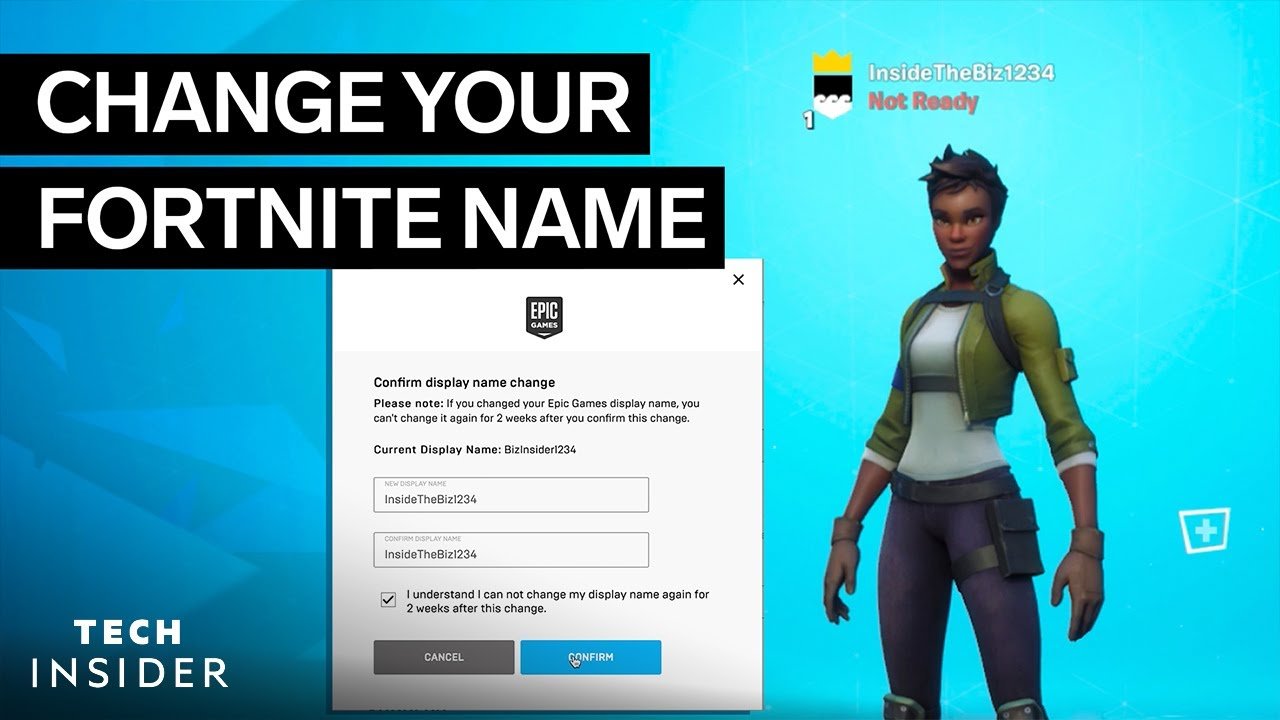
To change your Epic Games name, you need to go to your account settings on the Epic Games website. There, you’ll find the option to edit your display name.
Ever wanted a fresh identity in the Epic Games universe? It happens, right? Maybe you chose a name years ago and it doesn’t fit your vibe anymore. You might also be wondering, how to change my epic games name.
Well, it’s not too complicated a process. You just have to know where to look! Thankfully, Epic Games makes it fairly easy to make that name swap. Let’s get straight to it.

How to Change My Epic Games Name
Alright, let’s talk about your Epic Games name! It’s like your nickname in the gaming world, and sometimes, you just need a fresh one. Maybe you picked a funny name when you were younger and now you want something a bit cooler. Or perhaps you just got tired of your old name and are craving a change. Good news – changing your Epic Games name is totally doable, and I’m here to show you exactly how! We’ll go through all the steps, different ways to do it, and even some things to keep in mind. So, get ready to give your profile a new identity!
Understanding Your Epic Games Display Name
Before we dive into the “how-to,” it’s good to understand what your Epic Games display name actually is. This name is what other players see when you’re playing games, chatting, or hanging out in the Epic Games community. It’s like your face in the game world, so it’s important to get it just right. Your display name is linked to your Epic Games account, not just one specific game. If you change it, it will change everywhere on the platform, in games like Fortnite, Rocket League, and Fall Guys, and in the Epic Games Launcher. You might be thinking about changing your display name because it’s linked to some other name, it’s too childish, too complicated, or you just simply want to have a cool gamer tag. Let’s get into the specifics of how to change it.
Changing Your Epic Games Name Through the Website
The easiest and most common way to update your Epic Games name is through the official website. Follow these steps:
- Go to the Epic Games Website: Open your web browser and go to the Epic Games official website.
- Log In: Click the “Sign In” button in the top right corner. Log into your Epic Games account using your email address, username, or linked accounts (like Facebook, Google, PlayStation, Xbox, or Nintendo).
- Access Your Account: After you’re logged in, hover over your name or profile icon in the top right corner. A menu will appear. Click on the “Account” option.
- Navigate to General Settings: On your account page, find and click the “General” tab, often on the left side of the screen.
- Find Your Display Name: Look for the “Display Name” section. It should show your current Epic Games name. There will be a small edit icon (usually a pencil) next to it. Click on it.
- Enter Your New Name: A text box will pop up. Type in your new Epic Games name. Remember, your name has to be between 3 and 16 characters long, and it can only have letters, numbers, and underscores (_). No spaces or weird symbols allowed!
- Confirm Your Change: After you have entered your new display name, click the “Save Changes” button.
- Verify the Update: Double-check to make sure the change has been saved on your account settings page. You may need to restart the Epic Games Launcher or any open games for the change to show up everywhere.
Important Things to Remember when Changing Your Name via the Website
- Name Availability: If the name you want is already taken, you’ll get a message that says the name isn’t available. Don’t worry, you can try again with another name. You can add numbers, underscores, or different spellings to the name you want.
- Changing Too Quickly: Epic Games has a limit to how often you can change your name. It’s not every day! If you’ve changed your name recently, you might have to wait a while before changing it again.
- Name Guidelines: Be sure to follow the guidelines for names, which is between 3 and 16 characters, including only letters, numbers, or underscores. Avoid anything offensive or inappropriate.
Changing Your Epic Games Name Through the Epic Games Launcher
You can also change your name using the Epic Games Launcher, which is the program you use to download and play games. Here’s how:
- Open the Epic Games Launcher: If it’s not already running, find it on your computer and open it.
- Log In: If you are not already logged in, sign into your Epic Games account using your email address, username, or linked accounts.
- Click on Your Profile Icon: Look for your profile icon in the top right corner of the launcher. It might have your profile picture if you have one, or just a simple generic icon. Click on it.
- Choose “Manage Account”: A small menu will appear, select “Manage Account”. This will redirect to the Epic Games official website through your web browser.
- Navigate to General Settings: On your account page, find and click the “General” tab, often on the left side of the screen.
- Find Your Display Name: Look for the “Display Name” section. It should show your current Epic Games name. There will be a small edit icon (usually a pencil) next to it. Click on it.
- Enter Your New Name: A text box will pop up. Type in your new Epic Games name. Remember, your name has to be between 3 and 16 characters long, and it can only have letters, numbers, and underscores (_). No spaces or weird symbols allowed!
- Confirm Your Change: After you have entered your new display name, click the “Save Changes” button.
- Verify the Update: Double-check to make sure the change has been saved on your account settings page. You may need to restart the Epic Games Launcher or any open games for the change to show up everywhere.
Important Things to Remember when Changing Your Name via the Launcher
- Browser Redirect: When you select “Manage Account” from the launcher, it will open your account page in a web browser. You will not be changing your name directly within the Epic Games Launcher.
- Syncing Updates: Sometimes the launcher might take a few minutes to reflect the changes you’ve made. If you don’t see the updated name right away, try restarting the launcher.
Considerations Before Changing Your Epic Games Name
Before you hit that “save changes” button, let’s go over a few important considerations:
Choosing the Right Name
- Be Unique: Pick a name that reflects who you are and makes you stand out, but is easy to remember.
- Think Long-Term: Choose a name that you won’t get tired of quickly. It’s good to choose a name that is good now, and that you think you’ll still enjoy in the future.
- Keep it Clean: Make sure your name isn’t offensive, inappropriate, or confusing to other players.
- Easy to Understand: Try to avoid using weird characters or symbols, as not everyone can see them.
Limitations on Name Changes
- Cooldown Period: Epic Games has limits on how often you can change your name. If you have changed your name recently, wait for some time before changing it again. This cooldown period varies.
- Available Names: You cannot use a name that someone else has already taken. You may have to get creative with variations.
Consequences of Inappropriate Names
- Name Change Enforcement: If your Epic Games display name is deemed inappropriate by Epic Games, they might force you to change it. Epic Games can change your name without your consent.
- Account Suspension: In severe cases of repeated violations, inappropriate names can cause account suspensions.
What to Do if You Can’t Change Your Name
Sometimes, you might run into problems while trying to change your Epic Games name. Here’s a couple of scenarios you might face and what you can do about it:
Name Change is Not Available
- Recent Change: If you’ve changed your name recently, Epic Games will not let you change it again for a certain amount of time. Be patient and try again later.
- System Glitches: Rarely, there might be glitches on the Epic Games side. Wait a bit and try again later, it might be a temporary issue.
- Name Unavailable: If you are using a name that is taken by another player, the system won’t allow it. Try to use a different name, or try to make some variations.
If you Need Help from Epic Games
- Contact Support: If you’ve exhausted all options or encounter an issue you can’t resolve, reach out to Epic Games support.
- Provide Information: When contacting them, be clear about the problem you’re experiencing and give them your account details for them to review it.
Tips and Tricks
Here are a few extra tips to make changing your Epic Games name a bit easier:
Choosing a Unique Name
- Use a Name Generator: Sometimes, getting a bit of inspiration with online name generator can help. It will give you a new and creative name.
- Combine Words: Try to combine words that you like, such as combining your favorite animal with your favorite color.
- Use Numbers or Underscores: Adding numbers or underscores can make a name unique and different.
Confirming Your Changes
- Log out and In Again: To make sure the changes show up on the launcher and in games, log out and then log back in.
- Restart Games: If you have any games already running, restart them so the new name can show up.
Keeping it Secure
- Keep Your Account Secure: Be sure that your account has a strong password to protect your new name.
- Two-Factor Authentication: Use two-factor authentication to protect your account and your new gamer tag.
Changing your Epic Games name is usually pretty easy, but it’s still something that takes a little consideration. Make sure to take some time to pick the right name and have fun playing with your new persona. Remember, your Epic Games name is your identity in this digital world, so have fun with it and make it your own. Don’t be afraid to try different combinations of words, numbers, or symbols until you find the perfect one that makes you happy. And if you have any trouble, just remember the instructions and tips discussed earlier, and you should be able to navigate changing your name quickly and easily.
How To Change Epic Games Name – Full Guide
Final Thoughts
Changing your Epic Games name is straightforward. You can do this through your account settings on the Epic Games website. Log in, find your profile, and edit the display name field.
Remember that there might be a waiting period before you can change it again. So, think carefully before confirming your new name. The process of how to change my epic games name is simple. This way you can maintain your brand easily.

