
To change your PC Game Pass region, you must update the region settings within your Microsoft account, which can be done through your account settings on the web or your console’s system settings if using one.
Ever found yourself wanting to access games not available in your current area? It’s a common frustration for many gamers. The good news is that you can adjust your settings. This blog post explains how to change PC Game Pass region, allowing you to enjoy a wider selection of titles. Changing your PC Game Pass region requires a few steps through your Microsoft account settings. It’s not too complicated.

How to Change PC Game Pass Region
Want to play games from a different country with your PC Game Pass? Maybe you’re traveling or want to access games not available where you live. Changing your region isn’t too tricky, but there are some things you need to know. Let’s dive into how you can get this done!
Understanding Region Locks and Why They Exist
Before we get into the “how,” let’s talk about the “why.” Video games often have region restrictions, or region locks. This means that a game available in one country might not be available in another. There are several reasons for this:
- Legal Agreements: Game publishers sometimes have different agreements with distributors in different parts of the world. These agreements can dictate where a game can be sold and played.
- Language Localization: Games need to be translated into different languages. It takes time and money to do this, so publishers often release games in specific regions first.
- Censorship and Regulations: Some countries have rules about the kind of content that can be shown in video games. This can lead to different versions of games in different places.
- Pricing Differences: Games often have different prices in different countries. Publishers use regional restrictions to keep pricing fair in each market.
Because of these reasons, Microsoft’s Xbox PC Game Pass also follows region restrictions. This is why you might need to change your region to access games available elsewhere.
The Basics of Changing Your Microsoft Account Region
Your PC Game Pass is tied to your Microsoft account. To change your Game Pass region, you need to change the region setting for your Microsoft account. This tells Microsoft where you are located. Here’s the general idea of how it works:
- You change your Microsoft account region to match the region where the games you want are available.
- Your PC settings for time zone, region, and language might need to match as well.
- Once done, you can access the games and content available in that region.
It’s important to remember that changing your region is not always a simple toggle. There are often some hoops to jump through. Let’s go through the steps in detail.
Step-by-Step: Changing Your Microsoft Account Region
Let’s look at how to change your Microsoft account region on a computer. Remember, it’s vital you have a valid reason to change your region. Falsely changing your region may cause issues with your account and access to games.
Changing Your Region Through the Microsoft Account Website
This is often the easiest way to start your region change. Here’s how to do it:
- Go to the Microsoft Account Website: Open your web browser and go to the official Microsoft account website and sign in. Make sure you log in with the same account used for your PC Game Pass subscription.
- Access Your Profile: Once logged in, find the section for your personal information. Usually, you’ll find something like “Your info” or “Profile.”
- Find the Region Settings: Look for a place where you can see your country or region. This is normally under “Edit Country/region”.
- Change Your Country/Region: Click the “Edit” button and a dropdown menu will appear. From the dropdown menu, choose the country you want to set as your new region. Click the “Save” button to apply this change.
- Verify the Change: After saving, double-check that your region has been updated correctly. It might take a little time for the changes to take full effect.
Note: If you have a subscription with Xbox, you may need to have payment methods for that specific region.
Adjusting Windows Settings to Match Your New Region
Changing your Microsoft account region is just the start. Your computer settings also need to match your new region. If they don’t, you could have issues with app stores and other features. Let’s sync your PC to your new region.
Here are the steps:
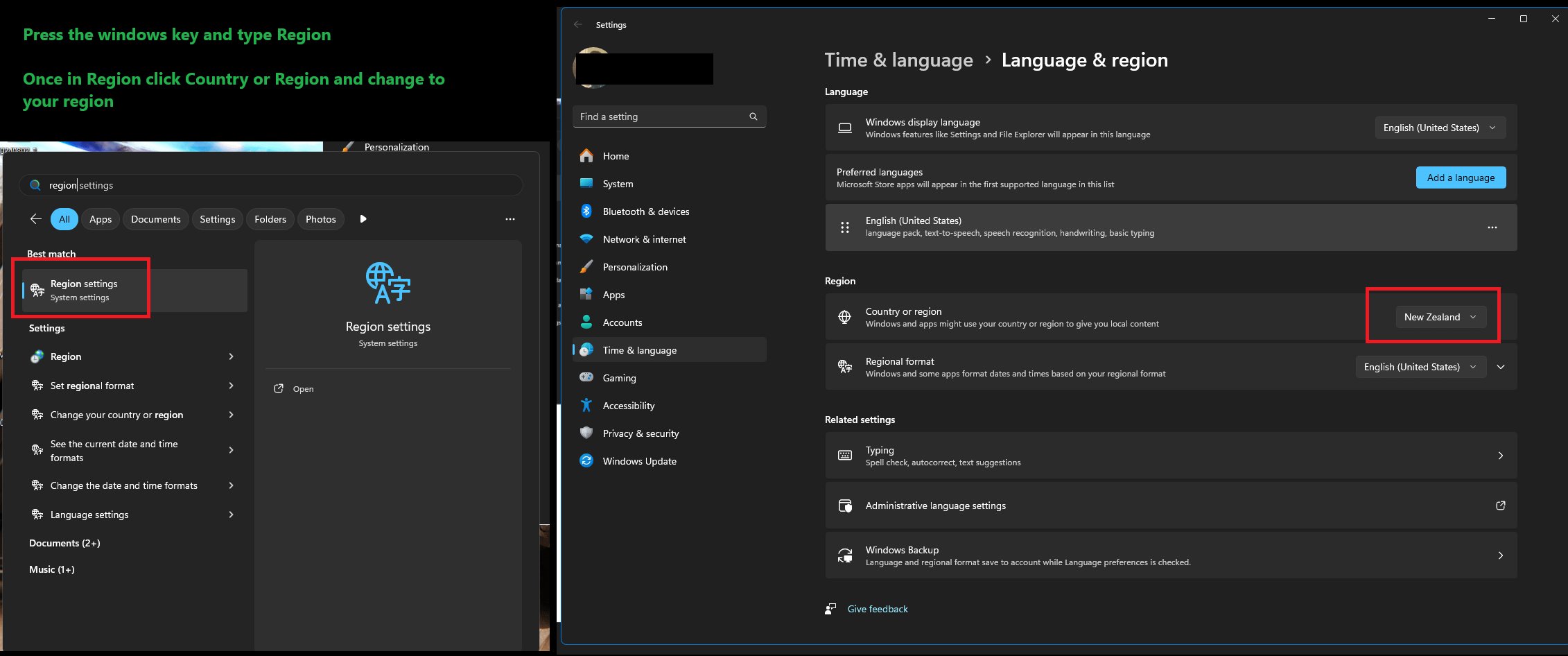
- Open Windows Settings: Click the Windows start button, then click on the “Settings” icon (it looks like a gear).
- Go to Time & Language: In the settings menu, click on “Time & Language.”
- Change Your Region: In the “Region” section, use the dropdown menu to select the same country you chose for your Microsoft account.
- Adjust Time Zone: Go to the “Date & time” section. Turn the “Set time zone automatically” switch off. Pick the correct time zone from the drop-down list.
- Change Your Language Settings (If Necessary): If your new region uses a different language, you may need to adjust your language settings. Usually, the Windows settings will prompt to install a new language package, proceed with the steps to do so.
After making these changes, you may need to restart your computer for everything to apply correctly. Sometimes, apps will not use the new region settings immediately. A restart can solve this issue.
Potential Problems and How to Troubleshoot Them
Changing your region can sometimes come with problems. Here are a few common issues you might face and how to deal with them:
“Your Region Can’t be Changed”
Sometimes, you’ll encounter an error message when trying to change your region. The reasons behind this vary. One of the main reasons is that you have an active subscription and money pending in the current region account. Here are a few possibilities and what you can do:
- Active Subscriptions: If you have any active subscriptions linked to your account, they might prevent you from changing your region. Try canceling the subscriptions first, then changing the region, and then subscribing again in the new region.
- Pending Balances: If you have a balance on your Microsoft account from a previous region, you must use it before you can change your region. Check the account settings and make sure you are at zero balance.
- Conflicting Account Information: If your payment or billing information is still tied to your old region, it can cause problems. You may need to update this payment information to match your new region.
- Regional Restrictions on Payment Methods: Microsoft account payment methods are tied to the region they’re registered in. To avoid problems, be certain to have payment information that’s available for the region you’re changing your account to.
“Games are Not Available in Your New Region”
Even after you have changed your region, there’s a chance that the games you want might still not be available. This can happen for a few reasons:
- Game Licensing: Sometimes, a game might be available in some regions, but not others due to legal agreements. This means it won’t be available to your account even after changing the region.
- Server Locations: Even if a game is technically available, the servers might be located far away from your new region. This means you might experience high ping and lags while playing.
- Incorrect Region Settings: Sometimes, the region settings on your account are not synchronized with the PC. Double-check all settings and confirm that everything matches the new region.
“Payment Method Issues”
Changing regions may cause issues when it’s time to pay for your PC Game Pass or other Microsoft services. Here are some common payment-related issues:
- Card Not Accepted: Not all payment cards work in all regions. Be certain to use a payment method valid for the specific country. This may include credit/debit cards, regional gift cards, and alternative payment services.
- Billing Address Mismatch: The billing address associated with your payment method should match the new region you set on your Microsoft account.
- Payment Method is Tied to Your Old Region: You may need to remove the payment methods from your old region and re-add them in your new region.
If you’re having persistent payment problems, contact Microsoft customer service for assistance.
General Troubleshooting Tips
Here are some general tips to help fix most region-related issues:
- Restart Your Computer: A simple restart can fix many problems with settings changes.
- Clear Your Browser Cache: If you’re making changes on the website, your browser’s cache can sometimes interfere. Clear your browser cache and try again.
- Check for Windows Updates: Ensure your computer has the latest updates. It could contain vital fixes for region-related issues.
- Verify Your IP Address: Sometimes, an IP address that does not align with your region may cause conflicts. You may consider using a VPN to match your IP to your Microsoft region, but this is not recommended by Microsoft as it is against the terms of services.
- Contact Microsoft Support: If all else fails, contact Microsoft support for one-on-one assistance.
Things To Keep in Mind Before Changing Your Region
Before you change your PC Game Pass region, there are a couple things to keep in mind:
Consequences of Changing Region Frequently
Changing your region often is not a good idea and can even put your account at risk. Here are some potential consequences:
- Account Restrictions: Microsoft may restrict your account if you repeatedly change regions. It may view it as fraudulent or suspicious activity.
- Loss of Access to Content: If you rapidly change regions, you could lose access to content that you have paid for, or your PC Game Pass subscription can get suspended.
- Payment Issues: Frequent region changes can lead to payment problems. It can be difficult to manage payments with many different cards.
Avoid changing regions too frequently. If possible, stick to your region for the long-term.
Availability of Games and Content
Before changing your region, make sure you know which games and content are available in your target region. Research before making the change to be certain that you will be able to access what you are expecting.
The Legality of Region Changing
Changing regions is technically allowed by Microsoft; however, doing so to bypass regional pricing or access content fraudulently is against the terms of services. Make sure you are within the terms of service and have a valid reason to change regions.
Using a VPN: A Word of Caution
Using a VPN (Virtual Private Network) might seem like an easy way to change your location. However, this is not the best way to approach this for a couple of reasons. While a VPN will mask your location, it may not fully integrate with the Microsoft ecosystem and may cause more problems when accessing region-restricted content. Also, Microsoft terms of service do not allow the use of VPNs to change your region.
Here’s why you should be careful using a VPN for region changes:
- Terms of Service Violation: Microsoft’s terms of service specifically discourage using VPNs to bypass region restrictions. Breaking these rules can lead to penalties, including account suspension.
- Unstable Connection: Using a VPN can cause your connection to be unstable, which will interfere with gaming.
- Increased Latency: Using a VPN can lead to increased ping which in turn will make your gaming experience less enjoyable.
We generally recommend changing the region by using your Microsoft account settings rather than using a VPN.
Changing your PC Game Pass region can be useful for accessing games from other countries or if you are traveling. However, there are several things to know before making the change. It’s best to make sure your Microsoft account, Windows settings, and payment information all match your new region. If you encounter problems, you can check our troubleshooting section or contact Microsoft support. Make sure you change your region only when required and for a valid reason to avoid any potential issues with Microsoft.
How to Change Region in Xbox PC (EASY 2025)
Final Thoughts
Changing your PC Game Pass region involves altering your Microsoft account’s location. You need to use a VPN and change your region in account settings. This often allows you to access games unavailable in your current area.
Remember, consistently changing regions can sometimes cause issues. Therefore, use a VPN and change your account location only if necessary. Always verify if ‘how to change pc game pass region’ is the right approach for you.

