
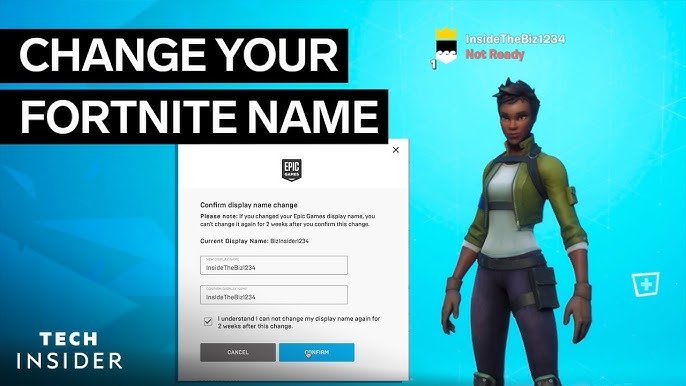
To change your name on Epic Games, you must go to your account settings on the Epic Games website, find your display name, and edit it there.
Ever felt like your current Epic Games username doesn’t quite represent you anymore? Or perhaps you picked something silly way back when and now want to project a different image? It’s a common feeling, and luckily, figuring out how to change your name on Epic Games is a straightforward process.
Many players find themselves wanting a fresh start, and thankfully, the platform allows for name changes. This article will guide you through the steps to update your Epic Games display name, making sure your online presence is exactly how you want it.

How to Change Your Name on Epic Games
It’s super common to want a different name online. Maybe you picked a silly one when you first started playing, or perhaps you’ve just grown out of it. Whatever your reason, changing your Epic Games display name is easier than you might think! Let’s dive into all the details and make sure you understand exactly how to make this change successfully. This guide is here to help you learn how to update your name, the things to consider, and what to do if you run into any trouble. Changing your Epic Games name isn’t hard, and this article will walk you through every step.
What Exactly is an Epic Games Display Name?
Before we jump into the “how,” let’s clarify what we’re actually talking about. Your Epic Games display name, also called your username, is the name that everyone sees when you play games like Fortnite, Fall Guys, Rocket League, and others. It’s your identity in the Epic Games world, so it’s essential you like it! This name is different from your email address or any other account information you may have. It’s what people use to find you, add you as a friend, and see you in game. Think of it as your gaming persona. It is also linked across many platforms if you use the same Epic account. So that means your name change will be visible to your friends whether they are on PC, PlayStation, Xbox or Nintendo.
Why Would You Want to Change Your Name?
There are many good reasons to want to change your Epic Games display name. Here are a few common ones:
Regret From a Past Choice: Maybe you chose a name when you were younger and now it just doesn’t fit who you are. It happens to everyone!
Wanting Something More Mature: As we get older, sometimes we want names that sound a bit more serious or grown-up.
To Better Represent Your Identity: Perhaps you have a new favorite character or nickname that you’d like to represent in your gaming world.
Privacy Concerns: Sometimes you may have chosen your real name or something that connects to your personal information, and later decide you want more privacy online.
A Simple Desire For Change: Sometimes, people just want a change and fresh start for no other reason other than wanting something different.
To Avoid Confusion with Others: If someone else has a name similar to yours, you may want to change it to avoid any misunderstandings.
To Make it Easier for Friends to Find You: If your current name is too difficult to remember or spell, changing it can make it easier for friends to find you online.
No matter why you want to change your name, the important thing is that you can. Epic Games understands that people need flexibility with their usernames.
How Often Can You Change Your Name?
Okay, so this is important to understand: Epic Games doesn’t let you change your display name every day. It’s not like changing your socks! You can typically change your name every two weeks. That means, if you change it today, you’ll need to wait at least fourteen days before you can change it again. This rule is there to prevent players from changing their name too often, which could cause confusion and make it difficult for friends to find each other. It’s a good idea to choose a name you really like and will want to stick with for a while.
Important Things to Remember about Time Restrictions
Two-Week Cooldown: Once you change your name, you have a two-week waiting period before you can change it again.
Plan Ahead: Think carefully about the name you want before making the change.
No Shortcuts: There is no way to get around this two-week waiting period. Even if you contact Epic Games support, they won’t be able to help. This is a built-in system for everyone.
Step-by-Step Guide to Changing Your Name on Epic Games
Now for the main event: how to actually change your display name. Whether you’re on a PC, console or mobile, the process is very similar. You’ll need a web browser to make the change. Follow these simple steps:
Step 1: Go to the Epic Games Website
First, open your internet browser. It can be Chrome, Firefox, Safari, or any other one you like to use. Go to the Epic Games website at [www.epicgames.com](www.epicgames.com). This is where you will manage your account details. Don’t go through the game launcher; use the web browser.
Step 2: Sign In To Your Account
In the upper right corner of the website, you’ll see a sign-in option. Click on it. Then, enter your email address and password that you use for your Epic Games account. If you use a platform like Facebook, Google, PlayStation Network or Xbox Live to log into Epic Games, you’ll be redirected to their sign-in page. Follow their instructions to sign in to your Epic Games account through your linked platform. Remember to use the exact same method you normally use to play your games. Once you are signed in, the sign-in button will disappear and it will be replaced by your account name.
Step 3: Go To Your Account Settings
After you’ve signed in, click on your account name in the upper right corner of the screen. A drop-down menu will show up. Look for the option called ‘Account’ and click it. You will be taken to the page where you can change settings for your Epic Games account.
Step 4: Find Your Display Name
On the Account Settings page, you will see a navigation menu on the left. Look for the option ‘General’ and click it. On the General section, you’ll see a few different fields. Find the one that says “Display Name.” This is the name everyone sees when you play games. Your current display name will be shown in the text box next to this label.
Step 5: Edit Your Display Name
Click the ‘edit’ or ‘pencil’ icon next to your current display name. This will activate the textbox so that you can type in a new name. A pop-up window might appear to confirm the name change; it’s a reminder of the two-week change rule we talked about.
Step 6: Type in Your New Name
Now you can type in your brand new display name. Remember the name has to follow all Epic Games guidelines, and avoid using inappropriate content. When typing in your new display name, consider these tips:
Make It Unique: Think about a name that reflects you and is easy to remember.
Check Availability: Make sure the name is not already taken by another player. The system will usually let you know if the name is unavailable.
Follow the Rules: Names cannot be offensive, use copyrighted content or contain special characters that are not supported.
Don’t Use Real-Life Personal Information: Avoid using personal information in your game name like your birthdate or address.
Step 7: Save Your Changes
After you’ve typed in your new display name, click the ‘Save Changes’ button, usually located at the bottom of the window. Then, the change should be saved and a message confirming the change will appear.
Step 8: Double Check the Change
After saving, it might take some time for the change to show everywhere. If you don’t see it immediately, try logging out of your Epic Games account on the website and logging back in. This can help the change take effect. Then open your favorite Epic game and your name should be updated there. If not, you can restart your game or console to see the changes.
What To Do If You Have Problems Changing Your Name
Sometimes things don’t go as planned, even with following all the instructions. Here’s what you should do if you have issues changing your Epic Games display name:
The Name You Want is Taken
If you try to change your name and the system tells you that it’s taken, it means someone else is already using that name. Here’s how to deal with it:
Try Adding Numbers: If “CoolGamer” is taken, try “CoolGamer123” or “CoolGamer007.”
Add Underlines or Dashes: Something like “Cool\_Gamer” or “Cool-Gamer” might work.
Use Alternate Spelling: Try changing the vowels, like “C00lGamer” or “KoolGamer.”
Get Creative: Think of synonyms or other related words, or try combining two words together.
Error Messages
Sometimes you may receive an error message when attempting to change your name, these may be common issues:
Check Spelling: Make sure there are no typos in your new display name. Even a small mistake can cause an error.
Review the Name: Double check to ensure your name does not use any characters that are not supported by the Epic Games system.
Try Again Later: Sometimes, there may be a temporary issue on the Epic Games website. Waiting a bit before trying again can sometimes fix the problem.
Server Issues: Sometimes, Epic Games servers are under maintenance or encountering problems. In such cases, you need to wait before you try again.
Too Many Characters: There are limits on the length of your username. If you get an error saying it’s too long, shorten it and try again.
Contact Support: If none of these options work, it might be a problem with your account or the website. You may need to contact Epic Games Support for assistance.
Stuck In the Two-Week Wait
If it’s been less than two weeks since your last name change, the system will not allow you to change it again. There’s no way to get around this. Here’s what to do:
Wait It Out: Just wait until the full two weeks have passed and then try again.
Double Check Date: If you’re unsure of when you changed your name, try to remember as best you can.
Mark Your Calendar: Once you change your name, it might help to set a reminder on your phone for two weeks later to remind you when you can change it again if you like.
Contacting Epic Games Support
If you continue to have issues or have an error you can’t resolve, contacting the support team is a good move. You can contact them through their support website. Here is how you do that:
Go to Epic Games Support: Go to the Epic Games website and click on “Support”. There’s usually a button at the bottom of the site that will lead you there.
Search For Articles: Before you get in touch, search their articles. They have many helpful articles about changing your name, and your issue may have an easy solution explained there.
Submit a Ticket: If you still can’t find a solution on their support pages, submit a ticket for support. Select the category for Account and then the issue for display name. Make sure you give them as many details as possible so that they can help you best.
Be Patient: It may take a day or two for Epic Games Support to respond. Be patient and they will help you as soon as they can.
Tips for Choosing the Right Display Name
Choosing the right display name can make your gaming experience much more enjoyable. Here are a few tips to help you pick a great one:
Think About Your Interests: What do you love? Maybe you can include things from your favorite game, TV show, book, or even hobbies in your name.
Keep It Short and Easy To Remember: A short name is easier for friends to remember and type in.
Make It Meaningful To You: The name should be something that you like and that makes you feel happy to use.
Use Nicknames: If you have a nickname in real life, you can use it as your game name.
Avoid Offensive Content: Don’t use words or phrases that could offend or upset others. Keep it friendly and appropriate.
Check Social Media: Before you commit, check social media to make sure the name you want doesn’t have a negative association that you were unaware of.
Ask Your Friends: Ask your friends for ideas or feedback on names you like, they might help you make a good decision.
Staying Safe When Changing Your Name
Changing your name can be fun, but it’s also important to stay safe online. Here are a few things to remember:
Don’t Use Personal Information: Never use your full name, birthday, address, or any other personal details in your display name. It’s important to keep your private information safe online.
Keep Your Email Address Private: Don’t share your email address or password with anyone. Epic Games support or any other official account will never ask you for it.
Be Wary of Links: If someone sends you a link claiming to change your name faster, don’t click on it. Only use the official Epic Games website.
Use Strong Passwords: Make sure your Epic Games account has a strong and unique password to prevent anyone from breaking into your account.
Never Share Account Information: Don’t share your email, password or other private account details to anyone.
Changing your Epic Games display name is a simple process, and following these steps will ensure you can make the changes you want without issues. Remember, you have all the power to pick something that reflects who you are as a gamer. The most important thing is to be safe and have fun.
Changing your Epic Games name is a straightforward process that allows you to keep your online gaming persona fresh. Whether you’re looking to update your name because of a childhood mistake or just want to have a different look, you can do so as long as you follow the simple steps mentioned in this guide. Keeping your information safe and being patient with the two-week waiting time will ensure a smooth process. So, go ahead, choose your perfect name and enjoy your time in the Epic Games universe!
How To Change Name on Epic Games
Final Thoughts
Changing your Epic Games display name is straightforward. Access your account settings through the website. Find the “General Settings” section.
Locate the display name field and enter your new name. Submit the change. Remember you may need to verify the change through an email.
Therefore, this sums up how to change your name on Epic Games. Follow these steps to successfully modify your display name. The process is simple for all users.

