
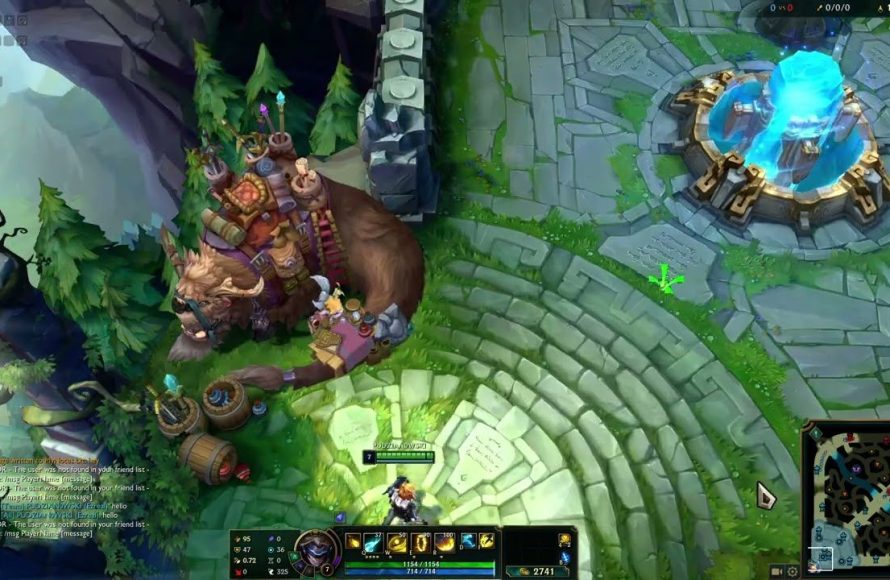
‘To chat in game lol, press the Enter key to open the chat window, type your message, and press Enter again to send it to your teammates.’
Ever felt the urge to coordinate a sneaky gank or share a hilarious misplay with your team? Communicating effectively is key to victory in League of Legends. It is really important to know how to chat in game lol, especially to avoid misunderstandings. This guide will help you understand the simple process.

How to Chat in Game LOL: A Complete Guide
League of Legends, or LOL as most players call it, is a team game. Talking with your teammates is super important to win. But, it’s not just about saying “attack!” or “help!”. Knowing how to chat effectively in LOL can help you plan strategies, coordinate plays, and even make new friends. This guide will teach you everything you need to know about chatting in League of Legends.
Understanding the Basics of In-Game Chat
Before we get into fancy tips and tricks, let’s cover the very basics. When you’re in a game, you’ll see a chat box at the bottom left of your screen. This is where you type messages to your teammates, and sometimes your opponents.
Different Chat Channels
League of Legends has a few different ways to send messages. Here’s how it breaks down:
- Team Chat: This is the most common chat. Everything you type here can only be seen by your teammates. This is usually where most of your communication will happen. You can access team chat by pressing the Enter key or /all to switch the chat channel.
- All Chat: This chat is for everyone in the game, your team and the enemy team. Use this chat to be friendly or for some harmless banter. You can access all chat by typing /all before your message. Be careful what you type here since everyone can read it!
- Whisper (Private Chat): You can send a private message to another player, even if they aren’t in your game. Use the command /w [player’s name] [message]. You can also press the /r to quickly reply to the last person who whispered you. For example,
/w SummonerName Hi there!would send a private message to the player named “SummonerName”.
How to Type a Message
Typing a message in LOL is pretty simple.
- Press Enter: Press the Enter key to open up the chat box. A blinking cursor will appear, showing that you can type a message.
- Type Your Message: Use your keyboard to type what you want to say.
- Press Enter Again: Once you’ve finished your message, press the Enter key again to send it. Your message will pop up in the chatbox.
Effective Communication Strategies
Now that you know the basic how-to, let’s focus on what you should be saying. Good communication can be more valuable than individual skill. Here’s how to talk like a pro in LOL.
Clear and Concise Messaging
In the heat of battle, long paragraphs aren’t helpful. Keep your messages short and to the point. Use simple words that everyone can understand easily. For example:
- Instead of “I’m going to push the top lane and see if I can take the tower,” say, “Pushing top”.
- Rather than “I think we should group up in the mid lane and try to fight them when they’re all together,” say, “Group mid”.
This ensures everyone quickly grasps your intention without needing to read a whole lot of text.
Using Pings Effectively
Sometimes, it’s faster and more effective to use pings instead of typing. Pings are little markers you can place on the map to get your team’s attention. Here’s how to use pings:
- Basic Ping: Click the mouse wheel and drag to choose the ping you want to use:
- Alert Ping (Yellow): Use to get attention, like when you see an enemy in the jungle.
- Danger Ping (Red): To warn teammates about danger in an area.
- On My Way Ping (Blue): When you’re coming to help a lane.
- Assist Me Ping (Green): To tell your teammates you need help in a certain location.
- Alt-Clicking: You can also use Alt + left click to do quick pings. For example, if you hold Alt and left-click an enemy champion, you’ll do a danger ping to warn others.
Pings are great for quickly sharing important information without taking the time to type.
Sharing Key Information
What kind of information should you share with your team? Here are some examples:
- Enemy Positions: If you see the enemy jungler in top lane, tell your teammates in mid and bottom to play safe. “Jungler top.”
- Cooldowns: Let your team know when you have used important abilities or summoner spells, this can help with fight planning. “Flash down” or “Ult just used”.
- Objectives: Plan when you’re going to try to take Dragon or Baron, “Lets do Dragon in 2 min”.
- Missing Enemies: If you notice an enemy player isn’t on the map anymore, use pings or chat to warn teammates. “Mid Missing”
Sharing such information consistently can give your team a significant advantage over the other team.
Navigating Difficult Chat Situations
Sometimes, chatting in LOL isn’t all sunshine and rainbows. You might encounter players who are not so nice or even upset. Here’s how to deal with these types of situations.
Handling Toxicity
Unfortunately, not everyone in LOL will be friendly. You might encounter players who use bad words, are disrespectful, or blame others for mistakes. Here’s what you should do:
- Mute: The fastest way to stop someone from bothering you is to mute them. Click the speech bubble next to their name in the scoreboard to mute them in chat. You won’t see anything they say in chat anymore.
- Report: After the game, report the player for bad behavior. Riot takes these reports seriously, and it helps make the game a better place for everyone.
- Don’t Engage: It’s very easy to get into an argument. However, this usually makes things worse. Try to keep calm and focus on playing the game.
- Stay Positive: Even if others are being negative, trying to stay positive is helpful. You can encourage your team and keep the vibe up, even when the game is difficult.
Dealing With Losing Streaks and Frustration
Losing is a part of any game. It’s not fun, but it’s how we learn and become better players. Here’s what to do when you’re feeling frustrated:
- Take a Break: Sometimes the best thing to do is to step away from the game for a bit. Do something else that you enjoy and come back later when you feel calmer.
- Don’t Blame Others: It’s easy to point fingers when you’re losing, but try to think about what you could have done better.
- Learn from Mistakes: Every loss is a chance to see what went wrong. Reflect on the game and figure out what you can do differently next time.
- Focus on Having Fun: It’s easy to get caught up in winning and losing, but remember to have fun with the game. Playing with friends can make even a difficult game enjoyable.
Advanced Chat Tactics
Once you have the basics of chatting down, you can start to incorporate some advanced chat tactics to make your communication more effective.
Using Shortcuts
There are a lot of keyboard shortcuts you can use for chatting. Here are some useful ones:
- /all: Switches your chat to the all chat channel.
- /w [summoner name] [message]: Lets you whisper a specific player.
- /r [message]: Quickly replies to the last whisper you received.
- Ctrl + Enter: Opens the chat box already in all chat mode.
Planning Plays in Chat
Use chat to plan big plays with your team. For example, if you know that a key enemy player used a spell and is going to be vulnerable soon:
- Example: “Their midlaner flash is down, let’s dive in 1 minute”. This tells your team that you want to attack soon, after their key ability has cooled down.
Setting Team Goals
Sometimes a good way to bring your team together is by setting a short-term team goal. Some examples:
- Example: “Lets try to secure Dragon in the next two minutes”. This reminds your team to focus on winning and works towards achieving an important objective
- Example: “Lets pressure the turret in mid, they have weak defense there” this informs the team to pressure a specific point on the map that is currently easy to attack.
Chat Settings in LOL
League of Legends also has options to change how the chat appears and works. You can adjust these settings to match your preferences.
Accessing Chat Settings
To get to the chat settings, follow these steps:
- Open the Game: Log into your League of Legends account and go to the main menu.
- Click on Settings: Look for the gear icon (settings) at the top right of the screen and click on it.
- Go to Interface: Find the “Interface” tab on the left side menu and click it.
- Scroll to Chat: Under the interface tab, scroll down until you see “Chat.”
Customizing Your Chat
In the chat settings, you’ll see options like:
- Chat Size: You can adjust how big the chat window is.
- Chat Font Size: Change the size of the text to make it easier to read.
- Chat Color: Set custom colors for various chat channels.
- Enable/Disable All Chat: You can choose to turn all chat off, so you only see your team chat.
- Show Timestamps: Show the time when each message was sent.
Taking some time to customize your chat settings can make it more user friendly for you.
The Importance of Positive Communication
In the end, the goal of chatting in LOL is to help you and your team play better together. Positive communication can make the difference between winning and losing.
Encouraging Teammates
Instead of pointing out mistakes, try to encourage your teammates. Say things like:
- “Good job!”
- “Keep it up!”
- “We got this!”
Focusing on the Game
It’s easy to get distracted by chat, but remember the purpose of chat is to improve your team play, and not to distract from the actual game. When people start having side conversations during the match, remind them to focus up:
- “Focus game”
- “Lets focus on playing better”
Being Respectful
Always treat other players with respect, even if you disagree with them. If everyone tries their best to be nice to each other, the game is much more fun for everyone.
By mastering the art of in-game communication, you can greatly improve your League of Legends experience and chances of winning games. Remember, clear, respectful, and effective communication is key to success in any team-based game. Keep practicing these techniques, and you’ll soon find yourself chatting like a pro!
How to Chat in League of Legends – Communicate with players during the LOL game #lolguide
Final Thoughts
Effectively communicating in League of Legends is must for team success. You can use the enter key to open the chat box. Then, simply type your message and press enter to send. Remember that keeping your communication positive helps team morale.
Using pings strategically complements chat, guiding your team efficiently. Knowing how to chat in game lol is essential to coordinate plays and convey crucial information. Practice typing quickly and accurately, too.
Always consider using chat wisely because excessive chatting can be distracting. Focus on providing valuable communication while avoiding negativity. Thus, you’ll see improvement in your gameplay and team collaboration.

