
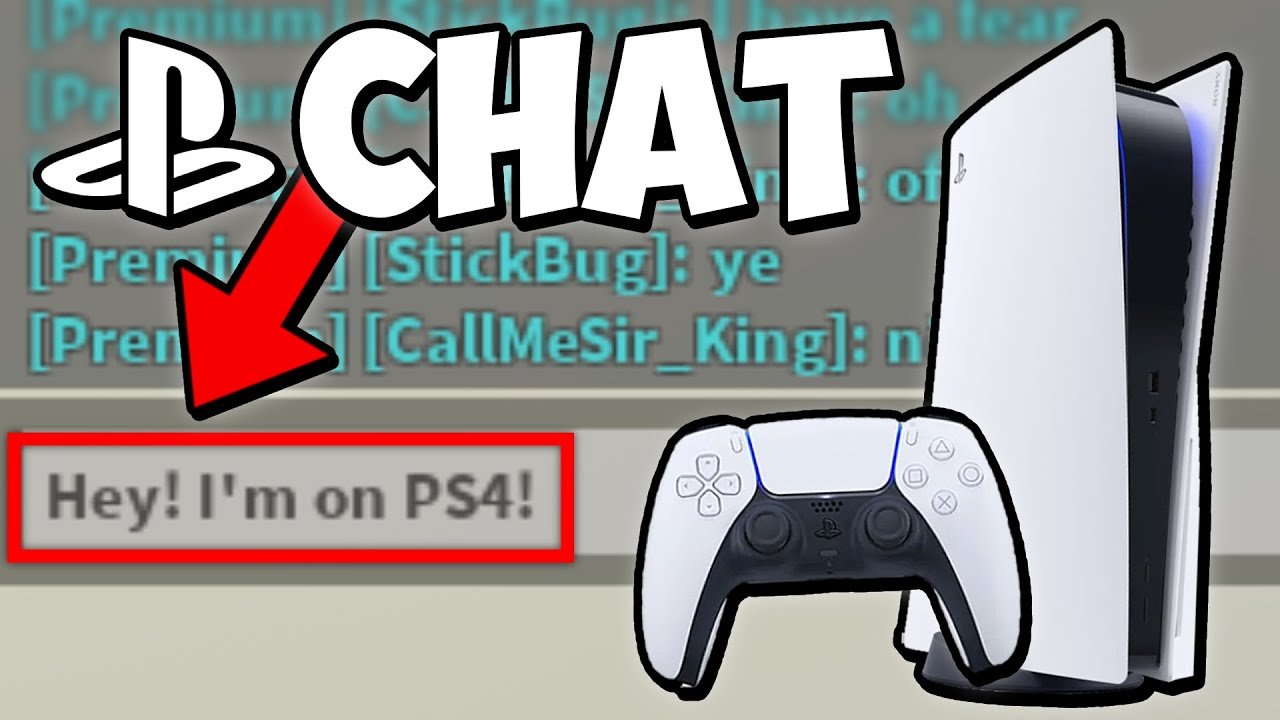
To chat on Roblox PS4 in-game, you must use the on-screen virtual keyboard. Press the touchpad button to bring up the keyboard, then type your message and submit.
Ever felt a bit lost trying to talk to your friends while playing Roblox on your PS4? It’s a common question, and many players wonder how to chat on Roblox PS4 in game. It isn’t as straightforward as PC or mobile.
Navigating the virtual keyboard can feel a bit clunky at first. But with a little practice, you can quickly type messages to coordinate with your team or just say hello. This will allow you to communicate with other players, and enhance your gaming experience.

How to Chat on Roblox PS4 In Game
Playing Roblox on your PlayStation 4 can be super fun, especially when you get to play with your friends! One of the best parts about playing online is being able to talk to other players. But, sometimes, figuring out how to chat on Roblox using your PS4 controller can feel a little tricky. Don’t worry; we’re going to break it down and make it super easy. Let’s get into it so you can start chatting away in your favorite Roblox games!
Understanding the Basics of Roblox Chat on PS4
Before we jump into the specifics, let’s understand how Roblox chat works on the PlayStation 4. Unlike playing on a computer where you use a keyboard, you’ll be using your controller. This means the way you type messages is going to be a little different. The good news is, it’s still very simple once you know how!
The Virtual Keyboard
The main tool you’ll use for chatting is the virtual keyboard. When you press the chat button, a keyboard will pop up on your screen. You’ll use your controller to navigate and select letters and numbers. Think of it like using your controller as a mouse to click the keys on a screen. It might take a few tries to get the hang of it, but it will become second nature quickly.
Chat Options Available
Roblox on PS4 has two main chat options:
- Public Chat: This is the chat everyone in the game can see. It’s perfect for talking to friends and making new ones while you play.
- Private Chat: This allows you to message a specific player. It’s useful if you want to talk to just one person without everyone else reading it.
Knowing the difference between these options will help you communicate exactly how you want to.
Accessing the Chat Function on Your PS4
To start chatting, you need to open the chat window. Here’s how to do it on your PS4:
- Start Your Roblox Game: First, pick the Roblox game you want to play.
- Look for the Chat Button: Once you’re in the game, look for the chat icon. It looks like a speech bubble.
- Press the Right Button: Usually, you need to press the ‘L2’ button on your controller to open the chat window.
If the ‘L2’ button doesn’t work, look for instructions that might appear on the bottom of your game screen. The game might specify a different button. Every game could potentially have different specific actions tied to a button, and it is always important to check.
Typing a Message Using the Virtual Keyboard
Okay, now you have the chat window open. The next step is to actually type your message. Here’s a breakdown of how to use the virtual keyboard:
- Navigating with the Joysticks: Use the left joystick to move the cursor around the keyboard and select the letters you want to use. You can move up, down, left, and right.
- Selecting a Letter: Once the cursor is highlighting the letter you want, press the ‘X’ button to select it. The letter will then appear in your message.
- Using Shift and Symbols: If you need to write uppercase letters or use symbols, look for the ‘Shift’ or symbols keys on the virtual keyboard. You typically press ‘X’ button over those keys to access them, just as you would on a regular keyboard.
- Adding Spaces: There is a space key. Use ‘X’ button to add space between words.
Typing with a controller might feel slower than a regular keyboard at first. With some practice, though, you’ll get faster and it’ll be much easier.
Sending Your Message
After you’ve typed your message, it’s time to send it. Here’s how:
- Find the Send Button: Look at the bottom right corner of the virtual keyboard. You’ll see a ‘Send’ or ‘Enter’ button.
- Press ‘X’ to Send: Move the cursor to the ‘Send’ button using the left joystick, and press the ‘X’ button to send your message.
After you click ‘send’, your message will pop up for everyone in public chat or just the person you sent the private message to. Now you are good to go, and you can chat with other players!
Using Private Chat on Roblox PS4
Sometimes, you don’t want everyone in the game to see what you’re saying. You may want to talk to one friend, or just you might want to have some private discussion. This is where private chats come in handy.
Opening a Private Chat
To start a private chat, follow these steps:
- Open the Player List: While in the game, find the player list. This is usually accessed by pressing the ‘Options’ button on your controller. Look for where the player names are listed.
- Select the Player: Scroll through the list using the left joystick and find the player you want to chat with.
- Choose the ‘Private Chat’ Option: Press the ‘X’ button on the player you want to private chat. A menu should pop up. One of the options there will be ‘Private Chat’ or ‘Message’. Select that option, usually with the ‘X’ button.
Messaging in Private
Once you click ‘Private Chat,’ a new chat window for that player should appear. You can type your message using the virtual keyboard the same way you would in public chat. The messages will be displayed only in this separate private chat window for you and the chosen player.
Tips for Easier Chatting
Chatting with the PS4 controller can feel hard at the beginning, so it’s always good to know tips and tricks that will make it easier.
Practice Makes Perfect
The more you chat on Roblox using your PS4 controller, the quicker you will be. Don’t be discouraged if you are slow at first. Simply keep practicing while you play.
Using the Right Words
It can be hard to type long messages using the controller. Try to keep your messages short and to the point so you can chat faster. For example, instead of saying “Hey, what are you doing in this game? Want to play?”, you could say “Hey, what you doing? Want play?”.
Take Your Time
Don’t feel pressured to type super fast. It’s okay to take a few seconds to find the right letters. Everyone had to start somewhere, and it’s ok if you aren’t a fast typer yet.
Chat Filters
Roblox has some safety features, such as chat filters, that remove certain words. These are in place to keep the game safe for everyone. Just keep this in mind in case you see a strange message or if you’re confused why your message is not displayed completely, it might have been filtered.
Look for Game Specific Controls
Some games may change or add more ways to start a chat in game. It always helps to check the game specific controls, which is usually displayed at the beginning of a game or in game pause screen. Check if the control that starts the chat window is the ‘L2’ button, or something different.
Troubleshooting Common Chat Issues
Sometimes, you may run into issues when trying to chat. Here are some common problems and how to fix them:
Can’t Open the Chat Window
If pressing the ‘L2’ button is not opening the chat window, first, make sure that you are in an actual game and not just in the Roblox menus. Sometimes, menus don’t have any chat functions, only game modes have it. If it still isn’t working, check to make sure your controller is properly connected. Also, sometimes restarting the game will also fix this.
Messages Don’t Appear
If your messages are not showing up in public chat, it could be that the message contains a filtered word. Roblox will block or remove parts of the message that break their rules, or considered as bad words. If it is still not displaying and you are sure that you didn’t type any inappropriate word, try restarting the game, that fixes many problems.
Can’t Find a Player in Player List
If you cannot find a person that you want to private chat in the player list, make sure that you are in the same game server as the person. If you are not in the same server, you will not see them in the list. You can only private chat with the person who is in the same game with you.
Chatting is such a fun part of Roblox, and it’s worth taking the time to learn how to do it well on your PS4. With a little practice and understanding of the virtual keyboard, you’ll be able to communicate with others and enjoy your games even more. Remember that it takes time to get used to it. Have fun chatting with your friends on Roblox PS4!
ROBLOX PS4/PS5 How To Chat in Game – Simple Guide
Final Thoughts
To chat in Roblox on PS4, you must plug in a keyboard. Then, press the chat button on the controller. This action will display the chat window, allowing you to type messages. Remember, the keyboard is crucial for input.
Unfortunately, voice chat isn’t directly available on PS4. This means text-based chat via a keyboard is the only option. We hope this clarifies how to chat on roblox ps4 in game.

