
To check game version on Steam, right-click the game in your library, select ‘Properties,’ then navigate to the ‘Updates’ tab; the current version will be displayed there.
Ever found yourself wondering if your game is up-to-date or if a friend is playing an older version? This little thing can be quite essential for smooth online gameplay and when troubleshooting issues, right? Knowing how to check game version on Steam becomes important for any dedicated player.
Let’s be real, constantly worrying about mismatched game versions is annoying. Luckily, Steam has a simple method to find this information. This blog post will guide you through the exact steps.

How to Check Game Version on Steam
Ever wondered what version of your favorite game you’re playing on Steam? It’s a good question! Knowing your game version is important for many reasons. Maybe you’re checking if you have the latest update, or perhaps you need the version number to join a friend’s game online. Don’t worry, it’s easy to find out. This article will guide you step-by-step through the process, explaining why it’s useful and covering different scenarios.
Why Knowing Your Game Version Matters
Before we jump into how to find the game version, let’s quickly talk about why it matters. Game developers frequently release updates to fix bugs, add new features, and improve game performance. These updates change the game version. If you’re not on the same version as your friends, you might not be able to play together. Or, if you’re looking up guides online, you’ll want to make sure they’re for the version of the game you’re playing to avoid confusion. Sometimes, mods or fan-made content require specific game versions to work correctly. Keeping track of your version helps keep your gaming experience smooth and trouble-free.
The Simplest Method: Checking in the Game Menu
The easiest way to check your game version is often from within the game itself. Most games will display the version number somewhere on the main menu or in the settings. Let’s walk through how to do this:
- Launch the Game: Start the game you want to check the version for from your Steam library.
- Look at the Main Menu: Once the game loads, take a look at the main menu screen. Often, you’ll find the version number in a corner, usually at the bottom. It might be near the game’s title or logo.
- Check the Settings Menu: If you don’t see the version on the main menu, head to the game’s settings or options menu. Look for sections like “About,” “Help,” or “Game Info.” The version information is often included there.
Where exactly the version is shown can differ from game to game. For example, one game might display it directly on the start screen, while another might hide it in an “About” section. The game itself is always the first place to look for version details.
Examples of Where to Look In-Game
Here’s what you might see:
- Version v1.2.3
- Build 20231026
- Patch 1.01
- Current Game Version: 2.0
These are examples; they will differ depending on the game.
Using the Steam Library: A Secondary Method
If you cannot locate the version inside the game, or you prefer to do it outside the game, you can often find the version using Steam itself. This method might not give you the exact version number in all cases, but it can provide an important update status or build ID.
Checking the Game’s Properties
This way is useful to check if the game is updated.
- Open your Steam Library: Launch the Steam client and click on the “Library” tab at the top.
- Find Your Game: Locate the game you’re interested in within your list of games.
- Right-Click the Game: Right-click on the game’s name. This opens a context menu.
- Select Properties: From the menu that appears, click on “Properties.”
- Go to Updates: In the Properties window, click on the “Updates” tab. This area shows you if the game is updated.
The “Updates” tab won’t always show the version number directly, but it will display whether your game is up to date. If the game says it is up to date, then you are likely running the most current version. If Steam shows that there is an update available, then you’re not running the latest version, and you might need to update your game. After update, you can again check using this method, or check inside the game.
Exploring the Local Files
If the update tab doesn’t provide the exact version, you can sometimes find clues within the game’s local files. This method is slightly more advanced, but it can be helpful.
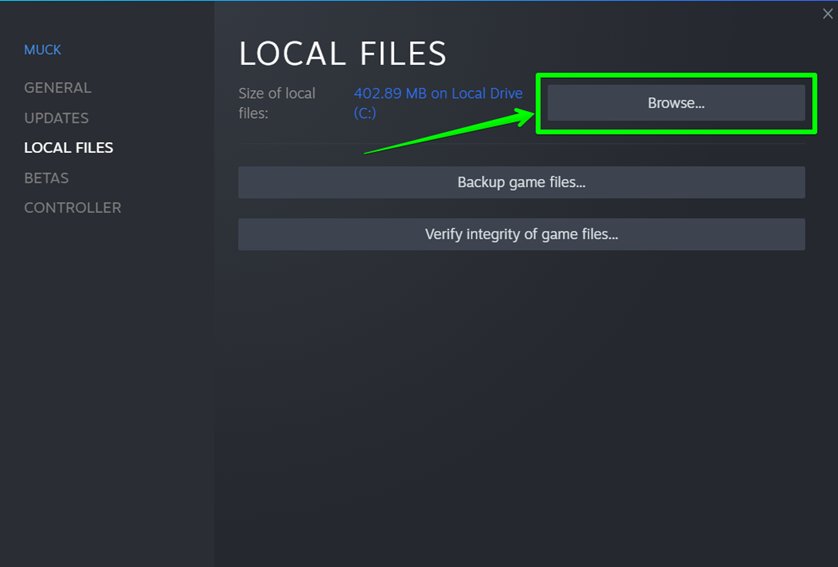
- Go to Local Files Tab: In the “Properties” window of the game in Steam (where we were before, at the Updates tab), click on the “Local Files” tab.
- Click Browse: Click the “Browse” button. This will open a file explorer window showing the location of your game files on your computer.
- Look for version or build info: Here, you’re looking for a file or a folder with version-related information. It might be a text file (like a readme or changelog), or a version.txt file, or a file with a name that indicates a build number, a patch number, or version.
The versioning information within the game files varies significantly between games. It may not always be present or easily readable, but it is useful in specific situations. Some games store their version information within config files or game launch configurations too. You must be comfortable in exploring some technical files, because these kinds of files may not be in plain text.
What to Do if You Can’t Find the Version
Sometimes, despite looking in all the right places, you might not be able to find the game version. Here’s what to do if you are stuck:
Check the Game’s Official Website or Forums
The game developer’s website is often a useful resource. If you’re facing problems finding the version, check there for the most common issues. They usually keep a list of version and build history on their website. Also, check out the game’s official forums. Players often discuss issues like that and provide tips.
Look on Steam Forums
The Steam community forums for the game are another good place to search. Players often share version information. Also, you can ask in a forum post. Someone else might know the way to check the version for that game.
Contact the Game’s Support Team
As a last resort, contact the game’s customer support. You can do that via their official website. Explain your situation, and they should be able to help you. The game developers support is the last resort.
Understanding Different Version Formats
Game versions can come in different formats. Knowing what these mean can help you understand if you have a newer version than someone else.
Common Version Number Formats
Here are some common structures for game versions:
- Major.Minor.Patch: For example, 2.1.5 means the game is in its second major release, with a first minor update, and the fifth patch applied.
- Version v1.01: A variation of major and minor versions.
- Build 12345: Some games use sequential build numbers instead of major/minor. Higher numbers often indicate newer versions.
- Alpha/Beta/Release: Early versions of a game, like alpha or beta versions, often have their own specific numbering system. The release version will be the final version.
Understanding these formats can help you tell at a glance if a version is newer or older than another.
Why Is Checking Game Version Important for Multiplayer
The reason it is very important to check your game version is mainly when playing online with your friends. Here’s why:
Compatibility Issues
Different game versions may not be compatible for multiplayer. If you have version 1.0 and your friend has version 1.1, the game might not let you play together. That’s why it is always recommended to play online with people who have the same game version.
Bug Fixes
If you’re playing an older version, you could have bugs that your friends on a newer version don’t have. Keeping your game up to date usually means a better, less buggy multiplayer experience.
New Content
If a new update adds new maps or characters, your friend who has updated may be able to play them, but you will not, if you are on a previous version. That’s why keeping game up to date is very important.
Troubleshooting Version Mismatches
If you discover you’re on a different game version than your friend, here’s what to do:
Force an Update on Steam
Go to the game’s Properties in Steam, click on the “Updates” tab, and make sure that automatic updates are turned on for your game. Steam will try to check and apply an update if available. You can restart Steam to force it to check again if it doesn’t update. You may need to manually start an update if you have not setup automatic update on your games.
Have everyone restart Steam
Sometimes, Steam needs a restart to correctly apply updates. After that, everyone on the game needs to check that everyone has the same version.
Check the Game’s Community
Sometimes, the issue can be not a simple mismatch in game version, but related to some server settings or anything else. This is when a game’s online community comes into play. They will often have ways to solve the issue.
Finding your game version on Steam doesn’t need to be complicated. It’s a simple check that can help you ensure a smoother gaming experience, especially when playing with friends or using community-made content. Remember to look inside the game’s menus, check Steam’s game properties, and don’t be afraid to consult online resources if needed. Taking these few steps will keep you playing without problems. Now that you are aware on how to check for the game version, you are well prepared and ready to keep having fun while gaming!
Where to Find Game Version in Steam (Guide)
Final Thoughts
You can quickly check your game version on Steam through the game’s properties. Simply right-click the game in your library, then select “Properties.”
Navigate to the “Updates” tab, and you’ll often see the version information listed. This simple action enables you to ensure that your game is updated.
Knowing how to check game version on steam is vital for troubleshooting and compatibility. Following these steps provides the game version of what you have installed.

