
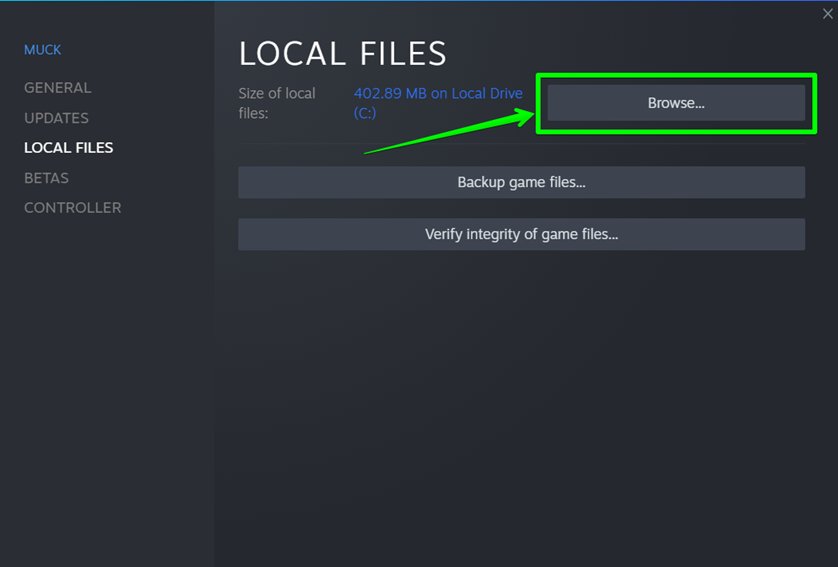
To check the game version on Steam, right-click the game in your library, select “Properties,” then navigate to the “Updates” tab, and the version is often displayed.
Ever found yourself wondering if your game is up to date? Knowing which version you have installed is crucial for various reasons, like ensuring compatibility with mods or joining the correct multiplayer servers. Sometimes it’s important to verify your game version before troubleshooting issues. Let’s explore how to check game version steam within the Steam platform.

How to Check Game Version on Steam
Ever been excited to jump into your favorite game, only to find out you’re missing a crucial update? Knowing your game’s version on Steam is important. It helps you avoid compatibility issues when playing with friends, ensures you’re experiencing the latest content, and makes troubleshooting easier. Luckily, finding this information is simple and quick. This article will show you all the ways to check your game version on Steam so you can spend less time figuring things out and more time gaming.
Why Knowing Your Game Version Matters
Before we dive into the “how,” let’s talk about “why.” It’s not just a random number. Your game version represents the specific build of the game you have installed. Here’s why keeping tabs on it is useful:
- Multiplayer Compatibility: Many online games require players to use the same version to play together. If you and your friend have different versions, you might not be able to join each other’s games, or worse, you might encounter errors.
- Latest Features and Bug Fixes: Game developers constantly update their games with new content, bug fixes, and performance improvements. Knowing you are running the latest version means you get all these benefits.
- Troubleshooting: When seeking help with game issues, tech support often asks for your game version. It helps them identify common problems specific to a version, allowing faster and more precise help.
- Modding: If you enjoy modifying games, many mods are version-specific. Knowing your version is critical to ensuring mods work correctly.
- Avoiding Conflicts: Different versions of the same game might conflict with save files or installed content, which can cause the game to crash or not start correctly.
Essentially, knowing your game version is like making sure you have the most up-to-date instruction manual for your game. This helps ensure you have a better experience overall.
Methods to Check Your Game Version
Steam offers a few simple ways to check your game’s version. We’ll go through each of them step-by-step.
Checking From the Game Properties
This is the most common and reliable method. Here’s how to do it:
- Open Steam: Start the Steam application on your computer.
- Navigate to Your Library: Click the “Library” option at the top of the Steam window. This displays your collection of games.
- Find Your Game: Browse or use the search bar to find the specific game you want to check.
- Right-Click the Game: Once you’ve found the game, right-click on it in your library list. A context menu will appear.
- Select Properties: In the menu, click on “Properties…” This will open a new window with game settings.
- Look for the Version: In the “Properties” window, typically you’ll see the version under the “Updates” tab, or under the “General” tab. The exact location can sometimes vary slightly from game to game. It can also be shown in the “Local Files” tab. Look for any line of text that says “Version,” “Build,” “Patch,” or something similar, followed by a set of numbers or text string that represents the game version.
Sometimes, this section might also display the last update time or date, so that you can understand it better, if you have the latest version of the game.
Checking In-Game
Some games display their version number within the game itself, often on the main menu or in the settings menu. Here’s how to find it:
- Launch the Game: Start the game from your Steam library.
- Navigate to the Main Menu: Once the game loads, look for the main menu. The main menu is the first screen you see when the game starts.
- Look Around: Most game developers will show the game version number somewhere on this main screen. This could be in a corner of the screen, at the bottom of the screen or another location. Look carefully for words such as “Version”, “Build”, “Patch” followed by a number.
- Check Settings Menu: If you don’t see it on the main screen, go to the game’s settings menu. Sometimes, the version information is kept under the settings of the game for clean experience. Look for an “About” or “Help” section. The game version is often listed there.
Keep in mind that not all games display their version number in-game. But many modern games will show you this information in a easily reachable area.
Using the Steam Console (Advanced Users)
The Steam console offers a powerful way to find a lot of information about your games. You will be able to find the game version here also. This method is for more advanced users, but it’s worth knowing about:
- Enable the Console: Open Steam settings (Steam > Settings in the top left corner). Click on “Interface” and check the box that says “Display Steam URL address bar when available”. Click “Okay”.
- Open the Console: Now you should see the steam URL address bar at the top of the Steam client. Type steam://open/console in the address bar and press enter. This will open the Steam console.
- Use the “app_info” Command: In the console, type app_info [game’s AppID] (replace [game’s AppID] with the game’s actual AppID). To find the Game’s AppID, go to the game’s page in Steam Store, and the number in the URL will be the AppID. For example the appid for Dota 2 is 570. After typing the command, press enter.
- Find the Version: The console will display a large amount of information. Look for a section called “buildid” or “version”. This might be slightly complicated to read so you will need to spend some time with it. But the build id section should give you the exact game version that you are looking for.
Note that the Steam Console can feel a bit overwhelming for beginners. But it’s good to know about it, in case you are curious.
Using SteamDB
SteamDB is a website that keeps a record of all the information in Steam. You can use this information to find out about the version of your game.
- Open your Web Browser: Open your favorite web browser and go to SteamDB
- Search for the Game: In the search bar on the SteamDB, enter the name of the game you are trying to find the version for and press enter.
- Go to the Game Page: Click on the page that shows the game in the SteamDB.
- Find the Game Builds section: Scroll down on the page until you see a table like section with a heading of “Builds”. This section should show you all the current builds that the game has and will show you the current version of the game, the time it was built, and the build number.
- Compare to your current version: You can compare your version of the game, with the version that is shown in the table and be sure that you are using the latest version of the game.
Troubleshooting Common Issues
Sometimes, despite your best efforts, you might struggle to find your game’s version. Here are a few common problems and how to handle them:
No Version Information
If you don’t see any mention of “version”, “build”, or “patch,” within the game properties, or ingame menu, this may be because the game developers haven’t provided it. Some older or smaller indie games might not have explicit version numbers. In this case you might need to find out the version of the game via the SteamDB method which is mentioned in this article.
Game Not Updating
If your game version is out-of-date, you need to update the game. Steam is supposed to do this automatically. However, if for some reason this does not happen you can follow these steps to manually start the update process:
- Check Download Queue: Go to the “Downloads” tab at the bottom of the Steam window. See if the game is waiting to be downloaded. If the game is in the download queue, simply allow the download to finish, and you will have the latest version of the game.
- Force an Update: Right click on the game in your steam library and click on “properties”. Now go to “updates” and then in “Automatic Updates” select the option for “Always keep this game updated”. Now Steam will download any updates available for your game.
- Restart Steam: Sometimes restarting the Steam app might help start the updates.
- Verify Integrity of Game Files: If none of the above steps work, in the properties window, go to the “Local Files” tab, and click on “Verify integrity of game files.” Steam will check your game files to make sure that nothing is missing, and will re-download any missing or corrupted files. This will often fix any update issues.
Conflicting Versions with Friends
If you and your friends have different game versions, make sure that both of you are fully updated. If the problem persists after this, you can try the steps below:
- Compare Versions Carefully: Make sure that you are actually comparing the complete build id, and not just the first few numbers. Sometimes you might think that you have the same version, when you actually have different.
- Check Game Forums or Discord: Go to the game forums or the official game Discord. There might be more instructions on how to solve this issue.
- Restart Game and Steam: Try restarting the game and Steam as well, to ensure that all changes are applied correctly.
Mod Related Issues
If you are using game mods, make sure that all the mods you are using are compatible with the game version that you are using. If you are using old mods which are meant for a different game version, then they will not work. So if you start having problems after updating your game, try to remove your mods to see if the game works without them. If your game works without mods, you can try to update your mods as well.
Tips for Staying Up-to-Date
Staying up to date with game updates and versions ensures the best possible gaming experience. Here are a few tips:
- Enable Automatic Updates: In Steam, set your games to automatically update whenever a new patch is released. This saves you time and effort to remember updating yourself.
- Check Game News: Pay attention to news from the game developers on forums or websites. They often announce when new versions or updates are coming. You can also set up email alerts with the game forums, so that you are alerted whenever a new patch is released.
- Visit Steam Game Hubs: On the Steam game pages, the developers will post news, patch notes and other information. This is a good way to be kept up to date on your favorite games.
Checking your game version is easy and quick. With the steps described in this article, you can always be sure you are using the latest version. This helps ensure that you have the best gaming experience. This lets you spend less time troubleshooting, and more time gaming!
By using the methods described in this article you can always find the version of your game. Whether using Steam’s Properties, the in-game menu, Steam Console, or SteamDB, it’s easy to be sure you’re using the correct version of the game, and you are playing your favorite games without errors.
Where to Find Game Version in Steam (Guide)
Final Thoughts
To quickly summarize, locating a game’s version on Steam involves checking its properties within the library. Click the gear icon, then “Properties”, and you should find the version number either under the “Updates” or “Local Files” tab.
Understanding ‘how to check game version steam’ is simple and helps troubleshoot issues. Knowing the current version is crucial, especially if you’re participating in online play or using mods.

