
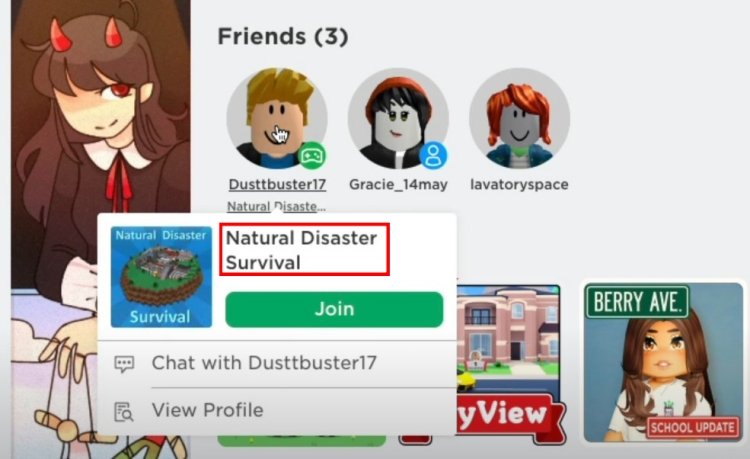
To check what game someone is playing on Roblox, you can view their profile page and look under the ‘Currently Playing’ section, which will show the game’s name if they are in one.
Ever wondered what your friend is up to on Roblox? Maybe you want to join them in their adventure? Knowing how to check what game someone is playing on Roblox is a simple but handy skill. It lets you find out where your friends are in the metaverse.
This quick guide will show you how to easily see the games they’re currently enjoying. The process is straightforward and only takes a few clicks. Now you can jump right into the action with them!

How to Check What Game Someone is Playing on Roblox
Ever wondered what your friend is playing on Roblox? Maybe you want to join their game, or perhaps you’re just curious! It’s easy to find out what Roblox game someone is currently enjoying. This guide will walk you through several simple methods to see exactly which game they are in. We’ll cover everything from using the Roblox website to checking through the app, ensuring you never miss out on the fun.
Checking Through the Roblox Website
The Roblox website is a great place to start when you want to see what game your friend is playing. It’s straightforward and works on any computer with an internet connection. Let’s break down the steps:
Logging into Your Roblox Account
First, you need to go to the Roblox website. Just type “roblox.com” into your web browser and press enter. Once the page loads, look for the login area. If you aren’t already logged in, enter your username and password. If you have set up two-step verification, you’ll also need to enter that code. Remember, keep your login details safe and never share them with anyone!
Navigating to the Friends List
After logging in, look for the “Friends” section. This is usually found on the left side of your screen or at the top. You might see a small icon of two people or the word “Friends” itself. Click on it to bring up your list of Roblox friends.
Locating Your Friend
Now you need to find the friend whose game you want to check. Scroll through your friends list until you find their name. If you have a lot of friends, you can also use the search bar at the top of the list. Type in their username, and it should appear. Click on their name to see their profile.
Viewing Their Current Game
Here’s where the magic happens! Once you’re on your friend’s profile, look for a section that shows their current activity. It often says “Currently in” or “Playing.” You should see the name of the Roblox game they are playing. It might also show a picture of the game’s icon and the number of players online. If they aren’t currently playing a game, it will show that they are “Online” or “Last Seen” a certain time ago, or simply “Not In Game.” If you see their game, great! You know where they are.
Joining Their Game
Next to the game name, there’s often a “Join” button (or sometimes just a play button with the word join). If you want to join your friend in that game, click it! The game will launch, and you will be placed in the same server as them, if space is available in the server. Sometimes, if the game server is full, you will not be able to join and will need to try again later. Be patient, and you will be playing with your friend in no time.
Checking Through the Roblox Mobile App
The Roblox app, available on smartphones and tablets, makes it just as easy to see what games your friends are playing. The process is very similar to using the website. Here’s how you do it:
Opening the Roblox App
Find the Roblox app icon on your phone or tablet and tap on it. It looks like the Roblox logo – a blocky “O” with two smaller blocks on top. If you aren’t already logged in, enter your username and password just like you would on the website.
Finding the Friends Section
Once you’re logged in, look for the friends section. It is usually found at the bottom of the screen. There will be a bar of icons for Home, Games, Profile and other sections. Tap the Friends icon, which often looks like a double person symbol, to bring up your list of friends.
Finding the Friend’s Profile
Just like on the website, you’ll need to find the friend’s name whose game you are trying to see. Scroll through the list, or use the search feature at the top of the screen. Tap on the name of your friend. This will take you to their profile page.
Viewing Their Current Game
On your friend’s profile, look for where it says “Currently in” or “Playing.” You should see the name of the game. The app layout may look a little different from the website, but the information is the same. If they are not in a game it will say “Online” or “Last Seen”. If they are in a game, you will see which game it is.
Joining From the App
If you see a “Join” button next to the game they are playing, tap it. Just like on the website, the game will begin loading and if space is available you will join your friend’s server, and you can play together! If it is a full server, just try joining later.
Understanding Privacy Settings
Sometimes, you might not see what game a friend is playing. This is because of their privacy settings on Roblox. Users can control who sees their in-game activity. There are a few things to keep in mind:
Privacy Settings Control
Users have the option to set their privacy so that only certain people can see their game activity. They can choose to show it to “Everyone”, only “Friends”, or “No one”. If your friend has set their privacy so that only their friends can see their in-game activity and you are not friends with them, you cannot see what game they are playing. Also if they have set their privacy to “No One,” then no one, including their friends, can see what game they are playing.
How Privacy Affects Visibility
If your friend’s privacy setting is set to friends-only, and you are friends, then you will see the game they are playing. If their privacy settings are set to “No One”, then you will not see their game information. If you cannot see a friend’s game information, this is likely due to their settings, and not any issue on your side. It’s important to respect their choices, and not to ask them to change their settings if they don’t want to. It’s all about having fun while feeling safe.
Troubleshooting: Why You Might Not See a Game
Sometimes you might encounter issues where you can’t see what game your friend is playing. Let’s look at some common problems and how to handle them:
Friend is Offline
The first thing to check is if your friend is even online. If it says “Last Seen,” that means they aren’t currently playing, so there’s no active game to see. If this is the case, try again later, when they are online.
Privacy Settings Issues
As we talked about before, privacy settings play a big part. If your friend’s settings are private, you won’t be able to see their game activity, even if they are online and playing.
Internet Connection Problems
Your own internet connection could cause problems. If your connection is slow or not working properly, the information on Roblox may not update correctly. Try refreshing the page, or closing and reopening the app. If you have internet issues at your location, it could interfere with loading information.
Roblox Server Issues
Sometimes, the problem is on Roblox’s end. Roblox servers occasionally have issues, which can cause glitches and make it seem like your friend isn’t playing any games, or can cause delayed loading. If you think this is the case, check the Roblox status page, and see if they are experiencing an issue. Waiting a little while can often resolve these kinds of server problems.
Outdated App or Website Version
If you’re using an old version of the Roblox app or website, it might not show the latest information. Make sure your app is up-to-date by checking your app store for updates. For the website, try refreshing, and if it still doesn’t work, make sure your browser is up-to-date.
Tips for Playing with Friends
Now that you know how to check what games your friends are playing, here are a few tips to help you enjoy your time together:
Coordinate Your Playtime
Try to plan ahead with your friends about what games you want to play. This helps you all jump into the same game together. Use the messaging feature in the app or website to plan your playing time.
Use Voice Chat (If Allowed)
Some Roblox games allow voice chat. This can be a great way to communicate with friends while playing. Remember to always use voice chat responsibly and respectfully. Be kind to everyone you play with and use language appropriate for all audiences.
Explore Different Games
There are thousands of games on Roblox, and playing them with friends makes them even more fun. Try exploring different genres and games that you might not normally play. You never know when you might find a new favorite game to enjoy with friends. You can find new games on the “discover” section of the website or the app. There are sections for what other players are playing and popular games that are currently trending.
Be Patient and Flexible
Sometimes, servers get full, or there are other issues that keep you from joining a friend. It’s important to be patient and flexible. If one game doesn’t work, try another or simply try joining that game again later. It’s all about having fun and connecting with friends, so don’t stress if there are some technical bumps along the way.
A Quick Guide
Here is a quick table to summarize what we have discussed:
| Method | Steps | Things to Note |
|---|---|---|
| Website |
|
Requires Internet Connection, must be logged into account |
| App |
|
Requires app, must be logged into account |
| Privacy Settings |
|
You cannot see game information if privacy is set to no one or if not friends |
| Troubleshooting |
|
Ensure your internet is working, check for Roblox issues, and ensure friend is online |
Following these tips and understanding how to check your friend’s game, you are now equipped to join in the fun and enjoy the Roblox world together.
How to find out what game someone is playing in Roblox (Outdated)
Final Thoughts
To quickly see a friend’s Roblox game, visit their profile. Their current game appears near their username. This method works on both the website and app.
Another way involves using the friends list. The game title displays below their name when they are actively playing. These steps explain how to check what game someone is playing on Roblox.

