
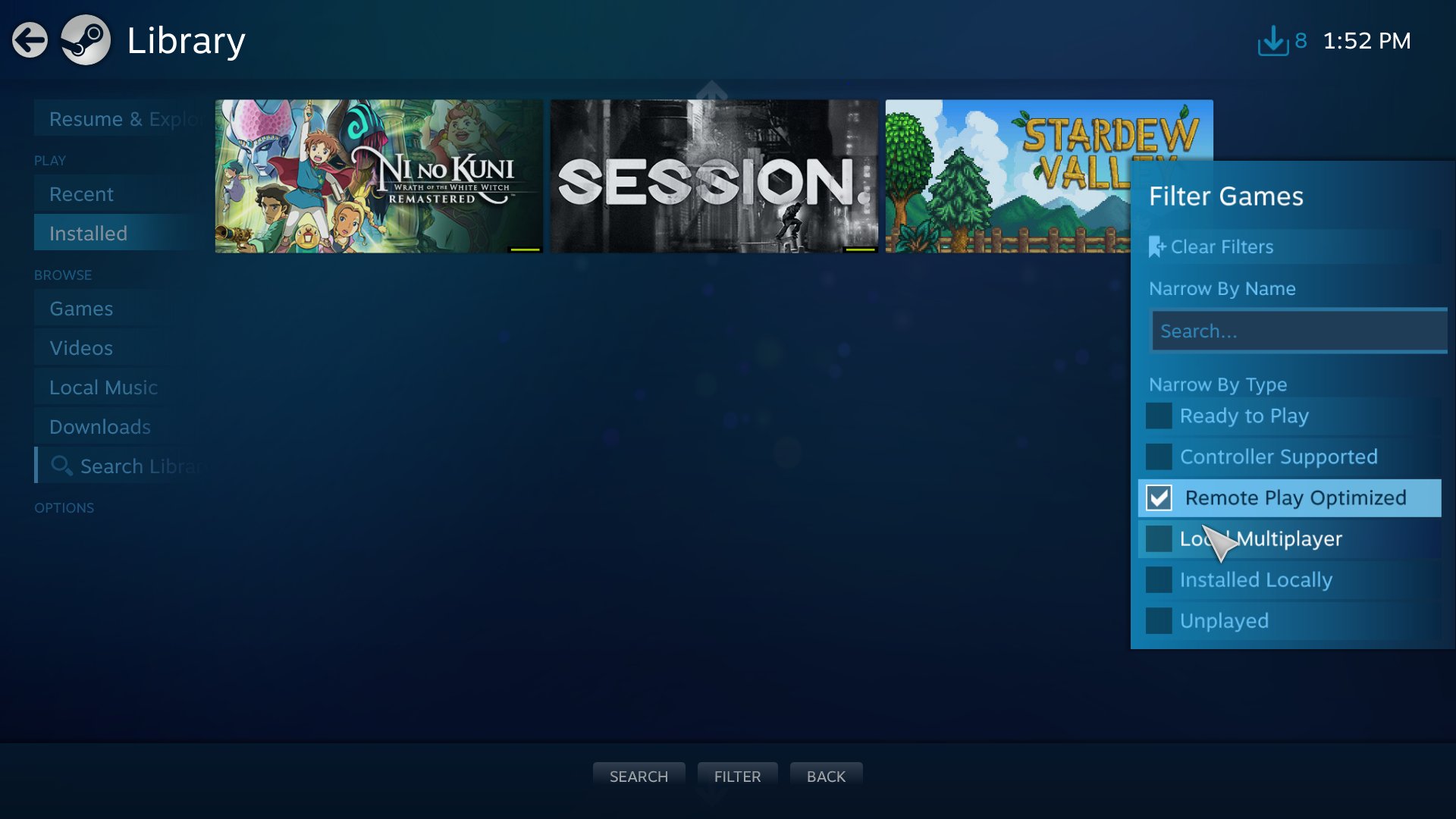
To clear search filters for Steam games, click the “X” next to each active filter or select “Clear All” at the top of the filter list.
Ever feel lost in the Steam store, buried under layers of filters? It happens to all of us, you select a few tags while looking for something specific, then later you just want to browse, but these old filters are messing with your search. That’s where knowing how to clear search filters for steam games becomes really handy.
The Steam interface makes it quite easy; you can either dismiss individual filter tags or simply remove all of them in one go. This guide will quickly show you both methods so you can return to browsing freely.

How to Clear Search Filters for Steam Games
Ever been browsing through the Steam store, looking for that perfect new game, and suddenly you’re stuck seeing only games you don’t want? That’s often because you have search filters applied! Steam uses filters to help you narrow down the huge selection of games, which is great, but sometimes it can be tricky to get back to seeing everything. This section will guide you on how to get rid of those pesky filters and start fresh, like you just walked into the store for the first time! We’ll cover all the ways you can clear those filters, so you’ll be browsing like a pro in no time.
Understanding Steam Search Filters
Before we dive into how to remove them, it’s helpful to understand what these filters are and how they work. Think of them like helpers that sort through all the Steam games. They let you choose specific things you’re looking for, like:
- Genre: Are you in the mood for action, adventure, strategy, or something else?
- Tags: These are extra labels that describe what a game is like, for example, “single-player,” “multiplayer,” “open-world,” or “indie.”
- Price Range: Want to find games that are free, under $10, or on sale? You can set a limit.
- Operating System: If you use Windows, Mac, or Linux, you can filter to see only games that will work on your computer.
- Release Date: You can search for new releases or older games.
- Player Count: Looking for games to play alone or with friends? Filter by single-player or multiplayer.
- Steam Features: Filter for games that include specific features like full controller support or trading cards.
These filters help you find exactly what you want, but sometimes they can become confusing if you’re not sure how to manage them. Knowing what each filter does helps in clearing them accurately.
Simple Methods to Clear Steam Search Filters
Let’s begin with the easiest ways to get rid of filters. These methods work for most situations and will usually get you back to a clean slate quickly.
The “Clear All” Button
The quickest way to remove all search filters is to find and press the “Clear All” button. This is usually located at the top of the list of filters, or sometimes near the “Filter” options you have chosen. This button is designed for ease of use. When you click it, every single filter you have set up is turned off. This will bring you back to the default view where you see all games on the Steam store or the specific page you’re on.
Clearing Filters One By One
If you want to remove specific filters, you can do so individually. This way, you can keep some filters while getting rid of the ones you don’t need. Here’s how it usually works:
- Find the active filters: Look on the left-hand side of the Steam store page where you see a list of applied filters. You will find filters which are currently applied.
- Uncheck the filter: For filters like categories or tags, there’s often a checkbox beside them. Just click the checked box to uncheck the filter.
- Remove price ranges: If you set up a price range, there will be options to clear these. Usually, there will be a small ‘x’ to the side of the range or a slider you need to pull back to its default location.
- Specific operating system filter: The operating system filter usually has boxes that you can simply uncheck.
Clearing filters individually is useful when you want some search parameters but want to see a wider range of games that meet most, but not all, of your needs. It’s a more controlled way to browse.
Advanced Techniques for Removing Filters
Sometimes, you may encounter cases where the basic techniques don’t quite cut it. In this section, we will delve into more advanced methods for removing Steam search filters.
Using the Search Bar Directly
Sometimes, the filters are linked to your search phrase. To clear this, try clicking on the search bar to highlight the text and then press backspace on your keyboard to erase any search terms that might be causing the filtering effect. Then press enter or click on search icon to refresh the page. This will also show you all the games without the filters.
Refreshing the Page
This might seem very easy, but sometimes, just reloading the page works! Steam store is always evolving and it sometimes can get confused. Press the F5 key on your keyboard or the refresh button in your browser to reload the page. This can clear any temporary glitches and make sure that any applied filters are properly removed. This is a useful technique when things seem a little buggy.
Checking Your Steam Settings
While it’s less common, sometimes filter-like settings might be stored in your Steam account settings. Here is what to look out for :
- Content Preferences: Go into your Steam settings, which you can find by clicking “Steam” at the top left of the client and then going into settings. Look for something like “Content Preferences”. Here, check any boxes relating to content filtering, and if necessary, change or uncheck these.
- Language Settings: Make sure that your language settings are correct and don’t affect the game list filtering. It’s good to ensure that it’s set to your preferred language so that game listings show up correctly in your language.
These settings are less likely to interfere with your filters, but its always a good practice to check them to be sure.
Restarting the Steam Client
If all else fails, restarting the Steam application will close any running processes. Then start steam again. This is similar to restarting your computer when it freezes up. It shuts down any active processes which could be causing incorrect filters to be stored, and gives you a clean slate when the application is launched again.
Troubleshooting Common Filter Problems
Sometimes clearing filters isn’t as easy as it sounds. Let’s explore some common problems and how to solve them.
Filters That Seem Stuck
Sometimes, a filter might look like it’s removed, but the games being displayed are still filtered. If this happens, try the following:
- Clear the search bar: As mentioned above, the search bar can still hold old filters even if you’ve unchecked them elsewhere. Clear the search bar and then try again.
- Use “Clear All” again: If one by one isn’t working, try to “Clear All” again. This might help if some filters are hidden.
- Refresh: Refresh the page or restart Steam client, as mentioned above. This clears any temporary data that might be causing the problem.
Dealing With Genre and Tag Filters
Genre and tag filters can be tricky because there are so many options. If you are having problems with these:
- Review your checklist: Look carefully at the filter list. Make sure you haven’t accidentally selected a tag you didn’t want.
- Try different combinations: Sometimes, you may need to uncheck all the tags and categories, and start with the one that is most important to you to avoid any confusion.
- Use “Clear All”: It’s sometimes easier to start from zero than to try to work out which tags are causing you problems.
Price Range Filter Issues
The price range filter is useful, but it can also cause confusion. If you are having problems with this filter:
- Adjust the slider to default: The price range filter has a slider that adjusts the lower and higher limits. Make sure that the slider is set to its default settings by dragging it back to either side.
- Check the currency filter: Make sure that the currency you are seeing is your local currency, or whatever currency you wish to see, as this can also interfere with the price filtering.
Operating System Filters That Won’t Clear
If the games you are viewing are still limited by operating systems, even when you have removed those filters:
- Ensure your Steam settings are correct: Go into the Steam settings, and check that the settings are correct.
- Clear everything: Clear all filters and refresh to make sure that any stuck operating system filters are cleared, and then try again to add in the filters that you want.
Practical Tips for Easier Searching on Steam
Now that you know how to clear filters, here are some extra tips to make searching easier in the future.
Start With Broad Searches
Begin with more broad search terms instead of narrow terms to prevent immediately limiting the games you see. For example, start by just searching by “action” and then move onto more specific tag filters if necessary.
Using the Wishlist
Add games that interest you to your Wishlist. That way, you don’t have to rely on memory and can find games you’ve liked easier. This also makes it easier to see if the game goes on sale.
Saving Search Terms
If you often use the same filters, consider saving a link to the search so you can return to it easily. In the Steam store, the URL shows the applied search terms, which you can easily copy and paste to return to this search.
Community Suggestions
Check what other Steam users are saying about games you are considering. Steam’s community pages can give you a better idea of what a game is like and if its what you are actually looking for.
Taking Breaks
It’s good to take breaks. Browsing for games for too long can become tiring. Step away and come back to it with fresh eyes. This can also prevent confusion and reduce the risk of accidentally applying filters.
Why Clearing Search Filters is Important
Understanding how to manage your filters is important for multiple reasons:
- Finding new games: Seeing all available games can help you stumble upon something you didn’t know you wanted. If you have filters on, you might miss an awesome game!
- Avoiding frustration: It’s not fun when you are stuck seeing only a limited amount of games, and that is not what you wanted. Clearing filters gets rid of the frustration.
- Exploring all options: Browsing without filters is like walking into a store without anything in mind. You might find something new and exciting!
- Keeping things simple: Knowing how to clear filters makes the browsing experience easier. You spend less time fiddling with settings and more time playing games!
In conclusion, dealing with Steam filters is a simple skill that can greatly improve your browsing experience. Knowing how to clear filters means you can find the perfect games without frustration and make the most of the Steam store. Remember, the “Clear All” button is your best friend, and if that doesn’t work, take a quick refresh or restart of the client, and soon you will be browsing with ease.
How To Manage Store Preferences on Steam
Final Thoughts
To clear search filters for steam games, you can simply locate and click the ‘X’ button beside each active filter. Alternatively, select the ‘Clear All’ button. Both methods achieve the same outcome.
These actions remove applied filters, restoring the full Steam game list. This allows you to browse the catalog without previous constraints.
Remember, understanding how to clear search filters for steam games is key for efficient navigation. Clearing filters enables you to see all available titles.

