
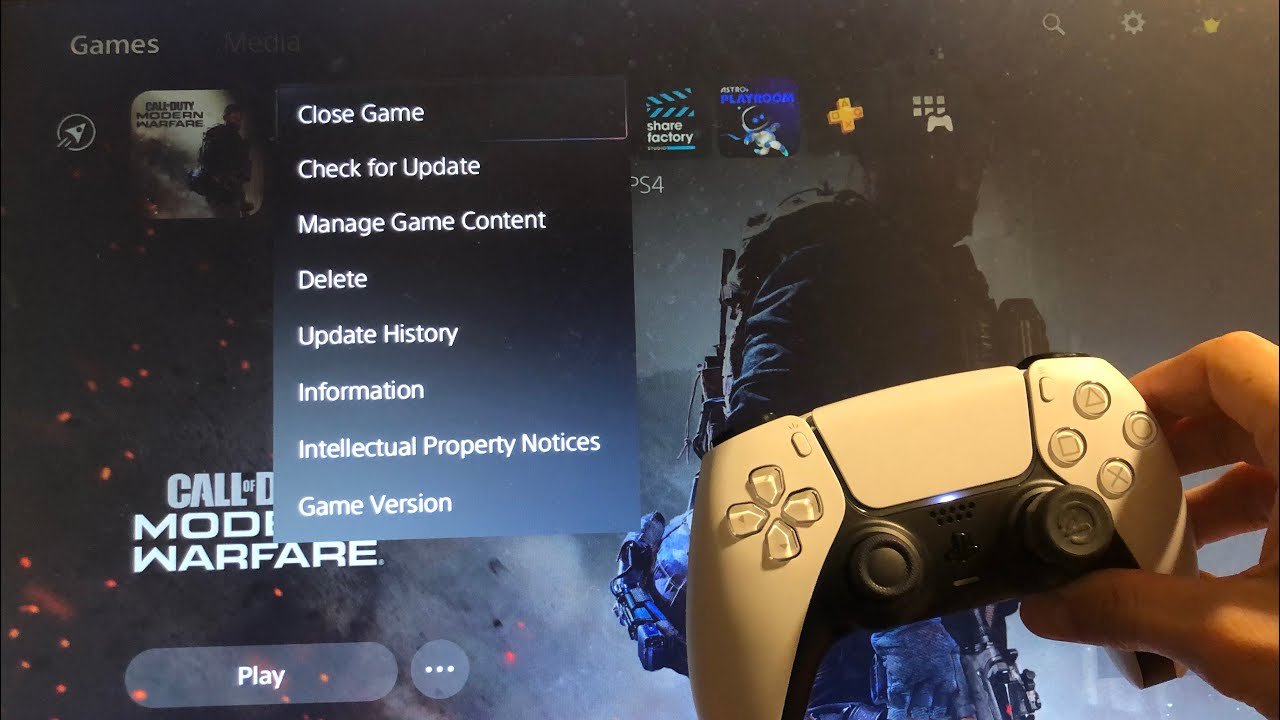
To close a game on PS5, press the PlayStation button, navigate to the game icon on the home screen, then press the options button and select “Close Game.”
Ever find yourself jumping between different worlds on your PlayStation 5? Sometimes you might need to swiftly move from one gaming adventure to another. Knowing how to close a game on PS5 efficiently is key to maintaining a smooth experience. We’ll show you the simple steps to do just that.
Closing a game is a quick and easy process, ensuring you won’t get stuck between applications. This also helps your PS5 run optimally. With a few button presses, you can close games.

How to Close a Game on PS5: A Complete Guide
So, you’re done playing that awesome game on your PlayStation 5, and now you’re ready to do something else? Maybe you want to watch a movie, start a different game, or just take a break. It’s important to close your games properly, just like you shut your door when you leave a room. It keeps everything running smoothly on your PS5. This guide will show you all the ways you can do that, making sure you never have any trouble switching between your favorite PlayStation activities.
The Simple Way: Using the PlayStation Button
The easiest method to close a game on your PS5 involves the big PlayStation button in the center of your controller. Think of it as the home button for your PlayStation. Here’s how to do it:
- Press the PlayStation Button: When you’re in the game you want to close, press the PlayStation button once. This will take you to the Control Center, which appears at the bottom of your screen.
- Find the Game: In the Control Center, you’ll see your currently running games as small icons. Use the left stick or the D-pad to highlight the game you wish to close.
- Press the Options Button: Once you’ve highlighted the game, press the Options button on your controller. This is usually the small button to the right of the touchpad. It will open a menu with a couple of options.
- Choose “Close Game”: From that menu, move down and select “Close Game.” Click on it with the X button. Your PS5 will now close the game and return to the main menu.
And just like that, the game is closed! This method is great for when you’re playing and quickly want to switch to something else.
Closing Multiple Games Quickly
Sometimes, you might have more than one game open at the same time. The PS5 is great at letting you quickly switch between a few games, but closing them all individually can take a little time. Here is a better method for quickly closing multiple games:
- Press the PlayStation Button: Press the PlayStation button to go to the Control Center.
- Navigate to the Games Tab: Use the left stick or the D-pad to navigate all the way to the “Games” tab in the Control Center. This tab is usually marked with a games controller icon.
- View All Your Games: On this Games tab, you will see all games that are currently open or recently used. Select ‘View All’ to see a complete list of these games.
- Select Options for Each Game: Now you can use the ‘Options’ button for each open game and select ‘Close Game’ for all games you want to close.
- Confirm Closing: After you select ‘Close Game,’ the PS5 will close each game individually.
This makes it much easier to close all those open games if you were playing and switching quickly between a few games.
Using the Home Screen to Close Games
Another way to close a game is directly from the PS5’s home screen. Here’s how you do that:
- Go to the Home Screen: Use the PlayStation button to return to the home screen. It is the first option when you press the PlayStation button from within a game.
- Highlight the Game: On the home screen, you’ll see a row of your most recent games. Move the cursor using the left stick or the D-pad to highlight the game you wish to close.
- Press the Options Button: Once highlighted, press the Options button on your controller.
- Choose “Close Game”: Just like before, you’ll see an option to “Close Game.” Select it with the X button.
- Game Closed: Your game will close, and you will remain on the home screen.
This method is useful when you’ve already left the game and are on the home screen, perhaps browsing other game options or apps.
Understanding the Difference Between Closing and Suspending Games
You may have noticed when you simply go back to the main menu or open a different game that the game you were playing is still “running” or is suspended. Here’s the important thing to know: the PlayStation 5 uses a system called “suspend” for games. When you leave a game without closing it, it goes into a suspended state. Think of it like pausing a movie – everything is still ready to go from where you stopped. This is handy if you want to quickly jump back into the game without waiting for it to reload. However, games that are suspended do still use resources, this means that it is always better to close games you are no longer playing.
Why it’s good to close games sometimes
- Saves Resources: Even when suspended, games can still take up a small amount of the PS5’s processing power and memory. Closing games frees up those resources for better performance in other applications or games.
- Avoids Bugs: Sometimes a suspended game might cause a bug if it is left running for a long time. Closing games helps keep everything running properly.
- Better Overall System Performance: When you close games, your PS5 can work more efficiently, preventing slow downs and keeping everything smooth.
Troubleshooting: What If a Game Won’t Close?
Every now and then, you might encounter a situation where a game seems to be “stuck” and won’t close properly. Don’t worry, there are a few things you can do.
Force Closing the Game
Sometimes, a game might not respond when you try to close it normally. In such cases, you need to force the game to close. Here’s how:
- Press the PlayStation Button: Go to the Control Center.
- Highlight the Game: In the Control Center, find the game you want to close.
- Press the Options Button: Choose the Options button.
- Select “Close Game”: Even if it seemed like the game wasn’t responding, select “Close Game.” Sometimes, it takes a moment for the system to process the request.
- Wait a Few Moments: Give your PS5 a few seconds to close the game. If it still doesn’t respond, it’s time to move on to the next step.
Restarting Your PS5
If force closing doesn’t work, you might need to restart your PS5. It’s like turning your computer off and on again to fix problems.
- Press the PlayStation Button: Go to the Control Center.
- Navigate to Power Options: Go to the far-right tab, which shows the “Power” icon.
- Select “Restart PS5”: From the options, choose “Restart PS5.” The system will turn off and back on again. This usually fixes most problems, including stubborn games.
Once the system has restarted, your games will be closed.
Checking for System Updates
Another thing to consider is making sure that your PS5’s system software is up to date. Outdated software can sometimes cause issues with games. Here’s how to check for updates:
- Go to Settings: From the PS5’s home screen, go to the “Settings” menu by selecting the gear icon in the upper-right corner.
- Navigate to System: Scroll down and select “System.”
- Select “System Software”: Then, select “System Software” in the System menu.
- Choose “System Software Update and Settings”: Select this option, then choose “Update System Software.”
- Follow Instructions: If there’s an update available, follow the instructions to download and install it. Your PS5 may restart during this process.
Keeping your system updated helps keep things working properly and will resolve many issues with games and general system function.
Game Specific Problems
Sometimes, the issue isn’t with your PS5, but with the specific game itself. If one particular game is frequently giving you issues when closing, there are a few things you can consider:
- Check for game updates: Like the system software, games also receive updates which sometimes address bugs or issues with the game. Go to the game on your main menu, press the Options button, and select “Check for Updates.”
- Look for Game Patches: If you are still facing issue with the specific game, you should check to see if there has been any news regarding issues with the game on social media or online. It’s possible the game developer is aware of an issue and is working on a fix.
- Reinstall the game: In very rare cases you might need to reinstall the game. Uninstall the game from your system, and then download and reinstall it. This ensures you have the latest files for the game and any potential bugs can be fixed.
Tips for Managing Games on Your PS5
Here are a few extra tips to keep things running smoothly on your PlayStation 5:
- Close games you are not actively playing: Even when suspended, it is always better to close a game that you are not using. If you know that you are finished playing for the day, closing the game will reduce the load on the PS5’s system and help make other applications or games run more smoothly.
- Check how many games are suspended: Go to the “Games” tab in the Control Center to see which games are suspended and use the ‘Options’ button to manage them.
- Use the “Activity Cards”: When you are playing a game you will see “Activity Cards” as an option in the Control Center. This will often allow you to jump directly to a certain level or activity in a game instead of returning to the main menu.
- Keep your PS5 well-ventilated: Make sure that the PS5 has plenty of space around it for airflow. This will make sure that the device does not overheat.
- Manage your Storage Space: Your PS5 has a set amount of storage, so you should keep an eye on this and make sure you are not running out of space by deleting games you are no longer playing.
By doing these simple things, you can keep your PS5 running its best.
And there you have it, everything you need to know about closing games on your PS5! Whether you’re using the PlayStation button, the home screen, or need to troubleshoot a stuck game, now you’ve got it covered. Remember, closing games properly is an important part of keeping your PS5 running smoothly and ready for your next adventure.
PS5: How to Close Games & Applications Tutorial! (For Beginners) 2024
Final Thoughts
To close a game on PS5, press the PlayStation button. This will bring up the control center. Navigate to the game in question and press the options button, represented by three horizontal lines.
From the options menu, you can select “Close Game”. This action completely shuts down the game application. Remember that it is important to close games properly to avoid potential issues.
Knowing how to close a game on PS5 ensures smooth operation. This simple process makes sure your console functions well.

