
Press Alt + F4 to attempt to directly close the frozen game, or use the game’s own in-game menu to quit if accessible.
Ever been in the middle of an intense gaming session when suddenly, everything freezes? It’s frustrating, especially when you can’t even get to the task manager to force-quit it. This brings up the question of how to close frozen game without task manager, and thankfully there are other methods.
There are a couple of common tricks you can try. Sometimes, a simple keyboard shortcut is all you need to regain control. This can help you bypass the need for the task manager.

How to Close a Frozen Game Without Task Manager
We’ve all been there. You’re deep into an awesome game, maybe battling a dragon or scoring the winning goal, and suddenly… it freezes. The screen locks up, the music loops endlessly, and your computer seems stuck in time. Usually, the first thing we do is reach for the Task Manager, that handy tool for shutting down misbehaving programs. But what if Task Manager is acting up too, or you just can’t seem to open it? Don’t worry! There are several other ways to close that frozen game and get back to having fun. This article will guide you through several effective methods you can try. We’ll explore keyboard shortcuts, using command lines, and even some less well-known tricks. Let’s get your game un-stuck!
Understanding Why Games Freeze
Before we jump into solutions, let’s quickly look at why games sometimes freeze. It helps to understand what’s going on behind the scenes. Games can freeze for many reasons, like:
- System Overload: Your computer might be working too hard. Maybe too many programs are open, or the game requires more resources than your computer can handle. This is especially true for games with high-quality graphics.
- Software Conflicts: Sometimes other programs running in the background can interfere with the game, causing it to freeze. This could be a driver issue, or a conflict with another application.
- Game Bugs: Like any piece of software, games sometimes have glitches. A bug in the game’s code might cause it to freeze.
- Overheating: If your computer gets too hot, it can start to slow down and even freeze. This is a common issue for laptops, but also can happen with desktops.
- Outdated Drivers: Old graphics card drivers can sometimes be the cause of games freezing or crashing.
Knowing some of these causes can help you prevent future freezes, not just close the frozen game this time. For example, you can check your computer’s temperature, make sure your drivers are updated or see if too many programs are open.
Keyboard Shortcuts: Your First Line of Defense
Keyboard shortcuts are your quick keys to get things done, and they can be lifesavers when dealing with a frozen game. These shortcuts are designed to interact with your operating system directly, and sometimes bypass the frozen game’s unresponsiveness.
The Classic: Alt + F4
This is the most common keyboard shortcut to close an active window. If the game is still somewhat responsive, pressing Alt + F4 should close it. It’s usually the first thing to try when a window is not reacting to clicks, and sometimes the game will properly close. Note that this shortcut immediately closes the application without warning and could result in unsaved progress being lost.
Force Quit: Ctrl + Shift + Esc
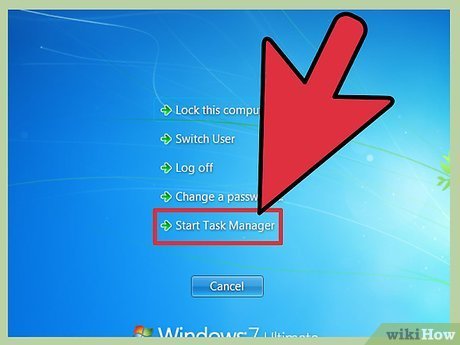
This shortcut directly opens the Task Manager, which you said you didn’t want to use. So, if Task Manager is working, this shortcut will open it for you, which we do not need at this time, but I am still mentioning it here for your understanding.
Trying to Switch Windows: Alt + Tab
Pressing Alt + Tab allows you to cycle through open windows on your computer. This won’t directly close the game, but it can help. If you switch to another application, then back to the game, sometimes it can ‘wake up’ the game, and you might be able to close it normally. This shortcut is really handy if you cannot see any of your other windows on your computer.
Bringing Up the Start Menu: Windows Key
Sometimes, the simple act of pressing the Windows key to bring up the Start menu can force the game to refocus, or unfreeze it. If the Start menu opens correctly, then you might be able to right-click on the game icon and choose to close it. This might not work in all situations, but it is a simple attempt that might help you.
The Windows Key + D Shortcut
Another thing to try is pressing the Windows key and the D key at the same time. This will minimize all of your windows and show you your desktop. Once you are on the desktop, you can use the mouse to bring up the Start menu or do anything else. This could get you out of a completely frozen game that isn’t responding to any clicks at all.
Using the Command Line (CMD)
The Command Line, or CMD, might sound complicated, but it’s a powerful tool built right into your computer. It uses text commands to interact with your system, and it can often close unresponsive programs when other methods fail. Don’t worry; you don’t need to be a computer expert to use these commands, and I’ll show you what to do.
Opening Command Prompt
First, you need to open the Command Prompt. There are a few ways to do this, but here’s the most straightforward one:
- Press the Windows key.
- Type “cmd” or “command prompt” and press Enter.
- A black window with white text will appear – this is your Command Prompt.
If you get an access denied error, try right clicking on the Command Prompt and selecting “Run as administrator.” This may be necessary for closing a stubborn, frozen game.
Using ‘taskkill’ Command
The ‘taskkill’ command lets you close programs using their process name or ID. Here’s how you can use it:
- Identify the Process Name: First, you need to figure out the name of the game’s process. This is not always the same as the game’s name. For example, if you are playing ‘Grand Theft Auto V,’ the process name might be ‘GTA5.exe’. If the game is still visible in the taskbar, hover your cursor over its icon and try to read its name carefully. If you do not know it, we will try some guesswork later.
- Open Command Prompt: As mentioned before, open the Command Prompt by pressing the Windows key, then typing “cmd” and pressing Enter.
- Type the Command: Type the following command into the Command Prompt window and press Enter:
taskkill /im "processname.exe" /fReplace “processname.exe” with the actual name of the game’s process. The “/im” flag indicates that you’re using the image name and the “/f” flag forces the program to close. Let’s assume that the name of your game’s process is “game.exe”, the code will look like this:
taskkill /im "game.exe" /fFor example, if the frozen game is ‘Minecraft,’ and its process name is ‘javaw.exe’ , you would type this:
taskkill /im "javaw.exe" /fIf you cannot figure out the process name, try typing the following command, which will close everything that has the word “game” in its process name. If your game has a weird name, try replacing game with the name of your game like “minecraft”, “gta5”, etc.
taskkill /im "game" /fThe asterisk () acts as a wildcard, and closes all process names which contain the word “game”. Be careful though, if you have other games running at the same time with similar names, this command might accidentally close them too. If nothing else works, this may help.
Note: Be extremely careful with the commands you input into the Command Prompt as it is a very powerful and direct tool. Incorrect commands can cause unintended behavior on your computer, so double-check what you are typing. Also, if you have a game with a long process name, make sure to type it correctly as even one wrong character can make the command not work.
Using ‘wmic’ Command
The ‘wmic’ command is another way to shut down stubborn programs using Command Prompt and it is a little more advanced than taskkill.
- Open the Command Prompt again by pressing the Windows key, then typing “cmd” and pressing Enter.
- Type this command and press Enter:
wmic process where name='processname.exe' call terminateReplace ‘processname.exe’ with the actual process name of the frozen game just like the previous method. For example, If you want to terminate Minecraft’s process named ‘javaw.exe’, you would write:
wmic process where name='javaw.exe' call terminate
This command uses Windows Management Instrumentation Command-line (WMIC) to find the process by its name and then it tells the process to close forcefully.
Advanced Techniques
If the keyboard shortcuts and Command Prompt methods don’t work, here are a couple of other techniques you can try. These are less commonly needed, but can be useful in extreme situations.
Logging Off or Restarting Your Computer
This is a more drastic method but also very simple. It can be necessary when a program is frozen so badly it prevents you from doing anything else on your computer. You can log off and then log back in or restart the computer. Usually this will close the frozen game.
- Log Off: If you are still able to interact with the Start Menu, you can simply log off.
- Click on the Start menu
- Click your profile picture or name, and then click Sign out.
You’ll be logged out of your current session, closing all open programs, and when you log back in, the game will be closed.
- Restart: If logging off does not work, you will have to restart your computer.
- Click on the Start menu.
- Click the power icon, and then click Restart.
Your computer will shut down and then turn back on. When it restarts, all open programs, including the frozen game, will be closed.
Remember that these methods will close all your open programs so do not use them if you have work that you have not saved yet. This should only be done when there are no other ways available.
Using the System Resource Monitor
The Resource Monitor is a tool which is built right into your Windows operating system and shows you how your computer is using resources like RAM, CPU, Hard Drive etc. You can use this to kill the frozen game’s process.
- Open the Resource Monitor by pressing the Windows Key, type “Resource Monitor”, and then press Enter.
- In the Resource Monitor window, find the ‘CPU’ tab, and you will see a list of currently running applications, and their process names.
- If you can find your frozen game’s process, right-click on it, and then select ‘End Process’.
The Resource Monitor is very similar to the Task Manager, but sometimes one will work while the other doesn’t. It is worth a try if other methods fail.
Wait it Out
This might sound like bad advice, but sometimes the best solution is to wait it out. Some freezes are temporary, and the game might unfreeze itself after a few minutes. If the freeze is not too bad, and the game is using the disk or processing things, then try waiting patiently. This is the simplest method of all, but it doesn’t always work. Make sure that you do not do anything else while you are waiting for the game to recover as it will only make the problem worse. If you wait long enough, Windows might pop up a “Program not responding” prompt, which allows you to close it.
Close the Game Using a Third-party Program
Third-party programs may help you in closing a stubborn frozen game. Some applications called “process killers” can force the game to close. Some security applications can also terminate running programs. However, be careful while downloading third-party programs, make sure they are coming from trusted sources and have a good reputation. You don’t want to download a program that could harm your computer.
Power Cycling Your Computer
A complete power cycle means completely turning off your computer and then turning it back on. This can be a good idea when your computer gets completely frozen, and nothing else is responding. Even the restart function of Windows might not be working at this time. Turn off the computer using the power button, and wait at least one minute, before turning it back on. This will terminate all running processes, including the frozen game.
Preventing Future Freezes
While knowing how to close a frozen game is useful, it’s even better to prevent freezes from happening in the first place. Here are a few tips:
- Keep Your Drivers Updated: Make sure your graphics card drivers are up to date. You can usually find the latest drivers on the manufacturer’s website (like Nvidia or AMD).
- Close Unnecessary Programs: Before starting a game, close any programs you don’t need running. This frees up resources for the game and helps prevent resource overload.
- Adjust Game Settings: If your computer struggles to run a game, try lowering the graphics settings. This can make the game run smoother and prevent freezes.
- Monitor Your Computer’s Temperature: Make sure your computer is not overheating. Clean dust from the vents and make sure your computer is well ventilated. If you think it is running hot, consider a laptop cooling pad.
- Check Game Requirements: Before playing a game, make sure your computer meets the minimum or recommended requirements of the game.
- Regularly Update Your Operating System: Make sure that your operating system is updated to the latest version, as this can fix bugs that lead to freezes.
Dealing with a frozen game can be frustrating, but with the right methods, you can easily close that stubborn program without having to rely on the Task Manager. From simple keyboard shortcuts to using the command line and advanced tools, you have multiple options. Remember to prevent freezes in the future by keeping your system updated and managing resource usage carefully. Now, you’re armed with the knowledge to tackle those frozen games head-on and get back to the fun part.
How to Close a Frozen Game when Alt-f4 and the Task Manager don't work
Final Thoughts
Forcing a game to close without the Task Manager involves using keyboard shortcuts. Alt + F4 can sometimes work, providing a quick exit. Also, try pressing Windows key + Ctrl + Shift + B. This restarts your graphics driver and might resolve the freeze.
If these don’t work, consider a system restart as a last resort. That will end any application that’s running, including the frozen game. In conclusion, if you’re wondering how to close frozen game without task manager, remember the keyboard shortcuts and system restart.

