
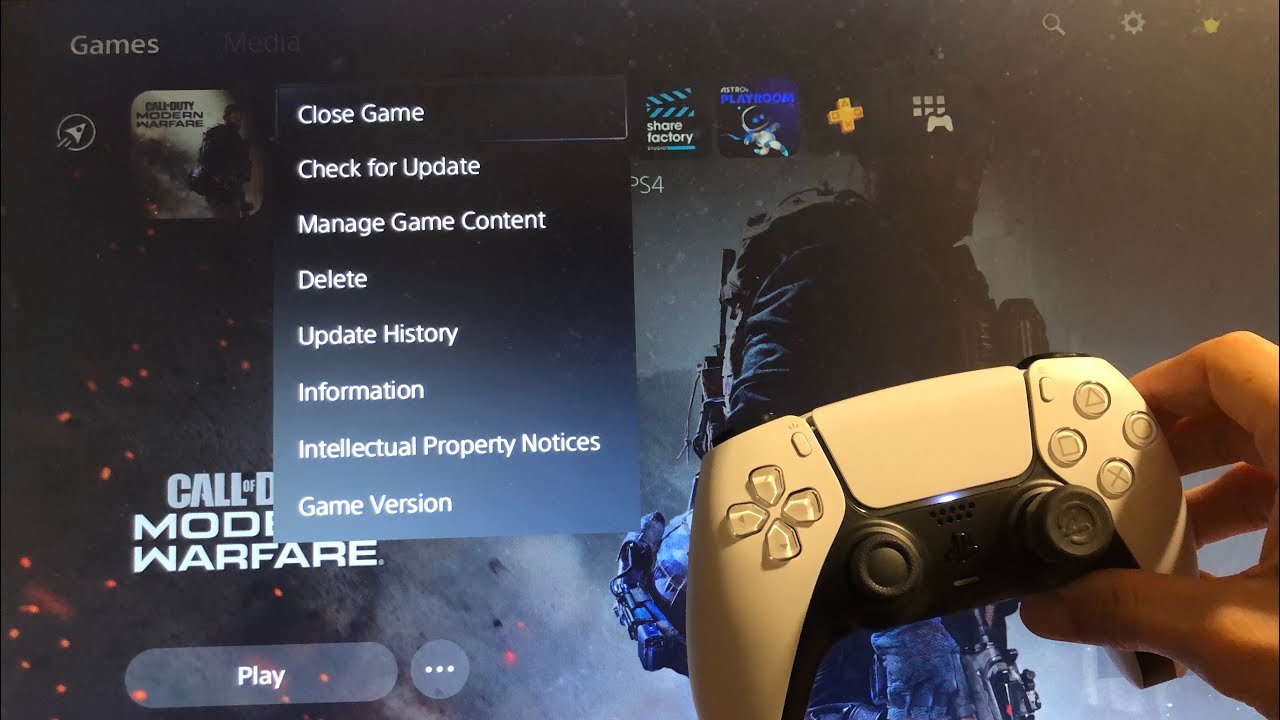
To close games on PS5, press the PlayStation button, navigate to the game in the Activities card, press the options button, and select ‘Close Game’.
Ever get lost in a gaming session on your PlayStation 5 and forget how to return to the main menu? It happens to the best of us! Knowing how to close games on PS5 is a basic skill, but it’s easy to overlook.
This simple guide will quickly show you the correct steps. It’s a useful trick that everyone should know to keep your console running smoothly and jump between different experiences.

How to Close Games on PS5
Okay, gamers, let’s talk about something super important: closing your games on the PlayStation 5. It might seem simple, but there’s actually a bit more to it than just turning off your console. We need to close games properly to keep things running smoothly and avoid any problems. Think of it like this: if you just slam the door on your way out, things might not be so good when you come back. The same is true for your games! So, let’s dive in and learn all the ways to close games on your PS5, and why it’s important.
Why Closing Games Properly Matters
Before we get into the ‘how’, let’s chat about the ‘why’. You might be thinking, “It’s just a game, what’s the big deal?” Well, there are a few reasons why properly closing games on your PS5 is a good habit to get into.
Saving System Resources
When you leave a game running, even if you’re not actively playing it, it is still using some of the PS5’s resources. These resources include things like memory (RAM) and processor power. Think of it like having lots of toys out on your bedroom floor – even if you’re not playing with all of them, they’re taking up space! If you have too many games running in the background, your PS5 might start to slow down, or even freeze up. Closing games properly frees up these resources, making your PS5 run much better. This helps with faster loading times for other games or apps.
Avoiding Game Glitches and Errors
Sometimes, if you don’t close a game correctly, you might have issues when you come back to play it. These issues can include glitches, lost progress, or even game crashes. Imagine you’re building an awesome LEGO castle, and you just pull the plug before saving. It’s gone, right? The same can happen with games. Closing a game the right way allows the game to save everything properly and avoid any potential problems the next time you play.
Preventing Potential Console Issues
Leaving games running constantly can potentially lead to overheating, especially if the PS5’s vents become blocked. Overheating might cause performance problems or even damage to the console in the long run. Closing a game when you’re finished allows the console to cool down and function properly. It’s like giving your car engine a break after a long drive.
Different Methods for Closing Games on PS5
Okay, now we know why it’s important, let’s talk about how to actually do it. There are a few ways to close your games on the PS5. Some methods are quick, and others give you a bit more control. Let’s look at each one.
Using the PlayStation Button (Quickest Method)
This is probably the most common way to close a game. It’s simple and fast, perfect when you just want to jump out of a game and do something else.
- Step 1: Press the PlayStation button on your DualSense controller. It’s the button in the middle with the PlayStation logo.
- Step 2: This will take you to the Control Center, which shows different options. You’ll see the game you were playing listed on the cards.
- Step 3: Select the game card you want to close by using the D-pad or analog sticks to navigate and press the ‘X’ button to select.
- Step 4: Press the options button on your controller, it looks like three small horizontal lines. This will open a new menu.
- Step 5: Choose the “Close Game” option from the menu, then confirm your choice by pressing ‘X’.
And just like that, the game is closed! This is my preferred method when I need to switch over to something else quickly.
Closing Games from the Home Screen
Another easy method to close games is from the PS5 Home Screen. This is where all your games and apps are displayed. This method is great because you can see all your open applications together.
- Step 1: Press the PlayStation button on your controller to go to the Control Center.
- Step 2: From here, select the ‘Home’ icon at the far left of the Control Center menu. This will take you back to the Home Screen.
- Step 3: Use the D-pad or analog stick to move through the icons of your installed games and apps.
- Step 4: Select the game you want to close by selecting its icon on the screen.
- Step 5: Again, press the Options button on your controller.
- Step 6: Select “Close Game” from the menu and press ‘X’ to confirm.
This method can be very helpful if you have multiple games open at once. You can easily find the specific game you want to close from the Home Screen.
Using the Game Switcher
The PS5 has a helpful feature called the Game Switcher. This is like a quick-access menu for all the games you’ve recently used. It’s another fast way to close games.
- Step 1: Quickly press the PlayStation button on your controller (just a short press, not a long hold).
- Step 2: You’ll see a list of your recently opened games and apps on the screen.
- Step 3: Using the D-pad or analog stick, select the game you wish to close from the list.
- Step 4: Now press the Options button.
- Step 5: From the menu select “Close Game” and press ‘X’ to confirm.
The Game Switcher is a handy way to see what you’ve been playing lately and to close them quickly.
Closing Games During a Game Session (In-Game Menu)
Some games offer the ability to close themselves right from their menus. This isn’t the same as just quitting out of a game, it’s actually closing the application. Not all games will have this feature, but it’s good to know that it exists.
- Step 1: Access the game’s in-game menu. The way to do this can vary depending on the game. Usually, you’ll press the ‘Options’ or ‘Start’ button on the controller.
- Step 2: Look for an option like ‘Quit,’ ‘Exit,’ or ‘Return to Main Menu.’
- Step 3: In some games, this might just take you back to the main game menu. In others, it will actually close the application. If the menu option is not “Quit” and returns you to the main menu screen, proceed with one of the previous methods to completely close the application.
- Step 4: If it asks if you’re sure you want to quit and close the game, confirm your decision.
This option is great when it is available as it closes the game properly from within. However, this option is not available on every game, so using one of the other methods is almost always necessary.
Using the Power Menu (Last Resort)
This is a less common method, but important to know in case your PS5 is having problems. If a game has frozen or is not responding to any input, you might need to use the Power Menu to close the game. Be aware that if you use this method to close an application, it may not save the game or your progress, so make sure to save as frequently as possible and only use this method if the other options are not available.
- Step 1: Press and hold the PlayStation button on your controller until the Power Menu appears on screen.
- Step 2: Select the “Power” option on the menu with the D-pad or the analog stick and then press ‘X’.
- Step 3: You have two options here. You can choose “Restart PS5” to restart the whole console and force close all games and applications, or you can choose “Turn Off PS5”. If you choose “Turn Off PS5”, you must manually start the console back up, in which all previous applications are closed upon restarting.
Use this method only when your PS5 isn’t responding to other commands, otherwise it is not recommended. This is like pushing the emergency stop button. It’ll close the game, but it’s better to use other methods whenever possible.
How to Know if a Game is Closed
Sometimes, it’s not entirely obvious if you’ve closed a game properly. You don’t want to think the game is closed, and then find out the next day that it’s still running in the background. So, let’s cover some ways to check.
Checking the Game Switcher
After closing a game, the Game Switcher is a quick way to check. This is the list of recent games you see when you press the PlayStation button briefly.
- Step 1: Press the PlayStation button quickly to open the Game Switcher.
- Step 2: Look for the game you just tried to close in the list.
- Step 3: If the game is not there, you successfully closed it. If it’s still listed, that means it’s still running.
If you see the game in the Game Switcher, try closing it again using one of the methods we talked about earlier. It’s better to double-check and be sure.
Checking the Home Screen
The Home Screen will also indicate if the game is open. This method can be useful to use if you are unsure if a game is open or not.
- Step 1: Navigate to the Home Screen using the PlayStation button and selecting ‘Home’ in the Control Center.
- Step 2: Browse through the games you have installed, and if any have a ‘Play Game’ button, it is closed. If they have a ‘Resume Activity’ button, that means the game is open and needs to be closed using one of the methods listed in this article.
This is another easy method to see if a game is still running, or if you properly closed the application.
Observing Console Performance
If your PS5 is running very slowly, or the fan is working hard, it could be a sign that you have many applications running. If you’ve closed all your games, but the console is still slow, then there could be another issue you need to investigate.
- If your PS5 is not functioning properly, you may have many applications or games open. Ensure that they are all closed before investigating a potentially more complex issue.
Remember, it’s always good practice to check that your games are closed properly after you are finished playing them. This ensures a smooth experience next time you play.
Tips for Managing Open Games
Here are some tips to help you manage your games more efficiently.
Get in the Habit of Closing Games
The best thing you can do is to make closing games a habit. Every time you finish playing a game, close it properly. Don’t just leave it running in the background, just like you would turn off the lights when you leave a room.
By doing this every time, you’ll avoid running into issues down the road. It will also improve the overall performance of your PS5, and keep your system running in top shape.
Close Games Before Starting New Ones
It is a good habit to close your current game before you start a new one. This stops you from having multiple games open at once, which can slow down your console and cause potential issues.
By doing this, you will ensure that your games run as smoothly as possible, as well as allow your console to perform at its best.
Pay Attention to the PS5’s Performance
Keep an eye on how your PS5 is performing. If it’s running slow, check to see if you have any games running in the background. You may have forgotten to close a game or two, so if your console starts to feel sluggish, be sure to check and close all open applications.
By staying aware of how your system is performing, you can avoid larger issues in the future. Being proactive is one of the best ways to keep your PS5 running smooth.
Use the Game Switcher to See Open Apps
The Game Switcher isn’t just for quickly opening your games. It’s a really helpful tool to see what’s still running. Use it to double-check and make sure everything you’ve finished playing is closed. The Game Switcher gives you an easy way to view all the open applications and games, so make it a habit to check it frequently.
By making good use of the built in features of the PS5, you can stay in better control of your gaming experience.
Restart Your PS5 Occasionally
Occasionally restarting your PS5 can help clear any lingering issues and keep the system running smoothly. Think of it like giving your computer a restart every now and then. It refreshes everything and keeps it running at its best. Restarting is a great way to make sure everything is working the way it should, so don’t be afraid to turn your console off and back on again every so often.
These tips can really help you to manage your games and keep your PS5 in tip-top shape.
So, there you have it! Everything you need to know about closing games on your PS5. By using these methods and tips, you can keep your console running great. Remember, closing games properly is important for your PS5’s performance and prevents potential game or system issues. Now, go forth and enjoy your gaming adventures, knowing you’re taking care of your console!
PS5: How to Close Games & Applications Tutorial! (For Beginners) 2024
Final Thoughts
To quickly close games on ps5, press the PlayStation button. This brings up the control center. Highlight the game you wish to close and press the options button.
Select “Close Game” to shut it down. This method effectively ends the game. You can repeat this for other running titles.
Therefore, knowing how to close games on ps5 is quite simple and efficient. This method ensures optimal performance of your console.

