
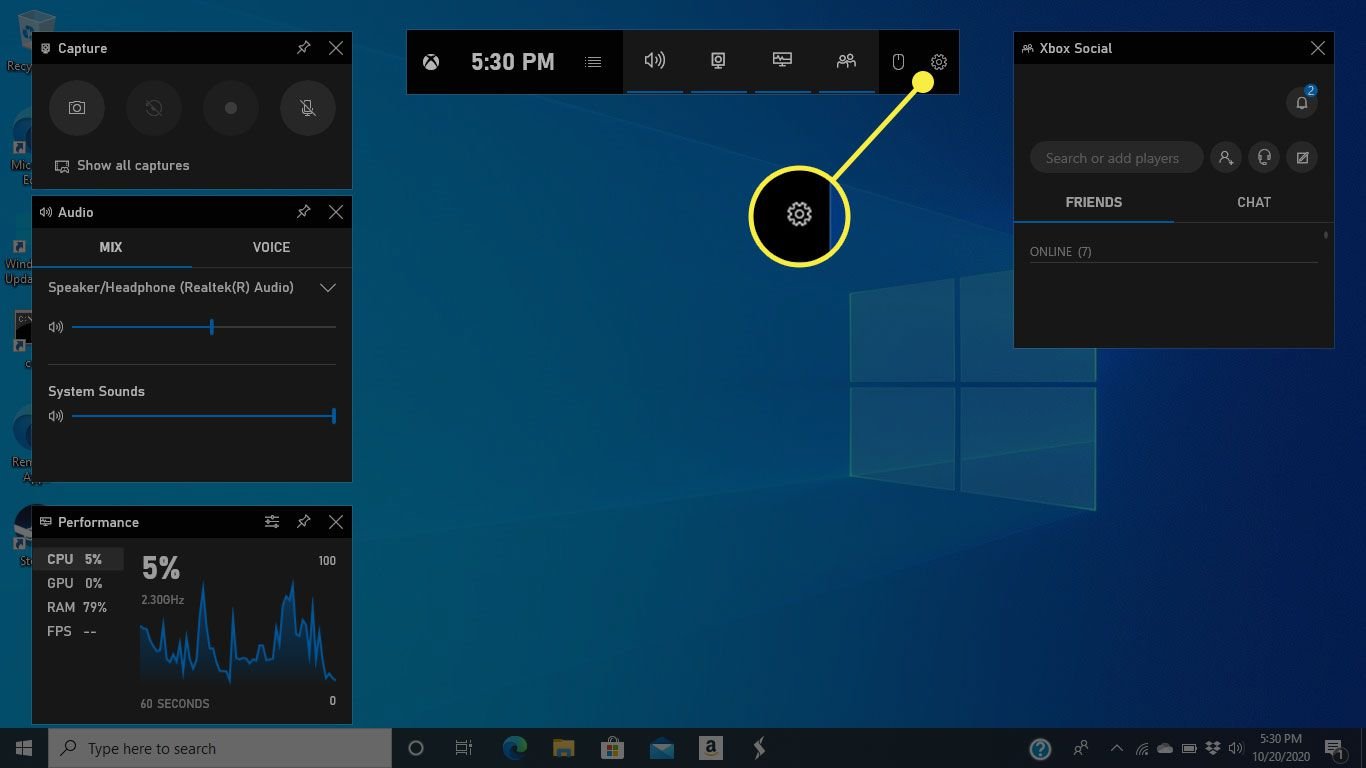
To close the Xbox Game Bar, simply press the Windows key + G again, or click the ‘X’ button on the Game Bar window.
Have you ever been in the middle of an intense game or focused on a task and then that pesky Xbox Game Bar pops up? It can be quite frustrating! Many users often find themselves asking, how to close Xbox Game Bar quickly and efficiently. It’s a common annoyance for some people when trying to concentrate.
This guide will help you take control of the Xbox Game Bar. We’ll go over the steps that ensures you know exactly how to close xbox game bar whenever you wish. So, continue reading for some quick and easy ways.

How to Close Xbox Game Bar: A Complete Guide
The Xbox Game Bar is a handy tool for gamers on Windows 10 and 11, letting you record gameplay, chat with friends, and more. But sometimes, you just want it to go away. Maybe it’s popping up when you don’t need it, or you just want to focus on your game. This guide will show you all the ways to close the Xbox Game Bar, so you can get back to gaming without distractions. We’ll explore each method step-by-step, making sure even beginners can follow along easily. We will also discuss why you might want to close it and some common issues you may encounter. Let’s get started!
Closing Xbox Game Bar Using Keyboard Shortcuts
The quickest and easiest way to close the Xbox Game Bar is often with a simple keyboard shortcut. This is super useful when you’re in the middle of a game and need it gone fast. The default shortcut is the Windows key + G.
How to Close with Windows Key + G
Here’s how it works:
- Press the Windows key on your keyboard. This is usually the key with the Windows logo on it.
- While holding down the Windows key, press the G key.
- If the Xbox Game Bar was open, it will now close. If it was closed, it may open again. Use the same shortcut to close it.
This is the most straightforward method, and many users find it the most convenient, especially when gaming. If the game bar still appears, even after pressing the shortcut, that may mean you need to check your shortcut settings. We’ll discuss this in a later section.
Closing Xbox Game Bar with the Mouse
Another way to close the Xbox Game Bar is by using your mouse. This method is helpful if you prefer not to use keyboard shortcuts, or if your keyboard is not working correctly. The process is simple and user-friendly.
Closing with the ‘X’ Button
Follow these steps:
- If the Xbox Game Bar is currently open, look at the top right corner of the game bar window.
- You will see a small X button.
- Click on this X button with your mouse.
- The Xbox Game Bar window will now close.
This is a simple method, and if you don’t like shortcuts, the ‘X’ is your best bet for closing the bar.
Disabling Xbox Game Bar Startup
If you find the Xbox Game Bar popping up when you don’t need it, and you don’t use it, the best long-term solution is to stop it from opening automatically. You can disable it completely through your Windows settings. This means it won’t launch on its own, saving you from accidental openings.
How to Disable Game Bar in Windows Settings
Here’s how to do it in Windows 10:
- Click on the Start Menu (the Windows icon in the bottom-left corner of your screen).
- Click on the Settings icon (it looks like a gear).
- Click on the Gaming option.
- In the left-hand menu, click on the Xbox Game Bar option.
- You will see a toggle switch that says “Enable Xbox Game Bar”. Click this toggle to the Off position.
- Now the Xbox Game Bar will not automatically open when you press the shortcut key.
If you have Windows 11, the process is almost identical.
- Click the Start button (the Windows icon in the center or bottom left of your screen, depending on settings).
- Click on the Settings icon (the gear icon).
- Click on the Gaming option on the left side menu.
- Click on Xbox Game Bar.
- Toggle the “Open Xbox Game Bar with this button on a controller” switch to the Off position. This ensures it does not open automatically using controller buttons.
- Toggle the “Open Xbox Game Bar using Windows Key + G” switch to the Off position. This ensures it does not open automatically using shortcut keys.
By turning this feature off, you can prevent the game bar from interfering with your other programs or activities.
Checking and Changing Your Game Bar Keyboard Shortcuts
Sometimes, the default keyboard shortcut (Windows Key + G) might not be working as expected, or you might prefer a different shortcut. You can check and change these settings in the Windows settings menu.
How to Modify Keyboard Shortcuts
Here’s how to check and change the shortcut for the Xbox Game Bar in Windows 10:
- Open Settings as shown in previous section.
- Go to Gaming then Xbox Game Bar.
- You will see a section that shows the keyboard shortcut for “Open Xbox Game Bar”.
- To change the shortcut, click into the text box. Then, press the keys you want to use for the shortcut. For example, you could set it to Ctrl + Shift + G.
- Make sure the new key combination doesn’t conflict with other shortcuts you use frequently.
For Windows 11, the process is very similar:
- Open Settings as shown in previous section.
- Go to Gaming then Xbox Game Bar.
- Under “Shortcuts”, you will see the current shortcut for “Open Xbox Game Bar”.
- Click inside the text box to change the keyboard shortcut.
- Press the new key combination you would like to use. For instance, you can set it to Alt + Shift + G.
Setting a custom keyboard shortcut can prevent accidental openings and make it easier to manage the game bar when needed.
Understanding Why You Might Want to Close Xbox Game Bar
There are several reasons why you might want to close the Xbox Game Bar. It’s useful, but it’s not for everyone all the time. Knowing these reasons can help you decide if disabling it is the right choice for you.
Reasons to Close or Disable Xbox Game Bar
- Performance Issues: Sometimes, the game bar can use some of your computer’s resources. This might slow down your game, particularly on older machines. Closing it could potentially make your games run smoother.
- Accidental Openings: You might accidentally hit the shortcut key and open the game bar when you don’t want it. This can be disruptive, especially during competitive gaming or while using other important applications. Disabling it can prevent such accidents.
- Compatibility Problems: Sometimes the Xbox Game Bar can conflict with some games or applications, leading to glitches or other problems. In these cases, it’s best to close or disable it to avoid potential issues.
- Focus and Immersion: For some gamers, any overlay or extra windows can be distracting. Closing the Xbox Game Bar can help you focus more on the game itself and avoid breaking your immersion.
- Avoiding Resource Consumption: Even when idle, the Xbox Game Bar can sometimes use a small amount of system resources. Closing it can help reduce system load and possibly conserve battery life on a laptop.
Troubleshooting: Xbox Game Bar Not Closing
Sometimes, you might find that the Xbox Game Bar isn’t closing, even after trying the methods above. This can be frustrating, but there are a few things you can try to fix it.
Common Issues and Solutions
- Check for Updates: Make sure your Windows operating system and Xbox app are up to date. Outdated software can sometimes cause bugs and glitches that prevent the Game Bar from closing properly. You can check for updates in Windows settings.
- Restart the Xbox App: If the Game Bar is not closing, try closing and then restarting the Xbox App. This can clear any background processes that may cause issues.
- Restart Your Computer: Sometimes, a simple restart of your computer can resolve various software issues, including issues with the Game Bar. Close all programs and perform a restart.
- Force Close the Process: If none of the above works, you can try to force close the Xbox Game Bar process through Task Manager.
- Press Ctrl + Shift + Esc to open the Task Manager.
- Look for “Xbox Game Bar” or related processes.
- Click on the process and select “End Task”.
- Check for Conflicting Software: Some other applications or overlays might be causing the Game Bar to not close properly. Try closing such apps and see if the issue resolves.
If problems persist, there may be other underlying system issues that need investigating.
Alternative Gaming Overlays
While the Xbox Game Bar is a popular overlay, there are alternatives that you might find better suited to your needs. If you’re looking for something different, here are a few to consider.
Other Gaming Overlay Options
- Discord Overlay: If you use Discord for voice chat while gaming, Discord also has its own overlay. This allows you to manage your chat and see who is talking without leaving the game. It includes features such as server notifications and controls directly in-game.
- NVIDIA GeForce Experience Overlay: If you have an NVIDIA graphics card, you can use the GeForce Experience overlay. It offers features like screen recording, broadcasting, and in-game performance monitoring. This is a handy option for gamers who use NVIDIA GPUs.
- AMD Radeon Overlay: For those with AMD graphics cards, the Radeon Overlay provides similar functionalities such as performance monitoring, screen capture, and streaming, and it is part of AMD’s Radeon software package.
- Steam Overlay: If you play games through Steam, you can use the Steam overlay. It allows you to access your friend list, chat, browse the web, and control music during gameplay. It is tightly integrated with the Steam platform.
Exploring these alternatives might provide you with features and performance that better suit your gaming style and needs.
The Importance of Knowing How to Control Your Gaming Experience
Knowing how to manage tools like the Xbox Game Bar is a part of creating a comfortable and immersive gaming experience. Whether you want to use the Game Bar to enhance your play, or close it to avoid distractions, the ability to control how these tools work is important. We’ve shown you how to close it in multiple ways, including using keyboard shortcuts, the mouse, and disabling startup. We’ve also covered how to check and change keyboard shortcuts, why you may want to disable it, and common problems to troubleshoot. With this knowledge, you can now choose the option that works best for your gaming needs and get the most enjoyment out of your gaming sessions.
This comprehensive guide has equipped you with various methods to close or manage the Xbox Game Bar, from simple keyboard shortcuts to disabling its automatic startup. These skills allow you to maintain better control over your gaming environment, ensuring a more streamlined and focused experience, whether you are a casual gamer or a dedicated enthusiast. Remember, the best gaming setup is one that works best for you, and knowing these options helps you tailor your experience to your preferences.
How to Disable Xbox Game Bar on Windows 11 / 10 PC
Final Thoughts
To close the Xbox Game Bar quickly, simply press the Windows key + G again. This action toggles the overlay on and off. It is a simple method to manage its presence.
Alternatively, you can click the ‘X’ button, usually located in the top corner of the game bar window. This also achieves the same outcome. Knowing how to close xbox game bar is essential for a seamless gaming experience.

