
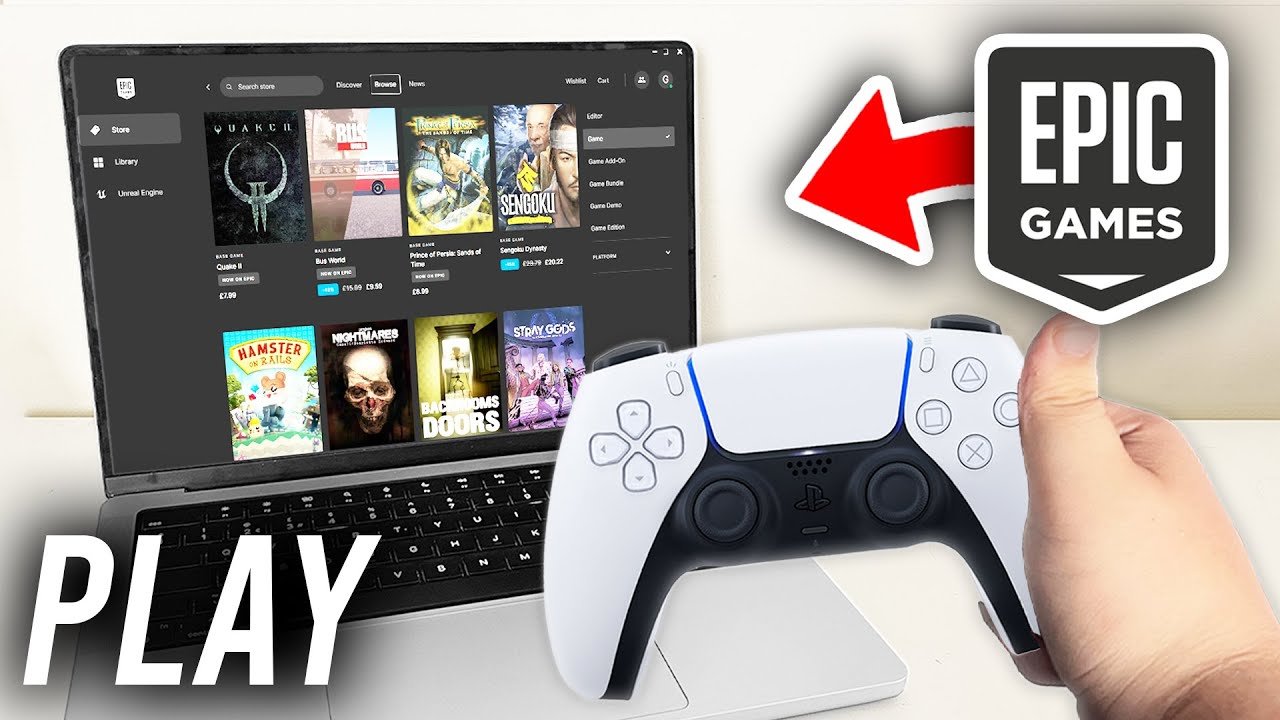
To connect a controller to Epic Games, you typically need to plug it in via USB or pair it wirelessly through Bluetooth, depending on your controller and device.
Want to enjoy your favorite games on Epic Games with a gamepad? It’s easier than you might think. Many players prefer controllers over keyboards and mice for a more immersive experience.
This simple guide details how to connect controller to Epic Games. We’ll walk you through the steps, ensuring you get gaming quickly. It’s a straightforward process that will enhance your gaming enjoyment.

How to Connect a Controller to Epic Games
So, you’re ready to jump into your favorite Epic Games title, but you’d rather use a controller than a keyboard and mouse? You’re in the right place! Connecting a controller to Epic Games is usually pretty simple, but sometimes you might run into a little trouble. This guide will walk you through everything you need to know to get gaming with your controller in no time. We’ll cover different types of controllers, how to connect them, and what to do if things don’t work perfectly. Let’s get started!
Understanding Controller Compatibility
Before we dive into the specifics, it’s important to know that not every controller works perfectly with every game. Epic Games, like other gaming platforms, generally supports a wide range of controllers, but there are a few things to keep in mind.
Commonly Supported Controllers
- Xbox Controllers: These are generally the most universally supported controllers on Windows PCs. This includes the Xbox One, Xbox Series X/S controllers, and even older Xbox 360 controllers (though you might need specific drivers for the older ones).
- PlayStation Controllers: PlayStation DualShock 4 and DualSense controllers are also widely supported. Connecting them can sometimes require a bit more effort than Xbox controllers.
- Nintendo Switch Pro Controller: This controller can also be used on PC with a bit of setup, although it’s not quite as straightforward as Xbox controllers.
- Generic USB Controllers: Many third-party controllers work, but their compatibility can vary wildly. If you have a generic controller, expect that sometimes it might not work, or you may need to try different settings to make it work.
Controller Connection Types
Controllers usually connect to your computer in one of two ways, each with their own steps:
- Wired Connection: This means using a USB cable to connect your controller directly to your computer. This is typically the most reliable method for stable connection and low input lag.
- Wireless Connection: This uses Bluetooth or a proprietary wireless adapter. Wireless is great for freedom of movement but sometimes can have a bit of lag or disconnect, it depends on environment conditions, Bluetooth strength, and more.
Connecting an Xbox Controller
Xbox controllers, because of their tight integration with the Windows operating system, are often the easiest to get working with Epic Games and other PC games.
Wired Xbox Controller Connection
Connecting a wired Xbox controller is super simple:
- Plug the USB cable into your controller.
- Plug the other end of the cable into a USB port on your computer.
- Your computer should automatically recognize the controller, and you’re good to go!
Wireless Xbox Controller Connection
For a wireless connection, you’ll need either an Xbox Wireless Adapter for Windows (which plugs into your computer) or have a computer with built-in Bluetooth
- If you have an Xbox Wireless Adapter, plug it into your computer.
- Press the small button on the adapter.
- Turn on your controller by pressing the Xbox button.
- Press the pairing button on your controller (usually a small button on the top edge).
- The Xbox button on the controller will flash, and once paired it will be solid.
Connecting via Bluetooth:
- Turn on Bluetooth on your computer (usually in settings).
- Turn on your controller by pressing the Xbox button.
- Press the pairing button on the controller (usually a small button on the top).
- Go to your computer’s Bluetooth settings, and find the controller from the list of devices.
- Select the controller to pair with your computer.
Once connected, the Xbox button will be solid, and you should be able to use the controller with Epic Games games.
Connecting a PlayStation Controller
PlayStation controllers might require a little more setup than Xbox controllers, but it’s definitely possible to use them on your PC with Epic Games.
Wired PlayStation Controller Connection
Connecting a PlayStation controller via wired connection is straightforward:
- Plug the USB cable into your controller.
- Plug the other end of the cable into a USB port on your computer.
- Your computer should recognize it, but sometimes extra software might be needed (we’ll talk about that later).
Wireless PlayStation Controller Connection
PlayStation controllers connect wirelessly using Bluetooth. Here’s how:
- Make sure Bluetooth is turned on in your computer’s settings.
- Press and hold both the PlayStation (PS) button and the Share button on the controller.
- The light bar on the controller will start flashing, signaling that it’s in pairing mode.
- Go to your computer’s Bluetooth settings. The controller should appear in the device list.
- Click to pair. You may have to enter a pin “0000” in some cases if prompted.
- Once connected, the light bar will change to a solid color.
Important Note: Sometimes, Windows may need a small piece of software to help it understand PlayStation controllers. This software is called “DS4Windows.” If your controller doesn’t work right away or games do not recognize it, try this software.
What is DS4Windows?
DS4Windows is a free program that makes your computer think your PlayStation controller is an Xbox controller, which most games understand very well. It is really useful when your game does not detect the PlayStation controller automatically.
How to use DS4Windows
- Go to the official GitHub page for DS4Windows or a trusted source and download it.
- Follow the instructions for installing and setting up DS4Windows.
- Once it’s set up, your computer will recognize your PlayStation controller, and it should work well in Epic Games.
Connecting a Nintendo Switch Pro Controller
The Nintendo Switch Pro Controller can also be connected to your PC, though it usually requires a little extra work.
Wired Nintendo Switch Pro Controller
For a wired connection:
- Plug the USB cable into your controller.
- Plug the other end of the cable into a USB port on your computer.
- Your computer might automatically recognize the controller, but you may need to configure the controller in game or via third-party tool, that we will discuss.
Wireless Nintendo Switch Pro Controller
Connecting wirelessly is done through Bluetooth, following these steps:
- Make sure Bluetooth is turned on in your computer’s settings.
- Press the SYNC button on the top of the Pro Controller until the lights begin flashing.
- Go to your computer’s Bluetooth settings, the controller should be in the list of available devices.
- Click to pair.
Important Note: The Nintendo Switch Pro Controller might not be automatically recognized by all games as many games primarily support Xbox controllers, therefore many times you will need to use third-party tools like Steam or other programs to make it work.
Using Steam for Pro Controller Support
Steam, besides being a gaming platform, provides a good support for controllers.
- Open Steam in Big Picture mode.
- Go to Steam Settings and then Controller Settings.
- Select “Nintendo Switch Pro Controller Configuration Support”.
- Now, Steam will detect your controller, and it may work with Epic Games games, as long as Steam is running in the background.
Troubleshooting Controller Connection Issues
Sometimes, things don’t work as smoothly as we’d like. Here are some common problems and how to fix them:
Controller Not Detected
If your controller isn’t recognized by your computer or the game, try these fixes:
- Check the Connection: Make sure the USB cable is securely plugged in on both ends, or that your Bluetooth connection is properly paired.
- Restart Your Computer: Sometimes, a simple restart can fix connection problems.
- Update Drivers: Outdated drivers can cause issues. You can update drivers by finding the specific controller in the Device Manager of your computer and doing a driver update by selecting “Search automatically for drivers”.
- Try a Different USB Port: Sometimes a USB port can have an issue, so try a different one.
- Check Battery Levels: If your controller is wireless, make sure the battery is charged.
Controller Is Detected, But Not Working in Game
If the controller is recognized by your computer but not the game, here are things to try:
- Check Game Settings: Make sure that the game is set to use the controller and check the setting to select the correct controller. Some games may require you to select the controller type in the in-game settings.
- Use a Third-Party Program: Tools like DS4Windows (for PlayStation controllers), or Steam’s controller configuration for other controllers, could be the solution.
- Try a Different Game: If it’s not working in one specific game, try it in another game. If it works in other games, then it means that there is issue with the specific game and controller settings.
- Restart the Game: Sometimes, restarting the game after plugging in the controller is necessary for it to recognize the controller input.
Controller Inputs Are Laggy or Unresponsive
If your controller has lag or feels unresponsive, it could be a few issues:
- Check the Connection: A bad cable connection or weak Bluetooth signal can cause problems. Try moving your computer closer to the controller or using a different USB cable if wired.
- Interference: Other wireless devices could interfere with your controller signal. Try turning off other Bluetooth devices while you play.
- Update Drivers: Outdated driver can affect responsiveness. Always make sure you have the correct drivers installed for your controller, you can update by finding specific controller in the Device Manager of your computer and search automatically for drivers.
- Close Background Applications: Having too many apps running in the background can slow down the responsiveness of the controller. Close background apps that may be consuming your computer’s resources.
Controller Button Mapping and Customization
Sometimes you may want to change the buttons on your controller. For example, you may want to switch the A and B buttons or customize the inputs of different buttons to fit your own play style. Here’s how you can do that:
In-Game Settings
Many games have options to remap controller buttons directly in the game settings. This is the easiest way to change buttons without relying on third-party programs.
- Open the game and go to the settings menu.
- Look for controller settings, or button mapping options.
- Change the buttons as per your needs.
Third-Party Software
Programs like DS4Windows (for PlayStation) and Steam’s controller options can provide more extensive customization.
Steam Controller Configuration
- Open Steam in Big Picture Mode.
- Go to Settings, then Controller Settings.
- Select your controller, and configure the button layout and sensitivity as needed.
DS4Windows Controller Mapping
- Open the DS4Windows program.
- Select “Profiles” from the tabs.
- Select the “Edit” button.
- You can change button mapping and sensitivity here.
Benefits of Customization
Customizing button layout can help you:
- Play more comfortably: You can adjust buttons to be in the most natural places for your hands.
- Improve your gaming: If you change button mappings to what feels comfortable and easy to use, it may improve reaction time.
- Personalize your setup: Each player has its own unique playstyle. Customization can help personalize it to your style.
Connecting a controller to Epic Games is usually straightforward, but sometimes there are issues. With these tips, you should be able to enjoy using any type of controller with your favorite games and troubleshoot common issues along the way. Remember, a little patience and some simple checks can get you back into the game quickly. Happy gaming!
How to Play Epic Games with a Controller
Final Thoughts
Connecting your controller to Epic Games involves ensuring proper device recognition and settings configuration. First, plug your controller in or connect via Bluetooth. Next, confirm the controller functions correctly within your operating system.
Then, launch your Epic Games title. Usually, the game should automatically detect your controller. If not, check in-game control options for input selection. Following these basic steps usually resolves connection issues on how to connect controller to epic games. It’s vital to always have updated drivers.

