
To connect your Epic Games account to PlayStation, you must do it via the Epic Games website or through the in-game settings of an Epic Games title on your PlayStation console.
Want to play your favorite games with all your progress and friends across platforms? You’ll need to learn how to connect your Epic Games account to Playstation. This connection lets you access your Epic Games library and play with others who are using different consoles.
Connecting the two accounts can seem a bit daunting but it’s actually quite straightforward. Once linked, all your game progress and purchases are available on your console and PC, providing seamless gaming experience.

How to Connect Epic Games Account to PlayStation
Want to play your favorite Epic Games like Fortnite, Rocket League, or Fall Guys on your PlayStation with all your cool stuff? You’re in the right place! Connecting your Epic Games account to your PlayStation account lets you keep your progress, skins, and all the other goodies you’ve earned. This makes it super easy to switch between playing on your computer, phone, or PlayStation without losing anything. Let’s dive into how you can do this easily.
Why Connect Your Accounts?
Before we jump into the “how,” let’s talk about the “why.” Connecting your accounts isn’t just about making things convenient. It also makes playing games a whole lot better. Here are a few reasons why you should connect your Epic Games account to your PlayStation account:
- Carry Your Progress: When your accounts are linked, your game progress, skins, and virtual items go with you, wherever you choose to play. No starting over from scratch!
- Play with Friends: Connect your accounts to easily find and play with friends, no matter what device they use. This way you and your friends can easily join each other in party or squad and enjoy the games together.
- Get Special Stuff: Sometimes, connecting accounts gets you special rewards or bonuses that you can’t get any other way. Epic Games sometimes gives promotional rewards for account linking.
- Simplified Experience: Linking accounts gives a simple experience, when you play on your PlayStation you can easily log in with your linked account.
- Access Multiple Games: Connecting lets you play various games available on the Epic Games Store with the same progression and inventory.
Preparing to Link Your Accounts
Before you start the linking process, there are a couple of things to check:
Do You Have an Epic Games Account?
First, make sure you actually have an Epic Games account. If you’ve ever played Fortnite or any other game from Epic Games on your computer or phone, you probably already have one. If you are not sure, you can easily check by visiting the Epic Games website. You can also create a new one there if you don’t have one yet. Creating an account is free, and it only takes a couple of minutes. Be sure to remember your username and password as you’ll need them for linking.
Is Your PlayStation Account Ready?
You also need to have an active PlayStation Network (PSN) account. This is the account you use to play online games on your PlayStation. If you have a PlayStation, then you must have it, if you have never used a PSN, then you can easily create one. Keep your PSN login details handy. Now you’re prepared for the next phase of our account linking process.
Step-by-Step Guide to Connecting
Okay, now for the good part – actually linking your accounts! Here’s the complete guide.
Starting from Your PlayStation Console
This is probably the way most people are doing it, so let’s start with the PlayStation console route.
- Start a Game: Turn on your PlayStation and start up an Epic Games game, like Fortnite.
- Log In: When the game launches, it will prompt you to sign into your Epic Games account.
- Link Account: Follow the on-screen instructions. The game will usually give you a code or a link to visit on your phone or computer.
- On Your Device: Now, go to the Epic Games website on your phone or computer and enter the code, or follow the link.
- Enter Details: Log in with your Epic Games username and password.
- Authorize the Link: You might see a screen asking if you allow the linking of your PlayStation account. Click “Allow” or “Link Account”.
After following the on-screen steps, your PlayStation account will now be connected with your Epic Games account. You will have to restart the game in order for changes to be visible.
Connecting via Epic Games Website
You can also connect your accounts directly from the Epic Games website. This method works well if you’re not at your PlayStation.
- Go to Epic Games Website: Open a web browser and go to the Epic Games website.
- Sign in to Your Account: Log in with your Epic Games username and password.
- Go to Account Settings: Click on your profile name and go to “Account Settings”.
- Connections: Find the “Connections” or “Connected Accounts” section.
- Choose PlayStation: Click the “Connect” or “Link” button next to the PlayStation logo.
- Sign in with PlayStation Account: It will then open another window asking you to sign in with your PSN account login details.
- Confirm the Linking: Follow the instructions on screen to complete the process and your accounts will be connected.
Troubleshooting Connection Issues
Sometimes, things don’t go as planned. If you have issues linking your accounts, here are a few things to try:
Incorrect Account Credentials
Make sure you’re using the right usernames and passwords for both your Epic Games and PlayStation Network accounts. A small typo can cause big problems.
- Double-check each letter and number.
- Make sure the Caps Lock key is off.
- If you’re not sure of your password, use the ‘Forgot Password’ option on the websites to reset.
Already Linked to Another Account
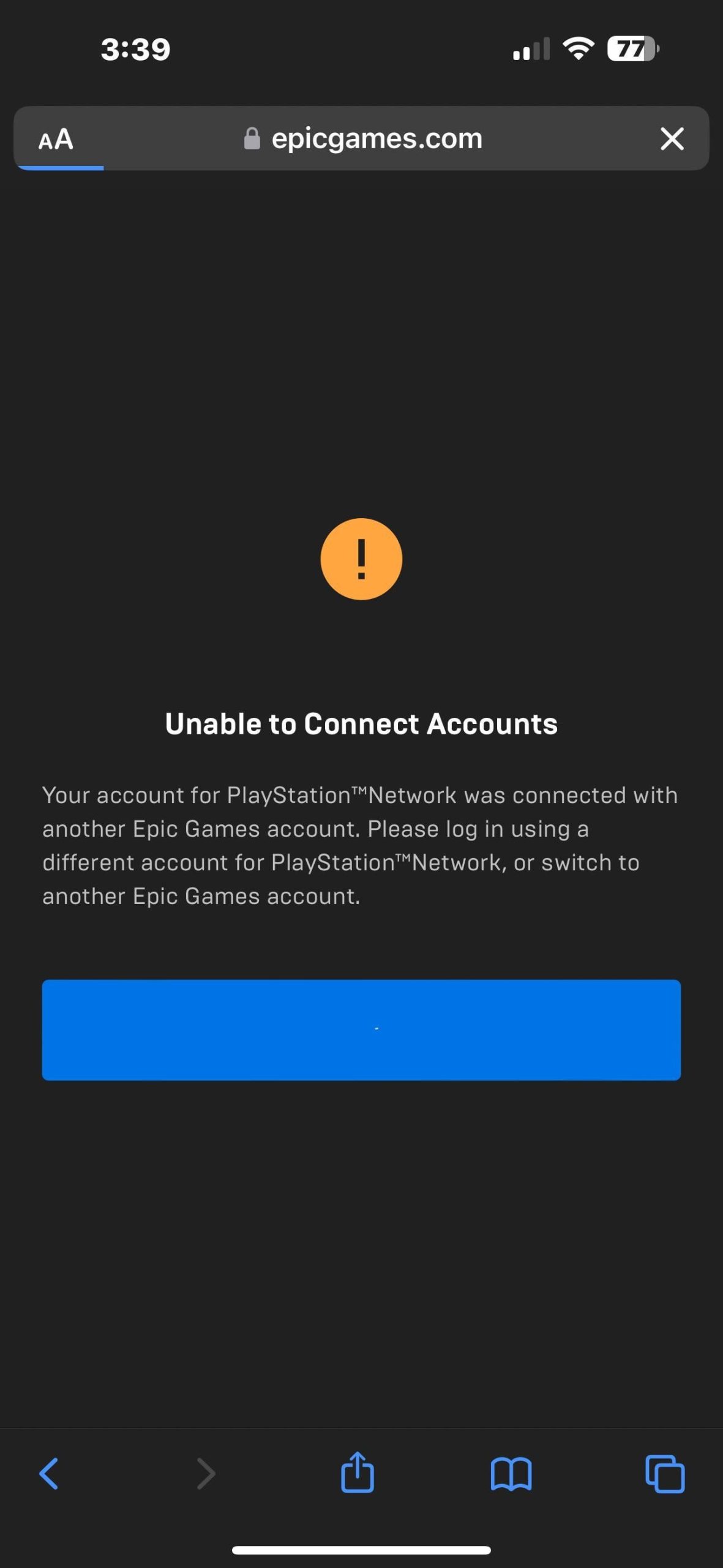
Your PlayStation account can only be linked to one Epic Games account at a time, and vice-versa. If you or someone else already linked it to a different account, you’ll have to unlink it first, before connecting to the desired one.
- If you have previously connected to another epic account and are having trouble connecting to current account, then you must unlink the previous account first
- To do that, login to Epic Games account with linked account, and go to the Account Connections section and click to Unlink, and restart the linking process with current account.
Network Problems
A shaky internet connection can also cause issues with linking. Make sure your internet is working properly.
- Restart your modem or router, and make sure you are connected with the internet.
- Make sure that your network is not having any issues, if the network is down you won’t be able to connect.
Website or Game Issues
Sometimes, the problem isn’t with you but with Epic Games or PlayStation Network. There could be a server problem causing the issues.
- Visit the Epic Games or PlayStation Network support page to see if there are any outages or maintenance going on.
- If you are unable to login to website or game and you think that your account is not having any issues, then try to wait for sometime and retry the process.
Clear Browser Cache and Cookies
Sometimes, the browser’s saved data can cause problems. Clear your browser’s cache and cookies and try again.
- Go to your browser settings and clear the cache and cookies of the browser
- Try the connection process again, after clearing the browser cache and cookies.
Contact Support
If all else fails, you might have to contact Epic Games support or PlayStation support for help. They can look into specific account issues and provide further assistance.
- Go to the Epic Games or PlayStation support page to contact them regarding your issue.
- Be prepared with the relevant information, such as account usernames, error messages, etc.
What Happens After Connecting?
After connecting your accounts, you’ll be able to play your favorite Epic Games on your PlayStation with all your progress saved. You can switch between PlayStation and other devices easily. You’ll also have the chance to play with your friends regardless of their devices. Make sure you have the game installed on the PlayStation in order to play.
Managing Linked Accounts
Want to manage or unlink your accounts? It’s pretty straightforward.
How to Unlink Your Accounts
If you need to unlink your accounts for any reason, follow these steps:
- Go to the Epic Games Website: Open a web browser and go to the Epic Games website.
- Sign in to Your Account: Log in with your Epic Games username and password.
- Go to Account Settings: Click on your profile name and go to “Account Settings”.
- Connections: Find the “Connections” or “Connected Accounts” section.
- Unlink PlayStation: Find the PlayStation account and click the “Unlink” button.
- Confirm: Follow the prompts to confirm you want to unlink.
After unlinking, you’ll need to link it again, if you need to play with same account.
Switching between Linked Accounts
If you have multiple Epic Games or PSN accounts, make sure to switch to the account you want to use before you start linking. Once connected, it’s essential to always use that specific Epic Games account when you play on your linked PlayStation account.
Additional Tips
Here are some extra tips for a smoother account connection:
- Use a Strong Password: Keep your accounts secure by using unique, strong passwords. A strong password can keep your account safe and protected from any unauthorized access.
- Two-Factor Authentication (2FA): Enable two-factor authentication on both your Epic Games and PlayStation accounts for added security. 2FA provides extra layer of security to your account.
- Keep Your Information Updated: Make sure your email addresses and other contact info is always up to date. If you forgot your password, you can easily reset it with email address.
- Check Game Compatibility: Not every game may support cross-progression, although most big titles support cross-progression, still it’s good to double-check to avoid confusion.
- Be Patient: Sometimes linking might take some time, so don’t rush it, and make sure that everything is done right to avoid any kind of problems.
By following these steps and taking your time, you’ll be gaming across your devices in no time. Connecting your accounts makes playing your games better, easier, and more enjoyable. So, go ahead, and get linked up and have fun!
How To Link Epic Games Account To PlayStation Account – Easy Guide
Final Thoughts
To connect your Epic Games account to PlayStation, first, navigate to the Epic Games website. Then, go to your account settings. Find the “Connections” section and select “PlayStation”. This will prompt you to sign in with your PlayStation Network credentials.
After signing in, your Epic Games account will be linked to your PlayStation account. You can now access your Epic Games library and play games across both platforms. Now you know how to connect epic games account to playstation easily, start enjoying cross-platform play.

