
To connect your PSN account to Epic Games, visit the Epic Games website, sign in, then go to your account settings and link your PlayStation Network account.
Want to use your PlayStation Network goodies on your Epic Games account? It’s simpler than you might think. Many players want this connection for cross-progression and access to content across platforms. This process is straightforward if you know the steps. Let’s show you how to connect psn to epic games.

How to Connect PSN to Epic Games
Playing video games is awesome, right? And sometimes, you want to play your favorite games with your friends no matter what console they have. That’s where connecting your PlayStation Network (PSN) account to your Epic Games account comes in. This lets you play games like Fortnite, Rocket League, and Fall Guys with your buddies, even if they’re using a different system. It might sound tricky, but it’s actually pretty easy. Let’s walk through how to get your PSN and Epic Games accounts talking to each other.
Why Connect Your PSN and Epic Games Accounts?
Before we jump into the ‘how,’ let’s talk about the ‘why.’ Why would you even want to connect these accounts? Well, there are several cool reasons:
- Cross-Platform Play: The biggest reason is cross-platform play. This lets you play with friends on different consoles and PCs. Imagine playing Fortnite with your buddy who’s on their PlayStation while you’re on your computer – that’s the power of connected accounts.
- Shared Game Progress: If you play games like Fortnite or Rocket League, linking your accounts allows you to carry your progress, skins, and items between different devices. Start a game on your PS5, continue on your PC, and all your stuff is still there!
- Easy Friend Finding: When your accounts are connected, it’s much easier to find and add your friends. No need to memorize long usernames – your friends who already use their Epic account will appear in a list for you.
Getting Started: What You Need
Okay, let’s get ready. Before starting, make sure you have a few things:
- A PlayStation Network (PSN) Account: Obviously, you need an active PSN account. This is the account you use to play games on your PlayStation console.
- An Epic Games Account: You will need an Epic Games account. If you’ve played games like Fortnite or Rocket League, you probably already have one. If not, you can create one for free on the Epic Games website.
- Access to the Internet: You need a good internet connection to do this, so that the pages can load correctly and your data can be saved.
- A Computer, Phone or Tablet with a Browser: You will need a device with a web browser to complete the process.
The Step-by-Step Guide: Connecting Your PSN to Epic Games
Now, let’s get to the heart of the matter: how to link your PSN account with your Epic Games account. Here’s a detailed breakdown:
Method 1: Connecting Through the Epic Games Website
This is the most common way and is very easy to follow:
- Go to the Epic Games Website: Using your computer, tablet, or phone, open your favorite web browser and go to the official Epic Games website (www.epicgames.com).
- Sign In to Your Epic Games Account: If you aren’t already signed in, click the “Sign In” button, usually located at the top right of the page. Enter your Epic Games account email and password, or sign in with your platform accounts like Google, Facebook, or even Apple ID if they are linked.
- Access Account Settings: Once signed in, find and click on your account name, usually in the upper right corner of the website. In the dropdown menu, click on “Account.” This takes you to your account settings.
- Go to “Connections”: On the left side menu of your account page, you will see many options. Find and click on “Connections”. This section helps you to link other accounts to your epic games account.
- Find PlayStation Network: Under the “Connections” menu, you’ll see various account options. Look for the PlayStation Network logo and the text “Connect”. Click on “Connect” beside PlayStation Network.
- Log in to PSN: After you click “Connect”, a new window or tab will open, prompting you to sign into your PSN account. Enter your PlayStation Network email address and password. If you have 2FA set up, follow the authentication method to continue to your Playstation account.
- Authorize the Connection: After signing in to your PSN, you will see a message asking for your permission to connect your PlayStation account to your Epic Games account. Click “Accept” or “Continue” to give Epic Games permission to connect to your PSN.
- Connection Confirmed: You are now done! You should see a confirmation screen on the Epic Games website confirming that your accounts are linked. The PlayStation Network will show as connected under the “Connections” menu.
Method 2: Connecting Through a Game
Sometimes, games will offer the option to connect your accounts directly. This usually happens when you start a game for the first time or when you try to access cross-platform features. Here’s how it generally works:
- Start a Game: Launch a game on your PlayStation that supports cross-platform play with Epic Games, like Fortnite or Rocket League.
- Follow the Prompts: When you start the game, it may show you a message or screen that asks you to connect to your Epic Games account. This prompt could appear during the startup process or in the game settings. Follow the on-screen instructions and prompts.
- Sign In to Your Epic Games Account: You’ll likely see a login screen or a link that directs you to a webpage to log in. Enter your Epic Games account email and password.
- Authorize the Connection: A message will pop up asking you to approve the account connection between your Epic Games and PlayStation Network. Click “Accept” or “Continue”.
- Complete the Connection: After that, you should see a message confirming that your accounts have been linked. You might need to restart the game for the changes to take full effect.
What if I Already Have an Epic Games Account Connected to Another PSN Account?
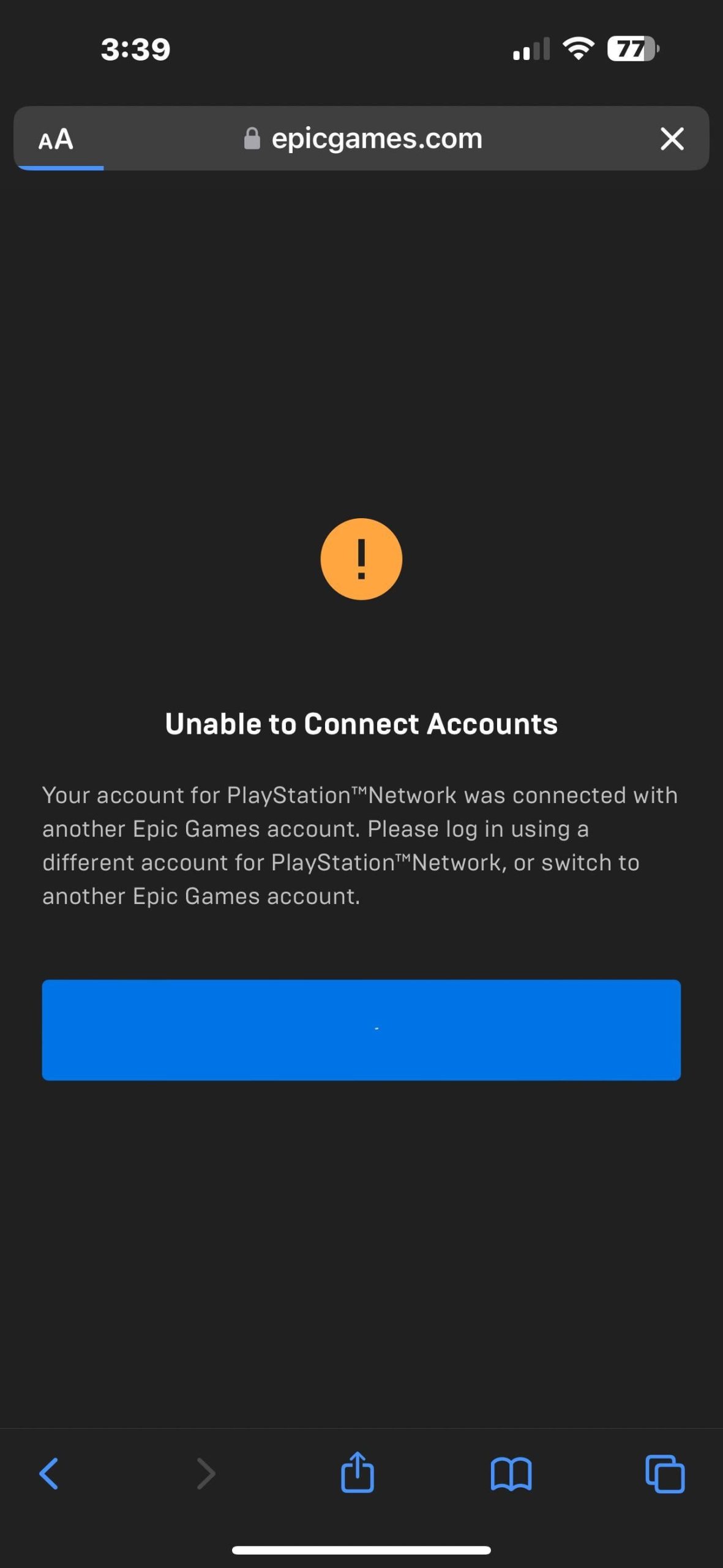
It is important to note that one Epic Games account can only be connected to one PSN account, and vice-versa. If you are trying to connect to a new PSN, and your Epic Games account is already connected to another PSN account, then you will face some problems. So, make sure that you have not connected your Epic account to another PSN account before doing the process. If you are facing problems, then here’s what to do.
Unlinking an Existing PSN Account
You might have a previous PSN account connected to your Epic Games account that you don’t use anymore. Here is how you can unlink the accounts:
- Visit Epic Games Account Settings: Go to the Epic Games website and log in to the Epic Games account that is linked to the old PSN account.
- Go to Connections: Go to the “Connections” section within your account page.
- Unlink the Account: Find your PlayStation Network entry. There should be a “Disconnect” or “Unlink” option. Click it. Remember that you may not be able to link this account again.
- Confirm the Unlink: A message will pop up asking if you are sure you want to unlink. Confirm this action.
After unlinking the account, you can then proceed to connect your new PSN account to your Epic Games account.
Troubleshooting Common Issues
Sometimes, things don’t go as planned. Here are some common issues you might encounter and what to do:
Error Messages or Connection Failures
If you get error messages or your connection fails, try the following:
- Check Internet Connection: Make sure your internet is working properly. Restart your router if needed.
- Double-Check Credentials: Make sure you’ve entered your PSN and Epic Games email addresses and passwords correctly. Sometimes typos are the culprit.
- Try a Different Browser: If you’re having trouble on one browser, try a different one (like Firefox or Safari instead of Chrome) or a different device.
- Disable VPNs: If you use a VPN, disable it temporarily, as it can sometimes cause problems with account linking.
- Server Issues: Occasionally, Epic Games or PlayStation Network may have server issues. If that’s the case, try again later.
Stuck in a Login Loop
Sometimes, the login pages might keep reloading or you might get stuck in a loop:
- Clear Browser Cache and Cookies: Clear your browser’s cache and cookies, and then try again.
- Use Incognito or Private Mode: Try using your browser’s incognito or private browsing mode. This will prevent any stored cache from interfering.
Account Already Linked Error
If you see a message that says an account is already linked, remember that one Epic Games account can only be linked to one PSN account at a time. If you run into this issue:
- Double Check Linked Accounts: Make sure you don’t already have your PSN account connected to a different Epic Games account. Check all your known Epic Games accounts.
- Follow the Unlinking Steps: If you need to, use the unlinking steps above to unlink the incorrect PSN account.
Game Not Showing Linked Account
After linking, your game might not recognize your connected account:
- Restart the Game: Close and restart the game on your PlayStation.
- Restart Console: Try restarting your PlayStation.
- Check the Game Settings: Make sure that the game itself is set to use your linked account. Look for the connection options in game menus.
Benefits of Connecting Your Accounts
Alright, you’ve successfully linked your PSN to your Epic Games account! What can you expect?
Cross-Platform Gaming
The most exciting benefit is being able to play with friends on different platforms. Games like Fortnite, Fall Guys, and Rocket League allow players from different consoles and PC to play together seamlessly.
Shared Progress and Items
Your game progress, items, and cosmetic items usually transfer between platforms when your accounts are linked. If you buy an awesome new skin in Fortnite, for example, it will be available for you to use whether you are playing on PS5 or PC. This allows you to take your hard work with you wherever you choose to play.
Easier Friend Management
You don’t have to go looking for your friends on a new platform as the game will use your Epic Games account to automatically find them. All friends you have on your Epic Games account will appear in your game’s friend list.
Special Promotions and Rewards
Sometimes, connecting your accounts can get you special in-game rewards or promotions. Keep an eye out for events that give you free items when you link your PlayStation and Epic accounts.
Connecting your PSN to your Epic Games account lets you enjoy the full potential of cross-platform gaming. It can be a little confusing the first time, but once you get it done, you can play the games you love with friends regardless of the console or platform they use. Now, go on and enjoy the games together!
How to Link Playstation Account to Epic Games!
Final Thoughts
Connecting your PSN to Epic Games is quite simple. Head to the Epic Games website or launcher, navigate to account settings. There, find the “Connections” option.
Choose the PlayStation Network logo. You’ll be prompted to log into your PSN account. After this, confirm the connection.
This process allows cross-platform play and shared progress. Now, you understand how to connect psn to epic games successfully. This process is a must.

