
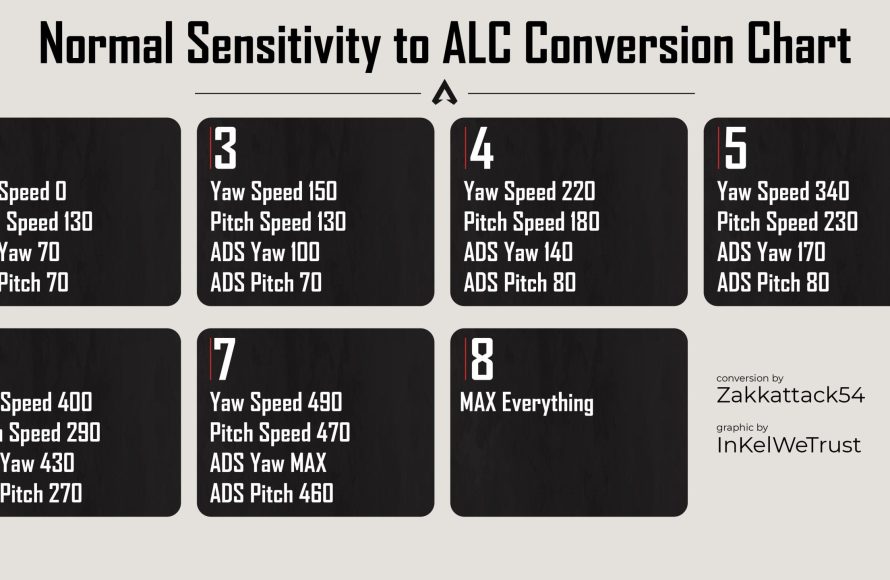
Converting controller sensitivity between games requires understanding each game’s sensitivity scale and finding a multiplier to achieve a similar feel. There is no universal method; you’ll need to experiment.
Jumping from one game to another can feel jarring, especially when your aiming feels completely off. One minute you’re a sharpshooter, the next you’re struggling to hit the broadside of a barn! This often comes down to different controller sensitivity settings between games.
This guide explores how to convert controller sensitivity between games, offering some general advice and considerations to help you get more consistent aiming. You will quickly realize that a little effort can make a big difference.

How to Convert Controller Sensitivity Between Games
So, you’ve finally gotten your aim just right in your favorite game, and now you’re switching to a new one. It feels completely off! Your character is either turning way too fast or moving like they’re stuck in slow motion. This is because every game handles controller sensitivity differently. It’s not just a matter of numbers – what feels like ‘5’ in one game could be totally different than a ‘5’ in another. But don’t worry, you can learn how to convert controller sensitivity between games, and this article is your guide. Let’s explore why this happens and what you can do about it.
Understanding the Problem: Why Sensitivity Feels Different
Why can’t all games just use the same sensitivity settings? Well, there are a few reasons. Think of it like comparing apples and oranges; even though they are both fruit, they’re very different. Here are the main reasons why sensitivity feels so inconsistent:
Different Sensitivity Scales
Each game developer picks their own scale for sensitivity. One game might use a 1 to 10 scale, while another uses 1 to 100. Some games might not even use numbers but instead use words like “low,” “medium,” or “high.” This means there is no standard measurement of sensitivity, and a ‘5’ in one game is just different from a ‘5’ in another.
Varying Input Systems
Games use various input systems. Some read controller inputs directly, and others use a system that smoothens and adjusts inputs before they affect gameplay. These systems are different for different games, which impacts the final feeling of sensitivity.
Different Field of View
Field of view, or FOV, refers to how much of the game world you can see on your screen at once. A higher FOV means you see more, which often makes your character feel like they’re moving slower. This is because you have more to visually track. A lower FOV makes movement feel faster. Because games have different FOV, the same sensitivity value in two games will give you different feeling.
Different Camera Movement
Some games use linear camera movement, meaning the speed of the camera changes at a steady rate as you move the stick. Others use curves, where the speed changes faster at the beginning of a movement than at the end. These different curves affect how your sensitivity feels.
Aim Acceleration
Aim acceleration makes your sensitivity increase as you move the stick farther or faster. This can make aiming smoother and also more inconsistent, especially if different games use different amounts of aim acceleration. Some games let you turn acceleration off, while others don’t.
Ways to Find Your Ideal Sensitivity in New Games
Now that we understand why sensitivity is so different across games, let’s explore methods you can use to match sensitivity for better, more consistent gaming. Here are a few methods you can try:
The Trial and Error Method (Quick and Simple)
This is the easiest method, but it’s not very exact. You will change your sensitivity and play a bit, checking your movement and aiming. Adjust the values until it feels good.
- Start with the Default: Start with the default setting the game provides.
- Play a Round: Go into a game or training area. Do some turning and aiming.
- Adjust: If your character moves too fast, lower the sensitivity. If too slow, increase it.
- Repeat: Keep playing and adjusting. Each time, move a little closer to feeling right.
This approach is not exact, but it’s a good first step for many players. You can start with a known setting, like a low sensitivity, then work your way up until you feel comfortable. The key to this method is to not change too much at once and to be patient.
Using Online Sensitivity Converters (Easy and Often Accurate)
There are some great tools on the internet that help convert sensitivity across multiple games. These tools usually ask for your current sensitivity and FOV from one game and then give you the equivalent sensitivity for the game you want to switch to.
- Find a Converter: Search online for “game sensitivity converter.” A few popular ones include Mouse-Sensitivity and Aiming.pro, though they often include controller settings as well.
- Choose Games: Select the source game (the game you are used to) and the target game (the new game).
- Enter Settings: The converter will ask you to input your FOV and sensitivity from the source game.
- Get Results: The tool will give you the closest matching settings for your target game.
- Test it Out: Go into the game and see how it feels, and adjust slightly as needed.
These calculators are not perfect but they give you a good starting point. The tools work best if you can find games that have sensitivity scales that the tool can easily understand. Some popular games can be more exact compared to others.
Using the 360-Degree Turn Method (More Precise)
This method relies on a simple idea – matching how far you have to move your stick to do a complete 360-degree turn in different games. It is more precise but requires a bit of set up. Here is how to do it:
- Pick an In-Game Spot: Find an easily repeatable location in your games, something like a wall. This is where you start and end a 360-degree turn.
- Measure Your Turns: In the game you are used to, use your controller to perform a 360-degree turn. Now look at how far you had to push your stick.
- Switch Games: Now, in the game you want to switch to, start with a default sensitivity setting.
- Adjust and Check: Push your stick the same distance as in your first game and see how far your camera turns. Keep adjusting sensitivity until you achieve the same 360-degree turn.
The 360-degree method helps you get close between games that have different scales and aiming curves. However, it only compares the total amount of rotation per stick movement. It might not account for different speed curves.
Using Training Mode and Landmarks (Visually Precise)
If there is a training mode or an area where you can mark something in your game, then you can use these visual methods to match sensitivities. These methods focus on the feeling you have during gameplay.
- Find a Landmark: Find a unique point in the game, like a building or marker.
- Aim at the Landmark: Now aim your camera on your selected landmark.
- Move then Return: Move your camera left and then right. Pay attention to how far you move the stick.
- Repeat in the New Game: Try the same movement in the game you are switching to. Adjust your sensitivity until your movement matches.
This approach is more about visually matching the feeling of the movement, which can be more effective than just the distance of a turn. You can combine this with the 360-degree method for extra precision.
Advanced Tips and Tricks
After using any of the methods, these tips can further help to improve your settings.
Fine-tuning with Micro-Adjustments
Once you have a good basic sensitivity, try changing it by small amounts. Increase or decrease it just a bit. Play a game and see if the small change gives you even better aim and movement.
Understanding Response Curves
Some games let you change your response curve (also called “aim curve” in some games). If you are used to one curve, then you might be able to tweak the new game’s curve to match. If you prefer a faster response at the start of the stick motion, adjust the curve settings. Experiment with different curve options to find what feels the best.
Experiment with Aim Assist Settings
Aim assist is a feature in games that helps you aim. If you rely on aim assist in one game, make sure it’s adjusted to a similar level in the new game. Too much or too little aim assist can impact how you feel your sensitivity. Aim assist will not always be available though, and some players choose to turn it off.
Practice in Training Modes
Spending time in training mode allows you to test and tweak your settings without pressure. This also helps get used to new sensitivities and mechanics. It’s a great way to lock in your settings.
Consider the Game Genre
The right sensitivity setting will also change based on game genre. A fast-paced shooter might require a higher sensitivity compared to a strategy game. This means there’s no single best sensitivity setting for all games. Adjust settings to match the pace of the game you’re playing.
Pay Attention to Dead Zones
Dead zones refer to how far you have to move your stick before the game reacts. If a game has a large dead zone, it can feel sluggish even if your sensitivity is high. Adjust this when available. A lower dead zone setting makes movement more responsive, while a higher dead zone can prevent stick drift.
Be Patient and Consistent
It takes time to get used to a new sensitivity. Do not keep changing it. Stick with a setting for a while and let your brain adjust. With some patience, you will find the perfect settings for each game.
Converting sensitivity between games is a tricky but manageable task. You can adjust how your controller feels across games by taking your time, using online tools, or by comparing turns. By understanding what causes the differences, you can match sensitivities to get the settings that feel just right.
How to Copy your Sensitive for ANY GAME on Console!
Final Thoughts
To convert controller sensitivity between games, utilize online calculators or aim trainers. These tools often let you input your current settings and find equivalent values. Remember, feeling is also important; small tweaks might be required.
Experimentation is key. You might need to fine-tune sensitivity after the initial conversion. This approach helps to establish a comfortable aim that translates across different games.

