
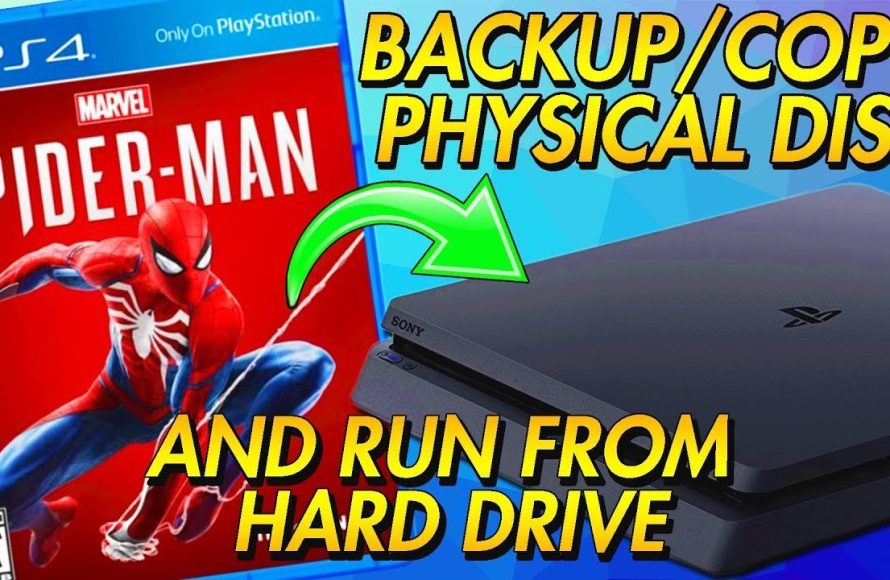
Copying games directly on a PS4 console is not possible due to built-in copyright protections.
Want to share your favorite PlayStation 4 titles with a friend? Or perhaps you are curious about how to copy games on ps4. You might quickly realize that the standard console setup doesn’t allow direct copying of game data.
This limitation exists to protect developers and publishers from piracy. While you can’t directly transfer a game, there are alternative methods for sharing experiences. We’ll explore those avenues, offering practical information for gamers.

How to Copy Games on PS4: A Comprehensive Guide
Let’s talk about something that many PlayStation 4 gamers wonder about: copying games. It might seem like a simple idea, but there are some important things to understand. We’re not talking about making illegal copies – that’s a big no-no! Instead, we’re focusing on things like transferring your games to a different hard drive or backing up your save data. This guide will explain everything you need to know.
Understanding Game Storage on Your PS4
Before we dive into the “how,” let’s understand where your games live on your PS4. Your PS4 has a built-in hard drive, where all your game installations, save files, and even downloaded content are stored. Think of it as the PS4’s closet, holding all its game goodies. The size of this drive limits how many games you can have downloaded at once. Over time, as you add more games, you might run out of space.
Types of Storage: Internal vs External
Your PS4 uses two kinds of storage: internal and external. The internal storage is the one that comes built into the PS4. External storage is when you add a separate hard drive, which plugs into your PS4, like an extra drawer to your closet. Understanding the differences between them is key. You can keep your downloaded games on either but it is mostly recommended to keep games on external hard drive and move to internal hard drive as you want to play them, keeping internal storage free for smoother system processing.
- Internal Storage: This is the hard drive that comes inside your PS4. It’s where your system software and initial game data is located.
- External Storage: This is a hard drive that you buy separately and connect to your PS4 via a USB cable. It gives you much more space for storing more games.
Why Copying Games Might Be Helpful
Now, let’s explore why you might want to copy your games in the first place. Here are some common reasons:
- Running Out of Space: The most common reason. If your PS4’s internal storage is full, copying games to an external drive gives you more room to install new games.
- Speed Up Load Times: Sometimes, playing games from an external solid-state drive (SSD) can make games load faster than on the internal hard drive, especially if it’s an older, mechanical one.
- Backing Up Save Data: Save data is valuable. Copying saves to a USB drive or the cloud helps keep them safe in case something happens to your console.
- Upgrading PS4 Hard Drive: If you’re upgrading the PS4’s internal hard drive, you may need to copy data onto the new one.
How to Move Games to an External Hard Drive
Moving games to an external hard drive is the most common form of “copying” for PS4 gamers. It is not exactly copying, it’s more like moving the game. Here’s how you do it:
- Prepare your External Hard Drive:
First, you need an external hard drive that’s compatible with your PS4. It should be a USB 3.0 drive and have at least 250GB of storage. For better performance, an SSD drive is preferred, although it costs more. Connect the external hard drive to one of the USB ports on your PS4.
- Format the External Drive:
Your PS4 will likely recognize the new hard drive, but if it doesn’t, follow these steps: Go to “Settings” then “Devices,” then select “USB Storage Devices.” Your new drive should show up, select it and choose “Format as Extended Storage”. This process wipes the drive, so make sure it doesn’t have any important files.
- Move Games:
Go back to “Settings” and choose “Storage.” You will see both the internal system storage and the external storage. Select “System Storage”, and then choose “Applications.” Choose the game you want to move, hit options on your controller and then select “Move to Extended Storage,” it will move the selected game to your external storage. It can take from minutes to hours based on game size and speed of hard drive.
- Play Your Games:
Once the moving is done, you can now launch and play the moved games directly from the external drive. The games should be listed in your game library just like before.
Understanding the Move vs. Copy
It’s important to note that when you move a game to an external drive, it’s not a real “copy”. The game data is physically transferred from your internal storage to the external drive. The game is not present on both, it moves to the external drive and it is removed from internal storage. If you remove the external hard drive, the game will not work until you reconnect the hard drive to your PS4.
Backing Up Your Save Data
Copying your save data is very important. This makes sure you don’t lose game progress if something goes wrong with your console. Here’s how to back up your save data:
Using a USB Drive
- Connect a USB Drive: Plug a USB drive into one of your PS4’s USB ports. It should have some space to store your save data.
- Access the Save Data Settings: Go to “Settings,” then “Application Saved Data Management.”
- Copy to USB Drive: Choose “Saved Data in System Storage,” then “Copy to USB Storage Device.” Select the games whose save data you want to copy, and press “Copy”.
Using PlayStation Plus Cloud Storage
If you are a PlayStation Plus subscriber, you can also back up save data to the cloud. This lets you access saves from any PS4.
- Enable Automatic Uploads: Go to “Settings,” then “Application Saved Data Management,” then “Saved Data in System Storage,” and finally, “Upload to Online Storage”. Choose the game whose saves you want to backup and select upload.
- Accessing Cloud Saves: To download cloud save data, repeat the above steps, instead of uploading, choose “Download to System Storage”.
Things to Keep in Mind While Copying
Here are some important things to keep in mind while managing your PS4 storage and copying games/save data:
- File Sizes: Be aware that games can be quite large. Some games are over 100GB, so make sure your external drive has enough space for all the games you intend to copy. Also, always check how much free space you have left in your hard drives, you should always have some extra free space for smoother performance.
- USB Speed: Using USB 3.0 drives will be faster than the slower USB 2.0. This affects how quickly games can be moved, and how quickly games load.
- Compatibility: Not all external drives work perfectly. Some might need a separate power source.
- Never Disconnect During Copy: Never unplug your USB drive or external drive while the system is copying or moving files. Doing so can corrupt the data and cause problems.
- Formatting: External storage needs to be formatted as exFAT or FAT32. If formatted in some other format, it will not work with the PS4.
Why You Can’t Just “Copy” Games Like Files
One common question is why you can’t just copy the game files from your PS4 like you would copy a picture from one folder to another on your computer. The reason is that PS4 games are encrypted. The game data is not just a simple folder with files. It’s packaged in a special format, and your PS4 uses a special key to access the game. That’s why you need the PS4’s built-in move function. This way you will not make copies that can be used to play the games illegally. The whole process is designed to protect intellectual property and ensure all games are used legally.
Understanding DRM
DRM stands for Digital Rights Management. This is a set of technologies that protect digital content and prevents illegal copying. Game publishers use DRM to ensure that games are played only on legally owned consoles. This is also a reason why simply copying the files is not an option. They are designed so that a normal user cannot play these games illegally or copy game illegally to use them on other system.
Troubleshooting Common Issues
Sometimes things don’t go as planned. Here are a few issues you might encounter and how to fix them:
- External drive not recognized: Make sure that your hard drive has been correctly formatted. Make sure that the hard drive is USB 3.0 or higher compatible and does not require additional power. Also try with different USB cables.
- Copying is stuck: Make sure that your external hard drive is healthy and there are no errors. Sometimes, closing application on PS4 and trying again might help.
- Corrupted Data: If something goes wrong during the copy, data corruption is a possibility. If you find some file or save data corrupted, try copying it again. If the problem continues, there is a high chance that your hard drive has some errors.
Understanding how to manage your game storage on your PS4 is essential for a smooth gaming experience. While you can’t create exact, independent copies of game files, you can effectively move games to external storage and back up your precious game saves. By following the steps outlined above, you can keep your PS4 running at its best. Remember, it is also important to use your games responsibly and not indulge in any activity that might be illegal.
How to Gameshare on PS4 (EASY METHOD) (VOICE TUTORIAL) 2024
Final Thoughts
To copy games on PS4, you need an external hard drive formatted correctly. Then, move game data via the console’s storage settings. This process does not create an exact copy that can be played on another console.
You cannot copy disc-based games directly using this method, only digital ones. Remember, game licenses are linked to your PlayStation account, not the data itself. Therefore, knowing how to copy games on ps4 does not bypass these restrictions.

