
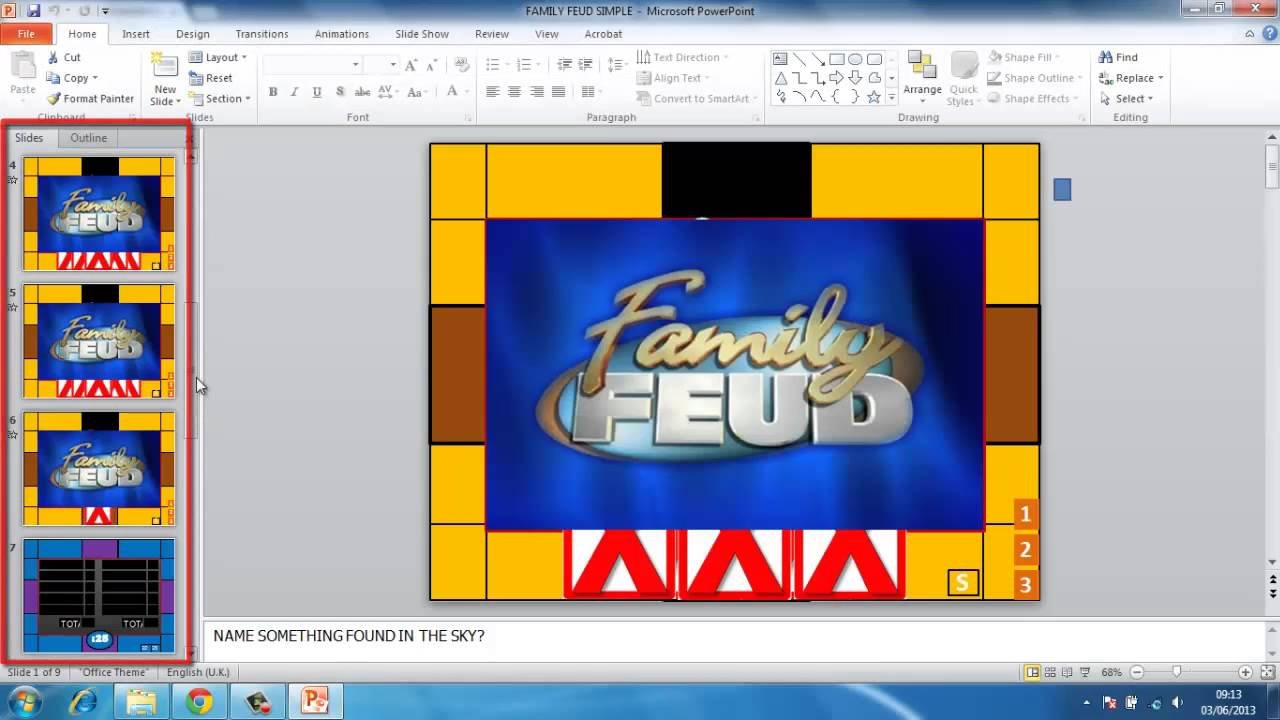
To create a family feud game in PowerPoint, design slides for questions and answers, add animations for revealing them, and use hyperlinks to navigate between rounds.
Want to bring some competitive fun to your gatherings? You can easily learn how to create a family feud game in PowerPoint. Imagine the laughter and excitement as your friends and family battle it out with fun trivia questions. It’s simpler than you think, and you’ll be amazed at what you can accomplish with just a few slides and animations. This guide shows you how to create a family feud game in powerpoint effectively.

How to Create a Family Feud Game in PowerPoint
Ready to bring the fun of Family Feud to your living room? You don’t need a fancy game console or expensive board game. You can create a fantastic, interactive Family Feud game right in PowerPoint! It’s easier than you might think, and this guide will walk you through each step. We will show you how to design the game board, set up the questions and answers, and even add sound effects to make it feel just like the real deal. Get ready to impress your friends and family with a game night to remember!
Setting Up Your PowerPoint Slides
First things first, you’ll need to get your PowerPoint presentation ready. Think of it like setting up the stage for your big game show. Here’s how we will get started:
Creating the Main Game Board Slide
This slide will be the heart of your game. It will display the question, the hidden answers, and the points. We’ll need a good design to make it look fun and easy to understand.
- Background: Start with a bright and engaging background. You can pick a solid color, gradient, or even a fun image. Choose something that’s not too distracting, so the text and other elements are easy to see. Think about using colors that are associated with the real Family Feud show!
- Question Area: Create a text box near the top of the slide for your question. Make the font large and easy to read. Remember, the question is the most important part!
- Answer Boxes: This is where the fun begins! You need several boxes to represent the possible answers to the question. For a typical game, you’ll want between six to eight boxes. We can use rectangle shapes for these.
- Arrange these boxes in two or three columns, depending on how many you are planning.
- Each box should have a space for the answer and another for the number of points it is worth.
- Use a different background color for the boxes, this will help them stand out from the background. Make sure the colors don’t clash and are easy on the eyes.
- Add number labels near the answer boxes, so you can say answer number 1, 2, and so on.
- Team Score Areas: Add text boxes on the left and right sides of the slide for each team’s score. Make them large enough to see and easy to update.
Creating Answer Reveal Slides
Each answer box on the main slide will link to a separate slide that will reveal the answer and points. This is important for the game’s reveal aspect. How to make them?
- Duplicate: For each answer on the main game board, duplicate the original slide.
- Answer Display: Add a large text box on the new slide with the actual answer inside it. Make this text big and bold!
- Point Display: Under the answer, display how many points the answer is worth. Use a text box. Maybe highlight it with a different color to emphasize the point total.
- Return Button: Add a shape (like a rectangle) at the bottom of the new slide. Add text inside saying “Back to Game Board.” We will link this button to the main game board slide so you can easily go back.
- Animation (Optional): To make it more fun, you can animate the answer and point displays to appear after a click. This can add excitement to your game.
Adding the Interactivity: Links and Animations
Now that your slides are set, we can add the interactivity. The linking process is important because it lets you click on a box on the game board to reveal the answer and then return back to the main game board to keep playing.
Creating Hyperlinks
- Select the Answer Box: Go back to the main game board slide, and select the first answer box.
- Insert Hyperlink: Go to the ‘Insert’ tab and click ‘Link’. Choose “Place in This Document” and select the slide you created for the first answer reveal.
- Repeat: Do this for all of the answer boxes on the game board. Link each one to its corresponding answer reveal slide.
Linking Back to the Game Board
- Select the ‘Back to Game Board’ button: On each of the answer reveal slides, select the ‘Back to Game Board’ button.
- Insert Hyperlink: Go to the ‘Insert’ tab and click ‘Link’. Choose “Place in This Document” and select the main game board slide.
- Test: It’s a great idea to test your links at this point to make sure everything is working correctly.
Adding Animations
Animations can make the game more exciting and engaging. You can make the answer boxes flip or slide in. Here is how to do that:
- Select the Element: On the answer reveal slide, select the answer text box, or the point box.
- Choose an Animation: Go to the ‘Animations’ tab and pick from the available animations. ‘Appear’ or ‘Fade’ works well to reveal the text. ‘Fly In’ or ‘Wipe’ can add a little more pizzazz to the reveal.
- Set Trigger: In the animation settings, set the animation to start ‘On Click’, this way each reveal is a surprise.
Setting Up Your Questions and Answers
The heart of Family Feud lies in its questions. Creating good questions is important for a great game. Here is how we do it:
Brainstorming Questions
Think about topics that your family or friends would enjoy. Make the questions relevant and relatable. Here is a idea to help you get started:
- Survey Your Family: Ask your family members what they think about different topics to get ideas for questions.
- Keep it Light: Family Feud questions are supposed to be fun and silly. Try to keep the questions lighthearted and not too serious.
- Variety is Important: Think about different categories for your questions, such as food, animals, places, hobbies, or pop culture.
Creating the Answer Keys
For each question, you need a list of answers and their corresponding point values. These values are based on how popular the answers are.
- Tally Popular Answers: Based on the survey, create a list of possible answers.
- Rank Answers by Popularity: The most popular answer gets the most points, and then so on. For example, the top answer may have 30 points, while the last might get only 5.
- Be Consistent: Make sure to enter all the answers into the slide you create for the answer reveal. Each answer box on your main game board should have its own corresponding slide with the answer and points.
Example Question Setup
Let’s look at an example to make sure you are doing it correctly. Say your question is, “Name a popular pizza topping.”
| Answer | Points |
|---|---|
| Pepperoni | 30 |
| Mushrooms | 20 |
| Onions | 15 |
| Olives | 10 |
| Sausage | 8 |
| Pineapple | 7 |
| Chicken | 5 |
| Peppers | 5 |
In your presentation, “Pepperoni” would be the top answer and worth 30 points. “Peppers” and “Chicken” would be lower and worth 5 points each. Don’t include answers that no one said, or said very little. You want to only include the most popular.
Making it Look and Sound Like Family Feud
To add even more fun to the game, think about making it look and sound like the real thing.
Adding Theme Music
Music can bring the feeling of a real game show to your presentation. Use the following ways:
- Find Music Clips: You can find clips of the Family Feud theme music online. There are many free sites you can find them on.
- Insert Audio: Go to the “Insert” tab and pick “Audio.” Select the music clip.
- Set to Play Automatically: On the “Audio” tab, set the music to play “Automatically” and “Loop Until Stopped,” so it keeps playing through the game.
- Adjust the Volume: Lower the music’s volume so it isn’t louder than the players’ voices.
Adding Sound Effects
Sound effects can make your game even better. You can use them for correct and incorrect answers. Here is how:
- Find Sound Effects: Look for sound effects like a buzzer for wrong answers and a chime or applause for correct ones.
- Insert Sounds: Go to the “Insert” tab, and pick “Audio” to insert these sounds.
- Add Sounds to Animations: Set the animations of revealing the answer to also play the sound. This will make it sound and feel like a real game show.
Playing the Game
Now that you have made your PowerPoint, it is time to play! Here are ways you should play the game:
Game Rules
Before you begin, make sure everyone understands the rules. This will help the game be fair and fun.
- Two Teams: Usually, you have two teams. Pick team members before the game starts.
- Question and Guess: Read the question aloud and have the first player of each team guess.
- Correct Guess: If the team guesses right, they get the answer’s points and then get the chance to try and get all the remaining answers. If a team gets all the remaining answers before they have 3 strikes, they win the round.
- Strike: If the team guesses an answer not on the board, they get a strike. Three strikes means the other team gets a chance to guess all remaining answers.
- Winning: The team with the highest points at the end of a certain number of rounds wins the game!
Using the PowerPoint
The PowerPoint you have made will help you play the game in the correct way.
- Project the Presentation: Display the presentation on a screen that everyone can see.
- Click to Reveal: Click the boxes on the main slide to reveal the answers as they are guessed by players.
- Use the Return Button: Use the “Back to Game Board” button to return to the main slide after each revealed answer.
- Keep Track of Scores: Update the scores at the top of each slide to keep track of which team is winning.
Tips for Making Your Family Feud Game Even Better
Here are some tips for making the game more fun!
- Customize Your Background: Use a background that is specific to your family or friends for a personal touch.
- Add Pictures: Include images with the questions that are fun for your friends and family.
- Practice: Practice running the game a few times before the game, so you know how it works.
- Get Feedback: Ask your family for feedback after the game. How was it? Was there anything you could have done to make it better?
Creating a Family Feud game in PowerPoint is a super fun project that can help bring your family together for a night of laughter and fun. It’s not only easy, but it is customizable, and it gives a personal touch to your game night. Get ready to make some great memories with your own homemade version of Family Feud!
EASILY Create a Family Feud Game | Customizable PowerPoint Template!
Final Thoughts
Creating a family feud game in PowerPoint involves designing title and question slides. Add animations for revealing answers and scores. Remember to incorporate sound effects to add excitement.
Make use of the slide master for consistent design. A must for easy game play is to use hyperlinks for navigation between rounds. The process to create a family feud game in powerpoint is actually quite simple.

