
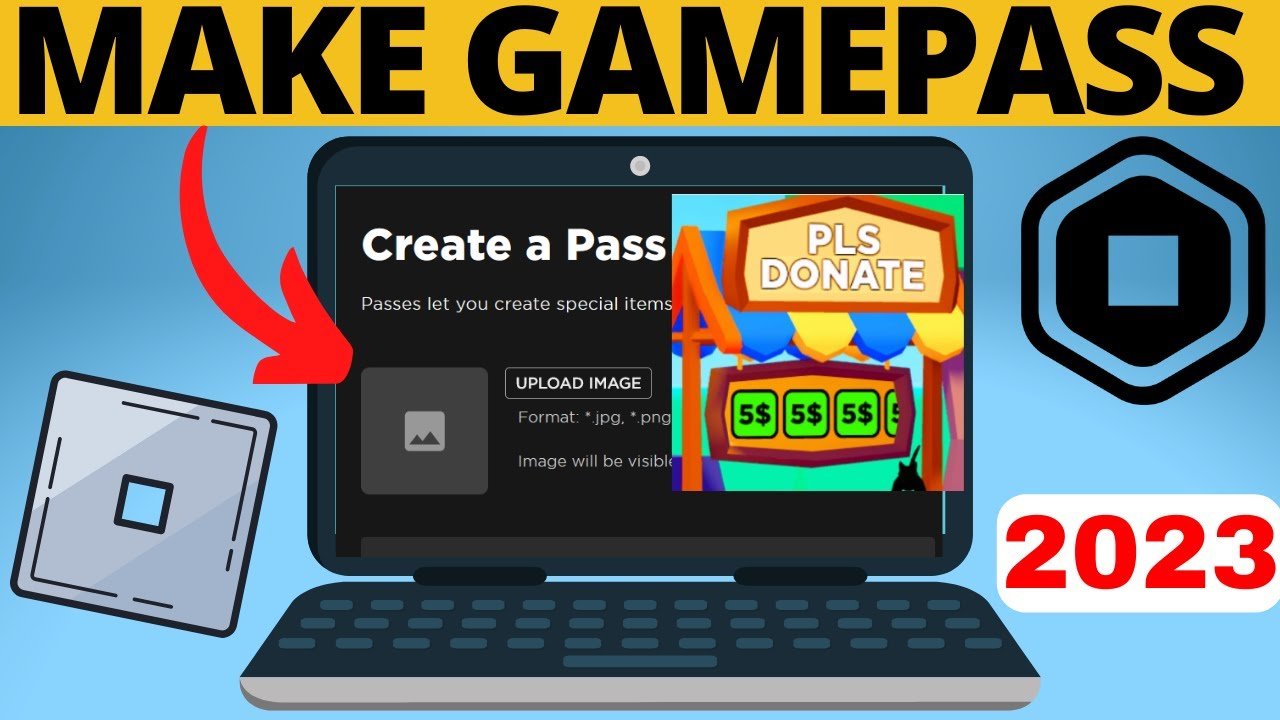
Creating a game pass requires navigating to the developer page on your chosen platform, selecting your game, and configuring the pass with a name, description, and price.
Ever wondered how some games offer those cool perks or extra content? It often comes down to game passes. They provide players with additional benefits, enhancing their overall experience. Understanding how to create a game pass is a great way for developers to add value to their game.
It’s a straightforward process on most platforms. You’ll go to a developer portal, pick your game, and then get to make your own unique game pass. You’ll set things like its name, what it does, and how much it costs.

How to Create a Game Pass: A Complete Guide
Okay, you want to make a game pass for your awesome Roblox game? That’s fantastic! Game passes are a super cool way to offer extra goodies or special abilities to your players. Think of them like a VIP pass for your game, giving players something extra for their support. It’s not just fun for them; it can also help you earn some Robux, the virtual money on Roblox! Creating a game pass might seem like a tricky thing, but don’t worry, we’ll guide you through every step. Let’s jump right in and learn how to make those awesome game passes!
Understanding Game Passes
Before we start making a game pass, it’s good to understand what they are and how they work. A game pass is essentially a special item that players can buy in your game. When a player buys a game pass, they get a special benefit, like a cool power-up, extra starting cash, a special item, or even access to an exclusive area in your game. This makes the game more fun and interesting for those who purchase them and helps you the game developer earn some Robux! Think of them like little upgrades for your game.
Types of Game Passes
There are many kinds of game passes you can create, each offering a different benefit. Here are a few popular ideas:
- Permanent Boosts: These could give players a permanent increase in speed, strength, or health. For example, a “Super Speed” game pass that makes the player run faster.
- Exclusive Items: Players might like to get access to special weapons, tools, or outfits that other players can’t get. This could be anything from a unique sword to a stylish hat.
- In-Game Currency: Sometimes, players just want a head start! Offer a game pass that gives them a bunch of in-game money to get going. This is very useful at the beginning of a game.
- Access to New Areas: Have a secret level or area in your game? A game pass can let players explore these new parts of your game. This is popular and makes players feel special.
- Cosmetic Changes: Players love to customize their avatars! A game pass could give them exclusive colors, textures, or animations.
Remember, you can get very creative with your game passes! Think about what would make your game more exciting for your players and what would tempt them to spend Robux.
Getting Started: Accessing the Roblox Creator Hub
To make a game pass, you will first need to access the Roblox Creator Hub. This is where you make most of the changes to your game. Follow these steps:
- Go to the Roblox Website: Open your web browser and go to the Roblox website.
- Log in to Your Account: Make sure you are logged in to your Roblox account, the one that you want to add the game pass to.
- Access Creator Hub: On the left side of the page, you will see the word “Create”. Click on it. This takes you to the Creator Hub, where you see all your games and start creating game passes, shirts and more!
Now that you have access to the Creator Hub you are ready to create your game pass!
Creating Your Game Pass: Step-by-Step
Alright, here comes the fun part! Let’s go through the step by step process of making a game pass:
Navigating to Game Passes
- Select Your Game: In the Creator Hub, you will see a list of your games. Select the game you want to add the game pass to.
- Find the “Associated Items”: On the game details page, look for a section that says “Associated Items” or similar. Click on that.
- Find Game Passes: Within “Associated Items,” you should see different options. Look for “Passes.” You will click on that, and this is where you will see all the game passes you’ve made for this game already.
Setting Up Your New Game Pass
- Create a new pass: You should now see a big blue button that says “Create a Pass.” Click on it.
- Name Your Game Pass: Now, you will need to give your game pass a name. Make sure the name is short, fun, and clear. For example, instead of a long name like “Ultimate Speed Booster Super Duper,” you could try just “Super Speed.”
- Write a Description: Below the name, add a short description of what the game pass does. Make it easy to understand and engaging. Something like “Gives you extra speed in the game” is perfect.
- Choose an Image: Every good game pass needs an image. Choose one that matches the game pass. You can upload an image of your choosing. This could be anything that represents your game pass.
- Find the Perfect Image: Use a picture that grabs attention and makes players want to buy it.
- Image Rules: Make sure the image follows the Roblox rules and is appropriate for all players.
- Preview and Create: Once you’ve got everything set, double-check that it looks good. Then click on the “Create Pass” button. You have successfully created the game pass!
Configuring Your Game Pass
Creating the pass is just the first part. Now, you need to make it available for purchase! Here is how you do that:
- Find your game pass: After creating the pass, you will be taken to a page where you can see the pass you just created.
- Make it for sale: Click on the settings symbol (gear) on the right of the game pass. Select “Configure.”
- Go to “Sales” Tab: In the settings, look for the “Sales” tab. Click it.
- Enable Sales: You will see a switch that says “Item for sale.” Click on the toggle to enable it. It will turn green to show that it is on.
- Set your price: Now set the price in Robux that you want to sell the game pass for. Choose a fair price that will make the game pass appealing but still earn you some Robux.
- Consider Value: How valuable is the item or upgrade? Price it based on how much it helps players.
- Check other game passes: See what other game developers are charging for similar things to get an idea of what a good price point is.
- Save Changes: After setting the price, click “Save Changes.”
Adding the Game Pass to Your Game
So you have created a game pass, now how do you make it work in the game? This part requires a little bit of scripting. Don’t worry, it’s easier than it sounds! Here is how:
Scripting Basics
You need to write a script that checks if a player has bought your game pass and gives them the benefits if they have. If you’re not familiar with scripting, you may want to get help from someone or try some very simple scripts that you find online.
Here are the important things you’ll need to do:
- Get the game pass ID: On the configuration page of the game pass you will see a number in the URL bar. This is the game pass ID. Copy this number, you will need it!
- Write a Script: Use the script editor to write a script that checks if a player owns a game pass. The script will look for the game pass ID.
- Apply the benefits: If the player owns the game pass, then the script will give the benefit to that player.
Example Script
Here’s an example of what a very simple script might look like, just to give you an idea. Remember, this is a very simple example. This kind of code goes into a script somewhere in your game, most commonly in ServerScriptService.
 local MarketplaceService = game:GetService("MarketplaceService")
 local gamePassId = 123456789  -- Replace with your actual game pass ID

 game.Players.PlayerAdded:Connect(function(player)
    local hasPass = MarketplaceService:UserOwnsGamePassAsync(player.UserId, gamePassId)

     if hasPass then
      --Give the player special benefits
       print(player.Name .. " owns the game pass!")
       --Example benefit: speed increase
        local humanoid = player.Character:WaitForChild("Humanoid")
        humanoid.WalkSpeed = 20 -- Increase speed
     end
 end)
Explanation of the Code
- local MarketplaceService = game:GetService(“MarketplaceService”): This line gets a special service to check if players own game passes.
- local gamePassId = 123456789: Replace “123456789” with the actual ID of your game pass.
- game.Players.PlayerAdded:Connect(function(player): This tells the game to do something when a new player joins.
- local hasPass = MarketplaceService:UserOwnsGamePassAsync(player.UserId, gamePassId): Checks if the player has the game pass.
- if hasPass then: This starts the code that gives the special benefits if the player has the game pass.
- print(player.Name .. ” owns the game pass!”): Prints a message in the script output confirming that the player owns the game pass.
- local humanoid = player.Character:WaitForChild(“Humanoid”) and humanoid.WalkSpeed = 20: These lines get the player character, find their “Humanoid” (the settings for a Roblox character), and increase their speed to 20.
Remember, this is a very basic example. The script that you use for your game will be more complex.
Testing Your Game Pass
Before letting all players buy your game pass, make sure it works perfectly! Here’s how to test:
- Test in Roblox Studio: Open your game in Roblox Studio and test if you can get the benefits when you buy the game pass.
- Test in a Real Game: Invite a friend or use an alternate account to test that all works smoothly, including the purchasing process.
- Check for errors: As you test look for any mistakes in the script, or any glitches that may happen and correct them.
Tips for Successful Game Passes
Here are some final tips to make your game passes successful:
- Make them Valuable: Make sure that buying the game pass makes the game more fun or easier to play for the players.
- Don’t Make them “Pay-to-Win”: Don’t make the game pass so powerful that it makes the game unfair for other players. Instead make them more of a helpful benefit, not a requirement.
- Promote your Game Passes: Let players know about the great game passes that you made! Use eye-catching icons and write appealing descriptions, so that people want to buy them.
- Listen to Feedback: Ask players what they like and do not like about your game passes, and use that information to improve them.
Creating a game pass is not difficult, but does take time and planning, especially if you are new to scripting. Follow these steps, test carefully and remember to make your game passes fair and appealing for your players.
Making game passes is fun! By following these steps, you can add something special to your game that players enjoy while you also earn some Robux! Get creative and have fun making your new game passes.
How To Make A GAMEPASS in PLS DONATE… (2024)
Final Thoughts
Creating game passes allows you to monetize your game experiences. First, access the game’s settings on the platform. Then, navigate to the ‘Associated Items’ section, select ‘Passes,’ and then click ‘Create Pass.’
Next, upload an image, provide a name, and add a description for the pass. This is how to create a game pass, and the next step involves setting a price. Players can then purchase it within your game.

