
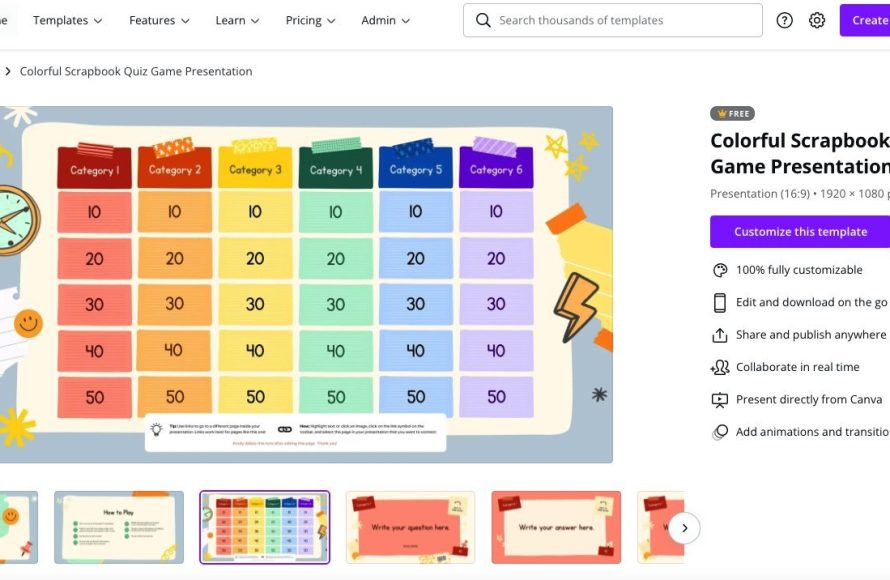
Creating a Jeopardy game in Canva involves using its design tools to build a game board, adding questions and answers as text elements, and then presenting it interactively.
Want to add some fun to your next presentation or classroom activity? Learning how to create a jeopardy game in Canva opens a world of possibilities. This simple guide shows you how to build an interactive quiz experience. You’ll learn to design a visually appealing game board.
Then you’ll add your own customized questions and answers. The best part? You can easily share this game. Canva’s easy to use interface makes the process enjoyable. Start making your Jeopardy game now!

How to Create a Jeopardy Game in Canva
Want to make learning fun? A Jeopardy game is a super cool way to quiz people and get them excited about a topic! And guess what? You can easily make one using Canva, a free and easy-to-use design website. Canva is like a digital playground where you can design anything you imagine, and creating a Jeopardy game is a fantastic project for it. Let’s dive into how you can build your very own Jeopardy game, step-by-step!
Setting Up Your Canva Workspace
Before you start building your game board, you need to get your Canva workspace ready. This is like setting up your construction site before you start building a house. Here’s how you do it:
Creating a New Design
First, you’ll want to head over to the Canva website and log into your account, or create one if you’re new. Don’t worry, it’s super easy! Once you’re in, you’ll see a big button that says “Create a design.” Click on that, and choose “Presentation” as your design type. This will give you a nice, wide canvas that’s perfect for a Jeopardy board. Why choose presentation? Because it’s ideal for displaying information like a game show board!
You might be tempted to use a different size, but the presentation format works best for what we’re making. It’s like picking the right paper size for your drawing! Using presentation size ensures that our game will display correctly.
Choosing a Background
Now that you have your blank presentation, it’s time to make it look like a Jeopardy game board. This starts with selecting a great background! Think of it like choosing the color of your game board.
- Solid Color: You can keep it simple with a plain color, like a dark blue or purple, similar to what you see in the classic show. You can use the color picker tool to choose a color or type in the hexadecimal code for the exact color you like.
- Image Background: You could also make it interesting with an image as your background. Maybe a cool geometric design, a picture related to the topic of your Jeopardy game, or a texture you like. Simply upload an image you want or search for one in the Canva library.
- Pattern: Canva provides lot of ready made pattern for background, simply choose from it.
Once you choose your background, make sure the text you will use later will be easy to read against it. You want to make sure the colors of the text and background contrast nicely so that no one has any trouble reading. This is similar to making sure your writing can be seen on a piece of paper!
Designing Your Jeopardy Board
The game board is where all the action happens. It’s the main stage of your Jeopardy game! Let’s break down how to build it using Canva.
Creating the Categories Row
Every Jeopardy board has categories that guide the questions. Let’s add these at the top of your presentation. Think of these as the titles for each column of your game board! Here is how to create them:
- Text Boxes: Use Canva’s text tool to add the name of your categories. Try to use clear and easy to read font and sizing so everyone can easily read the category.
- Arrange them: Put each category in a column along the top of the board. These will be the headings of your columns.
- Design Elements: Use lines or shapes under each category to make them appear as distinct titles on the board. You can customize these shapes and their colors to make the board more visually appealing.
For a standard Jeopardy board, try to have 5-6 categories. For example, if the subject of your game is animals, you could use categories like “Mammals”, “Birds”, “Reptiles”, “Amphibians”, and “Insects.” Or, you can make categories related to science, history, literature, movies, or whatever subject you want.
Making the Point Value Grid
Now for the money part! Each category in Jeopardy has questions of different values. Let’s create this grid:
- Text Boxes: Add text boxes under each category for the different point values. In each column under the category name, you will add number such as 100, 200, 300, 400, 500.
- Arrangement: Arrange these in rows. So under each of the categories add a number like 100, then below it 200, below it 300, below it 400, and finally 500 at the bottom. This way you create a grid.
- Design elements: Use shapes or lines to make each text box a block.
Make sure your point values are clear and easy to see, using the right font size and color. Typically, you start with the lowest point values and gradually increase them down the column.
Hyperlinking the Point Values to Questions
The best part of Canva is you can make each of the point values clickable! This will let you jump to the question related to that point value. This is where the magic starts:
- Create Question Slides: Start by making different slides for each question you have for each of the point values under categories. For example, for each 100, 200, 300, 400 and 500 category you need to have different slides with the questions on them.
- Select Point Value: Go back to the first slide with your Jeopardy game board, and choose a point value box, like “100” under “Mammals”.
- Add Link: Click on the “link” button, it usually looks like a chain link. Choose the slide number that contains the matching question, and hit “done.” Now, when you click on the 100 point value, it will take you to its question.
- Repeat: Do this for all the point values on your board. It will take some time, but the result will be an amazing interactive game.
Hyperlinking make the game engaging and interactive for the user. This part of the design is key to making the game work the same way a traditional Jeopardy game would.
Creating Question and Answer Slides
Now, let’s create the slides that will show the questions and answers. These are the core of the game itself!
Designing Question Slides
When you create a question slide, keep in mind these things:
- Text Box: Each slide will need a text box containing the question.
- Clear and Readable: Choose a large, easy to read font. Make sure your text is easy to read against the background you choose.
- Category Name: Mention the category name of the question. Write the category at top of the question slide. This helps the players know what the subject of the question is.
- Point value: Also, mention point value at the top with the category name so that player also knows the worth of the question.
Try to keep the question text concise and engaging. You want to make sure each question is clear and easy to read.
Designing Answer Slides
After a player attempts the question, you need to reveal the answer. Here is what you need to do:
- Text Box: On the next slide that appears after the question slide, add a text box containing the correct answer.
- Design Consistency: Maintain consistency of background color and font size.
- “Back to Board” Button: You will need to add a “back to board” button so the user can easily navigate back to the game board.
To add a “back to board” button, insert a shape or text, then create a hyperlink to the first slide that contains your game board. This button is super important as it allows a smooth transition between the question slides and the board.
Tips for an Awesome Jeopardy Game
Creating an interactive game is fun! Here are some tips to make your Jeopardy game in Canva even better:
- Variety of Questions: Create questions with varying degrees of difficulty so that players of different skill levels can enjoy.
- Visual Aids: Include pictures or videos related to the question to make it more engaging. You can add these to the question or answer slides.
- Animations: Add animation to the text boxes or shapes. Simple animations can make your game visually appealing.
- Keep it clean and simple: Avoid over-crowding your slides. Make the design easy to understand and navigate.
- Test: Test the game from user perspective. It’s important to go through it once as a user to make sure everything is working as expected.
Customizing Your Jeopardy Template
Once you get a basic game board designed, you can start playing around with the customizations! Here are some ideas:
- Color Scheme: Don’t stick to the classic colors, feel free to experiment with colors and make your game visually vibrant.
- Fonts: Try a variety of fonts to make the game engaging and fun. You can make the category text a fun, large and decorative font and use simple font for question and answer slides.
- Backgrounds: You can try some different backgrounds or texture. You can use different background for the question and answer slides, but just make sure they match the theme of the game.
- Game Logo: Add a small logo at the top of your game to give your game a personal touch.
Customizations make a game unique and more fun! Use your creativity to make the game personalized.
Sharing Your Jeopardy Game
After making your game, you’ll want to share it with others. Here are the ways to share it.
Presentation Mode
Canva has a presentation mode that you can use to run the game. Simply click on the “present” button on the upper right corner and start playing the game. This way you can test and play the game.
Sharing Link
You can also share the link of your game to others. You can send the link by copy pasting it in an email or other form of messaging. Simply click on “share” button at the top and choose to copy the link.
Download
You can download the file of the game by clicking on the “download” button at the top right. Canva will provide different file types that you can select. Download your game in PDF form, which works best when you want to share it.
Sharing your game is the best way to let other experience what you have created! No matter which method you use, it will be a great way to distribute your game.
Creating a Jeopardy game in Canva is a great way to have fun while learning. With a little effort, you can design an engaging game that can make learning fun for everyone. This guide should have you well on your way to creating a custom Jeopardy game that you can share with your friends and family or even use in a classroom environment!
How to Create an Interactive Jeopardy Game | with FREE Template!
Final Thoughts
Creating a Jeopardy game in Canva involves designing a visually appealing game board and linking question slides. You’ll structure your questions with corresponding point values. Customize the design to match your theme for an engaging experience.
Remember, the key is using Canva’s interactive link feature to connect the main board to individual question slides. This feature is crucial for how to create a jeopardy game in canva. With practice, anyone can design a fun, interactive game.

