
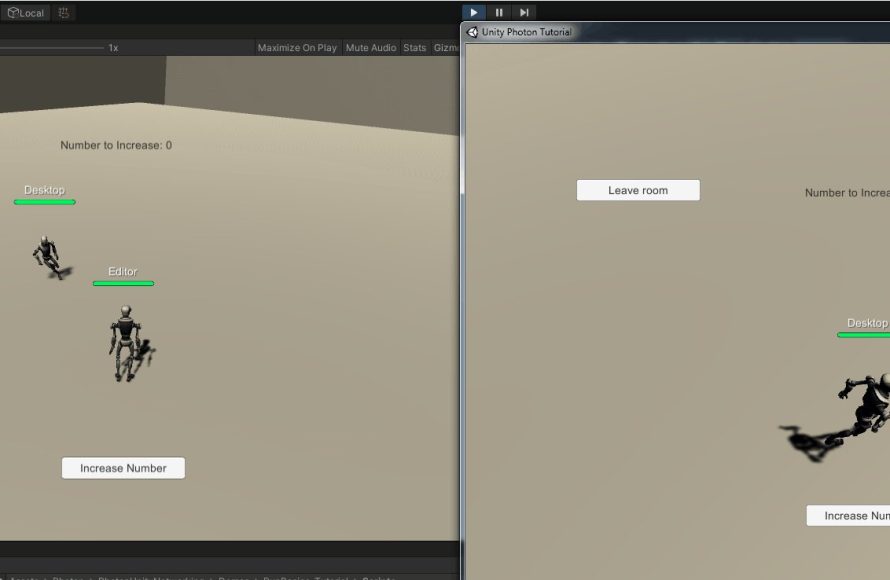
Creating a multiplayer game in Unity using Photon involves setting up a Photon account, importing the Photon Unity Networking (PUN) package, writing scripts to manage connections and player actions, and then building and testing your game.
Ever dreamt of seeing your game played by people across the globe? Let’s dive straight into crafting interactive experiences. This guide focuses on exactly how to create a multiplayer game in Unity using Photon. We’ll break down the process, making it accessible to all.
First we set up the Photon connection. Next step, implementing your desired game mechanics. Finally, we’ll get your game ready to be played by anyone. Ready? Let’s begin.

How to Create a Multiplayer Game in Unity Using Photon
Ready to jump into the exciting world of making your own multiplayer game? It might sound tricky, but with Unity and Photon, it’s totally doable! This guide will walk you through the steps, making sure it’s easy to follow along, even if you’re new to game development. We’ll explore how to set up a basic multiplayer experience, allowing players to connect and interact in a shared virtual space. So, let’s get started!
Setting Up Your Unity Project and Photon
First things first, let’s create a new Unity project. Open Unity Hub and start a fresh project, choosing the 3D template. Once your project is open, it’s time to bring Photon into the picture.
Importing the Photon Package
Photon is a cool tool that helps your game connect players over the internet. To get Photon, follow these steps:
- Go to the Unity Asset Store. You can find it right inside Unity.
- Search for “Photon Unity Networking 2” (or “PUN2” for short).
- Click on the “Import” button and get it into your project.
After importing, you might see some examples. Feel free to check them out, but we’ll be creating our own stuff from scratch.
Creating a Photon Account and Getting an App ID
Photon needs a special key called an “App ID” to work. Here’s how you get one:
- Go to the Photon website (you can search “Photon Engine” on Google).
- Create a new account or log in if you already have one.
- Click on “Dashboard” and then “Create a New App”.
- Choose “Photon PUN” as the type of app and give it a name.
- Copy your new App ID – you’ll need this in Unity!
Adding Your App ID to Unity
Now, go back to your Unity project:
- Find the “PhotonServerSettings” file in your project, usually in the “Assets/Photon/PhotonUnityNetworking/Resources” folder.
- Click on this file.
- In the Inspector window, paste your App ID into the “App Id PUN” field.
Great! You’ve set up Unity and linked it to Photon. This is a big step, so give yourself a pat on the back.
Understanding the Basics of Photon
Before we dive deeper, let’s understand some fundamental concepts of Photon. These ideas will help you grasp how multiplayer works behind the scenes.
Rooms
Think of a room as a virtual space where players can connect and interact. Each room has a unique name, and only players in the same room can play together. You’ll need to create and join rooms to enable multiplayer gameplay. A room is the place where your players will play together. You might want to have multiple rooms so different groups of players can play different games.
Connecting to the Photon Network
Before joining a room, your game needs to connect to the Photon network. This is like logging in to an online service. Photon uses your unique app id to know that your game is legit. Once connected, your game can find rooms and join them.
Player Objects
When a player joins a room, they have an object in the game world that represents them. This object is the player’s avatar. Photon handles creating player objects on different players’ devices and keeping their data synchronized. So, all players in the same room can see each other.
Synchronizing Data
In a multiplayer game, you need to make sure that each player sees the same thing. If one player moves, all other players must see that movement. Photon automatically handles this synchronization. It does this by sending data like player position and actions between all players in a room.
Photon Views and Components
To make your game objects synchronized, you need to use Photon View and other Photon Components. A Photon View is like a tag that tells Photon to pay attention to the object. It allows Photon to control data sync between all clients/devices playing.
Creating a Basic Multiplayer Scene
Now, let’s make a simple scene where players can connect and see each other. We’ll start with a basic setup and add more features as we go.
Setting Up the Scene
In your Unity project, let’s create a new scene. Here’s how:
- Go to “File” > “New Scene”.
- Save this scene as something like “MultiplayerScene”.
You’ll want a basic floor to stand on, so create a simple plane by right-clicking in the hierarchy window and selecting “3D Object” > “Plane”. Adjust its size and position so it’s visible in your scene.
Creating the Player Prefab
Let’s make a simple 3D object that represents each player:
- Right-click in the Hierarchy and choose “3D Object” > “Cube”.
- Rename the cube “Player”.
- Add a “Photon View” component to the Player. You can do this by clicking “Add Component” and searching for “Photon View”.
A Photon View is what makes Photon know that this object belongs to the network and needs to sync up. Make sure “Observed Components” in the Photon View is empty for now, we will add scripts later.
Turn this cube into a prefab by dragging it from the Hierarchy window into your Assets folder. Now delete the original cube from the Hierarchy.
Writing the Connection Script
Next up, we’ll create a script that will connect players to the Photon network and create player instances when they join a room. Here are the steps:
- Create a new C# script by right clicking in your project’s Asset folder. Name it something like “NetworkManager”.
- Open the script in your code editor and paste the code below:
        using UnityEngine;
        using Photon.Pun;
        using Photon.Realtime;
        public class NetworkManager : MonoBehaviourPunCallbacks
        {
            void Start()
            {
                PhotonNetwork.ConnectUsingSettings();
            }

            public override void OnConnectedToMaster()
            {
                Debug.Log("Connected to Master Server");
                PhotonNetwork.JoinOrCreateRoom("myRoom", new RoomOptions(), TypedLobby.Default);
            }

            public override void OnJoinedRoom()
            {
               Debug.Log("Joined room");
                PhotonNetwork.Instantiate("Player", Vector3.zero, Quaternion.identity);
            }
        }
Now let’s break down this code:
using UnityEngine; using Photon.Pun; using Photon.Realtime;: these are like librarys that have methods that we can use in our code.MonoBehaviourPunCallbacks: makes our class a callback class. this will allow us to recieve callbacks from photon on events such as when connection is made.PhotonNetwork.ConnectUsingSettings(): tries to connect to the photon server using settings we put in photon settings in unity.OnConnectedToMaster(): gets called by photon after a connection to the photon server is made.PhotonNetwork.JoinOrCreateRoom("myRoom", new RoomOptions(), TypedLobby.Default);: this tries to join a room called “myRoom”. if no room exist a room is created.OnJoinedRoom(): this gets called when we successfully join a room.PhotonNetwork.Instantiate("Player", Vector3.zero, Quaternion.identity);: this creates the “Player” prefab and it will be synced by photon network automatically.
Go back to Unity and create a new GameObject in your scene, name it “Network Manager” and attach the NetworkManager script to it.
Testing Your Connection
Alright, let’s try out your creation! Build and run your game twice. If you’ve followed along correctly, you should see two player cubes pop up. If you don’t see a second player, make sure you are logged into different unity account or try building the game and running the .exe file from your build folder. These cubes show that your two instances of the game have connected through the network.
If things are not working, you might want to look at your unity console window, or photon documentation to see what error you might be experiencing.
Congrats! You’ve made a very basic multiplayer game. Let’s dive in further.
Adding Player Movement
Seeing static cubes is cool, but what if those cubes could move? Let’s add player movement to make things more interactive.
Creating the Player Movement Script
Let’s create a new C# script called “PlayerMovement” and paste the following code into it:
            using UnityEngine;
            using Photon.Pun;

            public class PlayerMovement : MonoBehaviourPun
            {
                public float moveSpeed = 5f;

                void Update()
                {
                    if (photonView.IsMine)
                    {
                        float horizontal = Input.GetAxis("Horizontal");
                        float vertical = Input.GetAxis("Vertical");

                        Vector3 movement = new Vector3(horizontal, 0, vertical)  moveSpeed  Time.deltaTime;
                        transform.Translate(movement);
                    }
                }
            }
Now lets explain the code
using UnityEngine; using Photon.Pun;: this imports the needed libraries.public float moveSpeed = 5f;: this sets the movement speed to 5. you can set this in the unity inspector window.photonView.IsMine: this makes sure the code is only run on the instance that the player controls.Input.GetAxis("Horizontal"): this gets the x axis movement input of the user.Input.GetAxis("Vertical"): this gets the z axis movement input of the user.transform.Translate(movement);: this moves the object depending on input.
Go back to your project and add this script to your “Player” prefab.
Adding the Script to the Photon View
Now, we have to make sure that the PlayerMovement script gets data synced over photon. Click on the Player prefab, and drag the PlayerMovement script into the “Observed Components” of the Photon View component. This tells Photon that it should sync data from this script.
Testing the Movement
Build and run your project again. Now you should see that you can move the cubes around using the arrow keys on your keyboard. Each instance of the game will control its own player. It’s a small step but now your game is starting to feel more interactive!
Adding Basic UI for Room Joining
Let’s add a simple user interface (UI) so players can choose which room they want to join, instead of all joining the same room.
Creating a Basic UI
Add UI to your scene:
- Right-click in the Hierarchy and select “UI” > “Canvas”. This will create a canvas and an event system.
- Inside the Canvas, add an “Input Field” by right-clicking the Canvas and choosing “UI” > “Input Field”. Rename it “RoomInput”.
- Also, add a “Button” by right-clicking the Canvas and selecting “UI” > “Button”. Rename it “JoinButton”.
- Add a Text child to Join Button and name it “JoinButtonText” and in the “text” field put “Join Room”
- Resize and position these UI elements so they are easy to see on the game screen.
Modifying the NetworkManager Script
Modify the NetworkManager script so that it can get text input from the UI:
         using UnityEngine;
         using Photon.Pun;
         using Photon.Realtime;
         using UnityEngine.UI;

         public class NetworkManager : MonoBehaviourPunCallbacks
         {
            public InputField roomInputField;

             void Start()
            {
                 PhotonNetwork.ConnectUsingSettings();
            }

            public override void OnConnectedToMaster()
            {
                Debug.Log("Connected to Master Server");
            }


            public void JoinRoom()
           {
               if (string.IsNullOrEmpty(roomInputField.text)) return;
               PhotonNetwork.JoinOrCreateRoom(roomInputField.text, new RoomOptions(), TypedLobby.Default);
           }
           public override void OnJoinedRoom()
           {
              Debug.Log("Joined room");
               PhotonNetwork.Instantiate("Player", Vector3.zero, Quaternion.identity);
            }
        }
public InputField roomInputField;: this public variable allows us to input the room input field object in the unity editor.public void JoinRoom(): a public function that we can call from the button UI.if (string.IsNullOrEmpty(roomInputField.text)) return;: if there is nothing in the input field, then we stop the function here.PhotonNetwork.JoinOrCreateRoom(roomInputField.text, new RoomOptions(), TypedLobby.Default);: we join the room with the name that the user puts in the input field.
Go back to Unity. Select your “Network Manager” object. In the Inspector window, you’ll see the “Room Input Field” field. Drag your “RoomInput” object from the Hierarchy into this field.
Linking the Button to the Script
Now, we need to make our “JoinButton” call the JoinRoom() method when it’s clicked:
- Select your “JoinButton” UI.
- In the Inspector window, find the “On Click ()” section and click the “+” button to add a new event.
- Drag your “Network Manager” object from the Hierarchy into the object field of the event.
- Click “No Function” and choose “NetworkManager” > “JoinRoom ()”.
Testing the UI
Build and run your project again. This time you’ll have a text input box where you can type in room names. Start two instances of your game. In one instance type a room name like “Room1” into the text box and press the Join Room button, and in the second instance type “Room2” and click the Join Room button. You should see that each instance makes its own unique rooms and players don’t interact with each other.
Try joining both instances to the same room name. You should see the players on the same room. Now your players can join rooms they chose!
Further Improvements
So, now that we know how to connect to photon, make simple player movement and join rooms. There is still a lot we can do with it to make our game better!
Player Names
Add player names above players. You can add a Text object on top of the player and a script that updates the text with their photon player name. You can retrieve a player name by getting PhotonNetwork.LocalPlayer.NickName and setting it in the text field.
Custom Player Appearance
Allow players to customize the appearance of their characters. For example, you could let them change colors or use different 3D models. These can also be synced over photon so that all the players see the customization of each player.
More Game Objects
Add other objects to the game world, such as more players, walls, or other interactive elements. Sync their movement and actions using Photon views and components. You can experiment with different game objects and see how photon syncs them up with other instances of your game.
Adding More Game Logic
Once you feel comfortable with Photon, try adding more game logic, like scoring, health, and other game mechanics. You will also need to sync this data over photon to make sure everyone sees the same game state.
Error Handling
Implement some basic error handling. For example, if a player fails to connect to the server, you can show an error message to the player on the screen. This will make your game more user friendly.
Advanced Features
Look into more advanced Photon features such as using RPCs (Remote Procedure Calls) for performing actions on remote player objects. This will help you understand more how photon works and help you implement the game of your dreams.
Making a multiplayer game is a fun, iterative process. Don’t feel like you need to know everything before you start. Play around, experiment, and you’ll get the hang of it!
We’ve covered the basics of making a multiplayer game with Unity and Photon. You’ve learned how to connect to the Photon network, spawn player objects, move around, and create rooms. Keep building, keep learning, and have a blast creating your own multiplayer masterpiece!
How to make a multiplayer game using Photon ? | Unity Jedi
Final Thoughts
Creating a basic multiplayer game in Unity with Photon involves setting up your Photon account and importing the PUN2 package. Next, you need to connect to the Photon server. The final step focuses on synchronizing game states across clients.
Implementing player movement and interactions requires careful scripting. You also need to consider game logic for a seamless experience. This whole process is quite essential in ‘how to create a multiplayer game in inity using photon’.
In short, this shows the crucial steps for creating your multiplayer game. Remember to test your work thoroughly on different devices and networks for optimum results. This concludes our overview.

