
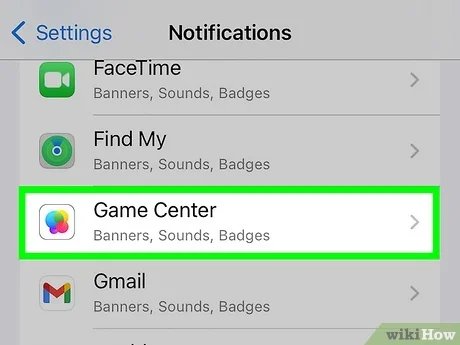
To deactivate Game Center, you must navigate to your device’s Settings app, find the Game Center section, and toggle the switch to the off position.
Frustrated with constant game notifications or just wanting a break from leaderboards? Many users find themselves needing a little peace from the gaming world. If this sounds familiar, you might be wondering how to deactivate Game Center.
It’s a simple process, though not immediately obvious within the system. This guide will walk you through the steps to turn off Game Center and reclaim your digital space.

How to Deactivate Game Center: A Step-by-Step Guide
Have you ever felt like Game Center is just a little too noisy or maybe you’re not using it as much as you used to? Sometimes, all those game requests and leaderboard notifications can become overwhelming. Don’t worry, you’re not alone! Many people wonder how to turn off Game Center, and it’s actually quite simple to do. This guide will walk you through the steps on how to deactivate Game Center on your Apple devices, whether it’s an iPhone, iPad, or Mac. Let’s get started so you can enjoy a more peaceful gaming experience or just a quieter device!
Why Deactivate Game Center?
Before we dive into the “how,” let’s quickly talk about the “why.” Why would someone want to deactivate Game Center? There are a few common reasons:
- Too Many Notifications: Game Center can send a lot of notifications, especially if you’re friends with a lot of gamers. These notifications about game invites, friend requests, and leaderboard changes can become distracting.
- Privacy Concerns: Some users might be uncomfortable sharing their gaming activity with others. Deactivating Game Center can give you more privacy.
- Not Using It: If you rarely play games, Game Center might just be taking up space and resources. Turning it off can help simplify your device.
- Troubleshooting: Sometimes disabling Game Center can resolve certain game-related problems or bugs. It’s a good step to try when things aren’t working right.
- Battery Saving: Although the impact is not significant, deactivating services you don’t use can slightly improve your device’s battery life.
Whatever your reason, it’s good to know how to manage Game Center settings.
Deactivating Game Center on iPhone and iPad
The process for turning off Game Center is very similar on both iPhones and iPads. Here’s how you do it:
Step 1: Open Settings
First, you need to find the Settings app on your home screen. It looks like a gray gear icon. Tap it to open the settings menu.
Step 2: Find Game Center
Scroll down the Settings menu until you see “Game Center.” It’s usually in the same section as other Apple apps. Tap on “Game Center” to enter its settings.
(Placeholder image: Replace with an actual image of finding Game Center in settings.)
Step 3: Turn Off Game Center
Inside the Game Center settings, you’ll see a toggle switch next to the “Game Center” label. This switch is likely turned ON (green) if Game Center is active. Simply tap this switch to turn it OFF. The switch will go gray, indicating that Game Center is now deactivated.
(Placeholder image: Replace with an actual image of disabling Game Center.)
Step 4: Confirming Deactivation
Once you turn off the Game Center toggle, your device won’t send or receive game-related notifications, and your gaming activity won’t be shared with others. You can also turn off specific features such as “Nearby Friends” and “Allow Invites” in this same settings menu.
Managing Individual Game Settings
Even after deactivating Game Center, some apps might still use it to save your progress. You can manage these settings app-by-app.
Step 1: Go to Settings Again
Open the Settings app once more.
Step 2: Access Game Settings Directly
This time, scroll down and find the game app in the list, not “Game Center” itself. Each game app on your device is listed in alphabetical order. Tap on the specific game you want to adjust settings for.
(Placeholder image: Replace with an actual image of finding a game in settings.)
Step 3: Adjust Game Center Options
Within the game settings, you might find an option related to Game Center. This may vary from game to game, but you’ll typically find a place to turn it off for that specific game. Look for something like “Game Center,” “Sign in with Apple,” or “Progress Storage”. You might need to turn off the connection to Game Center manually. If the game uses iCloud or a similar cloud storage, you may need to look for how it saves the data and where, but for most games, deactivating Game Center within your general settings would prevent any further data being transmitted via Game Center. If you see a toggle, switch it to the off position.
Some games will prompt you to sign in with Game Center when you first start them. When Game Center is disabled, it just won’t let you. However, some games that use Game Center may still work even if Game Center is off, but your progress won’t be saved on the server, for these games.
Step 4: Verify changes
Go back into the game and verify that Game Center is no longer enabled or sending any notifications.
Deactivating Game Center on Mac
Turning off Game Center on your Mac is also quite easy. The steps are slightly different from iPhones and iPads, but it’s still very straightforward.
Step 1: Open System Settings (or System Preferences)
Click the Apple logo in the top left corner of your screen. Then, select “System Settings” (or “System Preferences,” depending on your macOS version).
(Placeholder image: Replace with a screenshot of opening System Settings.)
Step 2: Navigate to Game Center
In System Settings (or System Preferences), look for the “Game Center” icon. It usually looks like a colorful circle with a controller inside. Click on it to open Game Center’s settings panel.
(Placeholder image: Replace with a screenshot of navigating to the Game Center settings.)
Step 3: Uncheck the Game Center Box
Inside the Game Center settings, you will see a checkbox or a toggle switch next to “Enable Game Center.” Uncheck or toggle this box to turn off Game Center on your Mac.
(Placeholder image: Replace with a screenshot of disabling Game Center on Mac.)
Step 4: Confirm Deactivation
Once you uncheck the box or flip the switch, your Mac will stop using Game Center. Game invites, leaderboards, and other related features will be inactive.
Step 5: Managing Game Access Individually
Similar to iPhones and iPads, individual games may also have options to disable or use Game Center. You’ll find these options within the game itself or in the game’s dedicated settings on your Mac. These options may differ from game to game, but you can still control how each game interacts with Game Center or with your device if Game Center is off.
What Happens After Deactivating Game Center?
After you deactivate Game Center, here’s what you can expect:
- No Notifications: You won’t receive any more game invites, friend requests, or leaderboard notifications from Game Center.
- No Sharing: Your game activity will no longer be shared with your friends or the Game Center network.
- Game Sync May Not work: Games that rely on Game Center for syncing progress may not work correctly. You may lose your game progress if you don’t manually save it elsewhere.
- Some Game Functionality May Be Limited: Some games that use Game Center features like multiplayer or leaderboards may have reduced functionality.
- Your Apple ID Remains Connected: Deactivating Game Center does not affect other Apple services like the App Store, iCloud, or other data that are synced between your devices.
Reactivating Game Center
If you change your mind, reactivating Game Center is just as simple as turning it off. You just need to revisit the settings menu on your devices and toggle the Game Center switch back to the ON position. Your settings and the games that you have installed will all be still there.
On iPhone/iPad: Go to Settings, find “Game Center,” and turn the switch back to the green/ON position.
On Mac: Go to System Settings (or System Preferences), find “Game Center”, and check the “Enable Game Center” box or toggle the switch to the ON position.
Once you reactivate it, your game progress and data will be synced back to your devices, and the notifications and all its other features will begin to work again.
Troubleshooting Common Issues
Sometimes, even after deactivating Game Center, you might encounter some problems. Here are a few common issues and how to address them:
Game Center Notifications Still Appearing
If you’re still receiving Game Center notifications, first double-check that you’ve turned off Game Center in your settings correctly. Sometimes a glitch might happen, and turning Game Center back on and then off again may fix the problem. If the problem continues, make sure that notifications for the specific game are turned off in the notification settings of your device.
Game Sync Issues
If a game seems not to save or load progress after deactivating Game Center, this is because the game uses Game Center to save your progress. Try turning Game Center back on and restarting the game so it can resync with the game’s server. If the problem continues, try to check if there is a way to save locally on the game or see if the developer has a specific way to backup the game.
Persistent Settings
If your game settings seem to revert after restarting your device, check that Game Center is still turned off. Also, ensure that the game doesn’t use a different way to sync progress, like through iCloud or a cloud service from the developer. You might need to adjust settings both in Game Center and the individual game to stop any sync activities.
Deactivating Game Center can be a good way to reduce notifications or manage how your device interacts with games. By following these easy steps, you can change your Game Center settings as needed. Remember that you can always turn it back on if you change your mind later.
How to Disable/Enable Game Center Data Syncing to iCloud on Your iPhone (iOS 15.3)?
Final Thoughts
To disable Game Center, open Settings then tap your Apple ID. Next, select Game Center. Toggle the Game Center switch to off. This stops your account from actively syncing game data.
Disabling Game Center can be beneficial for privacy or data usage. Many find it unnecessary, and prefer not to use its features. This is simple and easily done.
So, that’s how to deactivate game center. Follow the steps mentioned. You have successfully disabled it.

