
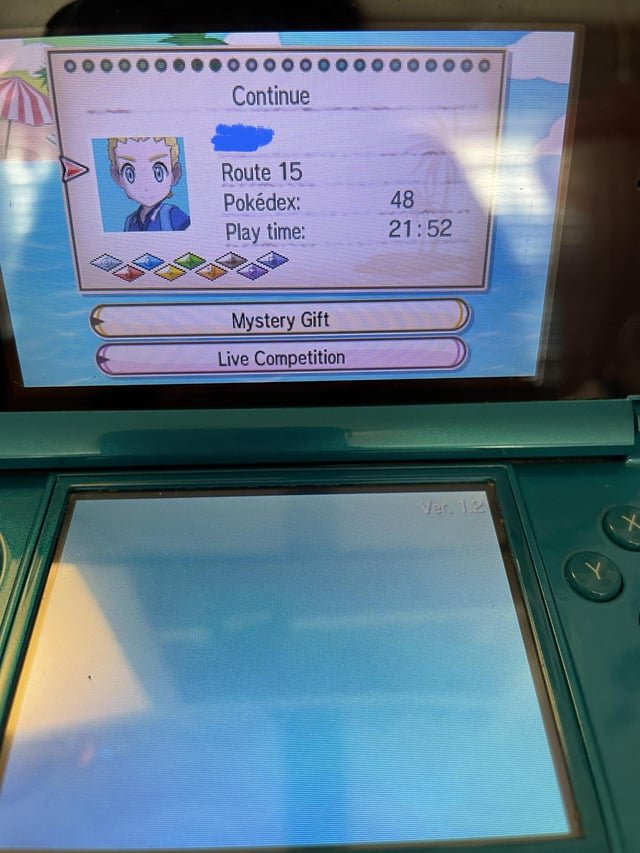
To delete a saved Pokemon game, you typically need to access the game’s menu and locate an option to delete or erase save data. This process varies between different Pokemon game versions.
Ever found yourself wanting to start a Pokemon adventure completely fresh? Maybe you’re diving back into an old favorite or sharing a console, and you need to know how to delete a saved Pokemon game. It’s a common question, and thankfully, it’s usually quite simple.
The exact steps for deleting your save file depend on the specific Pokemon game and console. Most games will have the deletion option within their menu system, though sometimes it may need a particular button press while the game loads. Let’s explore this process in more detail to get you back to the very beginning of your Pokemon adventure.

How to Delete a Saved Pokémon Game: A Comprehensive Guide
Deleting a saved Pokémon game can feel a little sad, like saying goodbye to a friend you spent a lot of time with. Maybe you want to start a brand-new adventure, or maybe you’re passing your game to someone else. Whatever the reason, it’s important to know how to do it correctly. This guide will walk you through the steps for various Pokémon game systems, from the older classics to the latest releases. We’ll make it easy to understand and help you avoid any accidental deletions!
Understanding Save Data and Why You Might Delete It
Before we dive into the “how,” let’s talk about what a “save” really is. Think of it like a bookmark in your favorite book. When you save a Pokémon game, you’re capturing all your progress – the Pokémon you’ve caught, the places you’ve explored, and all your items. This “saved data” is stored on the game cartridge or the console itself, depending on the system. There are several reasons why you might want to delete it:
Starting Over: The most common reason is wanting a fresh start. Perhaps you want to choose a different starter Pokémon or experience the story with new strategies.
Passing on the Game: If you’re giving or selling your game, you’ll want to erase your save data so the new player can have their own adventure.
Accidental Data Corruption: Sometimes, game data can get corrupted, meaning it doesn’t work properly anymore, and deleting the save and starting fresh is the only solution.
Trying New Playthroughs: Players often want to experience the game with self-imposed challenges, like Nuzlocke runs, which require a blank slate.
Just for fun: Sometimes we just want to erase the data and play again because we love playing pokemon games
It’s really important to remember that once you delete a save, it’s usually gone for good. There’s no “undo” button, so you need to be sure about your decision. We’ll be extra careful in the explanations to help avoid any mistakes!
Deleting Saves on Older Game Systems
Let’s begin with the older handheld systems that many of us grew up with. These systems often have very straightforward methods for deleting save data, which can vary slightly by game:
Deleting Saves on Game Boy and Game Boy Color (Gen 1 & 2)
The original Game Boy and Game Boy Color systems don’t have menus for deleting saves directly within the system. Instead, the save data is stored on the game cartridge itself. The method for deletion is generally the same across all Gen 1 and 2 games, but a few games did have unique methods. The standard method is as follows:
1. Start the Game: Power on your Game Boy or Game Boy Color with the game cartridge inserted.
2. Reach the Main Menu: Allow the game to load to the main menu screen. This will usually display options like “Continue,” “New Game,” and possibly “Options.”
3. Press the Magic Buttons: Here’s the trick – on the main menu screen, you will need to press a combination of buttons at the same time. The most common combination for games in Gen 1 and Gen 2 is to simultaneously hold Up on the directional pad, B, and Select buttons.
4. Confirmation Message: If successful, the game will likely show a message like “Do you want to delete the saved game?” or something similar. Carefully read the message and then select “Yes” (or the equivalent).
5. New Game Screen: The game will return to the opening screen, indicating that your save has been successfully erased.
Important Notes:
Some early games, particularly Japan-exclusive releases, might have different button combinations, though the method remains similar.
If this method doesn’t work right away, try re-inserting the cartridge and trying again. Sometimes a slight wiggle is needed to make sure the cartridge is connecting perfectly.
On rare cases, the game’s internal battery may be faulty; you may notice your saved data being corrupted or automatically deleted. This is a sign of an aging cartridge, and you may need to look into replacing it.
Deleting Saves on Game Boy Advance (Gen 3)
Moving to the Game Boy Advance (GBA), the methods become a bit more consistent across the games of Generation 3, like Pokémon Ruby, Sapphire, and Emerald:
1. Start the Game: Power on your GBA with the desired Pokémon game inserted.
2. Reach the Main Menu: Let the game load to the main menu, presenting the usual “Continue” and “New Game” options.
3. Button Combination: This part is similar to the older systems, but instead of pressing multiple buttons at once, you’ll press the A, B, Start and Select buttons at the same time.
4. Confirmation: A message will pop up asking if you want to delete your saved game. Carefully read and confirm to erase the save.
5. New Game: If done correctly, the game will reset back to the title screen and you will be able to begin a new game.
Important Notes
Some GBA games, like FireRed and LeafGreen, use a slightly different method that’s closer to the Nintendo DS, which we will explain later.
Always be sure of your decision before pressing those buttons! Remember, once it’s gone, it’s gone!
Deleting Saves on Nintendo DS & Nintendo 3DS (Gen 4-7)
The Nintendo DS (NDS) and Nintendo 3DS families of consoles brought more standardized methods of handling saves. These systems introduced menu-based save deletion, which made the process much clearer and less prone to accidental triggers:
Deleting Saves on Nintendo DS (Gen 4 & 5)
Nintendo DS games like Pokémon Diamond, Pearl, Platinum, HeartGold, SoulSilver, Black, and White all generally follow the same method to delete saved data. Here’s how to do it:
1. Start the Game: Turn on your Nintendo DS or DS Lite. Insert the Pokémon game card, and start the game.
2. Main Menu: Allow the game to load to the main menu screen.
3. Access Options: On the main menu, look for an option that says “Continue”, “New Game” or “Options”. Do not select Continue. Instead, you should press the Up on the directional pad, B button, and Select button simultaneously while the “Continue” selection option is visible on the main menu.
4. Confirmation Message: A prompt should appear asking if you want to delete all saved data. Select “Yes” or the affirmative option to confirm.
5. New Game: The game will start a new game after confirming your decision. This indicates the save has been successfully erased.
Important Notes
This button combination might take a couple of tries, so don’t get discouraged if it doesn’t work immediately.
Some games from earlier in the DS’s life cycle may have slight variation in the process but should remain mostly similar.
Deleting Saves on Nintendo 3DS (Gen 6 & 7)
The Nintendo 3DS games like Pokémon X, Y, Omega Ruby, Alpha Sapphire, Sun, and Moon continue with the menu-based approach but with a more user-friendly design. Here are the steps:
1. Start the Game: Start up your Nintendo 3DS system with the Pokémon game card inserted.
2. Reach the Main Menu: Allow the game to boot up to the main menu screen.
3. Access Title Screen Options: As the title screen appears, press and hold Up on the directional pad, B, and X buttons at the same time.
4. Confirmation Prompt: The game will display a message asking you to confirm your decision to delete all saved data. Choose “Yes” to proceed.
5. New Game: Your game will return to the game’s title screen where you can start a new adventure.
Important Notes
The button combination may take a few attempts. If it doesn’t work, double-check that the game is fully loaded to the title screen before pressing the button combination.
Once you confirm, the deletion process is irreversible, so make absolutely certain before proceeding.
Deleting Saves on Nintendo Switch (Gen 8 & 9)
Moving on to the current generation, the Nintendo Switch presents a different approach because game saves are stored directly on the console itself, not the game cartridge. This applies to games like Pokémon Sword, Shield, Brilliant Diamond, Shining Pearl, Legends: Arceus, Scarlet, and Violet.
Important Note: Unlike previous generations, deleting save data on the Switch requires you to do so from the system settings, not directly within the game.
Deleting Saves on Nintendo Switch
Here’s how to delete saved data for your Pokémon games on the Nintendo Switch:
1. Close the Game: First, make sure the Pokémon game you want to clear is completely closed. If it’s running, press the Home button on your Switch controller, highlight the game’s icon and then press the X button on your controller and confirm you want to close the game.
2. Open System Settings: From the Nintendo Switch Home menu, go to “System Settings” (the gear icon).
3. Navigate to Data Management: Scroll down the System Settings menu until you see “Data Management”. Click to open the “Data Management” menu.
4. Select Save Data: In the “Data Management” menu, find and select “Save Data”.
5. Select Your Game: A list of games with saved data will appear. Locate your Pokémon game and select it.
6. Choose “Delete Save Data”: You’ll see options to “Delete Save Data” and other options like backup data if you have the Nintendo Switch Online subscription. Select “Delete Save Data”.
7. Confirm Deletion: You will get a final warning asking you to confirm that you want to delete the save data for this game. You will have to reconfirm your decision on the next screen. Be absolutely certain you want to erase all data and click on “Delete” to proceed.
8. New Game: Start the game again, and the game will start with a brand new save file.
Important Notes
This method deletes all saved data associated with the game on your console. If multiple user profiles on your Switch have played the same Pokémon game, all save data for all users will be deleted. There are no ways to delete save data from individual users for Nintendo Switch games.
It’s always a good idea to double-check which game you’ve selected before hitting “Delete.” This will help you avoid accidentally deleting the save for the wrong game.
If you have the Nintendo Switch Online subscription, you might have an option to back up your save data to the cloud. This can be helpful if you ever want to retrieve your old save file. Just remember that Nintendo’s terms of service generally indicate that there is no guarantee they can restore backed up save data.
Remember, for Nintendo Switch, game data is not stored on the game cartridge, rather on the console itself. Thus, borrowing a game from a friend will not carry over their saved data, as their data remains on their console and vice versa.
A Quick Reference Table
For easy access, here’s a quick reference table summarizing how to delete a saved Pokémon game on different systems:
| System | Generation(s) | Method Summary |
| :————————– | :————- | :—————————————————————————————————————————————————————————————————- |
| Game Boy / Game Boy Color | 1 & 2 | Start game, access main menu, press and hold Up + B + Select simultaneously. Confirm deletion. |
| Game Boy Advance | 3 | Start game, access main menu, press and hold A + B + Select + Start Simultaneously. Confirm deletion |
| Nintendo DS | 4 & 5 | Start game, access main menu, press and hold Up + B + Select while “Continue” is selected, confirm deletion. |
| Nintendo 3DS | 6 & 7 | Start game, access main menu, press and hold Up + B + X while on the title screen. Confirm deletion. |
| Nintendo Switch | 8 & 9 | Close the game, go to System Settings -> Data Management -> Save Data, choose your game, choose “Delete Save Data”, confirm deletion twice. |
Final Words
Deleting your saved Pokémon game is a big decision, but knowing the correct steps makes it a much easier process. Whether you’re preparing for a new journey or just clearing space, it’s always good to be careful and sure of your choice. Remember, always double-check which game and which profile you are deleting from, particularly on the Nintendo Switch. Now go on and have a great time starting a new adventure!
Pokemon How To Delete Save Scarlet and Violet
Final Thoughts
To delete a saved Pokémon game, you typically navigate to the main menu before loading your save. Within the menu, you will often find an option to delete save data. Select this option and confirm your choice carefully because the action is irreversible.
Remember, deleting a save will permanently erase your game progress. Ensure you understand how to delete a saved pokemon game before you proceed. You might need to refer to the specific instructions for your game and console.

