
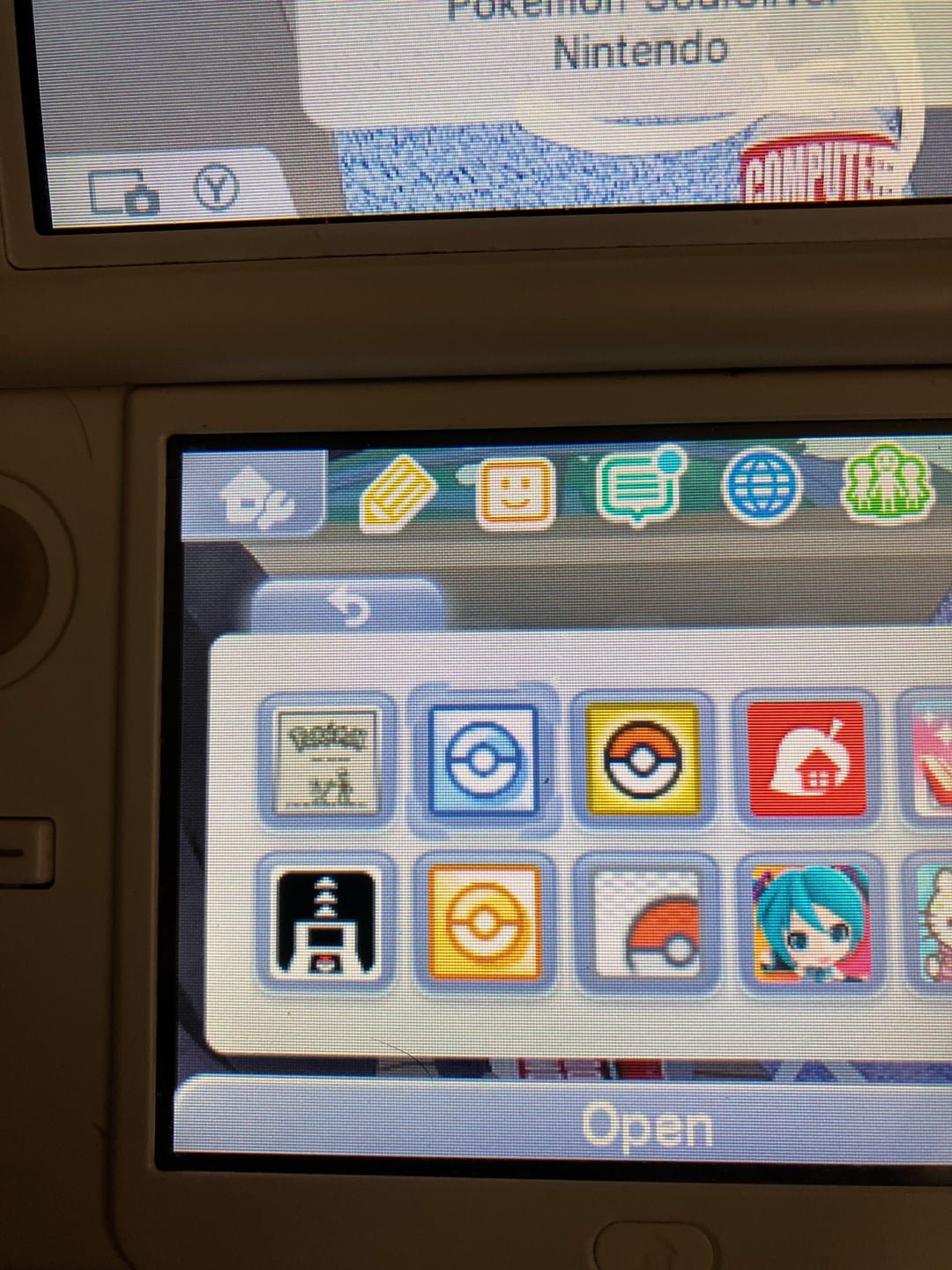
To delete DS games on your 3DS, navigate to System Settings, then Data Management, followed by Nintendo DS Software. Select the game you wish to remove and choose “Delete.”
Wondering how to clear up space on your beloved 3DS? It can get quite cluttered with all those downloaded titles. Learning how to delete DS games on 3ds is simpler than you might think, and this quick guide will walk you through the process step-by-step.
We understand you want to remove games you are no longer playing. This is a great way to keep your system organized and free up space for new adventures. Let’s get started and have your 3DS tidied up in no time.

How to Delete DS Games on 3DS
Okay, so you’ve got your trusty Nintendo 3DS, and you’ve been having a blast playing all sorts of games, including some classics from the Nintendo DS era. But maybe your game library is getting a bit crowded, or perhaps you just want to make space for new adventures. No problem! Deleting DS games from your 3DS is a pretty simple process, and we’re here to walk you through it step-by-step. Just remember, when you delete a game, the saved data for that game goes away too. So, only delete a game if you’re sure you don’t want to play it anymore.
Understanding Game Storage on Your 3DS
Before we dive into the actual deleting process, let’s quickly chat about how your 3DS stores games. Unlike modern consoles where games are installed directly to a hard drive, the 3DS uses a combination of game cartridges and digital downloads. For DS games, things are a little different.
Game Cartridges: Physical Media
If you have a DS game on a cartridge (the little plastic card you pop into the 3DS), deleting isn’t something you do to the cartridge itself. The game data is on the cartridge, and it stays there. What you might be thinking about is deleting the save data associated with the game. We’ll cover that in the “Deleting Game Save Data” section. The game cartridge acts as a read-only piece of hardware; you can’t alter what’s physically stored on it. It’s like a book, you can read it but you cannot erase or change the actual pages themselves.
Digital Downloaded Games
If you downloaded a DS game from the Nintendo eShop, it’s stored on the 3DS’s internal memory or on an SD card inserted into your system. This is where you’ll need to take action to remove the game. If you don’t want the game on your device anymore, the deleting process will get rid of the game’s file and its associated saved data, freeing up space on the device or the SD card. Think of it as clearing out a file from your computer’s hard drive.
Deleting Digital Downloaded DS Games
Now, let’s get into the specifics of deleting a digital downloaded DS game. This process involves navigating through the 3DS’s System Settings.
Accessing System Settings
First, turn on your Nintendo 3DS. From the Home Menu, tap the System Settings icon. It’s the one that looks like a little wrench. Tap the icon, and you’ll enter the settings menu, where you can adjust different system parameters.
Inside the System Settings, you’ll notice various options such as “Internet Settings,” “Date & Time,” and so on. You’re looking for “Data Management.” You’ll find it easily, because it looks like a small file cabinet.
Navigating to Data Management
Tap on the “Data Management” option. This will lead you to a new screen offering different kinds of data management. Here, you need to select “Nintendo 3DS.” This will bring up another screen with a few options. Pick the “Software” option. In the “Software” section, you will see a list of all the downloaded software titles installed on the console.
Selecting the DS Game for Deletion
In the list, you’ll find the downloaded DS games alongside your 3DS titles. Scroll through the list until you find the DS game that you want to delete. Tap the game you wish to remove. This will bring you to another screen with details about the selected game. You’ll see information like the game’s size, and the option to “Delete”.
Confirming the Deletion
Tap the “Delete” option. Your 3DS will give you a warning. It’s going to ask you to confirm that you are sure you want to delete the game. Make sure you are sure that you want to remove the game. If you are sure, tap the “Delete” button again. The 3DS will then remove the game and its saved data from the console.
Important Note: After deleting the game, you’ll see that it no longer appears in the list of software, and the space it occupied on the memory is available again.
Deleting Game Save Data (For Cartridge Games)
As we mentioned before, if you have a DS game on a cartridge, you can’t delete the game from the cartridge. However, you can delete the save data associated with the game. This is useful if you want to start a game fresh or if you are going to sell the game.
Method 1: In-Game Options
Some DS games have a built-in option to delete save data from within the game’s menu. This method is the simplest to try, but not all DS games offer this functionality. To do this, insert the game cartridge and start the game. Look for a “Settings” or “Options” section in the game’s menu. If available, there might be an option labeled something like “Delete Save Data,” “Erase Game,” or “Clear Saved File.” Follow the instructions on the screen to delete the saved data.
Method 2: Using the 3DS System Settings
If your game doesn’t have a built-in option to delete save data, you can do it through the 3DS’s system settings. Here’s how:
- Turn off the 3DS: First, turn off your 3DS console.
- Insert the Cartridge: Make sure the game cartridge is properly inserted into the cartridge slot.
- Boot into DS Mode: Turn your 3DS back on. But instead of going to the 3DS Home Menu, load the game directly by tapping on the DS game icon at the bottom screen.
- Press and Hold: As the game’s title screen appears (the screen with the title of the game), press and hold a combination of buttons on your 3DS. This button combo can vary slightly from game to game, but the most common combination is usually A+B+X+Y+L+R. This could also be Up + Select + B or L+R+Start+Select. You might have to try multiple combinations as different games might have different combo buttons.
- Confirmation Screen: If you press the correct combo, you should see a confirmation screen asking if you want to delete your saved data. If you do not see a confirmation screen, power off the system, then power it back on and try the button combination again. Make sure to press and hold these buttons as you’re launching the game and before you reach the title screen.
- Confirm Deletion: Follow the on-screen instructions to confirm that you want to delete the game’s saved data. This will often involve pressing a button like A or X to confirm.
Important Note: Not all DS games support this method for deleting save data. If you cannot delete the save data using either in-game options or with this button combination methods, then unfortunately there is no way to directly erase the save data other than to overwrite it by starting a new game. This means that you may have to use another game device or an emulator to achieve this purpose.
Troubleshooting
Sometimes, things don’t go as smoothly as we’d like. Here are a few common problems you might encounter when trying to delete DS games, and how to fix them.
Game Not Appearing in Data Management
If you have a digital DS game, and it’s not showing up in the “Software” list, it could be that the game is not correctly associated with your user. This can happen if you switch between different user profiles or accounts on your 3DS. One solution is to go to “Data Management,” then choose “Nintendo 3DS” and then “Software.” If there are “missing” games, they may be located on the SD card data. You can then select the SD card option and then press the “Delete” button.
Unable to Delete Save Data
If you are having trouble deleting the save data of a cartridge game, double-check to see if the game actually supports the button combination method mentioned above. Try different button combinations until you find the correct one. If there is no button combination to delete save data for that game, then you’ll have to start a new game and overwrite the old save. If you have multiple systems, you might try the button combination on a different device.
SD Card Issues
If you are trying to delete a downloaded game from your SD card but are having trouble, first make sure that your SD card is compatible with your Nintendo 3DS. If the card is incompatible, you will not be able to perform game deletion functions. Also, try to remove your SD card and then re-insert it to see if that fixes the issue. If the SD card is corrupted, you may have to use a separate computer to correct errors on the card.
Tips for Managing Game Space
Here are some additional tips to help you manage your games effectively on your 3DS:
- Use an SD card: If you have many downloaded games, an SD card provides extra storage. This will enable you to download more games without worrying about running out of space on the 3DS.
- Regularly Check your Data Management: Periodically look through the “Data Management” section to delete unused games. A quick review will help you keep the system clean and organized.
- Back up your saves: If you are going to delete a game, make sure you have backed up your save data. This helps if you want to restore the old save data for any reason.
Deleting DS games on your 3DS is generally straightforward, but knowing the nuances between cartridge games and digital downloads helps you manage your game library effectively. Remember that deleting a digital download removes the game and all its save data. Always double-check before confirming a deletion. Whether you are clearing space for new adventures or starting your game fresh, you are now fully prepared to manage your game collection.
HOW TO DELETE 3DS & NDS GAMES : FOR DUMMIES FOR THE NOOB
Final Thoughts
Deleting DS games on a 3DS is straightforward. First, go to System Settings from the HOME Menu. Then select Data Management, followed by Nintendo DS software. Choose the game you want to remove, and then select delete.
This action will permanently remove the game from your 3DS. Remember this process for ‘how to delete ds games on 3ds’. You can always re-download a digital copy if needed.

