
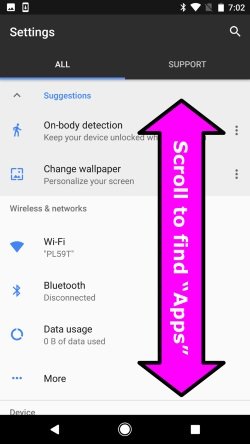
To delete game data on Android, navigate to your device’s Settings, then Apps, select the game, and tap ‘Storage’. Finally, choose ‘Clear Data’ or ‘Clear Storage’.
Is your phone slowing down? Do you need to free up space? Old game files can take up precious storage. This article will show you exactly how to delete game data on android.
Clearing game data can also help if a game is glitching. We’ll guide you through the simple steps. This process will help you manage space effectively on your device.

How to Delete Game Data on Android
Okay, so you’ve been playing a game on your Android phone or tablet, and maybe you need to start over, free up some space, or just want a clean slate. Whatever your reason, deleting game data is a common thing, and it’s not as scary as it might sound. It’s like cleaning up your room – sometimes you need to do it to make things work better! This guide will walk you through all the ways you can clear out that game data and get your device feeling fresh again.
Why Delete Game Data?
Before we jump into how, let’s talk about why you might want to delete game data in the first place. There are several good reasons:
- Starting Fresh: Maybe you want to replay a game from the beginning, but the game remembers your old progress. Deleting the data lets you start a new adventure without your old scores or characters getting in the way.
- Freeing Up Space: Games, especially those with cool graphics, can take up a lot of space on your device. Clearing out data can give you more room for other apps, photos, or videos. It’s like making room in your closet by getting rid of clothes you don’t wear anymore.
- Fixing Problems: Sometimes, game data can get corrupted or buggy, causing the game to not work properly. Deleting the data and starting again can sometimes fix these issues. It’s like restarting your computer to make it work better.
- Uninstalling Completely: Even if you uninstall a game, sometimes some of its data can hang around. Deleting game data ensures that all traces of the game are gone, if you choose that option.
- Privacy Concerns: You might want to delete your progress for privacy reasons, if you’re giving your phone to someone else or selling it.
Understanding Game Data
Let’s talk a bit about what we mean by “game data.” Game data isn’t just the game itself; it’s the stuff the game saves to your device while you play. This includes:
- Game Progress: This is how far you’ve made it in the game, your levels, and your high scores.
- Settings: Your preferred game settings like sound volume and control preferences.
- User Profiles: If a game has multiple players, each player might have their own profile and settings saved.
- Cache Data: Temporary files that the game uses to run more smoothly. These files can take up quite a bit of space.
Knowing what game data is helps you understand what we’re deleting. Sometimes, you might just need to clear the cache, while other times, you’ll need to clear everything.
Methods for Deleting Game Data
Now for the main event – how to actually delete that game data! There are several ways to do it, each with slightly different effects. We’ll look at them step-by-step.
Clearing Game Cache
Clearing the cache is like cleaning the crumbs off your desk. It gets rid of the temporary files that can slow things down, but it usually doesn’t erase your game progress. Here’s how:
- Go to Settings: Find the settings app on your Android device. It usually looks like a gear or cog.
- Find Apps or Application Manager: Tap on “Apps,” “Applications,” or something similar. The exact name may vary depending on your phone or tablet.
- Find the Game: Scroll through the list of installed apps and tap on the game you want to clear the cache for.
- Tap on Storage: Look for a “Storage” option and tap on it.
- Clear Cache: You should see a “Clear Cache” button. Tap it. That’s it! You have cleared the cache.
This is a great first step if your game feels a little slow or buggy, but won’t usually erase your game progression.
Clearing Game Data
Clearing game data is like throwing away everything on your desk, including that half-finished drawing. It’s more powerful than just clearing the cache. This is how you do it:
- Go to Settings: Just like before, find the settings app.
- Find Apps or Application Manager: Tap on “Apps” or “Applications.”
- Find the Game: Find the game in the list of apps.
- Tap on Storage: Tap on “Storage”.
- Clear Data: Tap on the “Clear Data” button (sometimes it’s called “Clear Storage”).
- Confirm: A warning message will appear. It’s important to read this carefully as it usually says all data will be deleted. If you’re sure, tap “OK” or “Clear”.
Important Note: Clearing game data usually deletes your game progress, settings, and everything else. Be absolutely sure you want to do this before you tap that “Clear Data” button! If the game has online backup system, the game progress might be saved in game servers. In that case, when you launch the game again with the same account, your progress will again appear in your device.
Using In-Game Options
Some games have their own options for deleting data within the game itself. This is especially true for online or multiplayer games. These might include options for:
- Resetting Progress: Some games allow you to reset your progress from within the settings menu.
- Deleting a Player Profile: You may have the option to delete or start a new profile in the game’s menus.
These options are often specific to each game, so check the settings menu or help section of your game. This method can be useful when you only want to restart the game.
Uninstalling and Reinstalling the Game
Another approach is to uninstall the game and then reinstall it. This is a good option when clearing data doesn’t work or if you want to make sure every trace of the game is gone. Here’s how:
- Find the Game: Find the game app on your home screen or in the app drawer.
- Uninstall the Game: Press and hold the game app icon. You should see options to uninstall the app, either in a popup menu or by dragging the icon to the uninstall option on your home screen.
- Confirm Uninstall: Tap on the “Uninstall” button or confirm your choice.
- Reinstall the Game: Go to the Google Play Store, find the game again, and tap “Install.”
Sometimes some data may remain even after uninstalling. In that case, you need to clear the data after uninstalling, using the method we mentioned before.
Using File Manager Apps (Advanced)
For those who want more control, you can use file manager apps to find and delete game data manually. This method is a little more advanced but can be helpful if other methods don’t work. You’ll need a file manager app for this; some popular ones are “Files by Google” or “Amaze File Manager”. Here’s the basic idea:
- Install a File Manager: If you don’t already have one, go to the Play Store and install a file manager app.
- Open the File Manager: Open the file manager app and give the app permissions to access storage when asked.
- Find the Android Folder: Look for a folder called “Android”.
- Open the Data Folder: Inside the “Android” folder, you will find a folder called “data”.
- Find the Game’s Folder: This is a bit tricky, as the game’s folder is named with the app’s package name (ex. com.game.example). You need to search carefully. Sometimes the game name may also be present inside the folder. Once you find the game folder, you can proceed to the next step.
- Delete the Folder: Select the folder and tap “Delete”.
- Confirm Deletion: Confirm the deletion if asked.
Warning: Be careful when using file manager apps. Deleting the wrong files can cause issues with your device or other apps. Only delete folders you are absolutely sure belong to the game you want to remove data for.
Cloud Saves and Game Data
Many modern games, especially online ones, use cloud saves. This means your game progress is stored on the game’s servers, not just on your device. Here’s how this affects deleting game data:
- Clearing Data Might Not Reset Everything: If a game uses cloud saves, deleting local data on your phone might only reset the local copy of the game data. When you play again, the game might download your old cloud save and restore your progress.
- Check Game Settings: If you want to completely start over, look for an option to reset progress or delete your cloud save within the game’s settings. These options can be in the settings menu or associated with your game account.
- Game Account: Make sure to look for game account settings in the game. If you are logged in using any social media account, then changing your account can reset your game progress in some cases.
Understanding cloud saves can help you decide how to remove data. If you want to truly start anew, you may need to find an option to delete the data from the cloud as well as locally from your device.
Specific Game Examples
Let’s look at a few specific examples of popular games to show you how to delete game data:
Example 1: Candy Crush Saga
For Candy Crush Saga, you can clear data using the “Clear Data” option in the Android settings. But if you are logged in using a social media account, such as Facebook, then your progress will be saved there. If you clear the game data, your progression will be loaded again from your logged-in account when you launch the game again. You will need to delete the game account in social media to completely remove your progression.
Example 2: Clash of Clans
Clash of Clans saves progress on their own servers. Clearing data on your phone will likely not remove your progress. To start again in this game, you might have to create a new account. The game also stores a lot of data in the app’s cache, so clear that regularly if you’re having issues.
Example 3: Subway Surfers
Subway Surfers also saves progress online. Clearing your app’s data will likely delete the local progress but when you sign back in again it’ll restore your previous saved data. Some players change their game accounts in such games to start with a new game progression.
These examples show that it’s important to consider both local data and cloud saves when thinking about deleting game data. Game-specific approach is always better to remove game data completely, or to clear unwanted progress.
Tips and Tricks
Here are a few extra tips to help you out when deleting game data:
- Back Up Data First: If you aren’t sure if you want to delete everything, see if the game has an option to back up your game progress before you delete. Many games offer an option to save progress in the cloud.
- Check for a Reset Option: Always look for reset or start-over options in the game’s settings before resorting to clearing data in your device’s settings.
- Read Warnings Carefully: Make sure you read the warning messages when deleting data. It’s best to be absolutely sure of what you’re doing before clicking “Ok”.
- Use a Good File Manager: If you are going to use a file manager to delete data manually, then make sure it’s a reputable one.
- Test After Deletion: After you have deleted your data, launch the game again to confirm that everything is how you want it.
- Seek Help if Needed: If you are not sure, don’t hesitate to ask a friend or family member for help or look up online resources for game-specific instructions.
Deleting game data on Android isn’t difficult, but it’s important to know exactly what you are doing. By understanding the methods of removing game data and cloud saves, and also game specific approaches you can do the cleaning up of the data in a proper way, and also get the fresh new game progress.
How To Delete All Game Data on Android [Very Easy!]
Final Thoughts
To delete game data on android, you can clear the cache and storage in the app settings. Find the game under “Apps” and then “Storage.” This removes temporary files and game progress.
You could also uninstall the game if you want all data gone. Reinstalling will likely start a fresh game. This is another reliable method for how to delete game data on android. These simple steps effectively manage your android game data.

