
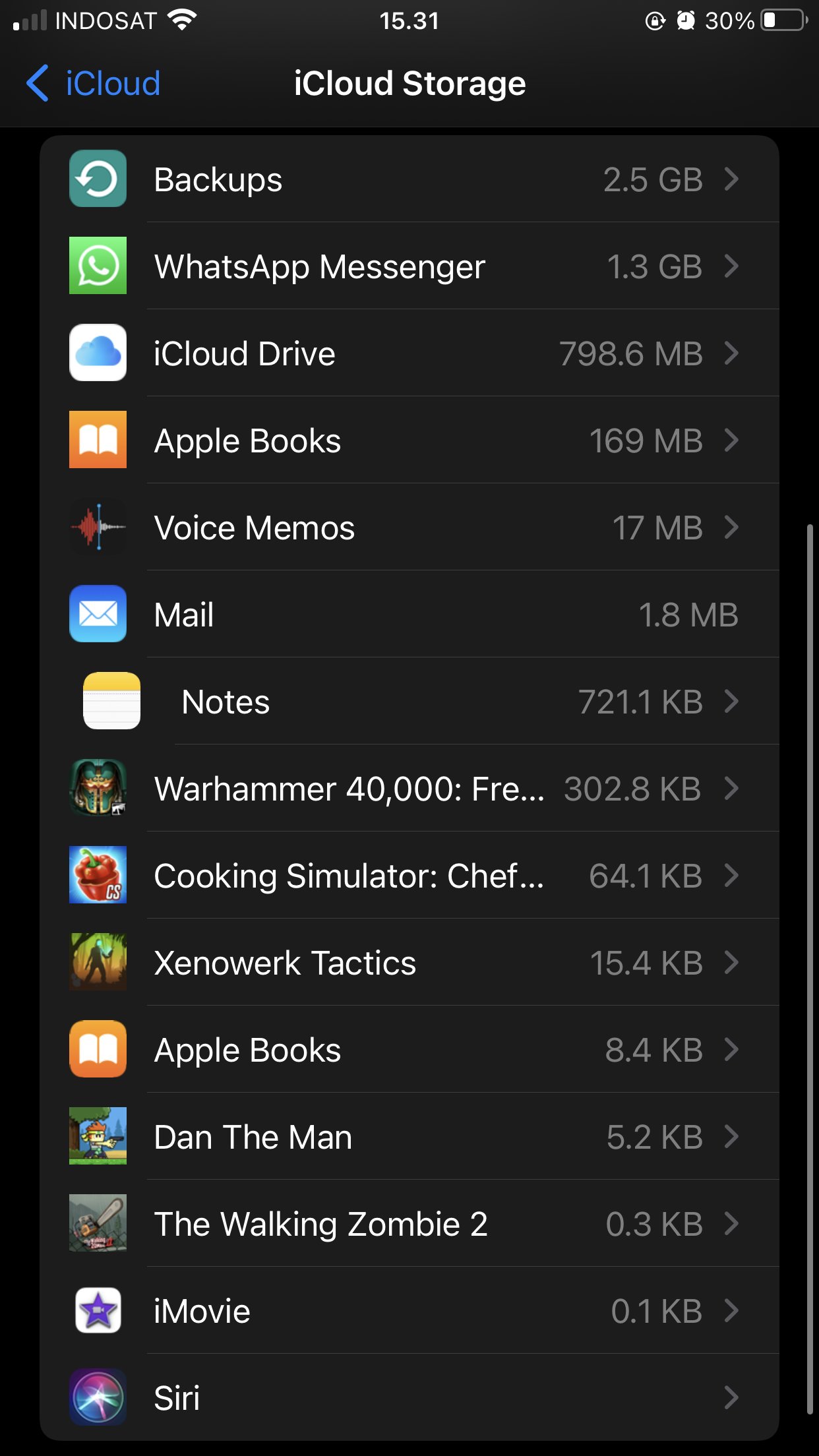
To delete game data on iPhone, you must either remove the game app itself, which removes all associated data, or sometimes, specific game data can be managed within the game’s settings or through iCloud settings if the game supports it.
Running out of storage space? Or maybe you’re just wanting a clean slate with a particular game? Many users wonder how to delete game data on iPhone. It’s a pretty common question and the process isn’t always straightforward.
Don’t worry, we are going to show you how to manage your game data, ensuring you can reclaim that precious space or simply start fresh. We’ll walk through the different ways to achieve this, covering the standard app removal method as well as some game-specific options.

How to Delete Game Data on iPhone
Okay, so you’ve been playing some super fun games on your iPhone, right? Maybe you’ve conquered a kingdom, built a whole city, or zoomed through races. But sometimes, those games take up a lot of space, and your iPhone starts to feel a bit slow, just like when you have too many toys in your room. Or perhaps you want to start a game completely fresh, from the very beginning. That’s where learning how to delete game data comes in handy. It’s like a little reset button for your games, and it can really help keep your iPhone running smoothly and make space for new adventures. Deleting game data is not always the same as deleting the game itself. It’s like deciding to clean your toys and put them back in order, rather than throwing them away. This article will show you exactly how to do this in different ways, so you can manage your iPhone game collection like a pro.
Understanding Game Data on Your iPhone
Before we jump into the “how,” it’s helpful to know what game data actually is. Think of it like this: when you play a game, your iPhone saves information about how far you’ve progressed, what characters you’ve unlocked, your high scores, and all the other settings you might customize. This saved information is your game data. This data allows you to pick up right where you left off the next time you play, making it super convenient. Game data also includes things like game preferences (like sound volume), tutorial progress and cached files or resources that help the game run smoothly.
Game data isn’t usually huge, but over time, with several games or long-term playing, it can take up a significant amount of storage space. This data is also tied to your game profile. If you’re signed into the game with Game Center or another account, removing all game data might delete your progress unless that game provides cloud backups. That’s why knowing how to manage your game data is an important skill for any iPhone gamer.
Why Delete Game Data?
There are many reasons why you might need to remove game data. Here are a few common scenarios:
- Freeing up Space: Games, especially the ones with high-quality graphics and lots of levels, can take up a lot of storage on your phone. Removing unnecessary game data can make space for other apps, photos, or videos.
- Starting Over: Sometimes you want to play a game from the very beginning, maybe after not playing for a long time. Clearing the game data allows you to experience the game fresh.
- Troubleshooting: If a game isn’t working quite right, clearing game data can sometimes help fix any bugs or glitches it may have.
- Selling or Giving Away Your iPhone: Before you let go of your iPhone, removing all game data is a good idea to protect your privacy. It prevents others from accessing your game progress, scores, or potentially personal info linked to the game.
- Fixing game-related errors: If your game is crashing, behaving strangely or displaying an error message, deleting data may help resolve the issue.
Methods for Deleting Game Data on iPhone
There are several ways you can remove game data from your iPhone. The most effective way often depends on how the game saves your data and what you are trying to achieve. Let’s take a look at the most common techniques and when to use each one.
Method 1: Deleting Game Data within the Game Settings
Many games have settings within the game itself that allows you to remove your local game data. This approach is often the best choice for deleting specific saved game progress without deleting everything or the app itself.
Steps to Delete Game Data Within a Game
- Open the Game: First, open the game you want to remove data from.
- Find the Settings Menu: Look for a settings button. This is often represented by a gear icon or a menu icon with three lines.
- Look for Data Options: Within the settings, search for terms like “Data”, “Storage”, “Progress”, “Account”, or “Reset.” Be patient and look carefully. Sometimes these options are hidden in submenus.
- Choose Your Option: Now, you’ll likely find options to “Clear Data”, “Reset Progress,” or “Delete Account Data”. The wording varies between games so read carefully what action will be taken.
- Confirm Your Action: The game will probably ask you to confirm you want to delete your data. Be careful here! This action can usually not be reversed.
- Restart the Game: If prompted, exit and restart the game. Your data should now be cleared. You can then start a fresh game.
Example: Clearing Data in a Puzzle Game
Let’s say you’re playing a puzzle game and want to start over. You would open the game, find the gear icon for settings, and then look for an option that might say something like “Reset Progress.” After confirming, the game will reset, and you’ll start from level one!
Things to Keep in Mind
- Cloud Saving: If the game uses a cloud service (like Game Center, Google Play Games, or an in-game account), clearing your data might not delete it from the server. If you want to remove everything, you may have to manage this from within the cloud service.
- Game-Specific Terms: Every game is different. Some games might have very specific ways to remove progress. Read game instructions and in game pop-ups carefully.
- No Reset Option: Not all games have an option to clear data within their settings. If you can’t find a reset button, you’ll need to use another method.
Method 2: Using the iPhone Storage Settings
This approach is more like cleaning out a room in your house, rather than dealing with toys within their own storage boxes. You can remove the game itself and its local data using iPhone settings.
How to Clear Game Data Through iPhone Storage
- Open the Settings App: Go to the settings app, which looks like a gray gear icon.
- Tap General: Scroll down and tap on “General”.
- Tap iPhone Storage: Find and select “iPhone Storage”. It might take a moment to load.
- Find Your Game: Scroll through the list of apps until you find the game you want to clear the data from. Apps are generally listed from the highest to the lowest storage consumption.
- Tap on the Game: Click on the game’s name. This takes you to a detail page with info about storage used by this app.
- Choose Offload App or Delete App:
- Offload App: This option removes the app but keeps its documents and data on your iPhone. It will free storage used by the app but will allow you to continue from where you left off after you re-install the game.
- Delete App: This is the option you need to fully clear out the game and its associated data. Deleting the app removes the app itself and its data from your iPhone.
- Confirm Your Action: If you choose “Delete App,” you’ll need to confirm your choice. A pop-up message will ask you if you want to continue with this action. If you are happy with deleting, select “Delete App”.
Example: Removing a Racing Game Through Settings
Imagine you’re cleaning up space and want to remove a racing game, you have a choice of “Offload App” or “Delete App”. When you choose “Delete App” and confirm, the game will vanish from your iPhone along with all of its data!
Things to Remember
- App Reinstallation: If you choose “Delete App,” and want to play the game again, you’ll need to re-install it from the App Store. It might not save any progress from before unless that game stores data on a cloud service or the Game Center, or in-game profiles.
- Offloading: If you are only trying to free up space and don’t want to remove the game entirely, consider “Offload App”. This action will remove the app but your data will remain. If you are looking to only remove data, this option is not what you need.
- Data Persistence: When you delete a game, the saved game progress or data is also removed. If your goal is to completely delete the data this is an important step. If your game also saves progress in a cloud service, then you might also need to remove your data from this cloud service as well.
Method 3: Removing Game Center Data (if applicable)
Game Center is Apple’s service that connects your game progress, achievements, and friend lists. While deleting a game or its data often removes it locally from your device, your Game Center achievements and progress might be saved on Apple’s servers. You would need to sign out of Game Center if you don’t want Apple to keep a copy of your progress, or if you want to prevent cloud backups from restoring it.
Steps to Disconnect from Game Center
- Open the Settings App: Start by opening the settings on your iPhone. It’s the gray icon with gears on it.
- Tap Game Center: Scroll down until you find “Game Center” and tap on it.
- Sign Out: Tap on your Apple ID at the top of the screen, then scroll down and find the option to “Sign Out.” This will disconnect your device from Game Center.
Example: Removing Game Center Connection
Imagine you want to disconnect your game progress from Game Center. After signing out, your progress from the games will still be available locally, but will not be connected with your Apple ID. You can now also delete any of your games, and the Game Center will not re-sync any achievements or progress you made during those games, if you have deleted game data from the game and your iPhone. If you sign back in the future, the saved progress may be downloaded from Apple’s cloud.
Things to Note
- Data Storage: Game Center keeps a record of your game progress, achievements, and scores. If you want to clear these, you might need to also check the settings within each game to clear or reset them, after signing out of Game Center.
- Reconnection: When you sign back into Game Center, you might see some of your old game data being restored, unless you have also removed your game and its data from the device.
- Game-Specific Connections: Some games may use other account systems to store your data. Game Center settings only affect the data connected to Apple’s system.
Method 4: Clearing Third-Party Account Data (if applicable)
Some games may store game data on third party server or an in-game account, so removing game data from a third-party account can be a little different, as they are not all the same. This method usually requires going inside the game, finding the account settings, and choosing an option to disconnect or clear data within that specific account system.
Steps to Clear Third-Party Account Data
- Open the Game: Start by opening the game from which you want to remove account data.
- Find the Account Settings: Look for settings within the game that allows you to manage your account, often labeled as “Account”, “Profile”, or “Linked Accounts”.
- Find the Disconnect or Delete Option: Look for options to “Disconnect Account”, “Delete Profile” or “Remove Data.”
- Follow the Instructions: The steps may vary based on the game, but you should get prompted with the steps on the screen.
- Confirm and Restart: Most of the time you will need to confirm the action you selected and restart the game.
Example: Removing Account Data from a Strategy Game
If you are playing a strategy game, where you have an account profile, when you disconnect your account, the game data will no longer be linked to this game profile or account. You will be able to start a new game and your previous progress is no longer going to be available via this account profile.
Important Notes
- Game Variation: The steps for removing third-party account data can differ significantly from game to game. Some may have a very clear data removal option, while others may require more research.
- Account Restoration: Once you remove your game data from a third party system, there’s no guarantee you can retrieve it. Always double-check your decision.
- Privacy: If you’re worried about your privacy, removing data from third-party accounts will help keep your data more secure.
Specific Scenarios and Solutions
Sometimes, situations need specific approaches. Let’s look at some common scenarios and how to handle them.
Scenario 1: Game Won’t Delete Properly
If a game is not deleting correctly, or if the game appears to be deleted but is still taking up storage space, try restarting your iPhone. Restarting your device can resolve glitches and ensure any pending actions are completed. Go to settings, select General and tap on “Shut Down” or do a force restart based on your iPhone model. After you restart, try deleting the game again from storage.
Scenario 2: Game is Still Storing Data After Removal
If you deleted the game from your iPhone, and it still loads with the progress saved when you install it again, it’s likely that the game was backing up the progress in cloud, or it might be storing in Game Center. To avoid that next time, make sure you are also signing out of Game Center, and disconnecting the game from any cloud accounts.
Scenario 3: Game Data is Linked to Multiple Accounts
If your game is linked to multiple cloud accounts (Game Center, Facebook, Google Play Games), you’ll need to go into each one and remove your data from all of them. If you have removed your progress from the game, and your phone and you still have access to it, it is most likely being saved in one of the cloud service providers you use. Removing the cloud copies will prevent that from being restored to a newly installed game on your iPhone.
Tips for Managing Game Data
Here are a few more helpful tips to keep your game data under control.
- Regular Cleanups: Make it a habit to check your iPhone storage settings now and then and clear out games you no longer play. It’s like organizing your toy box every few months.
- Backup Carefully: If you’re worried about losing progress, make sure to verify if your game is backing up to the cloud. If not, proceed with caution before deleting any game or data.
- Know Your Games: Before removing data, understand how your favorite games save information. Some games sync to different platforms (consoles, PCs, tablets) and your iPhone’s data may be linked to another device.
- Read Pop-Ups: Always be careful when deleting, and pay attention to the on-screen messages that warn you about your actions.
Deleting game data on your iPhone might seem a bit tricky at first, but with a little bit of patience and understanding you’ll quickly become an expert! Remember to always double-check that you’re doing exactly what you want and proceed carefully before deleting. Enjoy your games, and now you have the knowledge to keep your iPhone organized and ready for more gaming adventures!
How To Delete Game Data On iPhone
Final Thoughts
To quickly clear space, you can remove game data through the iPhone’s storage settings. Find the specific game app, then select “Delete App”. This action removes the game and its associated files.
Alternatively, some games offer in-app options to manage data, though this is not always the case. Remember that deleting app through storage settings effectively deletes all game information.
This is how to delete game data on iphone effectively. Choosing either method depends on what you wish to accomplish; both are simple and efficient for managing your device’s storage.

