
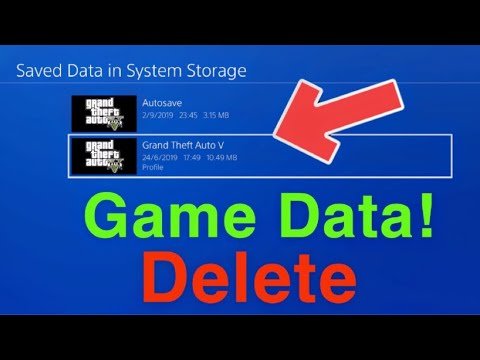
To delete game data on your PS4, go to Settings, then select Storage, choose Applications, pick the game, and select Delete.
Running out of space on your PS4? It’s a common problem. You might need to know how to delete game data ps4 to free up some much-needed storage for new titles or updates.
Clearing out old game data is simple and quick. You can easily manage your storage from your console’s settings menu. Just follow these easy steps and you’ll be good to go.

How to Delete Game Data on Your PS4
So, you’ve been having a blast on your PlayStation 4, racking up wins and exploring amazing worlds. But, just like with anything digital, your game data can take up space. Maybe you’re running low on storage, or perhaps you just want to clear out some old saves. Whatever the reason, knowing how to delete game data on your PS4 is a useful skill. This article will walk you through everything you need to know, step-by-step, to keep your PS4 running smoothly.
Understanding Game Data on PS4
Before we jump into deleting, it’s helpful to understand what exactly “game data” means. Think of it like this: every time you play a game, the PS4 stores information about your progress. This includes your save files (where you left off in the game), game settings, and any downloaded content like extra levels or characters. All of this is game data. It’s different from the game itself, which is stored on the disc or downloaded from the PlayStation Store. So, deleting game data won’t delete the entire game from your console.
Types of Game Data
There are a few main types of game data you’ll encounter:
- Save Data: This is the most important type of data for most players. It stores your game progress, allowing you to continue from where you left off.
- Game Patches and Updates: These files are downloaded to improve the game, fix bugs, and sometimes add new features.
- Downloadable Content (DLC): Things like extra characters, levels, or costumes that you download separately are also game data.
Why Delete Game Data?
There are several reasons why you might want to delete game data:
- Free up Storage Space: PS4 hard drives can fill up quickly, especially if you have many games. Deleting old save files and unused data can make room for new games or updates.
- Troubleshooting Game Issues: Sometimes, corrupted game data can cause problems. Deleting and reinstalling the game data may fix these problems.
- Starting Fresh: If you want to replay a game from the beginning without overwriting your old save, deleting the save data is necessary.
- Cleaning up Game Clutter: Over time, you might have data for games you no longer play. Deleting this can help organize your storage.
Accessing Game Data Management on your PS4
Now, let’s get to the actual deleting! The first thing you need to do is go to the Settings menu of your PS4. You can do this by following these easy steps:
- Turn on your PS4 console and log into your account.
- On the main screen, use the directional buttons (left stick or d-pad) on your controller to navigate to the top menu bar.
- Move right until you reach the icon that looks like a toolbox, this is the ‘Settings’ icon. Select it by pressing the X button on your controller.
Once in the Settings menu, we are ready to start managing your game data.
Deleting Game Save Data on your PS4
Here are the steps you can take to delete save data for your games:
- In the Settings menu, scroll down until you find “Application Saved Data Management”. Select it with the X button.
- You will see three options appear. Select the option that says “Saved Data in System Storage”.
- Next, choose “Delete”.
- A list of your games will appear. Select the game you want to delete saved data for.
- You will now see the specific saved data for that game. You can either select individual save files to delete, or select all of them by using “Select All” at the top of the list.
- Once you have selected which data you want to delete, choose the “Delete” option. The saved data will be removed from your console.
Important Considerations When Deleting Save Data
Before you click that delete button, there are some important things to keep in mind:
- Double Check Your Selections: Make absolutely certain that you’ve selected the correct data to delete. Once deleted, save data is often gone for good unless you have a backup.
- Cloud Saves with PlayStation Plus: If you have PlayStation Plus, your save data may be backed up to the cloud. You can download it again after deletion, however this process will require an internet connection. If you delete cloud save data, it will not be recoverable.
- Save Data Cannot Be Retrieved: Once save data is deleted, it cannot typically be recovered. Therefore, you need to be very sure that you don’t need the file before you choose to delete it.
- Deleting All Save Data: Deleting all of the data for one game will completely erase your progress on that game. Make sure this is your desired outcome.
Deleting Game Installation Files on your PS4
Sometimes, you might want to delete the entire game installation itself from your console. This is different from deleting save data; it removes the game files but leaves your save data if it is still needed. Here is how to delete the game installation files:
- From the PS4 main screen, go to the “Settings” menu again.
- Scroll down to “Storage”, then select it.
- Select “System Storage” and then select “Applications”.
- You will see a list of all the games installed on your PS4.
- Choose the game you wish to uninstall.
- Press the OPTIONS button on your controller.
- Choose “Delete”.
- A confirmation window will appear. Click “OK” to confirm and delete the game.
Why you would delete a game installation:
- Free Up Large Amounts of Space: Game installation files are much larger than save data files, so deleting them can free up a lot of space quickly.
- Uninstall Games: If you are done with a game or will no longer be playing it, uninstalling it is a good way to clean up your console.
- Reinstall Games: Sometimes, a game might not run correctly. Deleting the game data and re-downloading/re-installing it will sometimes resolve the problem.
Managing Downloadable Content (DLC)
DLC is another type of game data that can be managed. Here’s how to handle it:
- Go to “Settings”, then “Application Saved Data Management”.
- Select “Saved Data in System Storage”.
- Select “Delete”.
- Choose the game with the DLC you want to delete.
- Look for a sub-menu or extra data that corresponds to the DLC.
- Select the DLC you want to remove and click “Delete”.
Points to remember when dealing with DLC:
- Re-downloadable Content: DLC is often linked to your PlayStation account and can usually be re-downloaded from the PlayStation Store without paying again.
- Game Specific: How DLC appears in this menu will vary from game to game. It might be under ‘add-ons’ or another sub-menu.
Deleting Game Patches and Updates
It’s not possible to manually delete game patches and updates on your PS4, but it is not necessary as the system is designed to automatically manage these files and updates on your behalf.
- Automatic Management: The PS4 manages game patches and updates automatically. When you uninstall the game, related updates will also be deleted.
- Reinstalling Games: If you reinstall a game after deleting it, the PS4 will automatically download the latest patches as needed.
Additional Tips for Managing PS4 Storage
Here are some extra tips to help you keep your PS4 storage organized:
- External Hard Drive: Consider using an external hard drive to expand your storage. You can move installed games and save data there.
- Regular Checkups: Every few months, check your storage to see what you are no longer using.
- Use Folders: If you have many games, you can use the folders functionality on the PS4 to organize your library.
Deleting game data on your PS4 is a straightforward process that can help you keep your console running smoothly and efficiently. By understanding the different types of data and how to manage them, you can take control of your storage space and enjoy your gaming experience to the fullest.
How to Delete Saved Game Data On PS4 Console (Easy Tutorial)
Final Thoughts
To remove game data on your PS4, navigate to Settings, then select Storage. Choose the System Storage or Extended Storage and then select Applications. Find the game you want to remove data from and then press the options button.
Select delete and confirm your action. This process removes the game itself, including the associated save data. If you wish to keep your saves, you should back them up to cloud storage or USB. This outlines how to delete game data ps4 effectively.

