
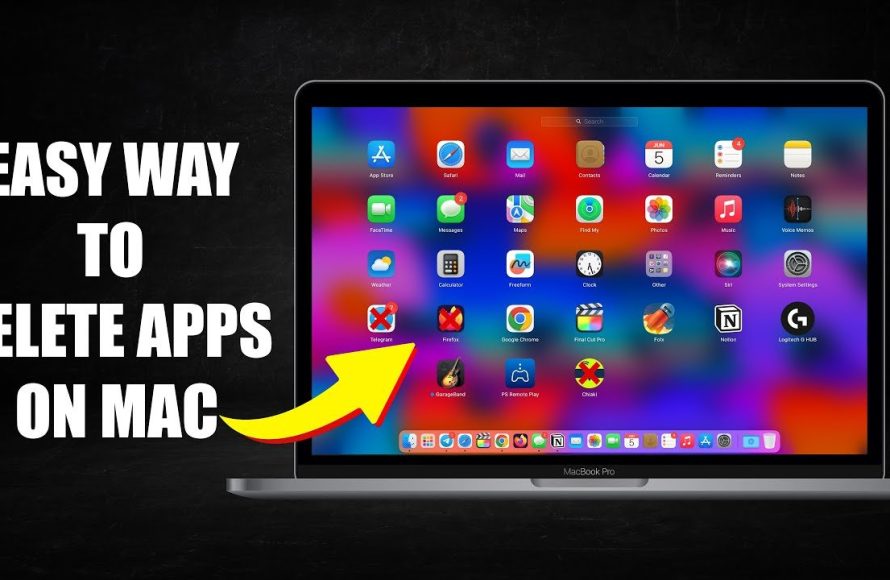
To delete games from Mac, drag the game’s application icon from your Applications folder to the Trash, then empty the Trash. Alternatively, you can use Launchpad to remove games.
Is your Mac’s storage feeling a little cramped lately? Perhaps you’ve accumulated a collection of games you no longer play. Knowing how to delete games from mac effectively can be key to reclaiming valuable disk space. It’s a surprisingly simple task, actually. We’ll walk you through the quick steps to remove those unwanted games.

How to Delete Games from Mac: A Complete Guide
Having a lot of games on your Mac can be super fun! But sometimes, you might want to clear up some space or maybe you’re just not playing those games anymore. This guide will show you all the ways you can delete games from your Mac, making sure it’s clean and running smoothly.
Understanding How Games are Installed on Macs
Before we jump into deleting, it’s helpful to know how games usually get onto your Mac. This can help you find all the pieces you need to remove. Most games are installed in a few different ways:
- App Store: Games from the Mac App Store are the easiest to deal with. They usually come in a single package.
- Drag-and-Drop: Some games are downloaded as a file (.dmg) or a folder. You drag the game’s icon into your Applications folder to install them.
- Installers: Games from websites often use a special installer that puts files in different places on your computer.
- Steam & other Platforms: Platforms like Steam have their own game libraries and management systems. These have their own uninstallation method inside the platform.
The Basic Drag-and-Drop Method
This is the most common and easiest way to remove most games. It is used for games that are contained within a single application file (or a folder). Here’s how you do it:
- Open Finder: Click on the Finder icon (it looks like a smiling face) in your Dock.
- Go to Applications: In the Finder window, click on “Applications” in the sidebar.
- Find the Game: Scroll through the list until you see the game you want to remove.
- Drag to Trash: Click and drag the game’s icon to the Trash icon in your Dock.
OR
- Right-Click: Right-click (or Control-click) on the game icon.
- Select Move to Trash: In the menu that pops up, click “Move to Trash.”
- Empty Trash: To completely remove the game and free up space, right-click on the Trash icon in your Dock and select “Empty Trash”.
Important: After you drag a game to the trash, it’s not completely gone until you empty the trash. Just like throwing away a piece of paper, the game is still there until the trash is taken out!
Uninstalling Games from the Mac App Store
Games downloaded from the Mac App Store have a slightly different way to remove them. This is a bit similar to deleting a game from your phone.
- Open Launchpad: Click the Launchpad icon (it looks like a rocket ship) in your Dock.
- Find the Game: You’ll see all your installed apps. Find the game you want to remove.
- Click and Hold: Click and hold the game icon for a few seconds. The icons will start to wiggle.
- Click the X: You will see a small “X” icon appears on the corner of app. Click the “X” on the game icon.
- Confirm: A confirmation message will pop up, asking if you’re sure you want to delete the game. Click “Delete.”
That’s it. The game is now removed from your Mac.
Deleting Games Installed with an Installer
Some games come with their own installer programs. These installers might put game files in different places on your Mac. These often come with their own uninstaller applications too. Here’s how to find and use them:
Locating the Uninstaller
Sometimes, the uninstaller is in the same folder as the game:
- Go to Applications: Open Finder and click on “Applications” in the sidebar.
- Find the Game Folder: Look for a folder with the game’s name.
- Look for “Uninstall”: Inside the folder, you should look for a file named “Uninstall [Game Name]” or something similar.
- Run the Uninstaller: Double-click the uninstaller application and follow the instructions on the screen.
Manual Removal (If No Uninstaller)
If you can’t find an uninstaller, you may need to manually remove the game files. Be careful and double-check every step when doing this:
- Drag the Game to Trash: First, drag the main game application from your Applications folder to the Trash. (Follow the method explained in the “The Basic Drag-and-Drop Method” section).
- Check the Library Folder: Open Finder. Click on “Go” from the top menu, hold the “Option” key, and click on “Library.” This opens a hidden folder.
- Look for Game Files: Go into these folders one by one, and look for the name of the game. Check for files/folders that have the name of the game, if you find something, delete them.
- Application Support: This folder is for extra files that applications use.
- Caches: Temporary files.
- Preferences: Settings for the game.
- Empty Trash: Finally, empty the Trash to permanently delete these files.
Important Note: Be very careful when deleting files in the Library folder. Accidentally removing other files can cause problems with your other applications and your Mac. If you’re unsure, it’s best not to delete anything.
Uninstalling Games from Steam and Other Platforms
If you play games using platforms like Steam, you’ll need to remove games through those platforms.
Uninstalling from Steam
Steam has its own system for removing games. Here’s how it works:
- Open Steam: Open the Steam application on your Mac.
- Go to Library: Click on “Library” at the top of the Steam window.
- Find the Game: Find the game you want to delete in your list of games.
- Right-Click: Right-click (or Control-click) on the game name.
- Select Manage: Select “Manage” in the menu that pops up.
- Click Uninstall: Then, click “Uninstall”
- Confirm: Steam will ask you to confirm. Click “Uninstall” again.
Steam will remove the game from your computer. The game may remain in your Steam library, but it won’t take up space on your hard drive.
Other Platform
The uninstallation process will vary slightly between platforms. Generally, if you have games on platforms other than steam, the same method will work. Look for the game, right-click it, select “manage” or something similar and then “uninstall”.
Finding Leftover Files
Sometimes, after you remove a game, you might find that some files still remain on your computer. These leftovers won’t hurt your Mac, but they do take up space. To clear the remaining leftovers, follow the steps mentioned in the ‘Manual Removal (If No Uninstaller)’ section.
Using Third-Party Uninstallers
If you find deleting games manually a hassle, you can use third-party uninstaller applications. These apps help to remove both the main app and any associated files from your computer. These apps can make removing games faster. However, some of these apps can be costly. You should download them from reliable places.
Tips to Keep Your Mac Clean and Organized
- Regularly Check Your Applications: Once in a while, go to the Applications folder to see what you have and delete games that you don’t play anymore.
- Use Launchpad: The Launchpad gives a good overview of the apps you have, which makes it easier to see if you have some game that you do not play anymore.
- Empty the Trash Often: Make it a habit to empty the Trash regularly to free up storage space.
- Use Disk Space Management: Mac has a built-in tool that helps you manage your storage space. To open it:
- Click the Apple icon in the top left of your screen.
- Click “About This Mac.”
- Click on “Storage.”
- Click on “Manage.”
Deleting games from your Mac is not difficult. Whether you’re using the simple drag-and-drop method or going through Steam, you now have a way to remove games that you don’t play, and make room for new ones! Cleaning up your computer makes it run better, and you will have more space for the things you need. Remember to empty the trash after deleting the apps. If you are still confused, then consider using third-party uninstaller applications.
How to Uninstall Programs on Mac | Permanently Delete Application on Mac
Final Thoughts
To summarize, deleting games from your Mac is a straightforward process. You can remove games directly from the Applications folder by dragging them to the Trash, or use Launchpad. Emptying the Trash is essential for complete removal of the game files.
The process may differ slightly depending on where you installed the game initially. Some games may require you to use their own specific uninstallers. This method helps ensure you also get rid of associated files.
If you followed these steps, you learned how to delete games from Mac. Removing unwanted games helps free up valuable storage space.

