
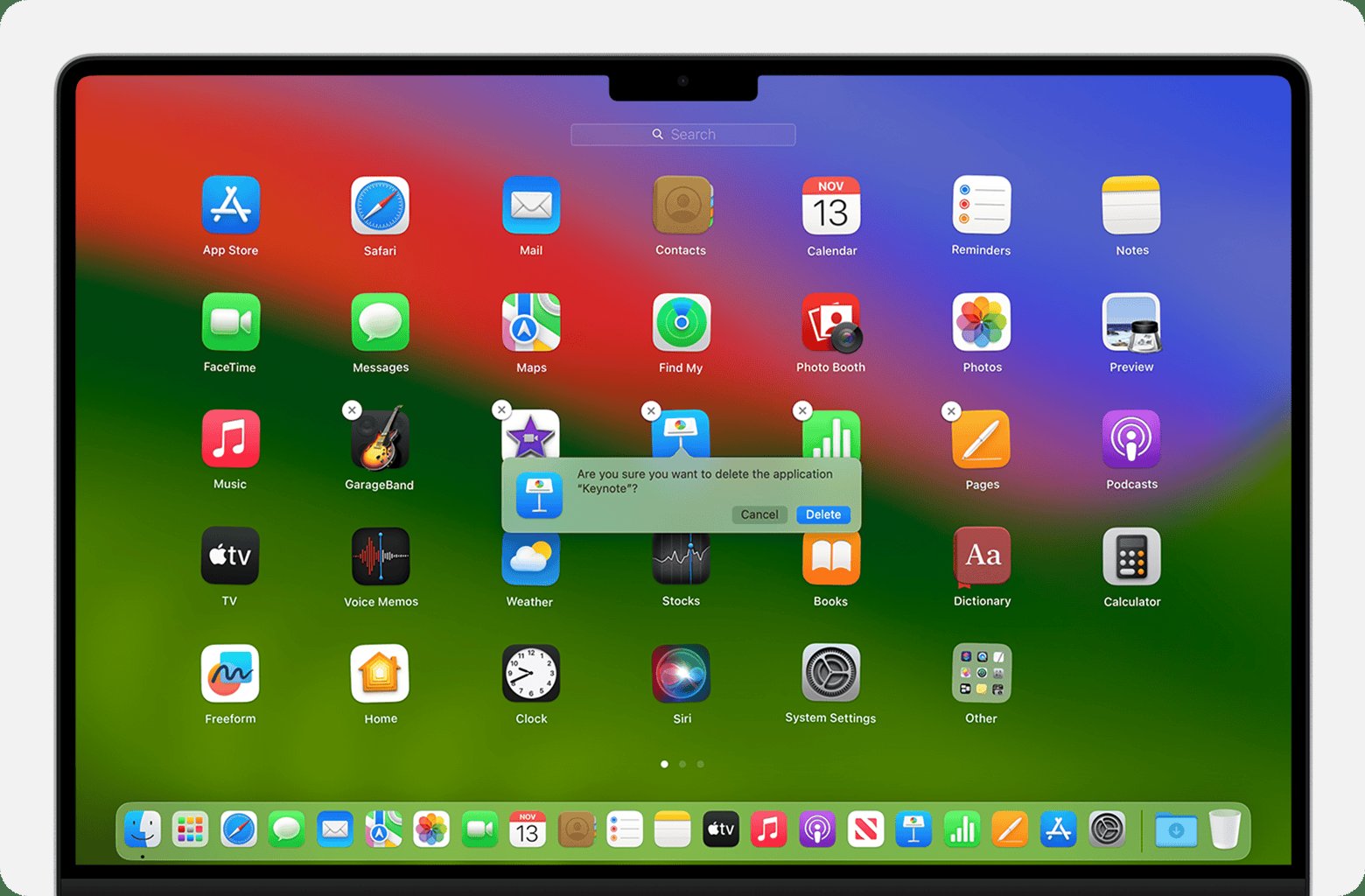
To delete games on Mac, you can typically drag the game’s application icon from your Applications folder to the Trash. Alternatively, you can find the game in Launchpad and press and hold the Option key (or right-click) to delete it.
Is your Mac feeling a bit sluggish? Maybe it’s time to clear out some digital clutter, specifically those games you no longer play. Knowing how to delete games on Mac can free up valuable storage space.
It’s a quick and simple process, and we’re here to walk you through the most effective methods. We’ll show you how to remove those unwanted game files so you can get back to a faster and cleaner computer.

How to Delete Games on Mac
Okay, so you’ve got some games on your Mac that you don’t play anymore. Maybe they’re taking up too much space, or maybe you just want to clean things up. That’s totally understandable! Deleting games on a Mac isn’t hard, but there are a few different ways to do it, depending on where you got the game. Don’t worry, we will guide you through each one. This guide will make sure you learn every method for how to delete games on mac. This article will provide information about deleting all types of games from a variety of sources like, apps store, steam or from the web download. So, let’s get started and reclaim some storage space!
Deleting Games from the Applications Folder
Most of the time, when you install a game on your Mac, it ends up in the Applications folder. This is like the main place where all your programs live. This method is the most straightforward one, here’s how to remove them:
Finding the Applications Folder
First, you need to get to the Applications folder. Here are a few easy ways to do it:
- Using Finder: Click the Finder icon (it looks like a smiling face) in your Dock. Then, in the sidebar on the left, click “Applications.”
- Using Spotlight: Click the magnifying glass icon in the top-right corner of your screen. Type “Applications” and press Enter.
Moving Games to the Trash
Once you’re in the Applications folder, you’ll see a list of all your apps and games. Follow these steps to remove the game:
- Find the game you want to remove. It should have a clear icon and name.
- Click on the game icon and drag it to the Trash icon at the bottom-right of your Dock. You can also right-click (or Control-click) on the game and choose “Move to Trash.”
Emptying the Trash
Moving a game to the trash doesn’t delete it right away. It’s like putting it in a bin. You have to empty the bin to actually delete the files:
- Right-click (or Control-click) on the Trash icon.
- Click on “Empty Trash.”
A window might pop up to ask if you’re sure. Click “Empty Trash” again. The game is now gone!
Deleting Games Downloaded from the Mac App Store
If you got your game from the Mac App Store, the process is slightly different. The Mac App Store keeps track of the apps and games you have downloaded, and it has its own way of removing them.
Using Launchpad
Launchpad is a quick way to see and manage all the apps and games you have installed on your Mac. Here’s how to remove games through Launchpad:
- Click on the Launchpad icon in your Dock. It looks like a rocket ship.
- Find the game you want to remove.
- Click and hold the game’s icon until all the icons start to jiggle. You will also notice a small (x) mark on the upper-left corner of each app.
- Click the “x” mark on the game you want to remove.
- A message box will ask for a confirmation. Click delete and the app will be removed.
The game will immediately removed from your system and you won’t need to empty the Trash.
Deleting Games from Steam
Steam is a popular place to get computer games. If you downloaded a game through Steam, you have to delete it through Steam.
Opening the Steam Application
First, launch the Steam application:
- Click the Steam icon on your Dock, or search for it using Spotlight.
Uninstalling Through Steam
Follow these steps to uninstall the games:
- Click on the “Library” at the top of the Steam window.
- Find the game you want to remove in the list.
- Right-click (or Control-click) on the game’s name.
- Hover your mouse over “Manage” and then select “Uninstall.”
- Confirm your choice when prompted. Steam will then uninstall the game.
Why This Method is Important
Steam keeps track of all the games you’ve purchased. Uninstalling the game through the Steam app is the best way to delete the game, so that you avoid any issues related to residual files.
Deleting Games Installed Directly from the Web
Some games you might have downloaded directly from a website. These games often come as .dmg files or as a folder containing the game files. Deleting these types of games require a slightly different approach, but it is just as easy!
Removing the Application File
The game might have a specific application file, often found in the Applications folder. To remove this file:
- Go to the Applications folder by using the method mentioned earlier.
- Find the game’s application.
- Drag the app’s icon to the Trash or right click and choose “Move to Trash”.
- Empty the Trash as explained earlier to remove the files.
Dealing with .dmg Files
Sometimes, the game you downloaded comes with a .dmg file. This file is like a package that contains the game. You should remove this file too, as you no longer need it.
- Go to the folder where you downloaded the .dmg file. It’s usually the Downloads folder.
- Drag the .dmg file to the Trash or right click and choose “Move to Trash”.
- Empty the Trash to completely remove it.
Removing Folders and Associated Files
Some games may install some files at other places on your Mac. Make sure you delete all these files. Here’s how:
- Open Finder.
- Click “Go” in the menu bar, and select “Go to Folder.”
- Type
~/Libraryand click “Go.” - Look for a folder with the game’s name. These might be in folders like “Application Support” or “Preferences.”
- If you find any folders or files related to the game, drag them to the Trash.
- Empty the Trash.
By cleaning up all the related files, you can ensure that no leftover junk is taking up space on your Mac. However be careful while deleting files from the library folder because it can cause some problems to your applications, if you don’t remove the right files.
Cleaning up Leftover Game Files
Sometimes, when you delete a game, some small files might be left behind, like temporary files or configuration files. These leftover files don’t take up much space, but they can clutter your computer. Cleaning them up is an extra step you can take if you want a really clean machine.
Using Third-Party Cleaning Tools
There are apps and programs that help you find and remove leftover files. These tools search your computer for any files that belong to removed programs. Some of the commonly used cleaning apps include:
- CleanMyMac X
- CCleaner
- DaisyDisk
Using the Finder
You can also manually look for and remove leftover files. Here’s how to check:
- Open Finder and go to the “Go” menu.
- Select “Go to Folder” and enter
~/Library/Application Support/and press Enter. - Look for any folders that have the name of the game you removed, then delete them if you find any.
- Go to the “Go to Folder” again and this time enter
~/Library/Preferences/and press Enter. - Find files that contain the game’s name, and move them to the Trash.
- Empty the trash to completely remove these files.
Why it’s Important to Remove Games Correctly
Deleting games correctly is important for several reasons. First, it helps keep your Mac running smoothly. If you just delete the game application without removing associated files, it can create problems. These residual files can slow down your machine, and also can waste space. Secondly, some games could collect personal data. Removing the game and associated files is important for protecting your privacy. Third, correct uninstallation helps keep your software organized. It will help you to find the apps, and games you actually want on your computer.
Tips for Managing Game Storage on Mac
Once you know how to remove games, you should use some tips to manage your storage better. This will keep your Mac fast and organized.
Regularly Uninstall Games
Make it a habit to check your applications and remove the ones you no longer use. This is important because when you play a game, the files size might increase due to various files being created by the app. So, it is important to delete those files as well, if you want a healthy system.
Use an External Drive for Game Storage
If you play games with large file sizes, consider storing them on an external hard drive. You can use the external drive to install the game there so that it does not fill up your primary drive. This is a great way to keep your computer’s internal storage free for important apps and programs.
Check for Game Updates
If your favorite games have updates, make sure you download and install the latest updates, because many updates come with game optimization and they actually decrease the size of the game. If you are using very old game version, that may take up extra space, but when you update them, their sizes may be reduced.
Organize Your Applications Folder
It will be very useful if you organize your apps in folders based on different types, such as games, document applications, editing applications, so that it becomes easier for you to find the apps you want quickly and you can then quickly remove the games or applications that you don’t need.
Removing games on a Mac is a skill you can easily master. Whether you’re freeing up space or just keeping things organized, these steps will help you. By following the methods above, you can keep your computer clean, efficient, and ready for your next adventure. Always remember to empty the Trash to completely remove files, and use cleaning tools for leftover files, if necessary. With these tips, you can enjoy a smoother Mac experience!
How to Uninstall Programs on Mac | Permanently Delete Application on Mac
Final Thoughts
To delete games on your Mac, you can move them from the Applications folder to the Trash. Another method is using the game’s own uninstall feature, if it has one. Always empty your Trash to permanently remove the game files. This action will also free up valuable storage space on your Mac.
These simple steps help you remove games and keep your system clean. Knowing how to delete games on mac is essential for maintaining your device’s performance. Remember to check for associated files in other locations when needed.

