
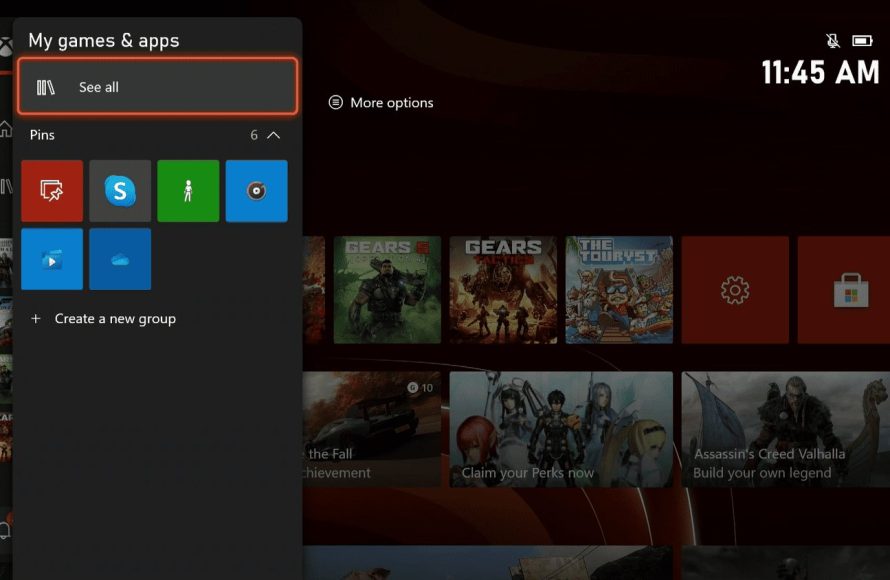
To delete games on Xbox Series S, navigate to ‘My games & apps’, select the game, press the Menu button, choose ‘Manage game & add-ons’, then select ‘Uninstall’.
Is your Xbox Series S storage feeling a little cramped? You’re not alone! Many gamers find themselves needing to free up space for new titles. Learning how to delete games on Xbox Series S is actually quite straightforward, and will get you more room for your favorite games quickly.
We will show you the simple steps involved in removing unwanted games. It will help you to manage your console’s storage effectively and keep your library organized. Let’s dive into it!

How to Delete Games on Xbox Series S
Running out of space on your Xbox Series S? It’s a common problem! Games these days are huge, and it doesn’t take long to fill up that storage drive. Luckily, deleting games is easy. This guide will walk you through exactly how to do it, step-by-step, so you can free up space for new adventures.
Understanding Your Xbox Series S Storage
Before we dive into deleting, let’s talk a little about your Xbox Series S storage. The console comes with a built-in solid-state drive (SSD), which is super fast, making games load quickly. However, the downside is that the drive isn’t very big. This is why knowing how to manage your game library is important. You’ll need to periodically delete games to make space for new ones. If you have purchased an external hard drive, it will be very necessary to know how to delete from both, your internal drive and also external storage. Let’s first go through internal storage deletion first.
The Xbox Series S provides a helpful way to view how much storage you’re using for games and apps. It’s also a great way to see which games are taking up the most space, which helps you decide what to delete.
Checking Your Storage Usage
Here’s how to check your Xbox Series S storage and know how much space you have left.
- Press the Xbox button on your controller to open the guide.
- Go to “Profile & system,” then select “Settings.”
- Select “System,” then “Storage.”
- You’ll see a breakdown of how much space you’re using, including a section for games and apps. This gives you a clear view of how your storage is being used.
Understanding how your storage is being used will help you make the best decisions when deleting games. This way you can prioritize which games need to stay, and which games can be removed to make space for others.
Deleting Games from Your Xbox Series S Internal Storage
Okay, now for the main event – deleting games. Here’s the step-by-step method to remove games from your Xbox Series S internal drive. This will also work with a few minor changes for external storage.
Method 1: Deleting from My Games & Apps
This is the most common and straightforward method to delete games, it’s really easy.
- Press the Xbox button on your controller to open the guide.
- Select “My games & apps.”
- Go to “See all.”
- Navigate to “Games”.
- You will see a list of your installed games and apps.
- Highlight the game you want to delete.
- Press the Menu button on your controller (the button with three horizontal lines).
- Select “Manage game and add-ons.”
- Select “Uninstall”. A prompt will appear and you can select uninstall to confirm the deletion.
That’s it! The game will start to uninstall. The time it takes to remove will depend on the game’s size. Larger games will take longer to delete. You can usually do other things on your Xbox while it’s deleting.
Method 2: Deleting from the Storage Settings
Another way to delete games is via storage settings. This method is useful if you want to see which games are taking up the most space.
- Press the Xbox button to open the guide.
- Go to “Profile & system,” then “Settings.”
- Select “System” and then “Storage.”
- Select the storage device you want to remove from (typically the “Internal” storage.)
- Select “Manage Storage Devices”
- Select “Free up space”. This will give a breakdown of each game that is installed on your console and also their size.
- This will show the game and apps installed on the device.
- You can sort by game size if you wish.
- Select the game you want to remove, and select “Uninstall”
- Confirm by selecting “Uninstall” from the prompt.
This method is useful because you can quickly see the size of each game, making it easier to pick out the largest games to delete first, maximizing the free space you create.
Managing Games on an External Hard Drive
If you have connected an external hard drive to your Xbox Series S, deleting games from it is similar to deleting from the internal drive, but with a slight change. Here’s how to do it.
Deleting Games from an External Drive using My Games & Apps
The steps to delete games from an external hard drive using “My games & apps” are very similar to removing games from your console’s internal storage.
- Press the Xbox button to open the guide.
- Select “My games & apps.”
- Go to “See all”.
- Navigate to “Games”.
- You will see a list of your installed games and apps.
- Change the Filter at the top of the screen to show “External Storage”
- Highlight the game you want to delete.
- Press the Menu button on your controller (the button with three horizontal lines).
- Select “Manage game and add-ons.”
- Select “Uninstall”. A prompt will appear and you can select uninstall to confirm the deletion.
The game will be uninstalled from the external drive. You can verify this by checking your storage settings or by going to “My games and apps”, to make sure it has been removed.
Deleting Games from an External Drive via Storage Settings
This method works almost exactly the same as deleting from the internal drive, but there is one key difference.
- Press the Xbox button to open the guide.
- Go to “Profile & system,” then “Settings.”
- Select “System” and then “Storage.”
- Select the external storage device.
- The name of your external hard drive will show up here.
- Select “Manage Storage Devices”
- Select “Free up space”. This will give a breakdown of each game that is installed on your external storage and also their size.
- This will show the game and apps installed on the device.
- You can sort by game size if you wish.
- Select the game you want to remove, and select “Uninstall”
- Confirm by selecting “Uninstall” from the prompt.
By deleting in this manner you make sure that you’re removing games from your selected external hard drive. You will notice that deleting a game from an external drive usually happens quicker than from the internal drive.
Important Things to Remember When Deleting Games
Deleting games on your Xbox Series S is generally easy, but there are a couple of important things to keep in mind.
- Game Saves Are Different: Deleting a game doesn’t delete your saved progress for that game. Your save data is stored separately in the cloud, so you can download games again and continue from where you left off.
- If you need to remove your save data you have to manually remove it.
- Game Reinstallation: You can always re-download a deleted game from the Xbox store if you decide you want to play it again in the future. As long as it is connected to the same Xbox account.
- Purchased games are tied to your account, not your console.
- Game Pass Games: If you are deleting games from Game Pass, they will disappear from the library. You will have to re-download the game to play. As long as the game is available on Game Pass it can be downloaded at any point.
- You must have an active Game Pass subscription to play games downloaded via this method.
- Add-ons: Deleting a game also removes most of its add-ons. You may need to re-download these when you reinstall the game.
- Certain add-ons may be able to be downloaded individually.
Tips for Managing Your Storage
Here are some additional tips to help you manage storage and make the best use of your hard drive.
- Use an External Hard Drive: Consider buying an external hard drive for additional game storage, if you have a large amount of games. This is cheaper than upgrading the internal drive.
- Make sure the external hard drive is fast enough for Xbox Series S games.
- Prioritize Game Install Location: When installing a game, choose the fastest storage location. The internal SSD is the fastest storage option on the Xbox Series S and should be prioritized.
- When the internal hard drive is full, you can pick an external drive to store games.
- Regular Checkups: Check your storage frequently, this helps to avoid reaching maximum capacity.
- Uninstall Unplayed Games: If you haven’t played a game in a while, you may want to delete it to save space for something new. You can always re-install when needed.
- Games can be re-downloaded in a relatively quick time.
- Use the Sort Option: When managing your storage use the sort by size option to see the largest games at the top of the list.
By following these tips, you can keep your storage in check and enjoy playing the latest games without worrying about running out of space.
Hopefully, this guide has made deleting games on your Xbox Series S simple and straightforward! Now go make some room for more exciting adventures.
How to Delete/Uninstall Games on Xbox Series X/S
Final Thoughts
To delete games on Xbox Series S, simply navigate to “My games & apps”. Select “See all” and highlight the game you wish to remove. Press the menu button on your controller.
Then choose “Manage game and add-ons” and then “Uninstall”. You’ve now freed up space. Knowing how to delete games on Xbox Series S is essential for managing storage.

