
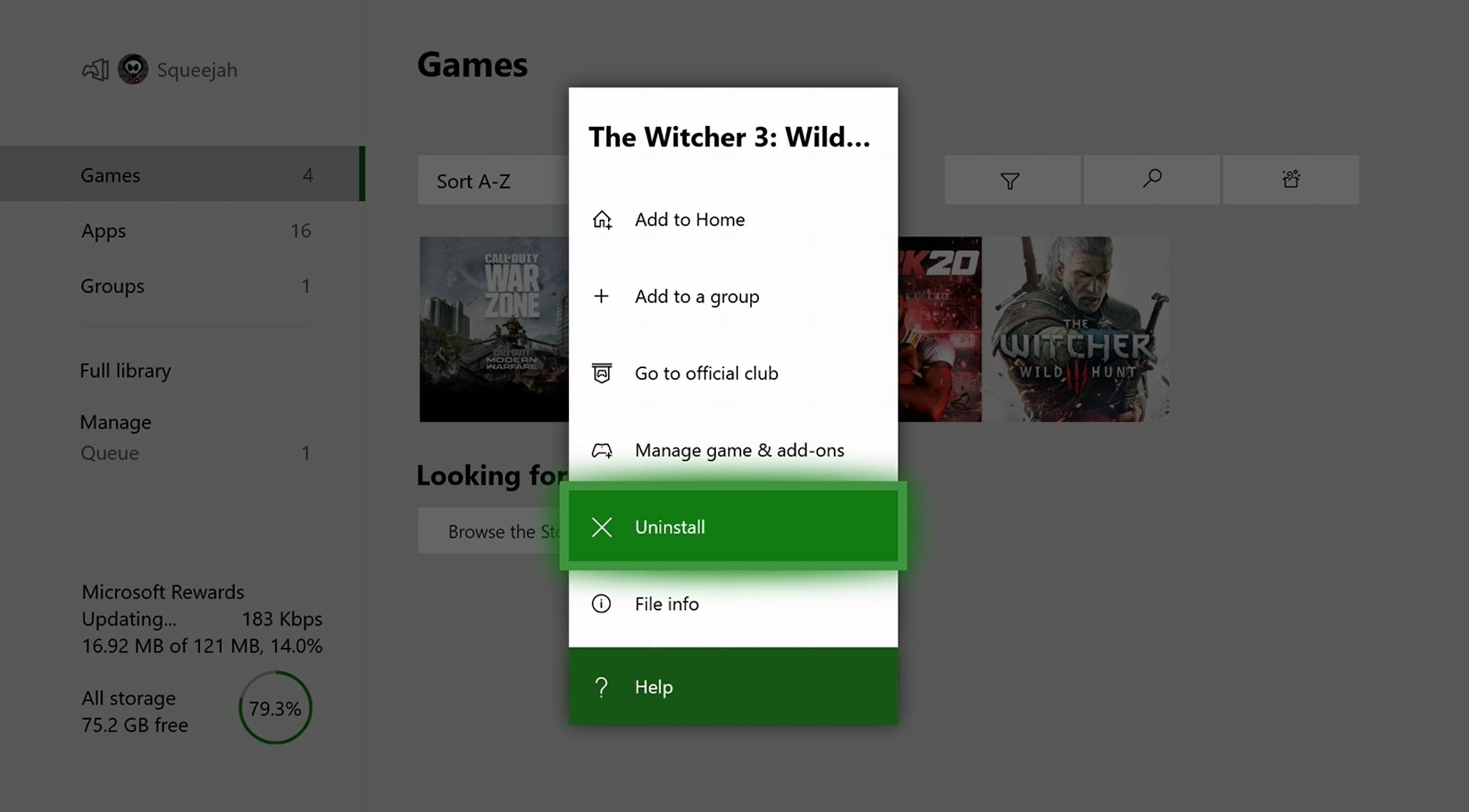
To delete games on your Xbox One, go to “My games & apps,” highlight the game, press the menu button, and then select “Uninstall.”
Running out of space on your Xbox One is frustrating, especially when you want to install a new game. This is why knowing how to delete games xbox 1 is very useful. We often install games with good intentions but then our priorities change.
Learning how to quickly remove those old titles can free up much needed hard drive space. Follow these steps, and keep your Xbox One running smoothly.

How to Delete Games Xbox One
Okay, so your Xbox One is starting to feel a little cramped, huh? Maybe you’ve got too many games taking up precious space, or perhaps you’ve finished a game and are ready to move on. No problem! Deleting games on your Xbox One is actually pretty easy once you know the steps. This guide will walk you through everything you need to know, so you can keep your console running smoothly and have room for new adventures.
Why Delete Games on Your Xbox One?
Before we dive into the how-to, let’s quickly talk about why you might want to delete games in the first place. It’s not just about making more space; it can also help with other things.
Freeing Up Storage
This is probably the biggest reason. Xbox One games, especially newer ones, can take up a lot of storage space. By deleting games you’re not playing anymore, you create room for new ones or for game updates. This helps your console run better, too. When your hard drive is full, it can slow down the entire system.
Organization
A clutter-free game library is a happy game library! Deleting games helps you keep your collection organized, making it easier to find the games you actually want to play. No more scrolling through endless lists of games you forgot you even had!
Troubleshooting
Sometimes, game data can get corrupted. If a game is acting weird, deleting and reinstalling it can fix the problem. Think of it like giving your game a fresh start.
Making Room for Game Updates
Sometimes, you might have a huge update you need to download, but your hard drive is already full. Deleting a game you don’t play anymore is a quick way to clear up the space you need for that.
Different Ways to Delete Games
Now that you know why you might want to delete games, let’s get into the how. There are actually a few different ways to do this on your Xbox One. We will take a look at each and break them down so that you can use any of them.
Deleting Games from My Games & Apps
This is the most common way to delete games and probably the one you’ll use the most. Let’s go through it step by step:
- Turn on your Xbox One and sign in. Make sure you’re using the profile that has the games you want to delete.
- Go to “My games & apps.” You can find this by pressing the Xbox button on your controller (the glowing button in the middle) and navigating to the right to find My games & apps on the dashboard. You will see all installed games here, and all the applications that are on the Xbox One.
- Select “See all.” This will open a bigger view of your entire game and app library.
- Highlight the game you want to delete. Scroll through the list or use the search function to find the game you no longer want. Don’t select it; just highlight it.
- Press the Menu button. This is the small button with three horizontal lines on your controller. It’s to the right of the Xbox button and start button.
- Select “Uninstall.” A small pop-up window will appear and ask if you want to uninstall the game.
- Select “Uninstall” again to confirm. The game will be removed from your Xbox One. It might take a little while if the game is large.
That’s it! The game is gone, and you’ve got more space on your console.
Deleting Games from the Storage Settings
This method is really helpful when you want to see how much space each game is taking up. It’s also good if you want to delete several games at once.
- Go to “Settings”. Press the Xbox button, navigate to the right to find the System tab, and then select “Settings”.
- Go to “System”. It’s usually the top option.
- Select “Storage”. Here, you’ll see your console’s storage devices and how much space is being used.
- Select the storage device. Usually, it’s just “Internal” if you have not added extra storage. Choose the storage where your games are installed that you wish to delete.
- Select “View contents”. This will show you all games and apps installed on that storage device.
- Select “Games.” This will show a list of all your games on that storage device.
- Highlight the game you want to delete. Just like in the previous method, highlight the game you want to remove, and don’t select.
- Press the Menu button. Again, this is the small button with three horizontal lines.
- Select “Uninstall.” A confirmation box will pop up.
- Select “Uninstall” again to confirm. The game will be removed from your Xbox One.
Using this method allows you to see how much space each game is using, making it easier to decide what to remove. This can be a quick and useful way to manage storage.
Deleting Games from the Ready to Install Section
This method is a bit different because it deals with games that you own but aren’t currently installed on your Xbox One. This can be useful if you have a lot of games in your library and want to clean up the “Ready to Install” list by deleting them from that list.
- Go to “My games & apps.” Press the Xbox button on your controller, navigate to the right to find My games & apps on the dashboard.
- Select “See all.” This will open the full view of your game and application library.
- Select “Ready to install”. This is where games that you own but are not installed are listed.
- Highlight the game you want to remove. Select any game from the list that you don’t want to install or see here anymore.
- Press the Menu button. This will open the menu that is associated with that game.
- Select “Remove from list”. This will not delete the game itself, but it will remove it from the “Ready to install” list.
This option is excellent for keeping your “Ready to Install” section nice and clean. It also means that you can always go back and download the game if you want to in the future without having to purchase it again.
What Happens When You Delete a Game?
It’s understandable to be a bit hesitant before deleting a game. So, let’s clarify exactly what happens when you remove a game from your Xbox One.
Game Data is Deleted
The main thing is that the game files are removed from your console’s storage. This includes the main game files and any updates that you might have downloaded. This frees up space, so you can get other games or updates.
Game Saves Usually Stay
Here’s the good news: in most cases, your game saves are not deleted when you uninstall a game. These are usually stored separately in the cloud and linked to your Xbox profile. So, you can normally reinstall a game and pick up where you left off. There are some rare exceptions, but most of the time, your progress is safe.
You Can Re-download Games Anytime
Just because you delete a game doesn’t mean you’ve lost it forever. If you purchased the game digitally or have it on a disc, you can re-download or re-install it anytime. If you purchased it digitally, you can go to the “Ready to install” section of your games and apps, and you will see the game listed there.
Game Licenses Remain
Your game license, which confirms you own the game, isn’t affected when you delete the game files. It’s linked to your Microsoft account, so you’ll still have access to the game. This is important to remember; otherwise, you may be afraid you have lost the game entirely.
Common Questions About Deleting Xbox One Games
What if I deleted a game by mistake?
It happens! If you accidentally deleted a game, don’t worry. As long as you own the game digitally, it will appear in the Ready to Install area. You can just re-download it. If you have a physical disc, just put the disc back in to install it. Also, the saved game progress will likely be there, since the game saves are usually stored in the cloud.
Will deleting a game delete all the saves?
No, for the most part, game saves are stored separately, usually in the cloud. This means that uninstalling a game will not delete your game progress or your saves. If for any reason, they are not stored in the cloud, then they will be deleted with the game, so keep an eye on your storage.
Will deleting a game cause problems with my Xbox?
No, deleting games is a normal part of managing your console, and it should not cause any issues. It frees up space, so your Xbox runs even better.
Can I delete a game that is installed on an external hard drive?
Yes, the same methods for deleting games also apply to games that are installed on an external hard drive. The process is exactly the same. Just make sure you choose the right storage device to see the games on it.
How do I see how much storage space I have left?
Go to Settings, System, and then Storage. There you can see all your internal and external storage devices and how much free space you have left.
Tips for Managing Your Xbox One Storage
Keeping your Xbox One’s storage organized is super important. Here are a few extra tips to help you out:
- Periodically Review Your Game Library: Make it a habit to look through your games and remove any you’re not playing anymore.
- Use an External Hard Drive: If you find yourself constantly deleting games to make room, consider getting an external hard drive. You can plug it into your Xbox One to add extra storage space.
- Check Your Save Data: Although most saves are stored in the cloud, some might be on your console. Check your save data from time to time and delete any you don’t need.
- Keep Games Updated: Make sure your games are always updated. This sometimes takes up more storage, but it makes the game work better and ensures better gameplay.
Deleting games on your Xbox One is pretty simple. The process only takes a few seconds, and it helps keep your console running smoothly. By following the tips, you can keep your console organized and have plenty of room for all of your adventures. Just remember, you can always re-download your games again later if you want to play them again. It is important to manage your games to have more room for new ones.
How to DELETE GAMES on XBOX ONE & Uninstall APPS (Easy Method!)
Final Thoughts
To delete games on your Xbox One, navigate to ‘My games & apps’. Select ‘See all’, then highlight the game you want removed. Press the ‘Menu’ button, then choose ‘Manage game & add-ons’.
Now, select the game’s icon and pick ‘Uninstall’. This removes the game from your console. The process to delete games xbox 1 is simple and frees up space. Remember to confirm your choice.

