
To delete Steam game saves, you generally need to locate the game’s save folder on your computer and then manually remove the files.
Ever felt the urge to start a game fresh, but those old save files are hanging around? It’s a common desire, and knowing how to delete Steam game saves is key. These files often stay hidden, but removing them is quite straightforward once you know where to find them.
You might want to free up space, begin a new story path, or fix some corrupted data. The process is different for each game, but usually, saves are in your local Steam folder.
We’ll quickly show you how to get your games back to a clean slate, enabling you to enjoy your games anew.

How to Delete Steam Game Saves
Okay, so you’re looking to get rid of some old game saves on Steam? Maybe you want to start a game fresh, or perhaps you’ve got a bunch of old saves cluttering things up. It’s a pretty common thing, and thankfully, it’s usually not too tricky. Let’s dive into how to do it. This guide will show you different ways to delete your game save files, step-by-step. We’ll talk about both local save files on your computer and cloud saves that Steam keeps. We will also cover other aspects, like how to locate them. This can be a simple task, once you know where to look and what to do.
Understanding Steam Save Files
Before we jump into deleting anything, it’s helpful to know a bit about where Steam keeps your game saves. There are two main places you need to think about:
Local Save Files: These are the game saves stored on your actual computer, in files on your hard drive.
Cloud Saves: These are save files that Steam stores online, so you can pick up your game where you left off, even if you switch computers.
It’s important to understand the difference between these because deleting one may not delete the other. For example, if you delete a local save, but your game uses cloud saves, Steam might just download the cloud save again next time you play.
Why Delete Game Saves?
There are several reasons why you might want to delete game saves. Here are a few of the most common:
Starting Over: You might just want to start a game with a clean slate, without any of your old progress.
Fixing Glitches: Sometimes, a game save can become corrupted, causing problems or glitches. Deleting the save and starting over can fix these.
Freeing up Space: If you have tons of save files, they can take up space on your computer. Getting rid of old ones can help clear things up.
Experimenting: You might want to try a different approach to playing a game, and it might be easier to start with a blank slate rather than try to undo previous decisions.
Managing Multiple Profiles: You or your family members might want separate profiles for a game without messing with each other’s progress.
Deleting Local Steam Game Saves
Local save files are the game saves physically stored on your computer. The location of these files can vary depending on the game. Some games store save files in very obvious places, while others hide them away deep inside your computer’s folders. But don’t worry, we’ll cover the most common places to find them.
Finding the Game Save Location
Here are some general spots where you’re likely to find local game saves:
My Documents/Documents Folder: Many games store save files here. Look for a folder with the game’s name or the publisher’s name inside the “Documents” folder.
Appdata Folder: This is a hidden folder, but it’s common for games to keep their saves here. To get to Appdata on Windows, type %appdata% into the search bar and press Enter. Look for the Local or Roaming folder, and then find folders named after the game or its publisher.
Steam Installation Folder: Sometimes games store save files within the Steam folder. This is usually located in C:\Program Files (x86)\Steam, but it might be different if you changed the install location.
Game’s Install Folder: In some instances, saves are right alongside game’s install files, inside the game’s folder within your Steam library.
How to use Steam to Find Game Folders
A very convenient way to find your save game locations is through the Steam launcher. Follow these steps:
- Open your Steam client.
- Navigate to the Library section.
- Find the game you’re interested in deleting save files for and right-click on its title.
- Select the “Properties” option from the pop-up menu.
- In the window that opens, select the “Installed Files” tab.
- Click the “Browse” button. This will immediately open the game’s folder on your hard drive. From here you can explore the folder for the save files.
Examples of Common Save File Paths
To help you get started, here are a few common examples of where game saves might be stored:
Minecraft: %appdata%\.minecraft\saves
The Witcher 3: Documents\The Witcher 3\gamesaves
Skyrim: Documents\My Games\Skyrim\Saves
Grand Theft Auto V: Documents\Rockstar Games\GTA V\Profiles
Cyberpunk 2077: C:\Users\[Your User Name]\Saved Games\CD Projekt Red\Cyberpunk 2077
Terraria: Documents\My Games\Terraria\players
Keep in mind that these are just some examples. The exact location of your game saves might be different. If you can’t find the saves in any of these locations, a good way to check is to search your computer for files that have the game’s name in the file extension (.sav for example).
Important Note: Before you delete any files, it is highly recommended to back up your game saves, just in case you change your mind or mess up the removal process. Simply create a folder on your desktop and copy and paste the save files into it. If everything goes fine, you can delete the backup folder after you are satisfied with results.
Deleting Local Save Files
Once you’ve located the save files, deleting them is very simple.
1. Close the Game: Make sure the game is completely closed. Sometimes, if a game is running, it might not let you remove save files, or it might simply remake them.
2. Select the Files: Pick out the specific save files you want to remove. You can usually tell which save file is which using the date, time, or in-game save number (if the game uses a save numbering system).
3. Delete the Files: Right-click and select “Delete”. The files will be sent to your Recycle Bin (Windows) or Trash (Mac). If you’re sure you don’t need them, you can empty the Recycle Bin or Trash.
Caution: Always double check that you are deleting the correct files. Deleting the wrong files can sometimes cause other problems. Also, be aware that once these files are deleted from the Recycle bin, it might be impossible to restore them without external software.
Managing Steam Cloud Saves
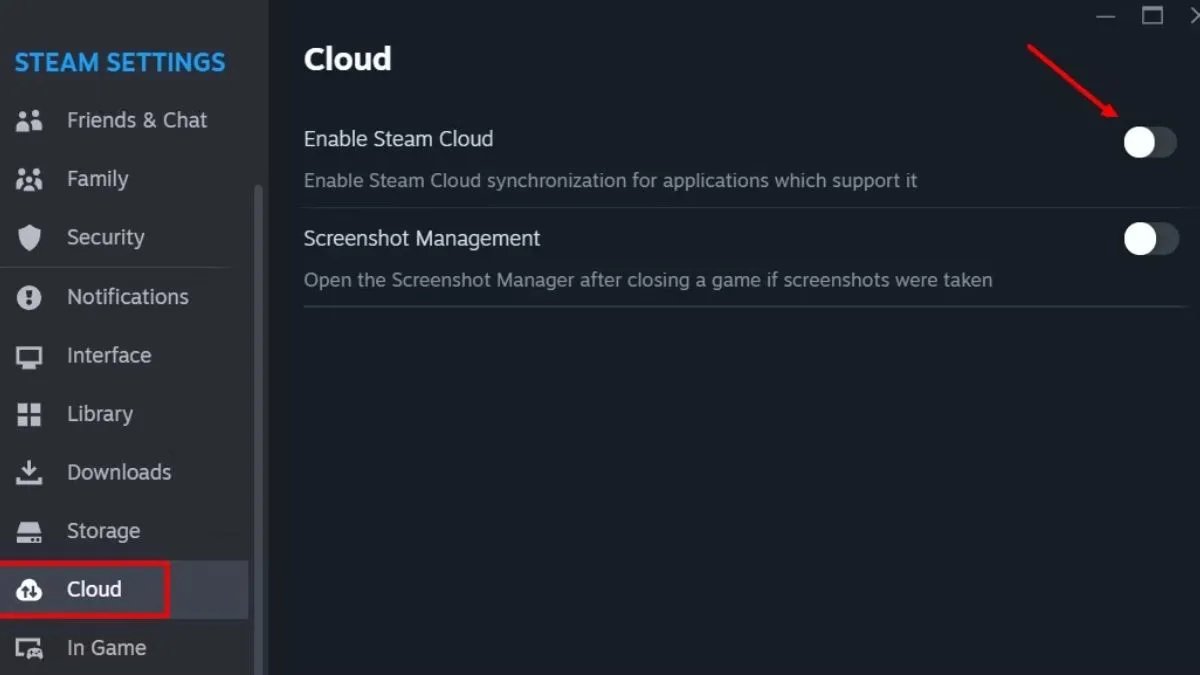
Steam Cloud saves make sure your game progress is backed up and synced online. This means you can start playing on one computer, then jump onto another computer and pick up exactly where you left off. This is pretty handy, but if you want to delete specific save data, you need to know how to work with cloud saves too.
Disabling Steam Cloud Sync for a Game
The first thing you might want to do is stop Steam from automatically syncing your cloud saves, as it might simply overwrite any local saves you deleted earlier. You can do this for individual games.
1. Open Steam: Start by opening your Steam client and going into your Library.
2. Find the Game: Locate the game you wish to turn off cloud saving for, and right click on it.
3. Go to Properties: Click on Properties.
4. Cloud Settings: Click on the “General” tab and locate the “Steam Cloud” section.
5. Uncheck the Box: Uncheck the box next to “Keep games saves in the Steam Cloud”.
After you’ve done this, Steam will stop syncing saves for that specific game. This way, you can more safely experiment with your local save files without Steam immediately undoing your changes.
Important Note: Disabling cloud sync might prevent you from using saves on another computer. Also, keep in mind that your saves may be overwritten if you enable the Steam Cloud Sync again, or even accidentally.
Deleting Cloud Saves
Deleting cloud saves isn’t as simple as deleting local files. You can’t just go into a folder and remove them. Instead, you often need to rely on the game’s save system, or on Steam itself.
Method 1: In-Game Deletion
Many games have their own menu for managing saves. If you want to delete cloud saves, start by looking inside your game itself. This method can sometimes directly delete both the local and cloud save together.
- Open the game.
- Go to the game’s “Load” or “Save” menu.
- Look for an option to delete specific saves.
- Use the game’s interface to delete the saves you no longer need.
When you do this, Steam should recognize that you’ve deleted the save and it will update the cloud version too. But sometimes, even if you delete saves in-game, the Steam Cloud doesn’t always immediately update. This may require further action from Steam’s interface.
Method 2: Using Steam’s Web Interface
Steam’s website has a page where you can see the saves associated with your account. It’s not a perfect system, but it can help you manage and sometimes clear cloud saves.
- Go to the Steam website and log in to your account.
- Once logged in, navigate to the Steam Cloud page. You can get there using this link: Steam Remote Storage
- You should see a list of games that have used Steam Cloud.
- Find your game you are looking for.
- From here, you may see some options for manipulating the cloud saves or just see the statistics of your saved files.
- Unfortunately, you might not be able to delete specific cloud saves from this page, since it is an overview. But it provides with an option to remove game saves entirely.
- In that case you can choose the option that deletes all saved data, and then it can then be re-synced in the game after you deleted the local files.
Method 3: Using Steam Client to Clear Cloud Saves
Sometimes, even deleting all save data in the game menu or through web interface does not clear the cloud data, in that instance a rather drastic measure has to be taken. The Steam client can override saved data, so this option will ensure that the old data is not synchronized.
- Close the game and Steam client if they are running.
- Start the Steam client again.
- Navigate to the library.
- Select the game for which you want to delete the cloud save files.
- Go to the game’s settings -> properties.
- Click on General tab and disable the Steam Cloud Sync checkbox.
- Start the game to verify if it indeed uses no data and starts fresh.
- If the game is now indeed using no old saved data, close the game and Steam client.
- Open Steam client again and enable the Steam Cloud Sync.
- Start the game and it will offer you the option to use local or cloud data, choose the local data, which is the new fresh start you want to start with.
Important Note: Cloud saves can be a bit tricky to manage, and sometimes Steam can be a little inconsistent. This is why if you are about to do serious tampering with save data, always back up your data first, so you don’t accidentally lose any progress that you wish to keep.
Dealing with Difficult Cases
Sometimes, deleting save files isn’t as simple as removing a few files. Here are some trickier situations you might encounter:
Game with Custom Save Systems: Some games use unique save file methods that might not store in the usual places. These games might have special tools for managing save data, so you may need to do a little research.
Hidden Files: Some games might hide save files in obscure locations or under weird file names. If you can’t find the files, try searching online or use an advanced search program to show hidden files.
Corrupted Saves: Sometimes if the save file gets corrupted, even deleting it does not fix the issue. In this case you can try disabling cloud saving, deleting all of the local files, disabling Steam, restarting Steam client, and then starting the game again.
Persistent Data: Some games might store certain data even if you delete the save files. This might be game-related settings, progress tied to an account, or just the game’s habit of creating a clean save file.
Games that use multiple save files: Some games will separate save file for the character you are playing and your progression in the campaign. In that case, you might need to delete multiple files to ensure a fresh start. Always be extra careful when dealing with multiple files, since one wrong deletion can sometimes spoil the overall progress.
Steam Workshop Files: It is not uncommon to encounter that your Steam games can download workshop content. This can also include save files. Usually it is easy to uninstall these from the Steam Workshop menu.
Tips for Tricky Cases:
Search Online: If you’re having trouble finding or deleting save files, try searching online for your specific game. There are tons of online forums and game wikis with information about where specific games store their files.
Check Game Forums: Often, game-specific forums will have tips and advice about managing save files, especially for games that have their own unique methods of save management.
Use File Explorer Search: The search function in File Explorer (Windows) or Finder (Mac) can be very helpful in finding those hard-to-locate files.
Double Check Everything: Before deleting anything, double-check to make sure you know what you’re doing. If in doubt, make a backup before you take any action.
Deleting Steam game saves might seem tricky at first, but with a little patience and understanding of where to look, you can manage your saves like a pro. This guide should have given you a good idea of how to handle different save file locations, cloud saves, and any tricky cases you might encounter. Remember always to proceed with caution, and you’ll be well on your way to a clean slate for your favorite games. Always ensure you know what you are deleting and backup everything in case anything goes wrong. Happy gaming!
How To Delete Steam Game Saves (Reset Steam Games)
Final Thoughts
To summarize, deleting local game saves is generally achieved via your computer’s file system or sometimes through in-game menus. Cloud saves often require navigating Steam settings or specific game options. Therefore, the process of how to delete steam game saves varies based on the save type. Always exercise caution and back up important saves before deleting them.

