
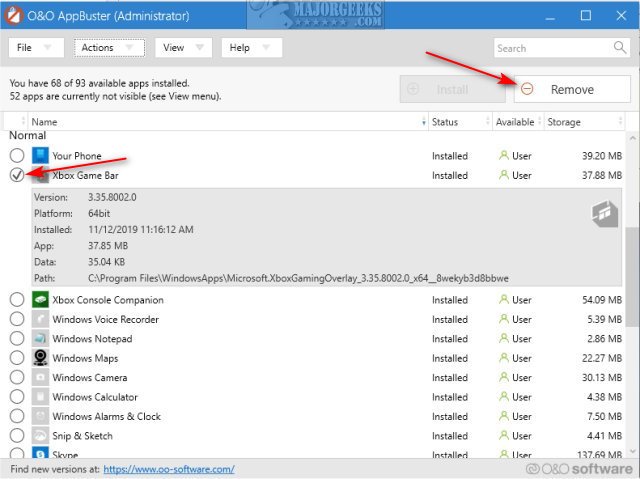
To delete Xbox Game Bar, you need to go into Windows Settings, then navigate to Gaming, then Xbox Game Bar, and toggle the switch to off. This disables it but doesn’t fully remove it. For a complete removal, you will need to use PowerShell with specific commands.
That persistent overlay popping up when you’re trying to focus can be quite annoying, right? Many users feel this way about the Xbox Game Bar, and often the question arises about how to delete xbox game bar completely. It’s understandable to want it gone if you don’t use its features.
While disabling it is straightforward through settings, a full removal requires a few more steps. We will guide you through both the disabling process and the more involved removal method.

How to Delete Xbox Game Bar
The Xbox Game Bar is a handy tool that comes with Windows 10 and 11. It lets you take screenshots, record game clips, chat with friends, and even keep an eye on your computer’s performance while you play games. However, sometimes you might not need it, or you may find it gets in the way. Maybe it’s popping up when you don’t want it, or you just prefer other methods for recording gameplay. If you’re looking to get rid of the Xbox Game Bar, you’ve come to the right place. This guide will show you several ways to remove or disable it, so you can choose what works best for you. Let’s explore the options!
Why Might You Want to Remove the Xbox Game Bar?
Before we jump into the how-to, let’s think about why you might want to remove the Xbox Game Bar in the first place. There are several reasons why someone might want to disable or delete this feature:
- Performance Issues: Some users report that the Xbox Game Bar can sometimes cause performance problems, particularly on older or less powerful computers. It might take up resources that you’d rather use for your games or other programs.
- Annoying Overlays: The Game Bar’s overlays can sometimes be distracting or pop up unintentionally, which can be annoying during gameplay or while you are working on something else.
- Conflict with Other Software: It might conflict with other screen recording or overlay software, causing issues with functionality.
- Simply Not Using It: If you don’t play games often or use its features, it might just feel like unnecessary software taking up space and resources.
- Privacy Concerns: Some users have concerns about data collection or background processes that they don’t want running.
Whatever your reason, it’s perfectly fine to remove or disable the Xbox Game Bar. Now, let’s get to the steps.
Disabling Xbox Game Bar Through Windows Settings
The easiest way to get rid of the Xbox Game Bar, if you don’t want to delete it, is to disable it in your Windows settings. This is a safe and reversible way to make sure it doesn’t bother you anymore.
How to Disable on Windows 10
Here’s how to do it in Windows 10:
- Click on the Start button (the Windows logo) at the bottom-left of your screen.
- Click on the Settings icon (it looks like a gear).
- In the Settings window, click on Gaming.
- On the left-hand side menu, click on Xbox Game Bar.
- You will see a toggle switch labeled “Enable Xbox Game Bar“. Turn this switch OFF.
That’s it! With this setting off, the Xbox Game Bar won’t open when you press the Windows Key + G keys or any other shortcut.
How to Disable on Windows 11
The steps are similar in Windows 11, but the interface looks a little different:
- Click on the Start button (the Windows logo) at the bottom-center of your screen.
- Click on Settings (the gear icon).
- In the Settings window, click on Gaming in the left sidebar.
- Click on Xbox Game Bar.
- You’ll see a switch labeled “Open Xbox Game Bar with this button on a controller” and a toggle switch labeled “Open Xbox Game Bar“. Turn OFF the switch next to the option “Open Xbox Game Bar.”
Now the Xbox Game Bar should not activate when you accidentally press the shortcut.
Disabling Xbox Game Bar’s Background Recording
Even with the Game Bar disabled, it may still be recording your screen in the background. Here’s how to turn that off completely:
Steps on Both Windows 10 and 11
- Go back to the Gaming section in your Settings (refer to the previous instructions on getting to the Gaming settings for your respective OS).
- Click on Captures in the left side menu.
- Under the “Background recording” section, turn the toggle switch for “Record in the background while I’m playing a game” to the OFF position.
By turning off background recording, you will save storage space and processing power since the Game Bar will no longer be saving game clips that you don’t intend to record.
Uninstalling Xbox Game Bar Using PowerShell
If you want to remove the Xbox Game Bar entirely, not just disable it, you can do that using PowerShell. This method is a little more advanced, so be careful and follow the instructions closely. Uninstalling will remove the application completely from your system. If you change your mind later, you can always download it again from the Microsoft Store.
Opening PowerShell as Administrator
First, we need to open PowerShell with administrator rights. This allows us to make system-level changes:
- Click on the Start button.
- Type “PowerShell” in the search box.
- Right-click on Windows PowerShell in the search results.
- Select Run as administrator.
- If asked, click Yes to allow PowerShell to make changes.
Uninstalling the Game Bar Package
Now that you have PowerShell open with admin rights, you can use a command to uninstall the Xbox Game Bar:
- In the PowerShell window, type or paste the following command:
Get-AppxPackage Microsoft.XboxGamingOverlay | Remove-AppxPackage - Press Enter.
- PowerShell may take a moment to process the command. You should not receive an error message if the uninstall is successful.
That’s it! The Xbox Game Bar is now uninstalled from your computer. You can close the PowerShell window now.
Reinstalling Xbox Game Bar
If you decide you want the Xbox Game Bar back, don’t worry; it’s easy to reinstall. You can find it on the Microsoft Store. Follow these steps:
- Click the Start button and open the Microsoft Store app.
- Search for “Xbox Game Bar”.
- Click on the Xbox Game Bar app in the search results.
- Click the Install button.
The app will download and install, and it will be available again on your system.
Alternative Ways to Record Gameplay
If your main reason for wanting to remove the Xbox Game Bar is because you need a way to record your gameplay, there are plenty of other great options. Here are a few popular alternatives:
- Nvidia ShadowPlay: If you have an Nvidia graphics card, ShadowPlay is a great built-in option. It offers high-quality recording with minimal impact on performance.
- AMD ReLive: If you have an AMD graphics card, ReLive provides similar features to ShadowPlay.
- OBS Studio: Open Broadcaster Software (OBS) is a free and very powerful recording and streaming software. It has a lot of options and can be used for a variety of purposes.
- Bandicam: Bandicam is a paid option that provides good performance and is easy to use. It has a lot of features and recording options.
- Action!: Action! is another paid option which is known for high quality recordings, low impact on performance and is relatively easy to use.
Consider which alternative fits your needs best. Some of these applications may have different system requirements, so be sure to check before installing.
Troubleshooting
Sometimes things don’t go exactly as planned. Here are a few issues you might come across and how to solve them.
PowerShell Command Fails
If the PowerShell command for uninstalling the Xbox Game Bar fails, try these steps:
- Make sure you ran PowerShell as administrator. If you didn’t, the command won’t have the necessary permissions. Close the PowerShell and restart it as an administrator as shown above.
- Double-check the spelling. A small typo in the command will cause it to fail. Copy and paste the command from this guide to make sure it’s correct.
- Restart your computer. Sometimes a simple restart can fix some issues related to system processes. After restarting, try the command again.
Game Bar Still Appears
If the Xbox Game Bar is still popping up even after you have disabled it in the Settings, verify the settings again to make sure that the toggle is still set to off. If it’s off and the game bar is still appearing check for specific game settings or updates for the game that you play that might be triggering the game bar. You can also try disabling all the related options under Captures as mentioned in the section “Disabling Xbox Game Bar’s Background Recording”.
Issues with Other Overlay Software
If you have another overlay software and are experiencing conflicts, try disabling or uninstalling that software to see if that resolves the issue. It is possible that the other overlay software is causing the Xbox Game Bar to conflict.
Deleting or disabling the Xbox Game Bar is a straightforward process, and you have several options to do it based on your preference. You can either disable it temporarily in Windows Settings, or completely remove it with PowerShell. You can always reinstall it later if you change your mind. Hopefully, this detailed guide helps you get your system working exactly the way you want!
How to Remove the XBox Game Bar on Windows 11
Final Thoughts
To delete Xbox Game Bar, you must first navigate to the settings app. Find ‘Gaming’ then select ‘Xbox Game Bar’. You can then switch the toggle off to disable it. This prevents it from appearing again.
You can also uninstall the app entirely. To do this, search for “Xbox Game Bar” in the start menu, right-click it, and select “Uninstall”. Following these steps is how to delete xbox game bar effectively.

