
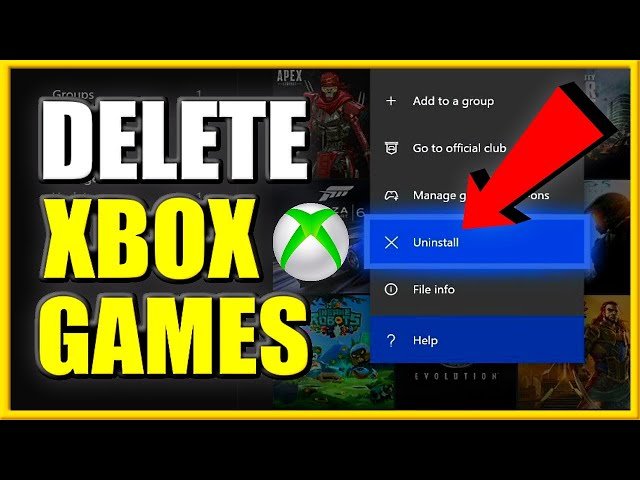
To delete Xbox One games, navigate to “My games & apps”, highlight the game, press the menu button, select “Manage game & add-ons,” then choose “Uninstall.”
Running out of space on your Xbox One? It happens! Sometimes you need to make room for new adventures, or perhaps you are just clearing out games you no longer play. This brings us to the important question of how to delete Xbox One games.
Deleting a game frees up valuable storage, which can improve console performance. The process is straightforward, and this guide will explain the required steps to help you manage your Xbox storage effectively.

How to Delete Xbox One Games
Running out of space on your Xbox One can be frustrating. You want to play new games, but your hard drive is packed! Luckily, deleting games is an easy process. This guide will walk you through the steps, showing you different ways to free up space so you can get back to gaming.
Why You Might Need to Delete Games
Before we dive into the “how-to,” let’s talk about why deleting games is sometimes necessary. Xbox One consoles come with a set amount of storage space. Over time, as you download more and more games, that space gets used up. Digital games, especially, take up a lot of room. Here are a few reasons why you might need to consider deleting some of your games:
- Not Enough Space: Your hard drive is full, and you can’t download or install new games.
- Performance Issues: A very full hard drive can sometimes slow down your console’s performance, making it run slower than usual.
- Making Room for New Releases: There’s a new game you’re excited about, but you need to clear some space to download it.
- Old Games: You have games you haven’t played in a long time and don’t plan to play again.
- Freeing up space for game updates: Large game updates may require more space on your hard drive. Removing a game makes that space available.
Different Ways to Delete Xbox One Games
There are a few different paths you can take to delete games on your Xbox One. Each method is simple, but let’s look at them individually to make sure you are comfortable with each option. Remember, deleting a game only removes it from your console’s storage. Your game licenses are still tied to your Xbox Live account, which means you can download the game again later without having to repurchase it. This is important so you don’t worry about losing game access.
Deleting from the My Games & Apps Menu
This is probably the most common and straightforward method. Here’s how to do it:
- Turn on your Xbox One: Make sure your console is powered up and you’re signed in to your profile.
- Go to My Games & Apps: From the Xbox Home screen, press the Xbox button on your controller. This opens the guide menu. Use the left stick or D-pad to select “My games & apps,” and then press A to open.
- Select “See all”: Inside the “My games & apps” area, choose the “See all” option. This displays all of your installed games and apps.
- Choose the game to delete: Browse your games using the left stick or D-pad, then find the game you wish to remove from your hard drive.
- Press the Menu Button: With the game you wish to delete highlighted, press the Menu button (it’s the button with the three horizontal lines). This will open a context menu.
- Select “Manage game”: From the menu that appeared, select the “Manage game” option.
- Choose “Uninstall”: In the “Manage game” screen, you will see options related to the game. Select “Uninstall”. You might get another pop-up asking you to confirm, Select “Uninstall” again.
- Wait for the game to delete: The game will now begin the removal process. The speed at which this process occurs depends on the game’s size.
After completing these steps, the game will no longer be on your Xbox One console. You are all set! If you want to play it again, you will need to re-download it from the Xbox Store, under “Ready to Install” or by inserting the game disc.
Deleting Directly from the Storage Settings
Another way to remove games is through the system’s storage settings. This way is beneficial if you want to see which game or application is taking up more space and you want a different approach from the previous method. Here’s how you can do it:
- Turn on your Xbox One: Make sure your console is powered up and you’re signed in to your profile.
- Open the Settings: From the Home screen, press the Xbox button on your controller to open the guide. Then, go to “Settings” and select it.
- Go to “System”: In the Settings menu, choose “System”.
- Select “Storage”: Inside “System,” select “Storage.” Here you’ll see a breakdown of all storage locations on your console, including your hard drive and external drives, if you have them.
- Choose a Storage Device: Select the storage device from which you want to delete a game. You will then see a list of games and applications, sorted from the largest to the smallest in size.
- Select the Game: Scroll through the list of games and select the one you want to uninstall.
- Choose “Uninstall”: After selecting the game, choose the “Uninstall” option.
- Confirm the Uninstall: You may be asked to confirm your choice. If prompted, choose “Uninstall” again to begin the removal process.
- Wait for the game to delete: Just like before, the speed at which this occurs depends on the size of the game.
Deleting from an External Hard Drive
If you use an external hard drive with your Xbox One, you’ll need to handle deleting from it in a slightly different way. It’s not much harder, just a few small differences.
- Turn on your Xbox One: Make sure your console is powered up and you’re signed in.
- Go to My Games & Apps: From the Xbox Home screen, press the Xbox button, go to “My games & apps,” and select “See all” as before.
- Filter by Storage Location: You’ll see an option near the top of the list, “Filter”. Press A to open and select your external storage device to filter for just the games and apps stored on that drive.
- Choose the Game to Delete: Find the game on the list that you want to remove.
- Press the Menu Button: With the game highlighted, press the Menu button.
- Select “Manage game”: From the menu, choose “Manage game”.
- Select “Uninstall”: Choose “Uninstall” and confirm it when prompted.
The game will be deleted from your external hard drive using these methods. If you’re ever thinking of removing the external drive completely, you should first move all the games to your internal drive or another external drive. If you simply remove the external drive, the game information will remain on the Xbox, but the games will no longer be playable.
What Happens When You Delete a Game?
Deleting a game removes it from your console’s storage, but it does not remove the game’s license from your account. This is a key concept, because it means you can re-download any game you own without having to pay for it again. Let’s be clear about what deletion means and does not mean:
- It Frees Up Space: The main reason to delete a game is to free up hard drive space.
- Your License Is Safe: Your purchase of the game remains linked to your Xbox Live account.
- Game Saves Might Be Affected: Game save data is usually stored separately (in the cloud). This means that deleting a game usually won’t delete your progress. But always be sure this is the case! Some games might keep saves on your hard drive.
- To check, go to the “Manage game” page, select your game, and you’ll see a “Saved Data” section. If it says “Cloud”, your progress is safe. If not, be careful before you uninstall!
- Re-installation is Easy: If you want to play the game again, you can easily re-download it from the Xbox Store or by inserting the game disc.
- Deleted game’s icon remains in the collection: Games you have deleted from your hard drive may still appear in your “Ready to install” section of your games list. They will have a small “download” icon next to them to remind you they need to be re-downloaded before you can play again.
Tips for Managing Your Storage
Here are some things that can help you manage your Xbox One storage effectively:
- Uninstall Games You Don’t Play: Be realistic about the games you’ll play again. If a game has been sitting unplayed for a long time, consider deleting it to free up some space. You can always re-download it later if you change your mind.
- Consider an External Hard Drive: If you consistently run out of space, consider buying an external hard drive. This will give you a lot more storage for your games. Modern external hard drives are fast enough that they won’t have a significant impact on gameplay.
- Manage Updates: Make sure you download game updates as soon as they are available. This not only fixes bugs, but can optimize the game and potentially reduce its file size. It’s always good to have the latest version of the game to avoid unnecessary issues.
- Use Cloud Saves: Always make sure your game saves are being backed up to the cloud. This will protect your progress even if you accidentally delete a game, or if your console needs a repair or replacement.
- Check Storage Usage Regularly: Take a look at your storage from time to time to see what’s taking up the most space. This will help you figure out what games or apps can be deleted to make some room.
- Game Pass Awareness: If you use Xbox Game Pass, be aware of which games you download with the subscription. When games are removed from Game Pass, you will lose access unless you purchase them. You might want to uninstall these games if you don’t plan to buy them.
By paying attention to your storage needs and managing your games effectively, you can ensure you’ll always have space for new releases and your old favorites. Deleting games is a simple process, and now you have a thorough understanding of how to keep your Xbox One ready for all your gaming needs.
Deleting games on your Xbox One doesn’t have to be a scary prospect. It’s a necessary part of owning a console with digital games. Just be mindful of your cloud saves and understand that you can always re-download a game if you change your mind. Follow these steps, and you’ll keep your Xbox One running smoothly and ready for action.
How to DELETE GAMES on XBOX ONE & Uninstall APPS (Easy Method!)
Final Thoughts
Deleting games on your Xbox One is straightforward. You can manage storage directly through the console’s settings. Navigate to “My games & apps” then choose “See all”.
Select the game, press the menu button, and pick “Manage game”. Finally, choose “Uninstall” to remove it from your hard drive. This process is quick and simple.
So, that’s how to delete xbox one games. Follow these steps to free up space effectively. Remember, you can always redownload games later.

