
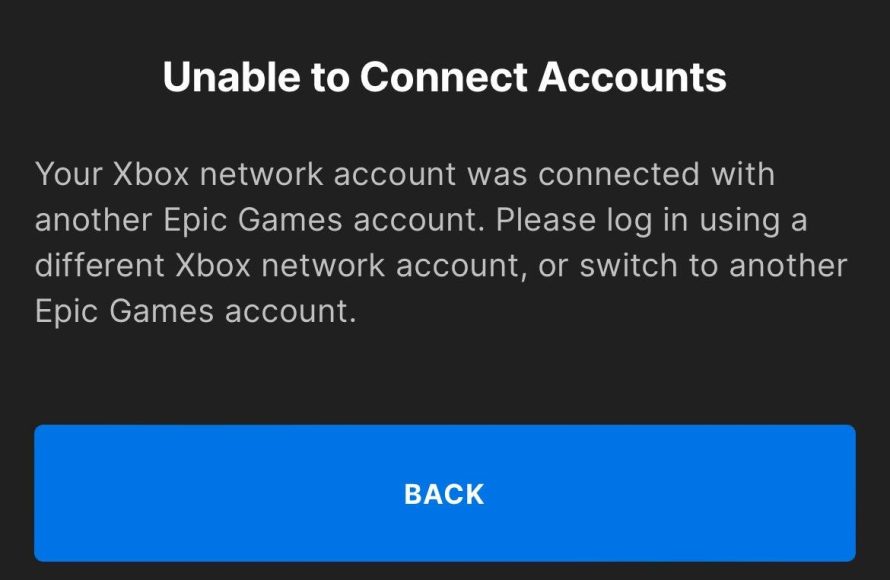
To disconnect your Epic Games account from your Xbox, you need to go to the Epic Games website, sign in, navigate to the “Connections” section, and then unlink your Xbox account.
Ever felt like your gaming accounts are a bit too tangled? It happens, especially when you’re juggling platforms. Sometimes you need a clean slate or perhaps you’re switching to a different setup. We understand the need for account management.
That’s where we come in, many gamers often ask how to disconnect epic games account from xbox. It might seem complicated, but it’s a straightforward process once you know the steps. This guide will show you exactly how to do it quickly and efficiently.

How to Disconnect Epic Games Account from Xbox
Okay, so you’re here because you want to disconnect your Epic Games account from your Xbox account. Maybe you have a new Epic account, or maybe you just want to keep things separate. It’s a common thing, and thankfully, it’s totally doable! This article will walk you through all the steps to successfully unlink these accounts. We will make it as easy and clear as possible, so you can get back to gaming without any headaches.
Why You Might Want to Disconnect
Before we jump into the ‘how,’ let’s talk about ‘why.’ There are a few good reasons why you might want to disconnect your Epic Games account from your Xbox account. Knowing these reasons can help you understand if disconnecting is the right step for you.
- Starting Fresh: You might have created a new Epic Games account and want to link that one to your Xbox instead. Maybe you want to use a different email address or have a brand new name.
- Account Mix-ups: Perhaps you accidentally linked the wrong Epic Games account to your Xbox account. This happens more than you’d think!
- Privacy Concerns: Some gamers like to keep their accounts separate for privacy reasons. If you prefer to keep your Xbox and Epic profiles distinct, unlinking is the way to go.
- Switching Platforms: Maybe you’re not using your Xbox as much now and want to link your Epic Games account to a different platform, like a PlayStation or a Nintendo Switch.
Important Things to Know Before You Disconnect
Before we get started, let’s go over a few crucial things. Unlinking your accounts can have some consequences, so it’s important to be prepared.
Data and Progress
When you disconnect your Epic Games account from your Xbox, your game data won’t automatically disappear. Your progress, purchases, and other items are tied to your Epic Games account, not your Xbox account. However, you will need to make sure you have the correct Epic Games account linked with your Xbox, or you won’t see your progress on Xbox.
Accessing Games
After unlinking the accounts, games you played on your Xbox using your Epic Games account can still be played, if you have the correct accounts re-linked. However, if you start playing a game on an Xbox with a different Epic Games account connected, you might not see all your old purchases and progress. You need to make sure to link the original Epic Games account that you used when you started. Double-check before proceeding.
Re-linking Considerations
Once you disconnect, you can link a different Epic Games account. However, there is a waiting period. Epic Games usually puts a 90 day waiting period on re-linking an Xbox account, if it has been unlinked from an Epic account. That means after you unlink your current Epic account, you may not be able to link the same Xbox account to any other Epic accounts. Keep this in mind.
Step-by-Step Guide to Disconnecting Your Accounts
Now for the part you’ve been waiting for! Here is a detailed, step-by-step guide to disconnecting your Epic Games account from your Xbox account.
Accessing the Epic Games Website
The first thing we need to do is to go to the Epic Games website. You can do this from your computer, phone, or tablet. Here’s how:
- Open your web browser (like Chrome, Firefox, or Safari).
- Go to the official Epic Games website: www.epicgames.com.
- Log into your Epic Games account. Use the email address and password associated with your account.
Navigating to Account Settings
Once you’re logged in, you need to find your account settings. Here’s where they are located on the website.
- Look for your name in the top-right corner of the screen. Click on it.
- A drop-down menu should appear. Choose the “Account” option.
- This will take you to your account settings page.
Finding the Connections Tab
Now, let’s find the section where your linked accounts are listed. Follow these instructions.
- On the left side of the account settings page, you will see a menu with several options.
- Click on “Connections.” This will show you all the accounts you’ve connected to Epic Games.
Locating Your Xbox Account
Now, we’re getting close. Let’s find your Xbox account on the list.
- Under the “Connections” tab, you should see a list of different services like “Xbox,” “PlayStation,” “Nintendo,” etc.
- Find the “Xbox” option. It will usually show a green checkmark indicating it is currently linked.
Disconnecting Your Xbox Account
Finally, it’s time to disconnect your accounts. Here’s how:
- Next to the “Xbox” option, you will see a button that says, “Remove.” Or in some cases it may look like an X next to the name of your linked account.
- Click on the remove or the X icon. A window may appear asking if you’re sure you want to disconnect.
- Confirm that you want to disconnect by clicking the appropriate button (like “Confirm” or “Unlink”).
Congratulations! Your Xbox account is now disconnected from your Epic Games account.
Confirmation and What to Do Next
After you disconnect, the page should update, and the Xbox logo should no longer show a green checkmark. It will likely show a “Connect” button. Here’s what to do next:
- If you want to link a different Epic Games account, log out of your current Epic Games account and log in to the one you wish to link. Then, follow the steps to link the accounts by clicking on the connect button.
- If you wish to play on Xbox, you will need to log into Xbox using your account, and then link the correct Epic account.
Troubleshooting Common Issues
Sometimes, things don’t go as smoothly as we plan. Here are some common problems you might encounter and how to deal with them.
Can’t Find the “Remove” Button
If you don’t see a “Remove” button or an X icon next to your Xbox account, try these steps:
- Double-check that you’re logged into the correct Epic Games account.
- Refresh the page. Sometimes the website doesn’t load properly.
- Try a different web browser. Sometimes, browser issues can cause problems.
- If the issue persists, reach out to Epic Games support. They can provide additional help.
Getting an Error Message
If you receive an error message when trying to disconnect, note it down and try these steps:
- Make sure your internet connection is stable. A spotty connection can cause issues.
- Try disconnecting at a different time. The Epic Games servers might be experiencing issues.
- Check the Epic Games support website for any reported problems.
- Again, contact Epic Games support if the issue continues.
Forgot your Epic Games Account Details
If you forgot the password or email associated with your Epic Games account, follow these steps:
- On the Epic Games login page, click on the “Forgot Password” option.
- Follow the instructions to reset your password using your registered email address.
- If you also forgot the email address, you’ll need to go through their account recovery process, which may require some extra information and communication with Epic Games support.
The 90-Day Wait
Remember, if you are trying to link your Xbox account to a different Epic Games account, you will have to wait 90 days. During this time, it’s very important to remember the original Epic Games account that you used. If you wait too long, it is very difficult to regain access to your old account and your game data and purchases.
Tips for Keeping Your Accounts Organized
After disconnecting, it’s a good idea to have a plan for managing your accounts going forward. Here are a few tips to keep things organized.
- Use a Password Manager: Use a password manager to keep track of your Epic Games account details, especially if you have multiple accounts. This will help prevent forgetting important account information.
- Write Down Account Info: Even with a password manager, write down your usernames and passwords for Epic Games and Xbox accounts and keep them in a safe place.
- Regularly Update Your Info: If you get a new email address or change your password, update your Epic Games account and Xbox account to reflect these changes. This will make things easier in the future.
- Double Check Before Linking: Before linking any accounts, double check to make sure that they are the correct account.
Disconnecting your Epic Games account from your Xbox account is a straightforward process, but it requires you to be careful and pay attention. Follow the steps in this article, and you’ll be all set to manage your accounts the way you want. Always remember to keep your accounts organized and secure. Have fun gaming!
How To Unlink Your Xbox Account From Epic Games
Final Thoughts
To disconnect your Epic Games account from Xbox, first visit the Epic Games website. Then, navigate to your account settings. Find the “Connections” option and select “Accounts.” You will see your linked Xbox account; click “Remove” to disconnect.
Confirm your choice, and the process finishes. Remember, this breaks the link between accounts. Now, you know how to disconnect epic games account from xbox.

