
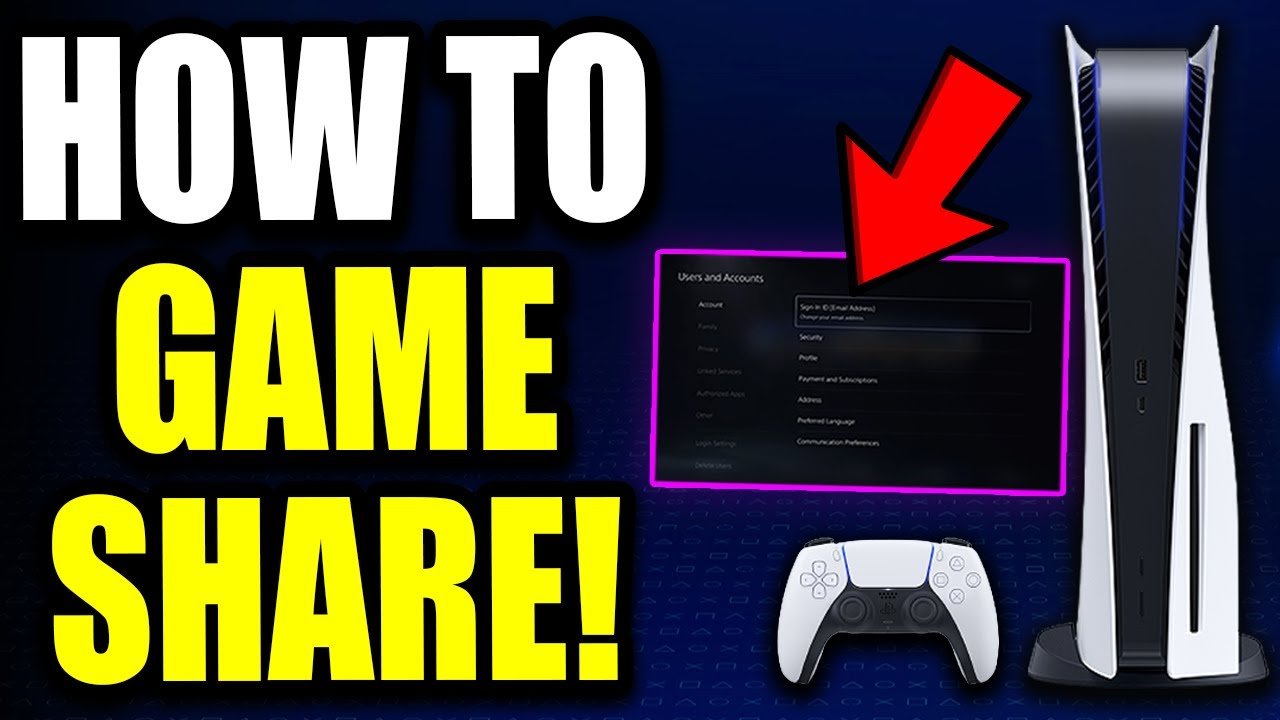
To do game sharing on PS5, you need to enable console sharing and offline play on the primary console, then sign in with your account on the secondary console where you intend to play shared games.
Want to play your friend’s games or let them enjoy yours on their own PlayStation? Figuring out how to do game sharing on PS5 can open up a whole new world of gaming possibilities. You can share digital games with someone else and save on cost.
It may sound complex but it is actually quite straightforward. This involves a few steps, making sure your primary and secondary console are correctly set up. We will guide you through this so you can get gaming with your friends soon.

How to Do Game Sharing on PS5
Sharing games with friends and family on your PlayStation 5 is a great way to enjoy more games without spending a ton of money. It lets you play games from your friend’s digital library, and vice versa, on your own console. Think of it like borrowing books from a library, but with video games! It’s officially called “Console Sharing and Offline Play” on the PS5, but most people refer to it as game sharing. This feature is designed for a household of close family members or friends to access each other’s game libraries on a maximum of two consoles at a time. This article will guide you through the process step by step, making sure it’s easy to understand and follow. We will also cover important rules, limitations, and tips to ensure smooth and fun game sharing. So, let’s dive in and learn how to share your amazing PS5 games!
Understanding Console Sharing and Offline Play
Before you start game sharing, it’s good to understand exactly how it works. The PlayStation 5 has a primary console setting. This means that each account on the PlayStation Network has one designated PS5 console as its primary one. The account holder’s primary console can play any of the account’s digital games, even when the console is offline. This is also the console where other users can use the account’s games. In simpler terms, the games you have purchased digitally on your account can be played by anyone who logs into that console. You need to activate “Console Sharing and Offline Play” to allow sharing of games with other users on your primary console.
Key Concepts:
- Primary Console: This is the console where your games are available for all other users. You can play them even if the internet goes down.
- Secondary Console: This is any PS5 console that is not your primary console. On this console, you have to be online, and you can only play the games of the account you are logged into.
- Account Holder: The user who purchased the game from the PlayStation Store.
- Game Library: The collection of digital games linked to an account.
Setting Up Console Sharing: A Step-by-Step Guide
To successfully do game sharing, you need to follow these steps carefully. Let’s go through the entire process. Remember, you need physical access to both consoles to set this up initially.
Step 1: Log in to the Primary Console
First, go to the PS5 that you want to set up as the primary console for your account. This is usually your own console. Make sure you’re logged in with your PlayStation Network account that has the games you want to share. This is very important!
Step 2: Enable Console Sharing
- From the PlayStation 5 home screen, go to Settings (the gear icon on the top right).
- Scroll down and select Users and Accounts.
- Choose Other.
- Select Console Sharing and Offline Play.
- If it says ‘Disable’, it’s already enabled. If it says ‘Enable’, click on it to activate.
By enabling this, you’ve made this console your primary console and made your game library available to other profiles on that same console.
Step 3: Log In on the Secondary Console
Now, go to the other PS5 console, the one you want to play your friend or family’s games on. You have to log into this PS5 with your own PlayStation Network Account. You will not be setting this PS5 as primary and must log in with the account you would want to play the games. Let’s say for example, your friend’s account contains the games you want to play, you would need to log in with your account on that console, which will now act as a secondary console.
Step 4: Accessing Shared Games on the Secondary Console
Once you’ve logged in with your account on the second console, you must navigate to your game library to see your games.
- Go to the Game Library, typically found on the far right of the Home Screen.
- Go to Your Collection, you will see the list of games you own.
- You won’t see your friend’s games here. To access games from other accounts on this secondary console, make sure that you are logged in with your account. Then, log into your account and go to the library and go to Your Collection to view your games.
That’s it! You should now be able to play the games owned by the account whose primary console was the first console you set up.
Important Rules and Limitations
Game sharing is awesome but not without some important rules. Knowing these will help prevent any problems and ensure everyone can continue to enjoy this great feature. Here are a few key things to remember:
Two Consoles Limit
A single PlayStation Network account can only have one primary console activated at a time. You can only share games between two consoles: the primary console and a secondary one. Trying to add a third one will deactivate the sharing on your original primary console.
Login Requirement
On the secondary console, the user accessing the shared games needs an internet connection. The primary console can play offline, but the secondary can only access shared games when it is connected to the internet.
Simultaneous Play
Only one person can play a game using the same account at a time. For example, if you are playing a game on the secondary console using your friend’s shared library, that same friend cannot use the same game while on their primary console. If the account owner on the primary console tries to play the game being played on the secondary console, the user on the secondary console will be kicked out of the game.
No Sharing PS Plus Benefits
PlayStation Plus benefits, like the monthly games, cloud storage, or online multiplayer, are not shared. If you have PlayStation Plus on one account, it won’t extend to other accounts on the same console. Each account needs its own subscription to take advantage of online features.
Deactivating and Changing the Primary Console
You can change your primary console at any time, but there’s a limit to how often you can do this. If you regularly change your primary console, you might hit a limit and have to wait before making changes again. So, be sure to stick with one primary console for a while before making changes.
Account Security
When doing game sharing, you are effectively giving access to your PlayStation Account on the secondary device. Make sure you trust the people you are game sharing with and don’t share with strangers. This prevents any malicious activity on your account. Remember to remove your account from a console if you are no longer sharing with that person.
Troubleshooting Common Issues
Even with careful setup, sometimes things don’t go as planned. Here are a few common problems you might come across and how to fix them:
Game Lock Error
If you’re getting a lock symbol on a game, it means your secondary console isn’t properly communicating with the PlayStation Network servers. It usually is caused by the fact that the server is not recognizing the game licenses of the primary console.
Here are a few things to check:
- Internet Connection: Make sure both consoles are connected to the internet.
- PSN Status: Check the PlayStation Network status page to see if there’s an outage. Sometimes, the server is down for maintenance.
- Restore Licenses: Go to Settings > Users and Accounts > Other > Restore Licenses, on the secondary console. This will check all your downloaded games and verify licenses from the primary console.
Primary Console Deactivated
If your primary console suddenly deactivates, double-check to make sure that the account owner isn’t changing settings on another console. If you are sharing with someone that has access to your account, ask if they have made changes. If that’s not the case, you might need to contact PlayStation Support for further help.
Games Not Appearing
If you cannot see the games on the secondary console’s library, you must be logged in with your primary account to see the list of the games on the second console. If you are on the secondary console and you want to see the shared games, please log into the account which owns the game on the second console.
Tips for a Great Game Sharing Experience
Here are some extra tips to make sure your game sharing runs smoothly:
Communicate With Your Sharing Partner
Open communication is key. Talk to your friend or family member about when you plan to play games, so you avoid any conflicts. You can make a simple schedule for game time.
Consider Different Game Types
Sharing single-player games is easier since you’re not competing for play time. If you’re sharing multiplayer games, plan to play together or take turns. This is so no one gets locked out of their games.
Keep Your Software Up-to-Date
Always make sure your PS5 is running the latest software. Updates often contain fixes that can help with game sharing and fix any bugs or issues that come up. Check the settings for system software updates.
Check for Game Restrictions
Some games or downloadable content (DLC) may have restrictions on sharing, such as exclusive content or season passes. Always check with the account owner on what games or DLCs you can access.
Don’t Share Account Information
While you’re technically sharing access to your game library, be careful about sharing sensitive account info such as your password, billing information or email address with anyone. It’s always better to keep these details secure. Only log into other peoples PS5 consoles, when you trust the users completely.
Consider Alternatives
If game sharing does not work for you or your sharing partner, consider buying physical versions of games and swapping them. This eliminates most of the problems found when game sharing digitally.
Making the Most of Game Sharing
Game sharing on the PS5 is an excellent way to save money and experience more games. It’s perfect for families and close friends, provided you follow the basic rules. By enabling “Console Sharing and Offline Play,” you open up a world of entertainment for yourself and others. Make sure you pay attention to limitations and follow the troubleshooting steps if issues come up. Communicate with the account owner, and remember to be respectful of the other users so that everyone can enjoy the game. Game sharing can be an amazing feature that everyone can enjoy if used correctly.
Remember, have fun playing together and enjoy the shared library!
How to Game Share on PS5! (EASY) (2024) | SCG
Final Thoughts
To share games on PS5, enable console sharing and offline play on your friend’s console and set it as your primary. Sign in with your account to access games. Remember, only one console can be primary for your account.
This allows your friend to access your digital games. If you wish to play at the same time, you need to be on another console than the primary one. That’s how to do game sharing on PS5, it’s straightforward.

