
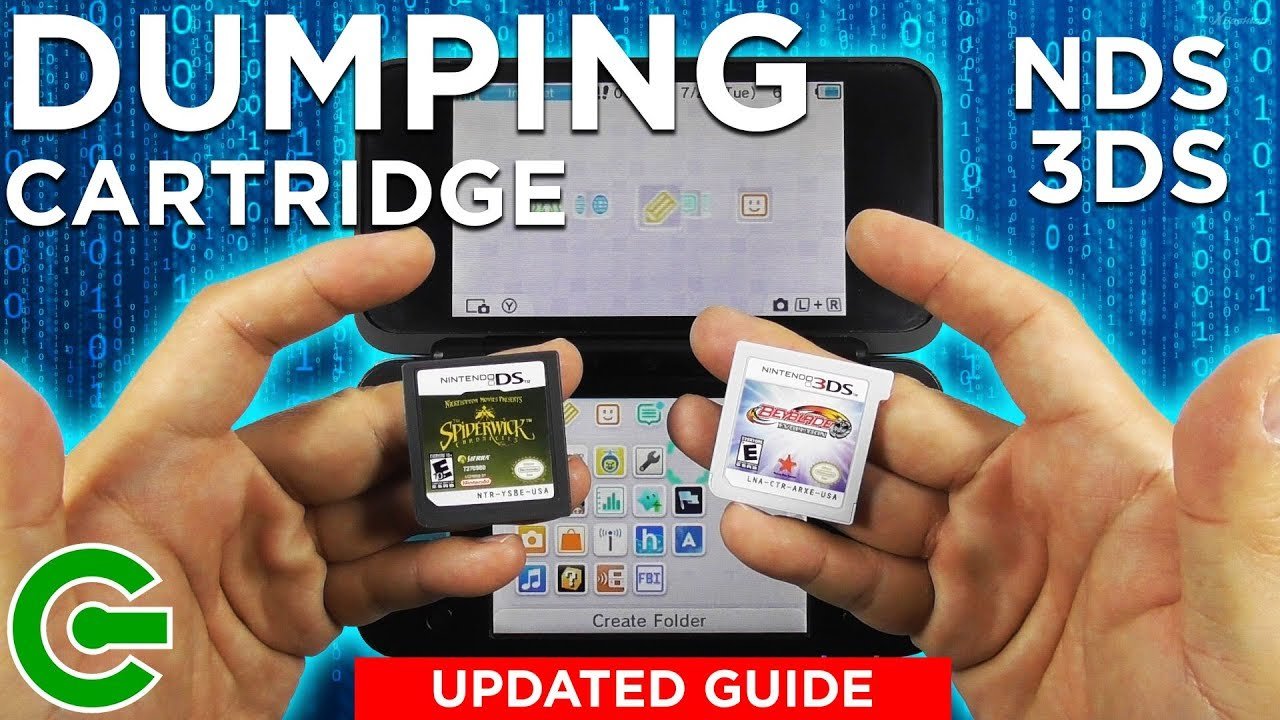
Dumping 3DS games requires a modified 3DS console with custom firmware and software like GodMode9 or a similar tool to extract the game files.
Want to back up your favorite Nintendo 3DS games? The process involves a bit more than just copying files, but it is manageable. You need to prepare your 3DS with the proper software. This article will briefly touch on the steps for how to dump 3ds games.
Essentially, you will use tools to extract the game data from your cartridges. It requires a system that is set up to run homebrew software. The process isn’t too difficult with the right guidance and tools.

How to Dump 3DS Games: A Complete Guide
Dumping your 3DS games means creating a digital copy of your physical game cartridges. Why would you want to do this? Well, imagine you have a super cool game that you love, and the cartridge is getting a bit old. Instead of risking it getting scratched or lost, you can make a digital backup! This way, you can still play your favorite game even if something happens to the original cartridge. Also, for people who like to play games on emulators, dumping your games is necessary so they can play them on their computers. It can seem a bit complicated at first, but with the right tools and a bit of patience, it’s something anyone can do. In this guide, we’ll take a journey together and make sure you understand how to make digital backups of your 3DS games.
What You Need Before You Start
Before we jump into the fun stuff, let’s gather all the things you need. Think of it like preparing for a big baking project – you can’t bake a cake without the ingredients! For dumping your 3DS games, these are the items you’ll need:
A Nintendo 3DS Console: This one is obvious! It needs to be one of the 3DS family consoles – Original 3DS, 3DS XL, 2DS, New 3DS, or New 2DS XL.
A micro SD card: This is like a little storage box for your digital game backups. Make sure it has enough space to hold all your games. A 32GB card is a great starting point, but if you have a large game collection, you might need a bigger one.
A computer: You’ll need a computer to transfer the game files from your 3DS to your computer. It can be a Windows, Mac, or Linux computer.
A way to transfer files: Usually, you transfer the files by taking out the micro SD card and putting it in your computer’s card reader. If your computer doesn’t have a card reader, you can buy a USB card reader for very cheap.
Custom Firmware (CFW): This is the most crucial part. Your 3DS will need to have CFW installed. This software lets your 3DS do things it usually isn’t allowed to do, like making backups of games. The most common CFW for 3DS is Luma3DS.
Why CFW is Needed: Nintendo consoles are usually locked down, so they can only run software approved by Nintendo. Custom firmware opens up the system to new possibilities.
Important Note About CFW: Installing CFW does carry some risk. You must be very careful and follow the instructions exactly. Messing up during the process can damage your 3DS. Also, while it is legal to back up games that you own, using downloaded backups that you do not own is not legal.
Specific Software/Applications: Once you have CFW installed, you’ll need some applications to do the game dumping itself. These are normally homebrew applications created by the 3DS community.
GodMode9: This is a popular multi-tool for 3DS, and it is often used to dump game cartridges.
FBI: This is a file manager and title installer, and some people use it for certain dumping tasks.
These are the key things you will need. Do not worry if all this seems a bit complicated; we will guide you step by step, so it will feel much easier.
Preparing your 3DS for Dumping
Installing Custom Firmware
Okay, let’s talk about Custom Firmware (CFW) a little more. Think of it as an upgraded operating system for your 3DS that lets it run special programs. To install it, you’ll generally follow these steps (but instructions may vary a bit depending on your 3DS model and firmware version):
1. Check your 3DS firmware: This is the software version your 3DS is running. Go to System Settings, and the version should be visible at the bottom screen. Different versions might need different steps for CFW installation, so make a note of it.
2. Prepare your SD card: You will need to download the necessary CFW files (like Luma3DS) and copy them to your SD card. The exact files and where to put them depend on the specific CFW and installation method. Make sure you have enough space on your card, and everything is copied correctly.
3. Follow a guide: There are many great guides available online. The best guide will depend on your exact 3DS model and firmware. Follow the guide step-by-step, and make sure you have understood everything before moving on to the next step.
Important Resources: The most popular place to find up to date information is the “3DS Hacks Guide” website. It has all the info needed for different 3DS models and is constantly updated. Always make sure to check the latest information on this website.
4. Install CFW: After all your files are ready, you’ll start the installation process on your 3DS, which involves running specific programs from your SD card. This is the crucial part that changes your 3DS’s software. You will see some text on the screen, and it may look a little scary, but just follow the guide.
Important: Never try to install CFW without following a guide.
5. Test your CFW: After the process is complete, your 3DS should boot with CFW. Now, you should test it by running a homebrew application, like the Homebrew Launcher. If everything works fine, you have completed this part successfully.
Remember, this process needs patience. If you’re unsure about any step, don’t be afraid to look for help or do more research. Now that your 3DS is upgraded with CFW, you can move on to the actual game dumping!
Using GodMode9 to Dump Games
GodMode9 is a very powerful tool and is one of the best ways to dump your 3DS games. It lets you access and modify almost anything on your 3DS, including backing up game cartridges. Here’s how to use it:
1. Boot into GodMode9: To start GodMode9, you normally hold down a specific button while turning on your 3DS. This button depends on how you installed the custom firmware, and this should be explained in the guide you followed while setting up CFW.
2. Insert your game cartridge: Place the 3DS game cartridge you want to dump into the game slot on your 3DS. Make sure it’s properly inserted and recognized by your console.
3. Navigate to the Game Cartridge Drive: GodMode9 shows your console’s files and different drives. You will find the game cartridge in one of these. It is usually labelled as “[1:] GAMECART”. The numbers may vary a bit depending on your setup.
4. Select the Game Content: Once you’ve located the game cartridge drive, select it. You’ll see different files and folders inside.
5. Start the Dumping Process: Now, here’s the exciting part. Find the “.cia” file or the “.3ds” file in the game cartridge files, and then select the option to copy or dump the file.
Note on File Types: .cia files are installed game files, while .3ds files are the raw ROM of the game. You can use either, but the .3ds files are preferred by emulators.
6. Choose the Destination: GodMode9 will now ask you where you want to save your game backup. It’s usually best to save it to your SD card in a folder like “dumps” or something similar.
7. Wait for the Dump to Finish: The dumping process might take a bit, depending on the game’s size. Don’t turn off your 3DS or mess with anything while it’s working. A progress bar should show you how much time is left.
8. Transfer to Computer: After dumping is done, you can now safely take the micro SD card from your 3DS and put it into your computer. Navigate to the folder where you saved the file, and then copy this game file to your computer. Now you have a safe digital copy of your physical game.
Using GodMode9 is quite reliable and a popular way to make backups. Now you can safely store the original game cartridge.
Using FBI to Dump Games
While GodMode9 is most recommended, some people prefer FBI for certain game dumping tasks. Here’s how to do it:
1. Open FBI: After successfully installing CFW on your 3DS, you’ll have FBI as one of your homebrew programs. Open it by clicking on its icon from the Home menu.
2. Insert Game: Place the game cartridge that you want to dump in the 3DS console.
3. Navigate to CIA Cartridge Installer: In the FBI menu, there will be an option called “CIA Cartridge Installer”. Select this.
4. Select Install/Dump Cartridge: When you select this option, you’ll have a choice to either install or dump the cartridge. Select “Dump Cartridge”.
5. Start Dump: The program will start dumping the cartridge and create a .cia or .3ds file in a folder on the SD card, just like in the GodMode9 method.
6. Wait and Transfer: Wait for the process to complete. After it’s done, you can take the microSD card out of your 3DS and put it into your computer. Then, copy the dumped file to your computer.
FBI can be a more direct approach for those familiar with its menus and is considered more user-friendly than GodMode9 for some people.
File Management After Dumping
After you’ve successfully dumped your 3DS games, file management becomes important. Here’s how to keep things organized:
1. Create Folders on your Computer: On your computer, create a folder specifically for your 3DS game backups. This will help you find your games easily later. For example, you can create a folder called “3DS Games”
2. Categorize Your Games: Inside the main “3DS Games” folder, create subfolders for each game. Name them clearly, such as “Pokemon X”, or “Animal Crossing New Leaf.” This way, your game files will not be mixed up with each other.
3. Back up your Backups: After everything is organized on your computer, make a second backup. You can copy the folder to a USB drive or an external hard drive. This way, you’ll have a safe backup if anything happens to your computer.
4. Use Consistent Naming: Make sure the names of the game files match the names of your folders, or at least are named in a consistent way. This will be helpful later when you are looking for a specific game.
Example: If you have the “Super Mario 3D Land” game dumped, you can have the folder structure like this:
“3DS Games” > “Super Mario 3D Land” > “Super Mario 3D Land.3ds”
Note on file extensions: Remember that .cia and .3ds are the common extensions. Don’t change these.
A well-organized file system will make it much easier to find your games, and also helps in case you decide to play them on an emulator. Keeping your files organized right from the start saves a lot of time in the future.
Troubleshooting Common Issues
Sometimes things might not work perfectly on the first try. Here are some common issues you might face and some ideas to fix them:
3DS Freezes: If your 3DS freezes while dumping, it might be an issue with your SD card. It could be too full, too slow, or just not good enough. Try using a different SD card, and make sure it’s a good quality card. Also try formatting the card again, following the recommended formatting guide in your CFW instructions.
Dumped Files are Corrupt: Sometimes the dumped file might not work correctly. It could be because the dumping process was not successful, or because the game cartridge might be a little dirty. Try cleaning the game cartridge gently and try dumping the game again.
GodMode9 or FBI Doesn’t Launch: If your homebrew application is not launching, it could mean there was an issue with the custom firmware installation, or that you are launching the application in the wrong way. Go back to your CFW guide, and check to see if everything is installed correctly.
Not Enough Space: Make sure you have enough space on your SD card and computer before starting the dumping process. If you don’t have enough space, the process might not complete successfully.
Error Messages: Pay attention to any error messages shown on the screen. They often have codes or words that can help you know what the problem is. Write these codes down and search online to see if anyone else had the same issue.
Follow the Latest Guides: 3DS hacking changes and improves over time. Always make sure to follow the latest guides, to make sure you have the most up-to-date process.
Ask for Help: If you are still stuck on something, don’t be afraid to ask for help from forums, subreddits, or other online communities. Many people have done this process before and are happy to help.
Troubleshooting is part of the process, and most issues can be solved with a bit of patience. Don’t give up if something goes wrong, and always check the error messages.
Important Considerations and Ethical Notes
While dumping games for personal use is generally okay, there are some important things to keep in mind:
Legality: It’s generally legal to make backups of games you own. However, sharing these backups online with others is illegal.
Respect Game Creators: Game developers put a lot of work and effort into making their games. Playing games through backups should be for personal use only to preserve your own copies and should not take away from the income that supports game developers.
Don’t Share Your ROMs: Never share the game backups you made with other people online or offline. This is a violation of copyright and can cause problems for you and other people.
Emulators are for Backup purposes: Emulators are a tool that people can use to play games that they have backed up, but you should not be playing games that you have not bought.
Support the Industry: If you love a game, and want to support the creator, buy the physical game or the digital download. This will help the developers make more awesome games.
Stay Informed: Keep up with all the changes in the homebrew community, and make sure you always follow the safest practices.
Be a Responsible Gamer: Think of game backups as your own personal archive, not a way to get games for free. Responsible gaming helps keep the industry healthy.
Always act ethically and respect the hard work of game creators. Be a good part of the gaming community.
This completes the main body of the article.
How to Backup/Dump 3DS Cartridges to SD Card
Final Thoughts
To summarize, dumping 3DS games requires a compatible 3DS with custom firmware installed. You’ll need specific software and a way to transfer files to your computer, typically an SD card. This entire process, regarding how to dump 3DS games, involves careful setup and precise steps.
Following these instructions allows you to create backups of your games. This enables you to play your games on emulators or other devices. Always adhere to copyright laws when using dumped files.

